My MacBook Pro’s fan was screaming at full speed for no reason — no heavy app open, just Safari and Notes — and every “fix” I found online told me to reset SMC on MacBook without asking which chip I had. Turns out that matters a lot, because the steps aren’t the same anymore. So let’s sort out which one applies to you first, then get into the actual fixes.
Quick Answer
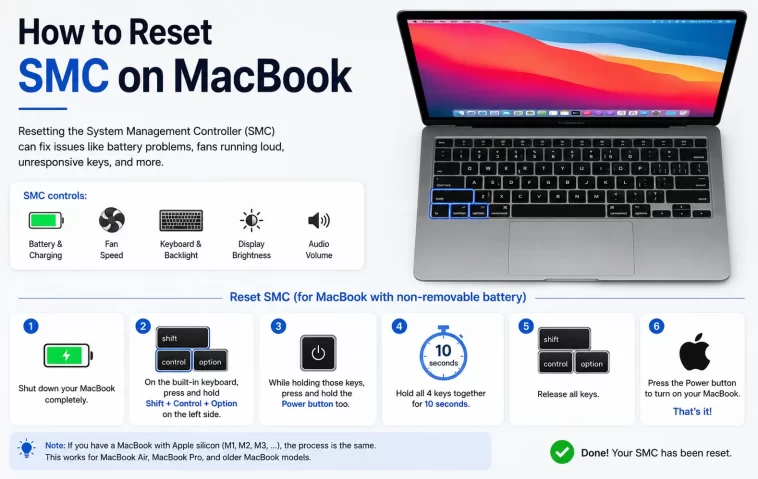
- Intel MacBooks (with T2 chip): Shut down, then hold Left Shift + Left Control + Left Option + power button for 10 seconds
- Intel MacBooks (no T2 chip, pre-2018): Shut down, hold Left Shift + Left Control + Left Option for 7 seconds, then add power button for another 7 seconds
- Apple Silicon MacBooks (M1 through M4 and later): There’s no SMC to reset — shut down completely, wait 30 seconds, power back on
- Not sure which chip you have? Apple menu > About This Mac tells you instantly
- SMC reset fixes power, battery, fan, and charging quirks — it won’t fix software crashes or app freezes
Why This Confuses Almost Everyone
Here’s the thing that trips people up: SMC (System Management Controller) is a physical chip that existed in every Intel Mac, handling power delivery, battery charging behavior, thermal management, and the fans. When Apple moved to Apple Silicon starting in 2020, that dedicated chip went away. The functions it used to handle got absorbed into the M-series chip itself, and Apple didn’t give users a manual reset combo for it.
And that’s not really an oversight — Apple Silicon manages power completely differently at a firmware level, so there isn’t really an equivalent “stuck state” that a key combo would clear. Most forum posts and even some tech sites still list Intel-era instructions without checking which chip the reader has, which is how a lot of people end up holding a dead key combination on their M2 Air for ten minutes wondering why nothing’s happening. It won’t do anything. It won’t hurt anything either, but it’s a waste of your time.
Intel vs Apple Silicon: What Actually Happens
| Intel Mac (T2 chip) | Intel Mac (no T2) | Apple Silicon (M1–M4+) | |
|---|---|---|---|
| Has a physical SMC | Yes | Yes | No |
| Reset method | Key combo, 10 sec | Key combo, 7+7 sec | Full shutdown + 30 sec wait |
| Fixes fan/charging issues | Yes | Yes | Rarely needed — usually a restart alone resolves it |
| Risk of data loss | None | None | None |
| Common misdiagnosis | Confused with T2-less combo | Confused with T2 combo | People trying key combos that don’t exist on this hardware |
Step-by-Step: Resetting SMC on Intel MacBooks
Step 1: Check If You Have a T2 Chip
Apple menu > About This Mac. If it lists “Processor” (not “Chip”), you’re on Intel. To check for T2 specifically — most Intel MacBooks from 2018 onward have it, but not all. If you’re not sure, the 10-second method below is safe to try regardless; it just won’t do anything extra if there’s no T2.
Step 2: Shut Down Completely
Apple menu > Shut Down. Don’t just close the lid — you need a full power-off.
Step 3: Hold the Key Combination
For MacBooks with the T2 chip: Hold Left Shift + Left Control + Left Option and the power button together for 10 seconds. Release everything, wait a few seconds, then press the power button normally to turn it back on.
For older MacBooks without T2 (2017 and earlier): Hold Left Shift + Left Control + Left Option for 7 seconds. While still holding those three, add the power button and hold all four for another 7 seconds. Release, then power on normally.
Step 4: Confirm It Worked
There’s no confirmation message. If you had a MagSafe adapter plugged in, its LED sometimes flickers or changes color briefly during the reset — that’s the only real-time sign you’ll get. Otherwise, just check whether the original symptom (fan noise, charging issue, etc.) is gone after a restart.
Step-by-Step: The Apple Silicon “Equivalent”
This isn’t technically an SMC reset since there’s no SMC — but it does the same practical job.
Step 1: Shut Down Fully
Apple menu > Shut Down, and actually let it finish powering off completely.
Step 2: Wait 30 Seconds
Not 5, not 10 — give it the full 30. From what I’ve seen, cutting this short sometimes doesn’t clear whatever transient state was causing the issue.
Step 3: Power Back On
Press the power button like normal. That’s genuinely the whole process. If the issue was software-adjacent rather than a real power-management glitch, this step alone often resolves it anyway, since it’s effectively a cold boot.
What Actually Worked For Me
Back to that fan issue — I tried the obvious stuff first. Closed every app, checked Activity Monitor for a runaway process (nothing unusual), even reset NVRAM just in case, which did nothing. I’ve got an M2 Pro MacBook Pro, so technically there was no SMC reset to even try, but I did it anyway out of habit, holding a key combo that — as I now know — doesn’t do anything on this hardware.
What actually fixed it was embarrassingly simple: full shutdown, waited the 30 seconds, powered back on, and the fan behaved normally from that point. Turned out (I found this out later from a coworker who’d hit the same thing) it was likely a stuck sensor reading from a Bluetooth accessory reconnecting weirdly after sleep. Not something I would’ve guessed on my own.
Advanced Fixes and Edge Cases
If fan noise persists after the reset, check Activity Monitor’s CPU tab sorted by % CPU — sometimes it’s a background process like mds (Spotlight indexing) or WindowServer pegging a core, which looks like a hardware fan problem but isn’t one.
For persistent charging issues on Apple Silicon that a shutdown/wait doesn’t fix, check System Settings > Battery > Battery Health. A degraded battery can mimic SMC-type symptoms — erratic percentage readings, sudden shutdowns — but no reset fixes a worn-out battery.
On Intel Macs, if the key combo does nothing at all, it’s sometimes a keyboard issue rather than an SMC issue — try an external USB keyboard to rule that out before assuming the reset failed.
Checking System Information for SMC version (Intel only): hold Option while clicking the Apple menu > System Information > Controller, under Hardware. If it doesn’t list an SMC version at all, you likely don’t have one to reset, chip generation notwithstanding.
Prevention Tips
- Don’t reset SMC as a first troubleshooting step — it’s specifically for power/fan/battery symptoms, not general slowness or app crashes
- Keep firmware and macOS updated; a lot of power-management bugs get patched over time
- On Apple Silicon, a stuck fan or heat issue is more often a background process than hardware — check Activity Monitor before assuming you need a reset
- Avoid running MacBooks face-down or on soft surfaces that block vents, especially under load
FAQ
Does resetting SMC delete my files? No. Zero risk to your data either way.
Why doesn’t the SMC reset combo do anything on my M3 MacBook? Because there’s no SMC chip on Apple Silicon — the combo simply doesn’t exist on that hardware. Shutdown + 30 second wait is the actual equivalent.
How often should I reset SMC? Only when you’re seeing power, battery, charging, or fan symptoms. It’s not routine maintenance.
Will this fix my MacBook not turning on at all? Sometimes, on Intel models — it’s worth trying before assuming a hardware failure. On Apple Silicon, if a full shutdown/restart cycle doesn’t help, that points toward an actual hardware problem rather than a firmware glitch.
Is NVRAM reset the same thing? No, different subsystem — NVRAM handles things like startup disk selection and display resolution, SMC handles power and thermal. People often confuse them because the symptoms sometimes overlap.
Editor’s Opinion
people really need to stop copy pasting the same SMC instructions for every mac regardless of chip, thats how you end up holding a key combo for ten minutes that literally does nothing. check what chip you have first, takes five seconds, saves you the confusion. and if your apple silicon mac is still acting up after the shutdown/wait thing, its probably not an smc issue at all — go look at activity monitor before you blame the hardware
