You just upgraded to a Wi-Fi 6 router expecting faster speeds, and instead Windows throws “Wi-Fi doesn’t have a valid IP configuration” at you the moment you connect. I hit this exact thing after switching to a Wi-Fi 6 mesh setup last year, and it turned out to have almost nothing to do with the router being broken. So before you factory reset everything, here’s what’s actually causing it and what tends to fix it.
Quick Answer
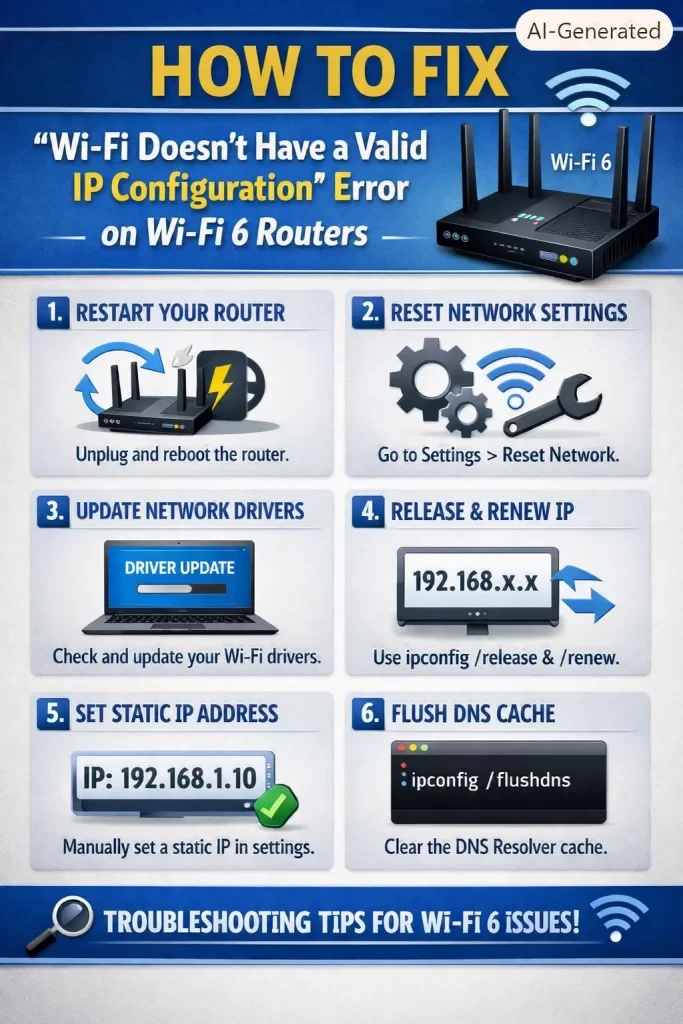
Try these first, in order:
- Run
ipconfig /releasethenipconfig /renewin an elevated Command Prompt - Update your Wi-Fi adapter driver — this is the single biggest cause on Wi-Fi 6 routers specifically
- Disable then re-enable the 802.11ax (Wi-Fi 6) mode on the router temporarily to confirm it’s the culprit
- Flush DNS and reset the TCP/IP stack with
netsh int ip reset - Check that the router’s DHCP range isn’t full or misconfigured
That handles most cases. Keep reading for the deeper stuff if it doesn’t.
Why It Fails
This error means your device connected to the Wi-Fi network at the radio level but never got assigned an IP address from DHCP. That’s a subtly different problem than “can’t connect to Wi-Fi,” and it matters because it points you toward network configuration rather than signal strength.
On Wi-Fi 6 routers specifically, from what I’ve seen, there are a few causes that show up more often than on older routers:
1. Driver incompatibility with 802.11ax. A lot of older Wi-Fi adapters technically “support” Wi-Fi 6 routers by falling back to 802.11ac, but the driver handling that handshake is sometimes buggy enough that DHCP negotiation just doesn’t complete. This is way more common than people expect, especially on adapters that got a Wi-Fi 6 “compatibility” driver update rather than a proper rewrite.
2. Target Wake Time (TWT) conflicts. This is a Wi-Fi 6 specific power-saving feature, and but it’s also one of the more common causes on this router generation. Some client devices negotiate TWT badly with certain router firmware, and the connection stalls right at the DHCP lease stage.
3. DHCP pool exhaustion or IP conflicts. Not unique to Wi-Fi 6, but more noticeable because these routers often support way more simultaneous devices, and default DHCP pools (commonly 50 or 100 addresses) fill up faster than people realize.
4. Channel width negotiation issues. Wi-Fi 6 routers default to wider channels (80MHz or 160MHz) for speed. Some adapters handle the initial connection fine but choke when the router tries to renegotiate channel width mid-session, dropping the IP lease in the process.
And here’s the cause almost nobody checks first: router firmware that ships with a broken DHCP server implementation out of the box. This happened on a batch of early Wi-Fi 6 routers from a couple of manufacturers — the router worked fine for wired clients but handed out garbage leases over Wi-Fi until a firmware patch fixed it weeks later. If you just bought the router, check for a firmware update before touching anything on your PC.
Common Scenarios
- Right after setting up a new Wi-Fi 6 router or mesh system for the first time
- On older laptops with adapters that only got a driver “patch” for Wi-Fi 6 compatibility, not a native rewrite
- Networks with 15+ connected devices (smart home stuff adds up fast)
- After a router firmware update that changed default channel width settings
- Dual-band setups where the device keeps switching between 2.4GHz and 5GHz and loses its lease mid-switch
Technical Comparison Table
| Cause | Typical Symptom | Fix Difficulty | Recurs After Reboot? |
|---|---|---|---|
| Outdated Wi-Fi driver | Works on other networks, fails only here | Medium | Often, until driver updated |
| TWT negotiation issue | Connects, drops IP after a few seconds | Medium | Yes, until TWT disabled |
| DHCP pool full | New devices can’t connect, old ones fine | Easy | Yes, until pool expanded |
| Router firmware bug | All Wi-Fi clients affected, wired is fine | Easy (update firmware) | No, once patched |
Step-by-Step Fixes
Step 1: Release and renew the IP
Open Command Prompt as admin and run:
ipconfig /release
ipconfig /renew
If this fails immediately with an error, that’s actually useful — it tells you DHCP isn’t reachable at all, which points more toward router-side issues than driver issues.
Step 2: Update the Wi-Fi adapter driver
Go to Device Manager → Network adapters → your Wi-Fi card → Update driver. But don’t just use Windows Update here — go to the adapter manufacturer’s site (Intel, Realtek, Qualcomm, whoever made the chip) and grab the specific driver built for Wi-Fi 6 routers. This step alone fixes a surprising number of cases.
Step 3: Test with TWT disabled
Log into your router admin panel, find the Wi-Fi 6 / 802.11ax settings, and look for Target Wake Time. Disable it temporarily. Reconnect and see if the IP issue goes away. If it does, you’ve found your cause — you can leave TWT off (minor battery impact on laptops/phones) or wait for a firmware/driver update that handles it better.
Step 4: Reset TCP/IP stack
netsh int ip reset
netsh winsock reset
ipconfig /flushdns
Reboot after running these. This clears out a genuinely corrupted network stack, which does happen more often than you’d think after driver updates gone wrong.
Step 5: Check the DHCP pool size
In the router admin panel, find the DHCP settings (usually under LAN or Network settings) and check the address range. If you’ve got 15+ devices and the pool is set to the default 50, bump it to 100 or more, or set a longer lease time so addresses aren’t getting recycled and colliding.
What Actually Worked For Me
So for me, it wasn’t quick. I spent a solid evening on this — updated the driver twice (once from Windows Update, which didn’t help, then from Intel’s own site, which also didn’t help), reset the TCP/IP stack, flushed DNS, the usual checklist. None of it touched the problem.
What ended up fixing it was almost embarrassing: a coworker mentioned offhand that his identical router had a firmware update specifically addressing “Wi-Fi 6 client DHCP handling,” and I hadn’t even checked for a firmware update because the router was brand new — I assumed new meant current. It wasn’t. Updated the firmware, rebooted, and every device connected clean on the first try.
That’s not a satisfying story, and it’s definitely not the “systematic troubleshooting” narrative you see in most guides. But it’s what happened.
Advanced Fixes and Edge Cases
Check the router’s system log for DHCP errors. Most Wi-Fi 6 routers have a system log under Administration or Advanced settings. Look for repeated DHCP request entries without a corresponding “lease assigned” line — that’s a clear sign the router’s DHCP server is choking, not your device.
Use Event Viewer to check for driver resets. On the Windows side, Event Viewer → Windows Logs → System, filter for Event ID 4201/8003 (network adapter reset events). Frequent resets during connection attempts point to a driver crash loop rather than a router config issue.
Static IP as a diagnostic tool, not a permanent fix. Assign a static IP manually (matching your router’s subnet) to see if the device connects and gets internet access. If it works fine with a static IP, the problem is 100% DHCP-related, not a broader network or driver failure — that narrows things down fast.
Check for MU-MIMO and beamforming conflicts. On some router models, disabling MU-MIMO temporarily (found under advanced wireless settings) has resolved DHCP-stalling issues for older client adapters that don’t handle the newer antenna negotiation correctly. It’s not common, but it’s worth trying if everything else fails.
Fixes That Rarely Work (But Get Recommended a Lot)
“Just forget the network and reconnect” gets suggested everywhere for this error, and in my experience it almost never fixes anything beyond a temporary glitch — if the root cause is a driver or firmware issue, forgetting and reconnecting just recreates the same failed handshake. Same goes for changing the Wi-Fi password; that addresses authentication, not DHCP, and this error happens after authentication already succeeded.
Prevention Tips
- Check for router firmware updates immediately after setup, not just when something breaks
- Keep Wi-Fi adapter drivers current, pulled from the manufacturer’s site rather than Windows Update
- Set DHCP lease times appropriately for your device count — shorter leases recycle faster but cause more renewal traffic
- If you’ve got a smart-home-heavy network, expand the DHCP pool proactively instead of waiting for it to fill up
FAQ
Is this a router problem or a computer problem? Could be either. Test with a different device on the same network — if it also fails, lean router-side; if only one device fails, it’s that device’s driver.
Does resetting the router to factory settings fix it? Sometimes, but it’s a blunt fix and you lose all your custom settings. Try the driver and firmware updates first.
Why does this only happen on Wi-Fi 6 and not my old router? Wi-Fi 6 introduces new negotiation steps (TWT, wider channels, MU-MIMO enhancements) that older drivers weren’t built to handle cleanly. That’s the short version.
Can a VPN cause this error? Rarely, but a VPN client with a broken virtual adapter can interfere with DHCP on the physical adapter. Worth disabling temporarily to rule it out.
Will switching to 5GHz-only help? Sometimes, yes — if the issue is specifically tied to Wi-Fi 6 negotiation on the combined 2.4/5GHz band, forcing 5GHz-only (or disabling 802.11ax mode entirely) can bypass it while you wait for a proper fix.
Editor’s Opinion
This one’s annoying because it looks like a router problem but half the time it’s a driver that got “updated” for Wi-Fi 6 compatibility without anyone actually testing DHCP behavior properly. Check firmware first, even on a brand new router — that’s the step everyone skips, including me. Your mileage may vary depending on your specific adapter, but that’s where I’d start.
