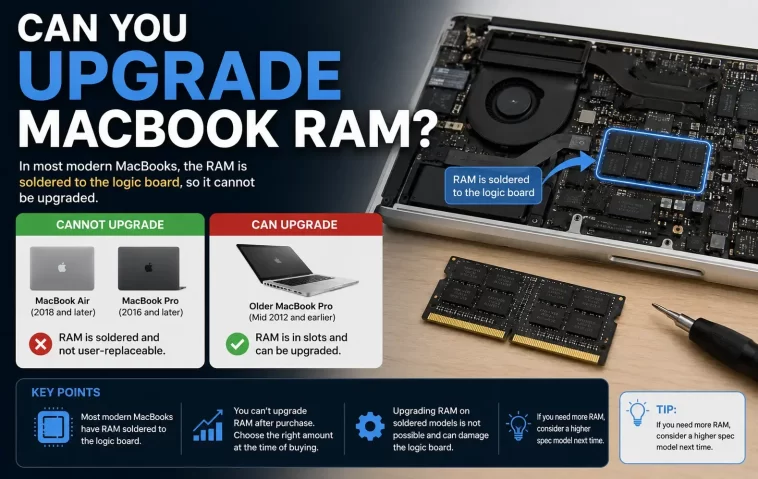
I almost bought a 8GB M2 MacBook Air a couple years back thinking I’d just “add more RAM later” if I ran into trouble. So can you upgrade MacBook RAM? Short answer: on basically every Mac made in the last several years, no — the memory is soldered right onto the chip, and there’s no slot, no panel, no workaround. If you’ve got an old pre-2012 MacBook Pro, that’s a different story, and I’ll get to it.
Quick Answer
- Apple Silicon MacBooks (M1 through M4/M5): RAM is not upgradeable, period. It’s part of the chip package itself.
- MacBook Air, any generation: RAM has been soldered since the very first model in 2008.
- MacBook Pro Retina and later (2012 onward): Soldered, not user-replaceable.
- Pre-2012 MacBook / MacBook Pro (non-Retina): These had actual SO-DIMM slots and could be upgraded.
- Your only real options on a modern Mac: buy the RAM configuration you need up front, or offload memory pressure with external tools and better habits.
Why It Fails (Or Rather, Why It’s Not Even Possible)
Here’s the thing that trips people up — they’re thinking about RAM the way it worked on Windows laptops or older Macs, where you pop open a hatch, pull out a stick, and slide in a bigger one. That world basically doesn’t exist anymore on the Mac side.
Cause 1: Unified Memory Architecture. Since the M1 chip launched in 2020, Apple stopped treating RAM as a separate component. Instead, the memory is built into the same package as the CPU, GPU, and Neural Engine, all sharing one pool. It’s genuinely a smart design for performance — the GPU and CPU aren’t shuffling data back and forth between separate memory pools like on a PC with a discrete graphics card. But the tradeoff is that the RAM amount gets locked in at the moment you check out on Apple’s website.
Cause 2: Soldering, not slots. Even before unified memory, Apple had already moved to soldering RAM chips directly onto the logic board in most models starting around 2012 with the Retina MacBook Pro line. So it’s not just an Apple Silicon thing — Intel-based MacBooks from roughly 2012 onward already had this problem, just without the unified memory piece.
Cause 3: Design priorities around thinness and battery life. Soldered memory sits closer to the processor, uses shorter traces, and needs less board space than a socketed module. That’s part of how Apple gets away with a thinner chassis and better battery efficiency. And honestly, it works — M-series Macs get genuinely great battery life partly because of how tight this integration is. But it’s a one-way door.
Cause 4 (the one people miss): Even the SSD storage on most post-2018 Macs is soldered too, and people conflate “can I add RAM” with “can I add storage” — they’re both no on modern hardware, but for slightly different technical reasons and with different repair-shop workarounds available.
MacBook RAM Upgradeability by Generation
| MacBook Type | Years | RAM Upgradeable? | Notes |
|---|---|---|---|
| MacBook / MacBook Pro (non-Retina) | Up to ~2012 | Yes | SO-DIMM slots, straightforward swap |
| MacBook Air (all generations) | 2008–present | No | Soldered since day one |
| MacBook Pro Retina/Touch Bar (Intel) | 2012–2020 | No | Soldered to logic board |
| MacBook Pro/Air (M1–M4/M5) | 2020–present | No | Unified memory, built into chip package |
Not every row here needed a “workaround” column because, honestly, for three out of four there just isn’t one worth mentioning.
Step-by-Step: What To Actually Do About It
Step 1: Figure out exactly which Mac you have
Go to the Apple menu > About This Mac. Note the chip (M1, M2, M3, M4, or Intel) and the year. This determines everything else — don’t skip it, because “MacBook Pro” alone tells you nothing useful.
Step 2: If it’s Apple Silicon or a 2012+ model, stop looking for a RAM upgrade kit
I know it’s tempting to search “MacBook RAM upgrade kit” and see what pops up on Amazon. Don’t bother. Third-party RAM sticks that claim compatibility with modern MacBooks are either scams, RAM for a totally different (older) Mac, or storage upgrades mislabeled as RAM. There is no legitimate aftermarket RAM upgrade for these machines.
Step 3: If you’re still shopping, buy more RAM than you think you need
This is the step that actually matters. Since you can’t add memory later, treat the RAM decision at checkout like you’re buying for the next 5-6 years, not the next 1-2. Going from 8GB to 16GB is usually the single best money you can spend on a new MacBook — often more impactful than a CPU bump.
Step 4: If your Mac is pre-2012 and does have slots, check compatibility carefully
Look up the exact model number (found on the bottom case or under About This Mac > System Report) and match it against the SO-DIMM type it supports — usually DDR3 for these older machines. Crucial and OWC are the two brands I’ve had good luck with for this specific job.
Step 5: Reduce memory pressure through software instead
If upgrading isn’t an option, Activity Monitor (Applications > Utilities) will show you Memory Pressure under the Memory tab. If it’s sitting in yellow or red, close background apps, especially Chrome tabs and Electron apps like Slack or Discord, which eat memory disproportionately compared to native Mac apps.
What Actually Worked For Me
So when I bought my current MacBook Air, I almost went with 8GB to save $200, figuring I’d “manage.” A friend who does video editing talked me out of it, and honestly I’m glad he did — not because I do anything remotely close to what he does, but because within about two months of normal use (a dozen Chrome tabs, Slack, Spotify, a couple of Docker containers for testing) I was already seeing beachballs on 8GB test units at the Apple Store when I went back to compare.
I ended up going with 16GB. That’s not really a “fix” story in the traditional sense since there’s nothing to fix after the fact — the whole lesson here is that the fix has to happen before you buy, not after. My first instinct, for what it’s worth, was to assume swap memory (macOS’s virtual memory on the SSD) would just quietly handle the overflow and nobody would notice. That’s not entirely accurate — it does help, but heavy reliance on swap wears on the SSD over time and slows things down noticeably once you’re deep into swap usage, so it’s a band-aid, not a real substitute for physical RAM.
Advanced Fixes and Edge Cases
Checking real memory pressure via Terminal: Activity Monitor is fine for a glance, but vm_stat in Terminal gives you raw page-in/page-out numbers if you want to actually see swapping happen in real time. Rising “pageouts” while you’re working is your Mac telling you it’s under memory pressure.
External GPU/eGPU misconception: Some people think an eGPU setup effectively adds memory since it has its own VRAM. It doesn’t help with system RAM constraints at all — it’s a separate memory pool for graphics workloads only, and on Apple Silicon Macs eGPU support is limited anyway.
Logic board swaps: Technically, a repair shop can swap an entire logic board for one with more built-in RAM, since the RAM lives on that board. This isn’t really an “upgrade” though — it’s closer to buying a new Mac’s guts and stuffing them in your old case, and the labor cost plus board cost usually approaches or exceeds buying a new machine outright. Not something I’d recommend unless the logic board already needs replacing for another reason.
External storage as a memory pressure workaround: This is the overlooked one. If your memory pressure issues are actually storage-related (SSD nearly full triggers additional swap thrashing), freeing up SSD space with an external Thunderbolt drive for large files can indirectly ease memory pressure symptoms, even though it’s not a RAM fix.
Prevention Tips
- Buy the RAM tier you’ll need in year 4 or 5, not year 1.
- Keep at least 15-20% of your SSD free — a nearly-full drive makes swap-based memory management worse.
- Watch Activity Monitor’s Memory Pressure gauge occasionally, not just when things feel slow.
- Be skeptical of any listing claiming to sell “RAM upgrades” for M-series MacBooks. From what I’ve seen, these listings are almost always for older Intel Macs or are flat-out misleading.
- If you’re between two RAM configurations at checkout and money is tight, prioritize RAM over storage in most cases — external SSDs are cheap and easy; external RAM doesn’t exist.
FAQ
Can I upgrade RAM on a MacBook Air M1, M2, or M3? No. All of them have soldered, non-upgradeable unified memory. No exceptions across any Air generation with Apple Silicon.
Is there any MacBook Pro with upgradeable RAM still being sold? No, not currently. Every MacBook Pro Apple sells today uses Apple Silicon with unified memory.
Does adding an external SSD help with RAM problems? Indirectly, sometimes — mostly by freeing up space for macOS’s swap file to work with, but it’s not a substitute for physical RAM.
Will closing background apps actually make a real difference? Yes, more than people expect. Chrome and Electron-based apps (Slack, Discord, VS Code) are memory hogs relative to native macOS apps — closing a handful of these can meaningfully lower memory pressure.
Can a repair shop physically add RAM chips to a MacBook logic board? Not in any practical or supported sense. The chips are part of the SoC package on modern Macs — this isn’t a soldering job, it’s manufacturing-level integration.
Should I buy 8GB or 16GB for a MacBook I’ll keep 5+ years? 16GB, pretty much across the board at this point, unless you’re on an extremely tight budget and only doing browser and document work.
Editor’s Opinion
honestly this whole soldered ram thing annoys me more than it probably should. i get the performance argument, unified memory is genuinely fast, but locking a life decision behind a checkout page with zero do-overs feels rough for a $1000+ purchase. my advice is always the boring one — buy more ram than you think you need, because “later” isnt a real option anymore. thats really it, theres no clever trick here, just spend the extra $200 up front and dont think about it again.
