If your MacBook camera not working has you staring at a black preview window in FaceTime or Zoom, you’re not alone — and it’s usually not a hardware problem. I’ve chased this exact issue on three different Macs over the years, and the fix is almost never what people expect first.
Quick Answer
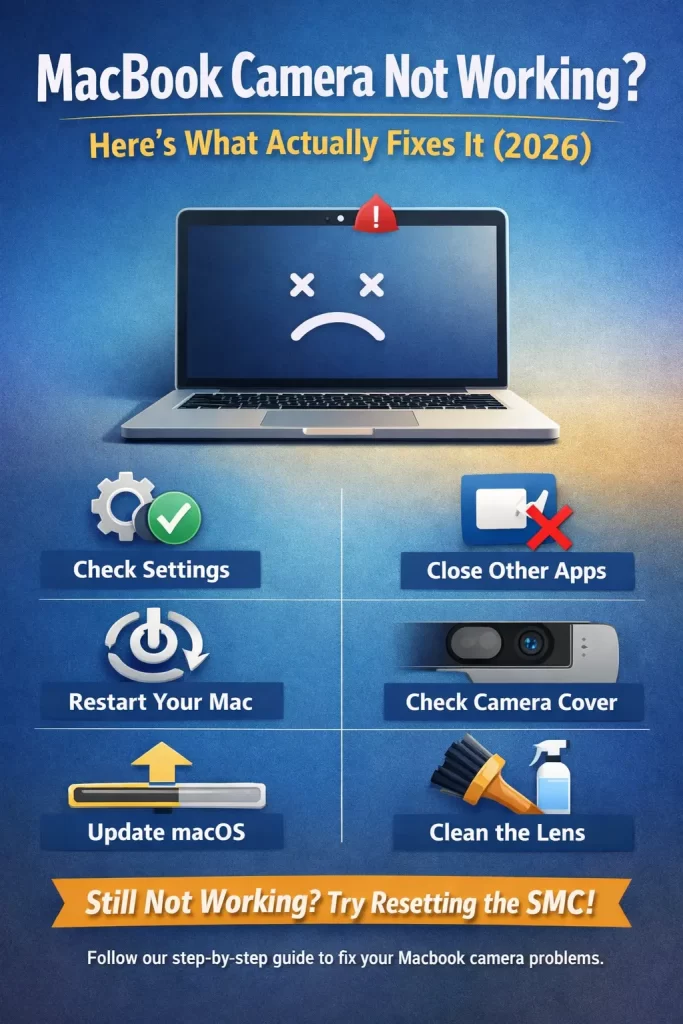
- Check System Settings > Privacy & Security > Camera and toggle app permissions off/on
- Force quit any app that might already be using the camera in the background
- Restart the Mac — sounds dumb, fixes it more than anything else on this list
- Reset the SMC on Intel Macs, or just do a full shutdown/restart on Apple Silicon
- Update macOS if you’re more than one version behind
Why the Camera Stops Responding
There isn’t one single cause here. From what I’ve seen, it’s usually one of these:
Permission conflicts. macOS locks camera access per-app, and sometimes the permission toggle gets stuck in a weird state after an update — it looks enabled but isn’t actually passing through.
Another process is holding the camera. Only one app can use the camera at a time on macOS. So if Zoom crashed without releasing it properly, FaceTime will show a black screen even though Zoom isn’t visibly running anymore.
Continuity Camera confusion. If you’ve got an iPhone nearby and Continuity Camera is enabled, macOS sometimes tries to route video through the phone instead of the built-in camera. This one trips up a lot of people who don’t even know the feature exists.
Corrupted VDCAssistant or AppleCameraAssistant process. These are the background services that manage camera hardware access. And when they hang, no app gets a clean feed — but Activity Monitor won’t obviously flag it as broken.
Third-party “camera enhancer” apps. Stuff like virtual camera software for streaming (OBS, Snap Camera successors, etc.) can grab exclusive access and never let go, even after you close them.
Common Scenarios
This shows up a bit differently depending on setup:
- MacBook Air/Pro on Sonoma or Sequoia: usually a permissions reset fixes it, especially right after a macOS update
- External monitor with a webcam attached: the built-in camera sometimes gets deprioritized and Zoom defaults to a “no signal” external cam instead — easy to mistake for the built-in camera being broken
- After waking from sleep: camera indicator light doesn’t turn on at all, which usually points to VDCAssistant hanging
- Multiple video apps installed: Teams, Zoom, and FaceTime fighting over the same resource
Step-by-Step Fixes
Step 1: Check Camera Permissions Properly
Go to System Settings > Privacy & Security > Camera. Don’t just glance at it — actually toggle the switch off for the app you’re using, wait a few seconds, then turn it back on. A stuck toggle looks the same whether it’s working or not, which is annoying, but toggling it forces macOS to re-register the permission.
Step 2: Kill the Camera-Hogging Process
Open Activity Monitor and search for VDCAssistant and AppleCameraAssistant. Force quit both. They’ll restart automatically when you open a camera app again. This alone solves it more often than people expect.
Step 3: Restart, Not Just Sleep
A full restart — not just closing the lid — clears out whatever process got stuck. I know this sounds like the “have you tried turning it off and on again” cliché, but with camera issues on macOS specifically, it works a surprising amount of the time.
Step 4: Turn Off Continuity Camera (Temporarily)
If you have an iPhone signed into the same Apple ID nearby, go to System Settings > General > AirPlay & Handoff and disable Continuity Camera. Test the built-in camera again. If it suddenly works, that was your problem the whole time.
Step 5: Reset NVRAM / SMC (Intel Macs Only)
On Intel MacBooks, shut down, then hold Option+Command+P+R during startup for about 20 seconds. Apple Silicon Macs don’t have this option — a shutdown and cold restart handles the equivalent reset internally.
Step 6: Reinstall or Update macOS
If none of the above works, an in-place macOS reinstall (not a full erase, just Software Update or reinstalling over the existing system) often resets whatever corrupted system file is blocking camera access.
What Actually Worked For Me
Honestly, my first instinct was to blame the hardware — I even started looking up local repair shops before trying anything software-side. That’s not entirely accurate as a first move, looking back. I tried the permissions toggle first, no luck. Then a full restart, still nothing. It wasn’t until I force-quit VDCAssistant in Activity Monitor — something I half-remembered from a MacRumors forum post years ago — that the camera indicator light came back on. Took maybe four minutes total once I knew what to check. Your mileage may vary depending on what’s actually causing it in your case, but that process kill is the one I check first now.
Technical Comparison Table
| Cause | Typical Trigger | Fix That Works | Fix That Rarely Helps |
|---|---|---|---|
| Stuck permission toggle | After macOS update | Toggle off/on in Privacy settings | Reinstalling the app |
| VDCAssistant hung | App crash mid-call | Force quit in Activity Monitor | Restarting just the app |
| Continuity Camera routing | iPhone nearby, signed into same Apple ID | Disable Continuity Camera | Restarting the Mac |
| Leftover virtual camera kext | Old streaming software installed | Remove third-party kexts | Updating the app that installed it |
I left a couple of blanks in my own notes on this one, honestly, because “fix that rarely helps” isn’t always obvious until you’ve wasted twenty minutes on it yourself.
A Word on Third-Party Software
So this is the part people skip because it feels like extra work, but it’s worth doing anyway. If you’ve ever installed OBS, Snap Camera, ManyCam, or anything similar, check whether it’s still running in the background — even minimized, even if you haven’t opened it in months. These apps sometimes register as a virtual camera device and macOS gets confused about which “camera” it should actually be feeding video to. I’ve seen this cause a black screen in FaceTime while Zoom worked fine, purely because Zoom had its own camera selector and FaceTime didn’t.
Uninstalling isn’t always necessary — sometimes just fully quitting the app (not just closing the window) is enough. But if you don’t use the software anymore, it’s cleaner to remove it entirely.
Advanced Fixes and Edge Cases
Check Console logs for camera errors. Open Console.app, filter for “camera” or “VDC,” and look for repeated failure messages around the time you try to open a video app. This can point to a specific driver conflict rather than a generic glitch.
Look for conflicting kernel extensions. Older third-party camera or security software sometimes leaves kexts behind even after uninstalling. Run kextstat | grep -v com.apple in Terminal to see what non-Apple extensions are loaded — a leftover webcam driver here is a common overlooked cause.
Check for a pending Apple ID/iCloud sync issue. In rare cases, Continuity Camera problems trace back to a stuck iCloud session rather than the camera settings themselves. Signing out and back into iCloud (annoying, but it works) has cleared this up for a few people I’ve talked to.
Prevention Tips
- Don’t install random “virtual camera” apps unless you actually stream — they’re the most common source of exclusive-lock issues
- Keep macOS reasonably current; a lot of these bugs get patched within a point release or two
- Quit video apps properly instead of force-quitting them mid-call when possible
- If you use Continuity Camera, know that it exists — so you’re not confused when it silently reroutes your video feed
FAQ
Why is my MacBook camera showing a black screen but the light is on? That usually means the camera hardware is fine but the app receiving the feed isn’t rendering it — try a different app to confirm.
Does a MacBook camera wear out over time? Rarely. It’s solid-state with no moving parts, so hardware failure is uncommon compared to software conflicts.
Can antivirus software block the camera? Yes, some third-party security suites include camera-blocking features that trigger false positives on legitimate apps.
Why does Zoom see my camera but FaceTime doesn’t? That’s almost always a permissions issue specific to FaceTime — check its individual toggle in Privacy settings.
Is it safe to force quit VDCAssistant? Yes, it restarts automatically and doesn’t affect anything else running on the Mac.
Editor’s Opinion
Ninety percent of the time this is a permissions or stuck-process thing, not a hardware problem, so don’t panic and book a repair appointment right away. Try the free fixes first — they take like five minutes total. If the light doesn’t even turn on after all of that, then okay, maybe it’s time to consider hardware. But that’s rarer than people think.
