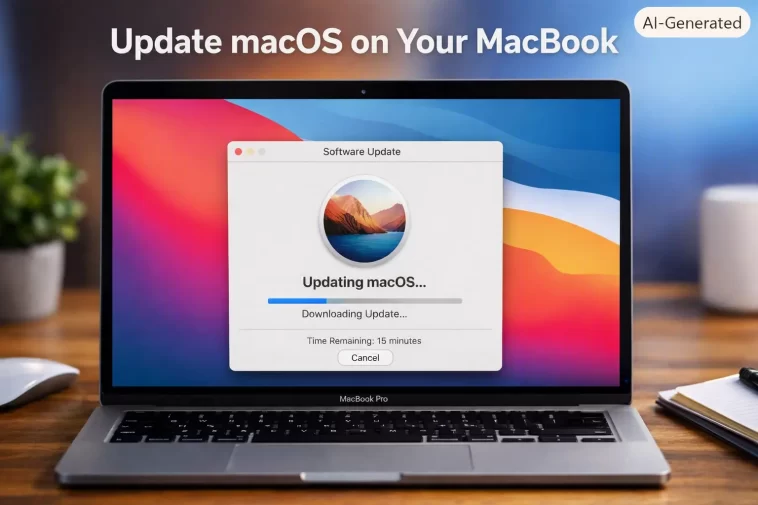
I put off updating my MacBook for almost six months once, convinced an update would break something that was already working fine. It didn’t — but then a security patch I actually needed showed up, and I had to figure out how to update macOS the right way in a hurry. So here’s the full process, plus what to do when it stalls, which happens more than Apple would probably like to admit.
Quick Answer
- Go to Apple menu > System Settings > General > Software Update.
- Click Update Now (or Upgrade Now for a full new macOS version, like moving to Tahoe 26).
- Make sure you’re plugged into power and have at least 20-30GB free storage before starting.
- If it gets stuck, restart the Mac and try again before assuming something’s broken.
- Current macOS as of mid-2026 is Tahoe 26, with macOS 27 arriving later this year — Tahoe is also the final version to support Intel Macs.
Step-by-Step: Updating macOS
Step 1: Open System Settings
Apple menu (top left corner) > System Settings. Click General in the sidebar.
Step 2: Click Software Update
macOS checks in the background automatically most of the time, but clicking here forces an immediate check instead of waiting.
Step 3: Review what’s available
You might see two different things here — a smaller point update (like 26.5.1 to 26.5.2) which is usually just bug fixes and security patches, or a full version upgrade (like Sonoma to Tahoe) which brings new features and a bigger download.
Step 4: Click Update Now or Upgrade Now
Update Now applies to the smaller point releases. Upgrade Now is for moving to an entirely new major macOS version. And honestly, don’t confuse the two — Upgrade Now downloads way more data and takes considerably longer.
Step 5: Enter your password and wait
You’ll be asked for your admin password partway through. After that it’s mostly waiting — small point updates might take 10-15 minutes, but a full version upgrade can easily run 45 minutes to over an hour depending on your internet speed and Mac model.
Step 6: Let it restart on its own
The Mac will restart, sometimes more than once for bigger updates. Don’t force a shutdown during this — let the progress bar finish.
Why Updates Get Stuck or Fail
Cause 1: Not enough free storage. This is probably the most common one. Big version upgrades genuinely need 20-30GB of breathing room, not just the download size itself, since the installer needs working space too. Check About This Mac > Storage before starting anything major.
Cause 2: Unstable Wi-Fi mid-download. A dropped connection partway through a multi-gigabyte download can leave things in a weird half-downloaded state. And this is way more common on unstable public or shared networks than people expect.
Cause 3: Third-party security software interfering. Some antivirus or firewall tools flag the update process itself, especially during full version upgrades. Temporarily disabling them (if you trust the source of the update, which in this case is just Apple directly) sometimes clears a stuck install.
Cause 4 (the one people miss): A pending update from months ago quietly conflicting with a new one. If you deferred updates for a long stretch, sometimes there’s a partially-downloaded older update sitting around that interferes with a newer one trying to install. Clearing the update cache (more on this below) usually resolves it.
Cause 5: Battery too low, or not plugged in. MacBooks specifically will sometimes refuse to proceed past a certain point in a big upgrade if the battery is under a certain threshold and it’s not connected to power — this is a safety measure, not a bug.
What Actually Worked For Me
That six-month delay I mentioned came back to bite me — when I finally tried updating, the download would get to about 80% and then just… stop. No error, no progress, just frozen at the same percentage for over 20 minutes.
I restarted, which is the obvious first move, and tried again. Same thing, stuck at almost exactly the same spot. So it wasn’t a fluke.
My next assumption was storage — I figured six months of accumulated junk had left me too tight on space. Checked About This Mac > Storage, and I actually had plenty of room, more than I expected honestly. That wasn’t it either.
What actually fixed it, and this took embarrassingly long to find, was clearing out the software update cache manually. In Terminal, sudo rm -rf /Library/Updates/* cleared whatever half-corrupted download was sitting there from an earlier attempt weeks back that I’d forgotten about. After that, the update downloaded cleanly on the first try. Not a clever discovery on my part — I found this in an old MacRumors forum thread while half-convinced my SSD was dying.
Advanced Fixes and Edge Cases
Clearing the update cache manually: As mentioned above, sudo rm -rf /Library/Updates/* in Terminal removes cached update files that can get corrupted or stuck. You’ll need your admin password for this. Worth trying before anything more drastic.
Checking install logs for the real error: Console.app (Applications > Utilities) can show detailed logs from the installer process if you search for “softwareupdated” while an update is running. Not the friendliest reading, but it’ll sometimes show the actual reason behind a generic-looking failure.
Using Recovery Mode’s built-in updater: If the Mac won’t update normally at all, restarting into Recovery Mode (Command+R at startup) and using “Reinstall macOS” from there installs a fresh version directly, sidestepping whatever’s wrong with the normal update path.
Battery and power requirements on newer Macs: Some larger updates specifically won’t proceed past a certain install stage below roughly 50% battery unless connected to a charger — worth checking if an update seems to just sit there with no visible reason.
NVRAM reset for persistent boot issues after an update: On Apple Silicon Macs this happens automatically on restart in most cases; on the rare occasion where an update leaves things behaving oddly, a full shutdown and restart typically resolves it without needing the older Intel-style NVRAM reset shortcut.
Prevention Tips
- Don’t defer updates indefinitely — security patches especially shouldn’t sit for months, and old pending updates can conflict with newer ones later.
- Keep at least 30GB of free storage as a general habit, not just before a big update.
- Update over a stable connection, ideally your own Wi-Fi rather than public networks, for anything beyond a small point release.
- Back up before any major version upgrade (Sonoma to Tahoe, for instance), even though these are generally reliable — it’s cheap insurance for a process that touches your entire system.
FAQ
Do I need to back up before every macOS update? For small point updates, not strictly necessary, though it’s never a bad habit. For full version upgrades, yes — back up first.
Why does my Mac say “No updates available” when I know a new version exists? Sometimes it’s staggered rollout timing on Apple’s end, sometimes your Mac isn’t compatible with that specific version. Check Apple’s compatibility list for the version in question against your Mac’s model and year.
Can I stop an update partway through? Not safely once it’s actually installing — force-quitting mid-install risks a corrupted system. You generally have to let it finish or fail on its own.
Is it safe to update to macOS Tahoe on an Intel Mac? Yes, for the specific 2019+ Intel models Apple still supports — but be aware Tahoe is confirmed as the last macOS version supporting Intel Macs at all, so plan for hardware eventually.
How much storage does a full macOS upgrade actually need? Generally recommend having 20-30GB free, even though the download itself might be smaller — the installer needs working room beyond just the final file size.
Editor’s Opinion
i genuinely dont get why apple doesnt show a clearer error when updates get stuck instead of just… sitting there at some random percentage forever. the update cache trick saved me and i wish id known about it 6 months earlier instead of just avoiding updates out of fear. dont be like past me, just update regularly and keep some storage free, its really not that dramatic most of the time.
