The first time I tried to add a printer to my MacBook, it just… didn’t show up. No error, no popup, nothing — the Add Printer window sat there empty like it was waiting for me to give up. So if you’re trying to figure out how to add a printer to MacBook and it’s not cooperating, you’re not doing anything wrong, this happens constantly.
Quick Answer
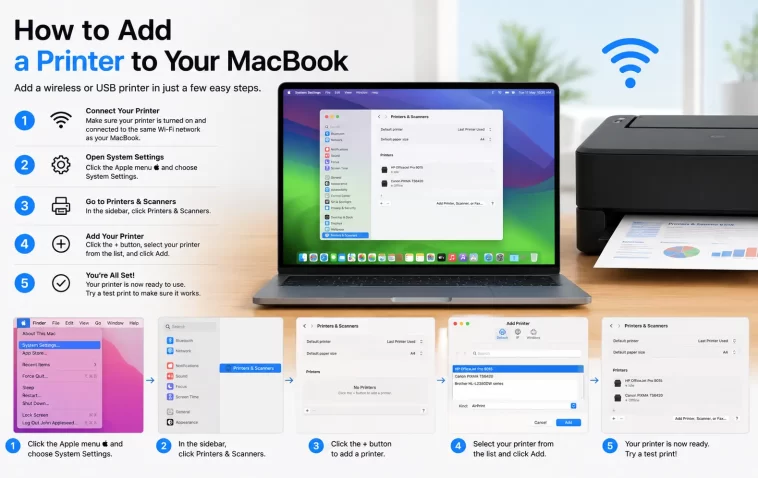
- Go to System Settings > Printers & Scanners > Add Printer, Scanner, or Fax
- If your printer is AirPrint-compatible, it should appear automatically on the same Wi-Fi network
- If it doesn’t show up, connect it via USB once to force macOS to detect and install drivers
- No AirPrint support? Download the manufacturer’s driver directly from their site, not the App Store
- Still invisible? Reset the printing system and start clean
That covers most people. If it didn’t fix things for you, keep reading — there’s usually a specific reason.
Why Printers Don’t Show Up on MacBook
There isn’t one single cause here. From what I’ve seen fixing this for myself and a couple of coworkers, it’s almost always one of these:
1. The printer and MacBook aren’t actually on the same network. This sounds obvious but it trips up more people than anything else. A lot of home routers run a separate guest network or a 5GHz/2.4GHz split, and if your printer only supports 2.4GHz (most cheap ones do) while your Mac hopped onto the 5GHz band, macOS simply can’t see it. They’re technically both “connected to Wi-Fi” but not on the same segment.
2. Bonjour/mDNS traffic is being blocked. macOS finds network printers using a discovery protocol called Bonjour. Some routers, especially ones with AP isolation or “smart” client isolation features enabled for security, block this kind of broadcast traffic between devices. Corporate and university networks do this on purpose.
3. Outdated or missing printer software. Even AirPrint printers sometimes need a small software update pushed through macOS before they’ll cooperate. And older printers that predate AirPrint need actual drivers, not just a network connection.
4. A corrupted print queue or printing system. This one’s less obvious. macOS keeps a background printing subsystem (CUPS) running, and if it gets into a weird state — usually from a printer being removed improperly or a driver crash — new printers won’t add cleanly even though everything else looks fine.
5. USB detection issues. For wired printers, a flaky USB-C hub or a cable that’s fine for charging but not for data can make the printer invisible to macOS even though it’s technically powered on and connected.
Common Scenarios
- Home Wi-Fi printer setup — usually AirPrint works out of the box, but band-mismatch issues (see above) are common
- Office or shared network printers — often blocked by IT security policies, need IP-based setup instead of automatic discovery
- Older USB-only printers — need a driver install, AirPrint won’t help here
- MacBook with only USB-C ports — dongle or hub quality actually matters more than people expect
Step-by-Step Fixes
Step 1: Confirm you’re on the same network
Check your Wi-Fi network name on both the MacBook and on the printer’s own screen or settings menu (most have a small display or a network status page you can print from the control panel). If your router has separate network names for 2.4GHz and 5GHz, connect your Mac to whichever one matches the printer, at least temporarily.
Step 2: Add the printer through System Settings
- Open System Settings
- Click Printers & Scanners in the sidebar (you might need to scroll)
- Click Add Printer, Scanner, or Fax
- Wait a few seconds — this part is slower than it should be, don’t assume it’s frozen
- Select your printer from the list and click Add
If it appears here, you’re basically done. macOS will pull the right driver automatically for AirPrint devices.
Step 3: Force detection with a USB cable
If nothing shows up on the network, plug the printer in directly with USB, even if you plan to use it wirelessly afterward. This forces macOS to recognize the hardware and often installs the correct software in the background. Once it’s added, you can usually switch it over to wireless from the printer’s own menu, then remove the USB cable.
Step 4: Install the manufacturer’s driver manually
Not every printer plays nice with AirPrint. Go to the manufacturer’s support site (HP, Canon, Epson, Brother — whichever you have), search your exact model number, and download the macOS driver package directly. Skip the bundled “smart” apps if you can; the standalone driver is usually more reliable and doesn’t nag you to sign in.
Step 5: Reset the printing system
This is the nuclear option, but it works surprisingly often:
- Go to Printers & Scanners
- Right-click (or Control-click) in the empty space of the printer list
- Choose Reset printing system
- Confirm — this wipes every printer you’ve added
- Add your printer again from scratch
What Actually Worked For Me
Honestly, my situation was the network-band thing. I spent close to forty minutes toggling AirPrint settings, restarting the printer, restarting the Mac, none of it did anything. And I was getting mildly annoyed, because the printer showed up fine on my phone the whole time, which made no sense until I checked which network my phone was actually using.
Turned out my phone was sitting on the 2.4GHz band by default and my MacBook had auto-joined the faster 5GHz one. Same router, same password, different actual network from the printer’s point of view. Once I forced the Mac onto the 2.4GHz SSID, the printer popped up in the Add Printer list within maybe five seconds. That’s not entirely a “fix” so much as just… understanding what was actually broken. Resetting the printing system beforehand didn’t hurt, but it wasn’t what solved it — the network match was.
Advanced Fixes and Edge Cases
Check CUPS directly. macOS’s printing system has its own web interface you can peek at. Open a browser and go to http://localhost:631. This shows you the raw print queue and any error messages that don’t surface in the regular UI — useful when a printer adds but jobs silently vanish instead of printing.
Look at Console.app for print-related crashes. Open Console, search for “cupsd” or your printer’s name, and filter to the time you tried adding it. Driver crashes during installation show up here even when the System Settings UI just says nothing happened.
AP isolation on the router. If you manage the router yourself, check for a setting called “AP isolation,” “client isolation,” or “guest network isolation” and disable it for your main network. This is a frequent, overlooked cause on mesh routers that ship with security-first defaults.
IP-based manual add. If automatic discovery keeps failing, you can add a printer by its IP address directly from the Add Printer window using the IP tab, selecting the right protocol (usually IPP or LPD) and picking the driver manually. This sidesteps Bonjour entirely.
Fixes People Recommend That Rarely Help
Restarting the router gets suggested constantly and, in my experience, fixes almost nothing here — the network band mismatch and Bonjour blocking issues survive a router restart just fine. Reinstalling macOS software updates is another one people jump to, and while it’s not a bad idea generally, it rarely resolves a printer detection issue specifically unless there’s a known bug tied to that exact macOS version.
Prevention Tips
- Keep your printer’s firmware updated, not just your Mac’s software
- Avoid AP isolation on networks where you need device-to-device discovery
- If your printer supports both Wi-Fi bands, lock it to the one your main devices actually use
- Don’t install manufacturer “smart” suite apps unless you specifically need the extra features — they add background processes that occasionally interfere with standard printing
FAQ
Why does my printer show up on my phone but not my MacBook? Usually a Wi-Fi band mismatch, like the case above. Check what network each device is actually joined to, not just the network name you expect.
Do I need to install printer drivers on macOS anymore? Not for AirPrint-compatible printers, no. Older or budget models without AirPrint still need a manual driver.
My printer added successfully but print jobs just disappear. What’s going on? Check http://localhost:631 for the actual queue status. This is often a stuck job blocking everything behind it — deleting the stuck job usually clears it.
Can I add a printer without connecting it to Wi-Fi at all? Yes, USB-only setup works fine for most printers, you just lose the convenience of printing without the cable.
Will resetting the printing system delete my documents? No. It only removes printer configurations, not files or print history from your Mac.
Editor’s Opinion
ok so honestly this whole thing shouldnt be this complicated in 2026 but here we are. most of the time its not even a “mac problem,” its a network problem wearing a mac costume. if your printer just wont show up, check the wifi band before you touch anything else, seriously. save yourself the forty minutes i lost. and if that doesnt work, the reset trick is annoying but it does actually work more often than it should.
