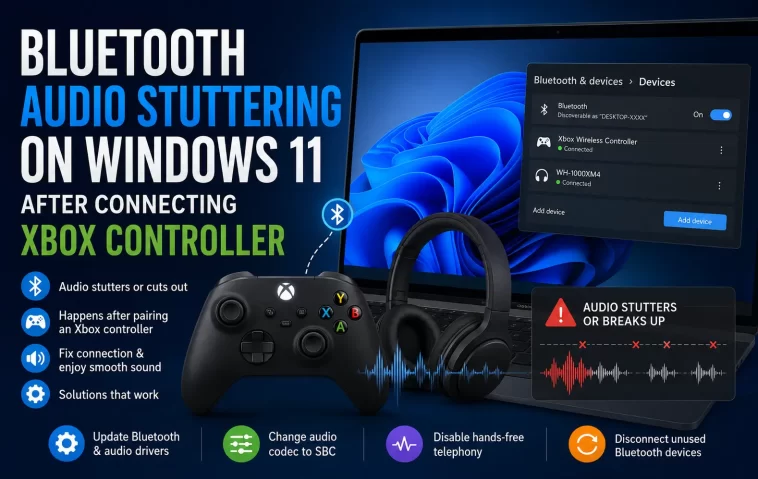
I noticed this the first time I tried to actually use my headset and controller together instead of just testing them separately — audio was fine, controller was fine, and the second both were connected over Bluetooth at once, my headset started stuttering like a bad phone call. If you’re getting clean audio until your Xbox controller connects and then everything falls apart, this is a known interaction issue, not a broken headset.
Quick Answer
- This happens because your headset and controller are both fighting for bandwidth on the same Bluetooth radio, and audio streaming loses out to the controller’s constant input polling.
- Disabling Handsfree Telephony (or Remote Control, depending on your headset) in the device’s Services tab fixes it for a lot of people.
- Moving the controller to USB or Xbox Wireless (the dongle, not Bluetooth) removes the contention entirely.
- Updating your Bluetooth adapter driver matters more here than people expect, especially on Realtek-based adapters.
- A cheap dedicated USB Bluetooth adapter for your headset, separate from your PC’s built-in one, is the most reliable long-term fix if this keeps coming back.
Why It Happens
So the core issue is bandwidth and polling priority, not a bug in either device individually. Your headset and controller both work fine on their own — it’s only when they’re both active on the same Bluetooth adapter that things fall apart.
Bluetooth profile contention. Audio streaming (A2DP) and game controller input (HID) are different Bluetooth profiles, and they don’t share a radio gracefully. HID devices send small packets very frequently to keep input latency low, and that constant chatter interrupts the steadier stream that audio needs. Your headset isn’t losing connection exactly — it’s getting starved of consistent bandwidth.
Single integrated adapter handling everything. Most laptops and a lot of desktop motherboards use one combined Wi-Fi/Bluetooth chip for all Bluetooth traffic. When that one chip has to juggle two active connections with very different bandwidth needs, audio is usually the one that suffers, because dropped or delayed HID packets would make your controller feel unresponsive, while dropped audio packets just sound like stutter — so drivers tend to prioritize input over sound whether you’d want them to or not.
Outdated or generic Bluetooth drivers. From what I’ve seen in a bunch of user reports, this shows up disproportionately on Realtek Bluetooth adapters specifically, and less consistently on Intel ones — not that Intel is immune, just that the reports skew that way. A driver that isn’t handling multi-profile connections well makes the underlying bandwidth issue noticeably worse.
Wi-Fi interference stacking on top of it. If you’re on 2.4GHz Wi-Fi, that band overlaps with Bluetooth’s frequency range. It’s not usually the root cause by itself, but it can turn a mild stutter into a much worse one, especially if your router’s nearby.
A cause worth calling out because it’s easy to miss: the specific service settings on the headset itself. A lot of Bluetooth headsets expose a “Handsfree Telephony” service alongside their audio service, meant for phone calls. Windows sometimes keeps that service active even during PC audio playback, and it adds unnecessary overhead to an already strained connection.
Step-by-Step Fixes
Step 1: Disable Handsfree Telephony on your headset
- Open Control Panel (not Settings — this specific option isn’t in the new Settings app) and go to Devices and Printers.
- Right-click your headset and select Properties.
- Go to the Services tab.
- Uncheck Handsfree Telephony.
- Click Apply, then turn your headset off and back on.
This one’s oddly specific but it’s the fix that comes up most often across user reports, and for a decent number of people it clears the issue up completely without touching anything else.
Step 2: Try disabling Remote Control instead (or as well)
Same Services tab as above — some headsets expose a “Remote Control” service instead of, or in addition to, Handsfree Telephony. If step 1 didn’t fully fix it, go back in and uncheck that one too, then reconnect.
Step 3: Update your Bluetooth adapter driver
Open Device Manager, expand Bluetooth, right-click your adapter, and choose Update Driver. And if Windows says it’s already up to date, don’t trust that completely — check the laptop or motherboard manufacturer’s site directly, since Windows Update often lags behind what the actual hardware vendor has released.
Step 4: Move your controller off Bluetooth
If you own an Xbox Wireless Adapter for PC, use that instead of Bluetooth for the controller. It runs on a separate radio entirely, so there’s no contention with your headset at all. A wired USB connection for the controller works too, and honestly it’s the simplest fix if latency doesn’t matter much to you.
Step 5: Switch your headset to a dedicated USB Bluetooth dongle
This is the fix that actually stuck for me long-term. A small USB Bluetooth adapter (most decent ones run under $15) gives your headset its own radio, completely separate from whatever’s handling your controller and Wi-Fi. So instead of trying to get one chip to behave with two demanding connections, you’ve just got two chips each doing one job.
What Actually Worked For Me
I tried the Handsfree Telephony fix first because it kept coming up in forum threads, and it helped — noticeably less stutter — but it didn’t fully go away. There was still a faint crackle every so often, particularly during louder game moments, which made me think it wasn’t purely a service-configuration thing.
Ended up ordering a cheap USB Bluetooth dongle mostly on a whim, figuring worst case I’d return it. Plugged it in, paired the headset to the new adapter instead of the built-in one, left the controller on the original built-in Bluetooth, and the stutter was just gone. Not partially better — completely gone. I probably should’ve tried that before spending time on driver updates and service toggles, but hindsight and all that.
Advanced Fixes and Edge Cases
Check USB Selective Suspend if your Bluetooth adapter is USB-connected internally. A lot of laptop Bluetooth chips connect over an internal USB bus, and Windows’ power management can suspend it briefly to save power — which shows up as a stutter that seems random but is actually periodic. Go to Control Panel > Power Options > Change plan settings > Change advanced power settings > USB settings > USB selective suspend, and set it to Disabled.
Disable Bluetooth Collaboration on Broadcom network adapters, if applicable. This is specific to systems with Broadcom Wi-Fi/Bluetooth combo chips. In Device Manager, under your network adapter’s Advanced properties, there’s sometimes a “Bluetooth Collaboration” setting that coordinates Wi-Fi and Bluetooth radio sharing — disabling it has fixed stutter for some users, though it’s not universal, so don’t expect it if you’re not on Broadcom hardware.
Run a clean boot to rule out background software. Some overlay or peripheral management software (RGB control suites are a common offender) polls connected devices aggressively enough to add to the contention. A clean boot isolates whether something like that is making things worse.
Prevention Tips
- If you’re buying a new Bluetooth headset specifically for PC gaming alongside a Bluetooth controller, budget for a cheap secondary USB dongle from the start rather than waiting for the stutter to show up.
- Keep Bluetooth drivers updated from the manufacturer’s site every few months, not just through Windows Update.
- If latency isn’t critical for your use case, wired controller connections sidestep this entire category of problem.
- Avoid running heavy background Bluetooth-polling software (peripheral managers, RGB suites) if you’re already on a single shared adapter.
FAQ
Does this happen with all headsets or just certain brands? It’s been reported across a bunch of headset brands, so it’s not brand-specific — it’s more about whether your system has a single shared Bluetooth adapter handling both devices.
Will a wired headset avoid this entirely? Yes, if you keep the controller on Bluetooth and switch only the headset to wired, that removes the audio side of the contention completely.
Is this a Windows 11 bug specifically, or did it happen on Windows 10 too? Reports go back to Windows 10 as well — it’s more of a Bluetooth stack and hardware-sharing issue than something new to Windows 11.
Do I need to disable Handsfree Telephony every time I reconnect the headset? No, it’s a per-device setting that sticks once you’ve applied it, not something you have to redo each session.
Editor’s Opinion
genuinely didn’t expect a $12 usb dongle to be the actual fix after messing with driver settings for like half an hour. if you’ve got the option, just give the headset its own adapter and stop trying to make one chip do two jobs. saves you the whole rabbit hole i went down.
