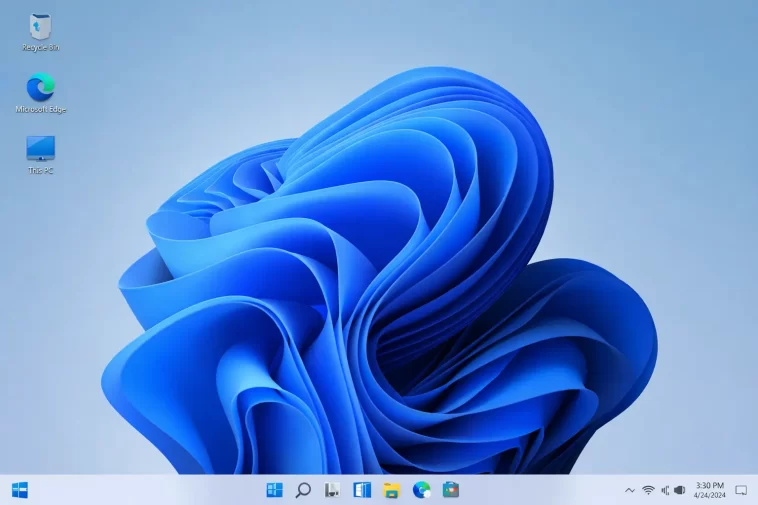
Signed into my desktop last week and got exactly nothing — just the wallpaper, a mouse cursor, and no taskbar, no icons, no Start button, like Windows forgot to load the actual desktop part of itself. An empty desktop after signing in to Windows 11 almost always comes down to the shell process failing to start, and once you know that, the fix list is short.
Quick Answer
- Press Ctrl + Shift + Esc, go to File > Run new task, type
explorer.exe, and press Enter — this manually restarts the shell - If that works, the fix isn’t done yet, since it’ll likely happen again on next login unless you find the actual cause
- Boot into Safe Mode with Networking to check if the issue follows you there — if the desktop loads fine in Safe Mode, it’s a driver or startup app, not Windows itself
- Recently installed software, a corrupted user profile, or a bad update are the three most common root causes
- A stalled graphics driver can look identical to a shell failure — try Windows + Ctrl + Shift + B first, it costs nothing
Why It Happens
There’s no single cause for an empty desktop, and that’s exactly why guides that give you one fix and stop are usually incomplete. From what I’ve seen, it’s almost always one of these five things.
Explorer.exe fails to launch with the user session. This is the core mechanism behind almost every version of this problem. Windows successfully authenticates you, but the process responsible for drawing the taskbar, icons, and Start menu — explorer.exe — doesn’t spawn. You end up logged in, technically, with nothing to look at.
A corrupted user profile. So this one’s sneaky because everything else on the machine works fine. Only your specific account is broken. If a new local account loads a normal desktop and yours doesn’t, this is almost certainly what’s going on.
A bad Windows update. Certain cumulative and feature updates have shipped with known shell-loading regressions — this isn’t a rare fluke, it’s happened enough times that Microsoft has acknowledged specific instances of it. If the empty desktop started right after an update installed, that’s your prime suspect.
Graphics driver stalling, not the shell itself. Sometimes what looks like an empty desktop is actually a frozen display stack. The distinction matters because the fix is completely different — refreshing the display driver versus restarting Explorer.
Third-party software interfering with shell startup. A recently installed app, particularly anything that hooks into the Explorer shell (some antivirus tools, some customization utilities, some overlay software) can prevent the shell from initializing properly. This is the one people usually overlook, because they assume it’s “a Windows problem” and go straight to reinstalling the OS instead of checking what they installed last.
Common Scenarios
- Right after installing a Windows feature update (24H2/25H2 class updates in particular have had documented shell regression reports)
- After waking from sleep or resuming from a locked screen, where the taskbar and icons vanish but background apps are still running
- On a single user profile only, with a fresh local account working normally
- Right after installing new software, especially anything that touches shell integration or desktop customization
Step-by-Step Fixes
Step 1: Restart the shell manually
Press Ctrl + Shift + Esc to open Task Manager directly (Ctrl+Alt+Del works too if that shortcut doesn’t respond). Click File > Run new task, type explorer.exe, check “Create this task with administrative privileges,” and press Enter. If Explorer was just stalled, your desktop should reappear within a few seconds.
If you don’t see the File menu, click “More details” first — Task Manager sometimes opens in the compact view without it.
Step 2: Rule out a display driver issue
Before assuming it’s a shell problem, try Windows + Ctrl + Shift + B. This restarts the graphics driver without a full reboot — you’ll hear a short beep and the screen will flicker. If your desktop appears after that, the graphics driver was the actual culprit, not Explorer, and you’ll want to update it separately.
Step 3: Check if it’s session-specific with a display cycle
Press Windows + P, tap P again, and press Enter. This cycles through PC screen only, Duplicate, Extend, and Second screen only. Occasionally the signal is just being routed somewhere unexpected, especially after connecting or disconnecting an external monitor.
Step 4: Boot into Safe Mode to isolate the cause
Hold Shift and click Restart from the power menu on the sign-in screen. Once in the recovery environment, go to Troubleshoot > Advanced options > Startup Settings > Restart, then press 5 for Safe Mode with Networking. If your desktop loads normally here, the problem is a driver or a startup app, not core Windows — proceed to Step 5. If it’s still broken in Safe Mode, the issue runs deeper and you’ll want Step 6.
Step 5: Uninstall recently added software
Boot normally, and if you can get to a working desktop via Step 1, open Settings > Apps > Installed apps. Sort by install date and remove anything added around when the problem started. Reboot after each removal rather than uninstalling everything at once — it’s slower, but it actually tells you which one was responsible.
Step 6: Test with a new local account
From a working session (or Safe Mode), go to Settings > Accounts > Other users > Add account, choose “I don’t have this person’s sign-in information,” then “Add a user without a Microsoft account.” Sign into the new account. If it loads a normal desktop, your original profile is corrupted, and you’re better off migrating your files to a fresh profile than trying to repair the broken one.
What Actually Worked For Me
First instinct was to just restart Explorer through Task Manager, which worked immediately — desktop came right back. Felt like a five-minute fix. But it happened again two days later after a routine restart, so clearly that wasn’t the actual fix, just a band-aid.
Went through Safe Mode next, and the desktop loaded fine there, which pointed at a driver or app rather than Windows core. I’d installed a system utility a few days before the first occurrence — one of those all-in-one “optimizer” tools that promises to speed up your PC — and hadn’t connected the timing until I actually looked at the install dates. Uninstalled it, rebooted twice to be sure, and the problem hasn’t come back since.
That’s not entirely accurate, actually — it did come back once more, but only because Windows had left a scheduled task from that same utility running in the background even after uninstall. Found it in Task Scheduler, disabled it, and that was genuinely the end of it.
Advanced Fixes and Edge Cases
Clear the icon cache. If the desktop loads but icons show as blank or generic, rather than the whole desktop being empty, this is usually a corrupted icon cache rather than a shell failure. End the Windows Explorer task in Task Manager, delete the IconCache.db file from the local AppData folder, then restart Explorer.
Re-register ShellExperienceHost. Open PowerShell as administrator and run a re-registration command targeting ShellExperienceHost for all users. This fixes cases where the shell UI component itself has become deregistered, which is more common after in-place upgrades than clean installs.
Check Event Viewer for Winlogon errors. Windows Logs > Application, filtered for Winlogon source, Event ID 4006 specifically points to the logon process failing to spawn a user application — direct confirmation that this is a shell-spawn failure rather than something display-related.
Run SFC and DISM from Safe Mode with Command Prompt. If a corrupted system file is involved, sfc /scannow followed by DISM /Online /Cleanup-Image /RestoreHealth can catch and repair issues neither Explorer restarts nor driver updates will fix.
Group membership changes. In rare cases, especially on machines that were ever domain-joined or managed, a change to local Users group membership can prevent the shell from spawning correctly for that account specifically. Worth checking if this started after any account or permissions change.
Prevention Tips
- Hold off installing “PC optimizer” or all-in-one cleanup utilities — they’re disproportionately represented in shell-loading issues
- Before installing a major Windows update, note the date so you have a reference point if something breaks a few days later
- Keep a spare local admin account around specifically for troubleshooting — it saves time isolating profile-specific issues
- If you use BitLocker, keep your recovery key accessible before doing any Safe Mode or Recovery Environment troubleshooting
FAQ
Will restarting Explorer close my open programs? No, restarting explorer.exe only affects the shell (taskbar, desktop, Start menu) — your open applications keep running in the background.
Does this mean my Windows installation is corrupted? Not necessarily. Most cases trace back to a driver, a third-party app, or a specific bad update, not corruption. Full reinstall is a last resort, not a first step.
My desktop is empty but I can hear background sounds and apps are clearly running. Is that normal for this issue? Yes, that’s actually the most common presentation — it confirms Windows itself is running fine and only the shell failed to draw.
Can a Windows Update actually cause this, or is it always something I installed? Both happen. Feature updates in particular have shipped with acknowledged shell-loading regressions, so check your update history against when the problem started.
Should I just do a Reset This PC if nothing else works? It’s a reasonable last resort if a new local account also shows the empty desktop, since that rules out profile corruption and points at something system-wide.
Editor’s Opinion
honestly 80% of the time this is just explorer stalling for one session and restarting it fixes it outright, no drama needed. the ones that keep coming back are almost always some third party app you installed recently that you’ve forgotten about, so actually check your install dates before you go nuclear with a reinstall. safe mode test takes like 5 min and tells you basically everything you need to know, do that before anything else honestly.
