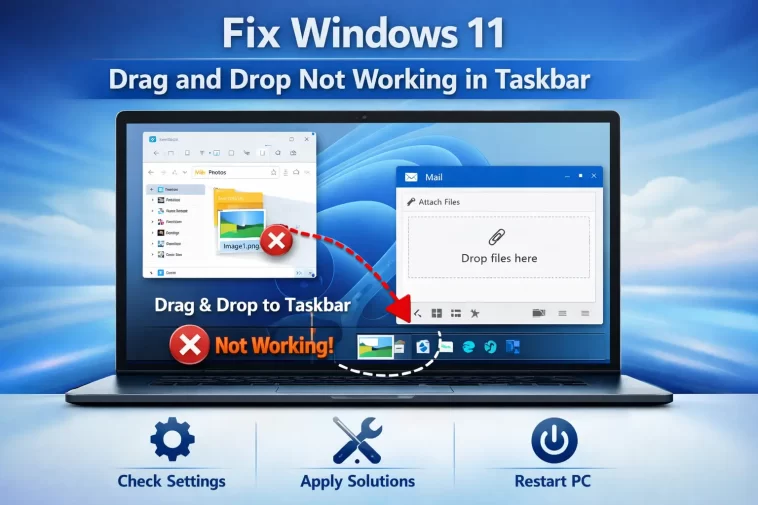
You try to drag a file onto a pinned app in the taskbar — something that just worked in every previous version of Windows — and nothing happens. No highlight, no drop target, the file just snaps back like the taskbar isn’t even there. This windows 11 drag and drop not working in taskbar problem tripped me up the first time I hit it because I assumed I was doing something wrong, not that Microsoft had actually changed how it works.
So here’s the thing — some of this is a “fix,” and some of it is just understanding that Windows 11 broke a feature on purpose and you have to work around it.
Why It Fails
There are a few different things going on here, and they don’t all have the same fix:
Windows 11 removed native taskbar drag-and-drop in early builds. This is the big one people miss. For a while, dragging files onto taskbar icons simply didn’t work at all in Windows 11 — Microsoft pulled the feature compared to Windows 10 and only brought it back in later updates. If you’re on an older build, no setting fixes this. You need an update.
Explorer.exe process instability. Drag and drop across the whole shell (not just the taskbar) can break if explorer.exe is in a degraded state — sometimes from a crash, sometimes from a buggy extension.
Third-party clipboard or file-manager tools interfering. Apps like clipboard managers, download managers, or alternative file explorers can hook into the drag-and-drop system and break Windows’ own handling of it, and it’s not always obvious which one is doing it.
Running Explorer or the target app with different privilege levels. If you’re dragging from a window running as administrator into a taskbar icon running as a normal user (or vice versa), Windows blocks the interaction silently for security reasons. No error message, it just doesn’t drop.
Taskbar animations setting oddly conflicting with drag detection. Not super common, but I’ve seen it — disabling taskbar animations in some builds seems to affect how drag gestures get registered near the taskbar’s edge.
Quick Answer
- Check your Windows 11 build number — this feature was straight up missing before build 22621.2361 and later
- Restart explorer.exe through Task Manager before trying anything else
- Make sure you’re not dragging from an elevated (administrator) window into a non-elevated taskbar
- Temporarily disable any clipboard manager or third-party file tool and test again
- Update Windows fully — this is one of the more common “it’s just not implemented yet” situations
Common Scenarios
- Drag and drop works fine on the desktop but fails specifically on taskbar icons — usually the Windows 11 feature gap or a build version issue
- Works for some apps pinned to the taskbar but not others — often a privilege mismatch, especially with apps that request admin rights on launch
- Stopped working suddenly after it used to work — points to explorer.exe instability or a recent update change
- Fails only when dragging from certain apps (some Electron-based apps handle drag-and-drop oddly) — an app-specific quirk, not a system-wide bug
Step-by-Step Fixes
Step 1: Check Your Windows Build Number
- Press
Win + R, typewinver, hit Enter - Note your build number
- If you’re below build 22621.2361 (this landed with a 23H2-era update), taskbar drag and drop for files genuinely isn’t there yet — it’s not a bug you can fix locally
- Go to Settings → Windows Update → Check for updates
This step trips more people up than anything else on this list. And honestly, it makes sense why — nobody expects a basic feature to just be missing depending on your update status.
Step 2: Restart Explorer.exe
- Open Task Manager (
Ctrl + Shift + Esc) - Find Windows Explorer in the process list
- Right-click → Restart
- Try the drag-and-drop action again once the taskbar reappears
This fixes a surprising number of “random UI stopped working” issues in Windows 11, not just this one.
Step 3: Rule Out Privilege Mismatches
If you’re dragging from an app you launched “as administrator,” try the same drag using a normal (non-elevated) window instead. If it suddenly works, that’s your answer — Windows won’t let elevated and non-elevated processes interact via drag-and-drop, full stop, and there’s no setting to override it. You’d need to run both at the same privilege level.
Step 4: Disable Third-Party Tools Temporarily
Close any clipboard manager, download manager, or alternative shell tool you’re running. Ditto and similar clipboard tools are common offenders here — not because they’re broken, but because they intercept system-level events more aggressively than people realize. Test the drag again with them fully closed, not just minimized.
Step 5: Update Windows Fully, Not Just Security Patches
Go to Settings → Windows Update → Advanced options and make sure you’re getting feature updates, not just monthly security rollups. Some users disable feature updates without realizing it also blocks the fixes for stuff like this.
What Actually Worked For Me
I’ll be honest, the first time this happened to me I spent almost half an hour convinced I’d somehow broken drag-and-drop system-wide. Tried restarting explorer, tried a different mouse (don’t ask), tried disabling my clipboard manager. None of it worked.
Turned out I was just on an older build that genuinely didn’t have the feature yet. One Windows Update later — a real one, not just a security patch — and it worked immediately. Felt a little anticlimactic after all that troubleshooting, but also kind of a relief that I hadn’t actually broken anything.
That said, a coworker had a similar complaint on a fully updated machine, and for him it really was the elevated-window issue — he’d gotten in the habit of running his file manager as admin out of an old troubleshooting habit and forgot he’d left it that way. Not a fix so much as realizing the “bug” was a permission wall the whole time.
Advanced Fixes and Edge Cases
Check Event Viewer for Explorer crash entries. Windows Logs → Application, filter for Application Error events tied to explorer.exe. Repeated crashes around the time of the drag attempt point to a shell extension conflict rather than a missing feature.
Identify problematic shell extensions with ShellExView. Third-party context menu and shell extensions can interfere with drag operations across the whole OS, not just the taskbar. Disabling non-Microsoft entries one at a time (or in batches, if you’re impatient like I am) can isolate the culprit.
Group Policy or MDM restrictions in managed environments. On work or school machines, IT policy can disable drag-and-drop functionality intentionally for data-loss-prevention reasons. If you’re on a managed device and nothing above works, this is worth asking your IT department about directly rather than continuing to troubleshoot locally.
Prevention Tips
- Keep feature updates enabled, not just security patches — a lot of “missing feature” complaints are really just version gaps
- Avoid habitually running file managers or browsers as administrator unless you specifically need elevated access for that session
- If you rely on a clipboard manager, pick one that’s actively maintained — older abandoned tools are more likely to conflict with shell behavior
- Restart Explorer occasionally if you leave your PC running for days at a time; it prevents a lot of small shell glitches from stacking up
FAQ
Did Microsoft remove taskbar drag-and-drop on purpose? Yes, initially. It was cut in early Windows 11 builds and reintroduced later — not a bug in the traditional sense, more a feature gap that got patched.
Does this affect pinning apps too, or just dragging files onto them? Just dragging files onto already-pinned apps. Pinning itself through right-click menus works independently of this issue.
Can antivirus software cause this? Rarely, but some aggressive security suites do intercept drag operations as part of ransomware protection. Worth a quick check if nothing else explains it.
Will resetting the taskbar fix this? There’s no dedicated taskbar reset in Windows 11 — restarting Explorer is the closest equivalent and usually sufficient.
Editor’s Opinion
this one bugged me mostly because theres no error message at all, it just silently does nothing which makes you assume its your fault. check your build number first honestly, that alone solves it more than people expect. if your fully updated and it still doesnt work, check if your dragging from an admin window cause that ones sneaky and easy to forget about
