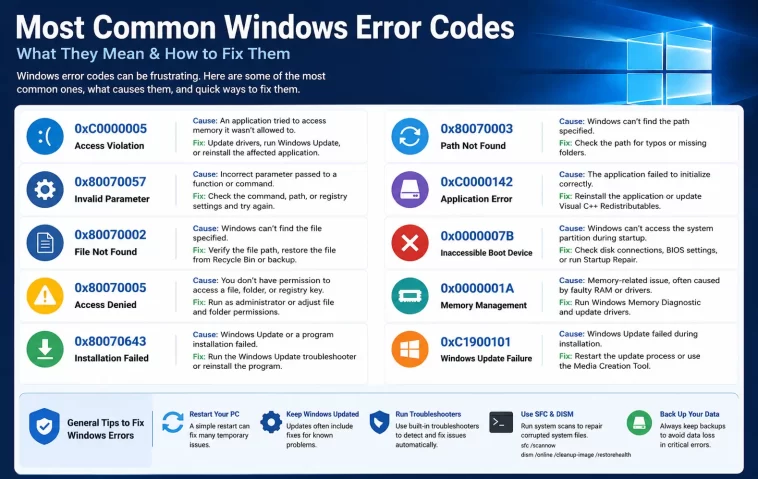
A practical, no-nonsense breakdown of the Windows error codes you’re most likely to run into, and the exact steps that usually clear them.
My Experience With Windows Error Codes
I’ve lost count of how many times a random string of numbers has popped up on my screen right before something important was due. Windows error codes have a talent for showing up at the worst possible moment — mid-update, mid-install, or right after a blue screen flashes and reboots your PC without asking permission.
Over the years of troubleshooting my own machines and helping friends fix theirs, I noticed the same handful of codes kept coming back. So I put together this list of the ten Windows error codes people search for the most, along with the fixes that actually worked, not just the generic “restart your computer” advice you see everywhere.
Quick Answer
Most Windows error codes fall into a few categories: update failures, missing or corrupted system files, driver conflicts, disk errors, and activation problems. You can fix a large majority of them using Windows’ own built-in tools — Windows Update Troubleshooter, SFC, DISM, and CHKDSK — before you ever need to reinstall anything.
Why Windows Error Codes Happen
Before jumping into fixes, it helps to understand where these errors actually come from. Windows is a massive, layered system, and a small hiccup in one part can throw an error code that looks scarier than the actual problem.
Common root causes include:
- Corrupted or missing system files from an interrupted update or a bad shutdown
- Outdated or conflicting drivers, especially graphics and storage drivers
- Insufficient disk space for update packages to download and install
- Background services not running, like the Windows Update service or BITS
- Third-party antivirus software interfering with system processes
- Hardware issues, including failing drives or loose connections
Knowing the category an error falls into makes it much easier to guess the fix before you even look it up.
The 10 Most Common Windows Error Codes
| Error Code | What It Usually Means | Typical Cause |
|---|---|---|
| 0x80070005 | Access denied | Permission or ownership issue |
| 0x8007000D | The data is invalid | Corrupt update files |
| 0x800F0922 | Update install failure | Low disk space or VPN conflict |
| 0xC1900101 | Upgrade rollback | Driver compatibility issue |
| 0xC0000185 | Boot device not found | Corrupted boot files or bad cable |
| 0xC000000F | Boot configuration missing | Damaged BCD entries |
| 0x80070570 | File or directory corrupted | Bad sectors or interrupted transfer |
| 0x80072EE7 | Server not found | DNS or network configuration issue |
| 0x80070003 | Path not found | Incomplete update package |
| DPC_WATCHDOG_VIOLATION | Blue screen crash | Driver timing conflict, often storage drivers |
You don’t need to memorize this table. Just use it to spot which error you’re dealing with, then jump to the matching fix below.
How to Fix These Windows Error Codes
You can work through most of these fixes in order, even if you’re not sure exactly which one caused your error. They’re listed from the simplest and safest to the more advanced.
Step 1: Run the Windows Update Troubleshooter
Open Settings, then go to System > Troubleshoot > Other troubleshooters, and run the Windows Update troubleshooter. It automatically detects and repairs many of the codes above, including 0x8007000D and 0x800F0922, without you needing to touch a single setting manually.
Step 2: Free Up Disk Space
Check how much storage you have left. Updates can fail with codes like 0x800F0922 simply because there isn’t enough room to download and extract the files. Aim for at least 15-20GB of free space before retrying any update.
Step 3: Restart the Update-Related Services
Some errors happen because a background service quietly stopped running. Open the Services app and restart these three:
- Windows Update (wuauserv)
- Background Intelligent Transfer Service (BITS)
- Cryptographic Services
Restarting them clears out stuck processes that block updates from completing.
Step 4: Run SFC and DISM Scans
Open Command Prompt as administrator and run:
sfc /scannowOnce that finishes, run:
DISM /Online /Cleanup-Image /RestoreHealthThese two tools repair corrupted system files, which is the root cause behind codes like 0x80070570 and many “invalid data” errors.
Step 5: Check and Update Your Drivers
Outdated storage or graphics drivers are a common trigger for both upgrade failures and blue screen crashes like DPC_WATCHDOG_VIOLATION. Open Device Manager, look for any device with a warning icon, and update it through the manufacturer’s website rather than relying only on Windows Update.
Step 6: Disconnect Unnecessary Hardware and Software
Before a major upgrade attempt, unplug external drives, docking stations, and any non-essential USB devices. Also temporarily disable third-party antivirus software, since it’s a frequent cause of rollback errors like 0xC1900101.
Step 7: Run CHKDSK for Disk-Related Errors
If you’re seeing boot-related codes like 0xC0000185 or 0xC000000F, boot into Advanced Startup options and run:
chkdsk C: /f /rThis scans your drive for bad sectors and repairs file system errors that block Windows from starting properly.
Step 8: Rebuild the Boot Configuration Data
For persistent boot errors, open Command Prompt from the recovery environment and run these commands one at a time:
bootrec /fixmbrbootrec /fixbootbootrec /rebuildbcd
This rebuilds the files Windows needs to locate and load itself, which fixes most 0xC000000F cases.
Step 9: Check Your Network and DNS Settings
For connection-related codes like 0x80072EE7, flush your DNS and reset your network adapter:
ipconfig /flushdns
netsh winsock reset
Restart your PC afterward for the changes to take full effect.
What Actually Worked For Me
The first time I hit 0x800F0922, I assumed it was a corrupted download and spent an entire evening re-downloading the update three separate times. That did absolutely nothing.
It turned out my VPN was quietly rerouting the update traffic and breaking the connection halfway through. The moment I disabled it and reran the update, it installed in under ten minutes. So don’t jump straight to reinstalling Windows — check the boring stuff first, because it’s usually the actual culprit.
Advanced Fixes and Edge Cases
If the standard steps above don’t resolve your error, a few less common options can help:
- Use System Restore to roll back to a point before the error started appearing
- Create Windows installation media and run an in-place upgrade, which repairs system files without touching your personal data
- Check Event Viewer under Windows Logs > System for the exact moment and process tied to the error
- Test your RAM with Windows Memory Diagnostic if you’re seeing random blue screens with different error codes each time
These steps take more time, so save them for when the quicker fixes haven’t worked.
Prevention Tips
A little maintenance goes a long way toward keeping these codes from showing up again.
- Keep at least 20GB of free disk space at all times
- Update drivers directly from the manufacturer every couple of months
- Avoid interrupting updates or forcing a shutdown mid-install
- Run SFC and CHKDSK scans occasionally, even before problems appear
- Keep a recent backup so a bad update never puts your files at risk
FAQ
Q: What does a Windows error code actually tell me? A: The code points to the specific process or component that failed, such as a driver, an update package, or a boot file. Searching the exact code usually gets you straight to the cause.
Q: Can I fix Windows error codes without reinstalling Windows? A: Yes, in most cases. Built-in tools like SFC, DISM, and CHKDSK resolve the vast majority of errors without needing a full reinstall.
Q: Why do I keep getting the same error after fixing it once? A: This usually points to a deeper issue, like a failing drive or an outdated driver that keeps reintroducing the same conflict. Run a full diagnostic instead of repeating the same quick fix.
Q: Is it safe to ignore a Windows error code if my PC still works? A: Not always. Some codes are cosmetic, but others, especially disk and boot-related ones, can signal a problem that gets worse over time.
Q: How do I find out what a specific Windows error code means? A: You can search the code directly, use the Microsoft error lookup tool, or check Event Viewer for more context around when and why it happened.
Editor’s Opinion
honestly windows error codes look scarier then they actually are most of the time. i used to panic the second i saw one now i just check disk space and drivers first cause thats usually whats going on. dont waste hours reinstalling everything before you try the simple stuff, save that for when nothing else works. also back up your files regular, it saves so much stress when somthing does go wrong.
