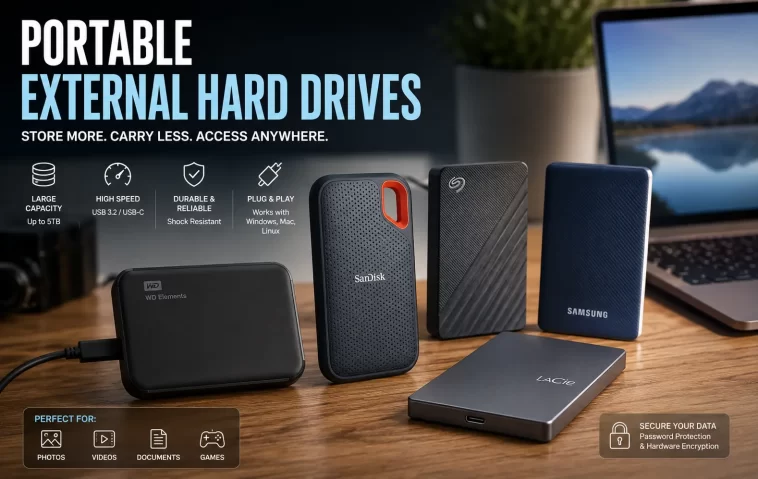
A tested list of secure portable external hard drives for backups, covering real encryption features, durability, and which ones are actually worth trusting with files you can’t afford to lose.
My Experience Choosing a Secure Backup Drive
I used to treat external drives as an afterthought, grabbing whatever was cheapest and dropping my files on it without a second thought about encryption. That changed the moment I misplaced a drive with old tax documents on it for about a week before finding it wedged behind a desk.
Nothing bad actually happened, but the scare was enough to make me take encrypted, secure backup drives seriously. Since then I’ve tested a mix of hardware-encrypted enterprise drives and simpler consumer options to figure out what’s genuinely worth the extra cost versus what’s overkill for most people. Here’s the full breakdown.
Quick Answer
For most people, the Samsung T7 Shield hits the sweet spot of solid software-based encryption, rugged build quality, and a reasonable price. If you’re handling genuinely sensitive files like legal, medical, or financial records, step up to a hardware-encrypted drive like the Apricorn Aegis Padlock or iStorage diskAshur2, which encrypt everything at the hardware level and don’t rely on software running on your computer.
Why Encryption Matters More Than Capacity for Backups
It’s tempting to shop for an external drive purely on price per terabyte, but a backup drive holding sensitive files needs security considered just as seriously as storage space.
A few reasons encryption matters more than people expect:
- Physical loss or theft exposes everything on an unencrypted drive to whoever finds it
- Password-only protection without hardware encryption can sometimes be bypassed by removing the drive from its enclosure
- Hardware encryption runs independently of your computer, so it works the same regardless of which device you plug it into
- Regulated data, like medical or financial records, often legally requires a specific encryption standard, not just any password
If your backup drive only holds casual files, this matters less. If it holds anything you’d be upset to have exposed, it matters a lot.
The 10 Best Secure Portable External Hard Drives for Backups
| # | Drive | Best For |
|---|---|---|
| 1 | Samsung T7 Shield | Best all-around pick for most people |
| 2 | Apricorn Aegis Padlock 3.0 | Hardware encryption without software |
| 3 | iStorage diskAshur2 | Keypad-based enterprise security |
| 4 | Kingston IronKey Vault Privacy 80 | FIPS-certified compliance needs |
| 5 | WD My Passport SSD | Budget-friendly hardware encryption |
| 6 | SanDisk Extreme Portable SSD | Rugged travel and fieldwork |
| 7 | LaCie Rugged SSD | Drop and water resistance |
| 8 | Samsung T9 | Faster transfers for large backups |
| 9 | WD My Passport (HDD) | High capacity on a budget |
| 10 | Crucial X9 Pro | Fast SSD paired with software encryption |
How to Choose and Set Up a Secure Backup Drive
Match the drive to how sensitive your files actually are, then set encryption up correctly from day one.
Step 1: Decide How Sensitive Your Files Really Are
Personal photos and casual documents don’t need enterprise-grade security. Legal contracts, medical records, or financial statements do. Be honest about which category your backup actually falls into before deciding how much to spend.
Step 2: Start With the Samsung T7 Shield for General Use
The T7 Shield combines a rugged, IP65-rated shell with straightforward password protection and AES 256-bit encryption through Samsung’s software. It’s the drive most people should default to unless they have a specific reason to need more.
Step 3: Choose Apricorn Aegis Padlock 3.0 for Hardware-Level Security
This drive encrypts everything in real time using AES-XTS hardware encryption, with no software installation required on any computer you plug it into. It’s genuinely plug-and-play, which matters if you need the drive to work identically across multiple machines without setup.
Step 4: Use iStorage diskAshur2 for Enterprise or Regulated Data
The diskAshur2 uses a physical keypad instead of software-based unlocking, which removes an entire category of risk since there’s no password entry happening on a potentially compromised computer. This is the right call for professionals handling audited or regulated files.
Step 5: Consider Kingston IronKey Vault Privacy 80 for Compliance Requirements
If your work requires FIPS 197 certification specifically, this drive is built around that standard with XTS-AES 256-bit encryption. It’s a strong choice if you need documented compliance rather than just general peace of mind.
Step 6: Go With WD My Passport SSD for a Budget-Friendly Option
WD’s My Passport SSD offers hardware encryption support and password protection at a noticeably lower price than enterprise-focused drives. It’s not the most secure option on this list, but it’s a real step up from an unencrypted drive without the enterprise price tag.
Step 7: Pick SanDisk Extreme Portable SSD for Travel and Fieldwork
Rated IP65 for water and dust resistance, this drive is built to survive being tossed in a bag and used in less-than-ideal conditions. It pairs that durability with fast NVMe-class transfer speeds, which matters if you’re backing up large files on location.
Step 8: Use LaCie Rugged SSD for Maximum Physical Durability
If your backup drive travels with you constantly and takes real physical abuse, LaCie’s Rugged line is built specifically around drop and water resistance, on top of standard encryption support.
Step 9: Choose Samsung T9 If Speed Matters as Much as Security
The T9 uses the same general security approach as the T7 Shield but with a higher sustained transfer speed ceiling. Worth the extra cost if you’re backing up large media libraries or project files regularly rather than occasional documents.
Step 10: Use a Traditional WD My Passport HDD for High-Capacity Budget Backups
If your priority is storing a large volume of data affordably rather than working from the drive actively, a traditional hard drive still offers a much lower cost per terabyte than any SSD on this list, with hardware encryption support included.
What Actually Worked For Me
I initially bought an enterprise-grade keypad drive assuming more security was always better, only to find the setup process was more friction than I actually needed for personal file backups. It sat unused because I found it inconvenient for quick, casual backups.
Switching to the Samsung T7 Shield for daily use, and reserving a hardware-encrypted drive specifically for the handful of files that actually needed that level of protection, worked much better. So match the security level to the actual sensitivity of what you’re storing, rather than assuming the most secure option is automatically the right one for everything.
Advanced Fixes and Edge Cases
A few situations call for extra consideration:
- Forgotten passwords on hardware-encrypted drives often mean permanent data loss, since many vendors don’t offer a recovery option, so store your password in a password manager rather than relying on memory
- Software-based encryption on drives like the T7 Shield depends on the app running correctly on your computer, so keep the manufacturer’s software updated
- Drives without published encryption standards should be treated as unencrypted, even if they include basic password protection, since a removable password screen doesn’t always mean the data itself is encrypted
- Regulated professions should confirm which specific certification, like FIPS 140-2 Level 2 or Level 3, their industry actually requires before choosing a drive
Prevention Tips
A little discipline around backups makes the security features actually count for something.
- Keep at least one backup copy in a separate physical location from your main drive
- Write down or securely store your encryption password the moment you set the drive up
- Test that you can actually restore files from the backup periodically, not just that files are saved
- Avoid leaving an unencrypted backup drive in a bag or car where it could be lost or stolen
- Replace backup drives showing signs of physical wear before they fail completely
FAQ
Q: Is software encryption as secure as hardware encryption? A: Software encryption is genuinely secure for most personal use, but hardware encryption works independently of your computer and is generally considered the stronger choice for sensitive or regulated data.
Q: What happens if I forget the password on an encrypted external drive? A: On most hardware-encrypted drives, this means permanent data loss, since the encryption is specifically designed to make the data unrecoverable without the correct password. Store your password somewhere secure and separate from the drive itself.
Q: Do I need a hardware-encrypted drive for personal photo backups? A: Not usually. A drive like the Samsung T7 Shield with software-based encryption is more than sufficient for personal files that aren’t legally or professionally sensitive.
Q: Are external hard drives (HDDs) less secure than SSDs? A: Security depends on the encryption implementation, not the storage type. HDDs and SSDs can both be encrypted to the same standard, though SSDs are generally more resistant to physical shock damage.
Q: How often should I back up to an external drive? A: For most personal use, weekly or monthly is reasonable depending on how often your files change. For active work files, more frequent backups, or an automated backup schedule, make more sense.
Editor’s Opinion
i used to think any password protected drive was basically the same thing until i actually looked into hardware vs software encryption. honestly for most peoples personal backups the samsung t7 shield is plenty, you dont need the fancy keypad enterprise stuff unless your dealing with actually sensitive professional documents. just dont forget your password though, learned that lesson from a friend who locked himself out of years of photos, genuinely painfull to watch.
