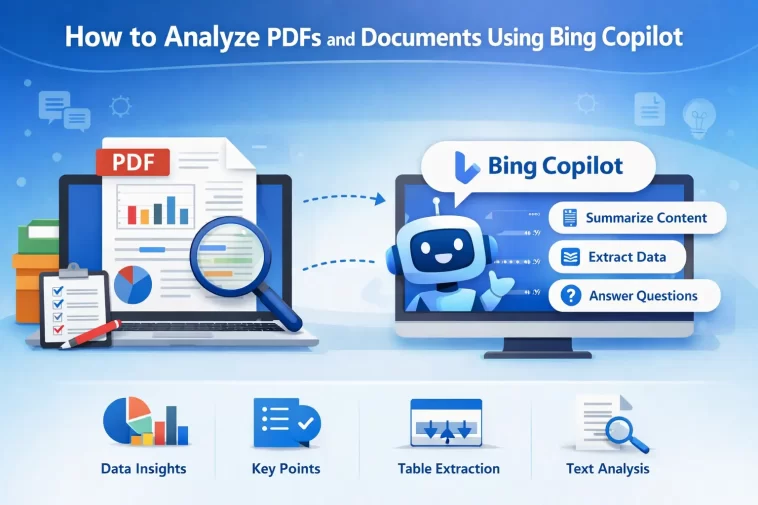
If you need to analyze PDFs and documents using Bing Copilot, you’ve picked one of the most powerful free tools available right now. Instead of reading through a 50-page report yourself, Bing Copilot can summarize it, pull out key points, answer your questions about it, and even compare sections — all in seconds.
This guide walks you through exactly how to do it, step by step.
What Is Bing Copilot and What Can It Do with Documents?
Bing Copilot is Microsoft’s AI assistant, powered by the same technology behind ChatGPT. It’s built directly into Microsoft Edge and available at bing.com/chat.
When it comes to documents and PDFs, Copilot can:
- Summarize long documents into a few clear paragraphs
- Answer specific questions based on the content of a file
- Extract key data like dates, figures, names, or action items
- Compare two documents side by side
- Explain complex language in plain English — great for legal or technical files
- Translate content from documents in foreign languages
It works with PDFs, Word documents (.docx), and web-based content. You don’t need any special software beyond a browser.
Method 1: Analyze a PDF Using Bing Copilot in Microsoft Edge
This is the fastest and most seamless method. Edge has Copilot built right in, so you don’t need to upload anything manually.
Step 1: Open the PDF in Microsoft Edge
Drag your PDF file into an Edge browser window, or right-click the file and choose Open with > Microsoft Edge.
Edge will display the PDF in its built-in viewer. This works for files stored on your computer, a USB drive, or downloaded from the web.
Step 2: Open the Copilot Sidebar
Look for the Copilot icon in the top-right corner of Edge — it looks like a small blue and white swirl.
Click it to open the Copilot sidebar on the right side of your screen. If you don’t see it, go to Settings > Appearance and make sure the Copilot button is enabled.
Step 3: Ask Copilot About the Document
Copilot will automatically detect that you have a PDF open. It may even offer prompts like:
- “Summarize this document”
- “What are the key points?”
- “What action items are mentioned?”
You can click one of those suggestions or type your own question in the chat box. For example:
- “What is the main argument of this document?”
- “List all deadlines mentioned in this PDF.”
- “Explain section 3 in simple terms.”
- “What are the financial figures in this report?”
Copilot reads the full content of the PDF and responds based on what’s actually in the file.
Step 4: Dig Deeper with Follow-Up Questions
One of Copilot’s biggest strengths is conversation. You don’t have to ask everything at once.
Start with a summary, then ask follow-up questions to go deeper:
- “Summarize this document.”
- “Which section talks about the budget?”
- “Explain that section in simpler language.”
- “What are the recommended next steps?”
Each answer builds on the last, so you can explore the document naturally — the same way you’d discuss it with a colleague.
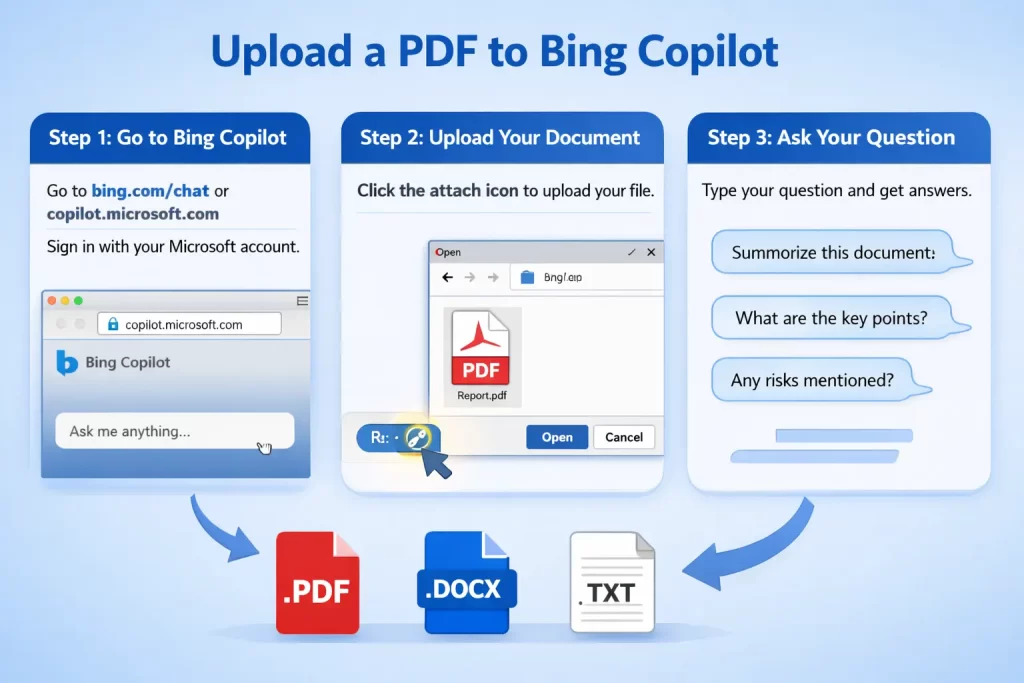
Method 2: Analyze a PDF by Uploading It to Bing Copilot
If you prefer to use Bing Copilot in your browser without Edge’s built-in integration, you can upload the document directly to the chat.
Step 1: Go to Bing Copilot
Open your browser and go to bing.com/chat or copilot.microsoft.com.
Sign in with your Microsoft account for the best experience. The free version works well, but a Microsoft 365 subscription unlocks higher usage limits.
Step 2: Upload Your Document
In the chat input box, look for the attachment icon (a paperclip or image icon).
Click it and select your PDF or Word document from your computer. Bing Copilot supports:
- PDF files (.pdf)
- Word documents (.docx)
- Text files (.txt)
Wait a moment for the file to upload. You’ll see a preview or confirmation once it’s ready.
Step 3: Ask Your Question
Once the file is uploaded, type your question in the chat box just like you would in a normal conversation.
Some useful prompts to start with:
- “Summarize this document in bullet points.”
- “What are the three most important takeaways?”
- “Does this document mention any risks or warnings?”
- “Pull out all names and contact details from this file.”
- “Is there anything I should pay close attention to before signing this?”
Copilot will analyze the content and reply with a clear, structured answer.
Step 4: Export or Copy the Results
Once Copilot gives you an answer you find useful, you can:
- Copy the text and paste it into a Word doc or email
- Continue the conversation to refine or expand the analysis
- Ask Copilot to reformat the output — for example, “turn this into a numbered list” or “write this as an executive summary”
This is especially helpful when you need to share document insights with a team.
Method 3: Analyze a Document from a URL
If the document is hosted online — a public PDF, a report on a government website, or a research paper — you don’t even need to download it.
Step 1: Copy the Document URL
Find the PDF or document online and copy its direct URL (the web address that ends in .pdf or links to the document).
Step 2: Paste the URL into Bing Copilot
Go to bing.com/chat and paste the URL directly into the chat box along with your question.
For example:
“Here’s the link to a research paper: [URL]. Can you summarize the findings and list the main conclusions?”
Step 3: Read the Analysis
Bing Copilot will fetch the content from the URL and analyze it on the spot. This is one of the quickest ways to get a summary of a document you just found online without downloading it at all.
Practical Use Cases for Analyzing Documents with Bing Copilot
Still not sure how this fits into your workflow? Here are some real-world situations where this saves serious time:
For professionals:
- Review contracts and flag unusual clauses before sending to legal
- Summarize meeting minutes or reports for stakeholders
- Extract data from supplier quotes for comparison
For students:
- Summarize research papers and academic articles quickly
- Get plain-English explanations of complex papers
- Identify the main argument and supporting evidence in a document
For personal use:
- Understand insurance policies, lease agreements, or medical documents
- Translate foreign language documents
- Review product manuals without reading every page
Tips for Getting Better Results from Bing Copilot
Getting useful answers depends a lot on how you phrase your questions. Here are a few tips that make a real difference:
- Be specific. Instead of “What is this about?”, ask “What are the top three risks mentioned in this document?”
- Ask for a format. Say “Summarize in bullet points” or “Give me a one-paragraph overview.”
- Use follow-ups. Don’t try to get everything in one question. Build the conversation step by step.
- Verify important details. Copilot is very accurate, but for legal, medical, or financial documents, always double-check critical information with the original source.
- Try different angles. Ask for a summary, then ask “What’s missing?” or “What questions should I be asking about this document?”
Limitations to Know About
Bing Copilot is powerful, but it’s not perfect. A few things to keep in mind:
- Scanned PDFs may not work well. If your PDF is just a scanned image with no real text layer, Copilot may struggle to read it. Use an OCR tool first to convert it to readable text.
- Very large files may be truncated. Extremely long documents might exceed the context limit. In that case, try uploading sections separately.
- It’s not a replacement for professional advice. For legal contracts, medical records, or financial documents, always consult a qualified professional. Copilot is a research aid, not an advisor.
- Privacy matters. Avoid uploading documents that contain highly sensitive personal data, passwords, or confidential business information unless you’re using an enterprise-level plan with data protection guarantees.
FAQ
Is Bing Copilot free to use for document analysis?
Yes, the core features are free at bing.com/chat or copilot.microsoft.com. A Microsoft 365 subscription gives you higher limits and additional features, but casual document analysis works well on the free tier.
What file types does Bing Copilot support?
Bing Copilot supports PDFs, Word documents (.docx), and plain text files (.txt). For best results, make sure the file contains actual selectable text rather than scanned images.
Can Bing Copilot read handwritten documents?
Not reliably. Copilot is designed for text-based files. Handwritten notes or heavily image-based PDFs won’t give good results unless you convert them to text first using an OCR (Optical Character Recognition) tool.
Is my document kept private after I upload it?
Microsoft states that Bing Copilot conversations may be reviewed to improve the service. For sensitive documents, review Microsoft’s privacy policy and consider using Microsoft Copilot for Microsoft 365, which has stricter enterprise data protection.
Can Bing Copilot compare two documents at once?
Not natively in a single upload. However, you can paste key sections from two documents into the chat and ask Copilot to compare them. This workaround is effective for shorter documents or specific sections you want compared side by side.
Does it work on mobile?
Yes. You can use Bing Copilot through the Bing app or the Edge app on both iOS and Android. File uploading is supported on mobile, though the experience is smoother on desktop for larger documents.
Final Thoughts
Learning to analyze PDFs and documents using Bing Copilot can genuinely change how you handle information-heavy tasks. What used to take an hour of reading and note-taking can now take five minutes.
Start with the Edge sidebar method for the smoothest experience, or head to bing.com/chat and upload your document directly. Either way, you’re getting a sharp, AI-powered reading assistant that’s free and available right now.
The more specific your questions, the better your results. Give it a try on your next report, contract, or research paper — you might not go back to reading the whole thing yourself.
