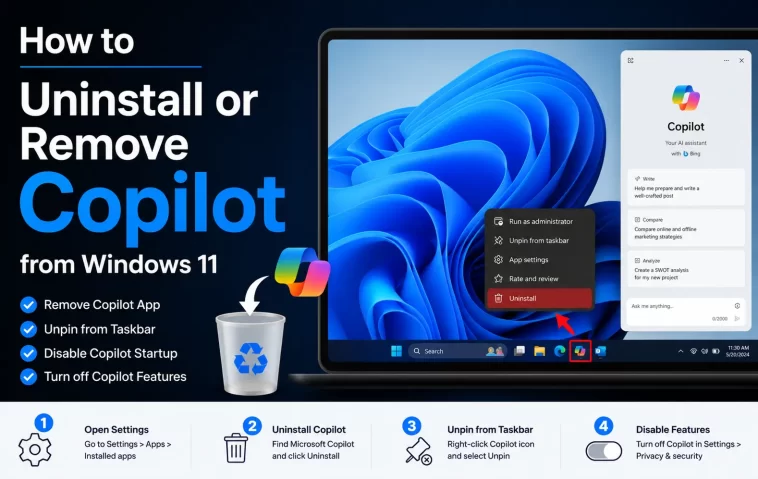
Copilot showed up on a machine I manage without anyone asking for it, and getting rid of it properly took longer than it should have. If you’re trying to remove Copilot from Windows 11 for good — not just hide the icon — there are a few methods, and which one actually works depends heavily on your Windows edition.
So let’s get into what works, what doesn’t, and why it sometimes comes back after you’ve already removed it once.
Quick Answer
- Uninstall the app directly from Settings > Apps > Installed Apps
- On Pro/Enterprise, use Group Policy’s “Remove Microsoft Copilot app” policy for a permanent block
- On Home edition, you’ll need a registry edit instead — Group Policy Editor isn’t available
- Use PowerShell to remove it across all user accounts on a shared machine
- Expect Copilot buttons to still show up in apps like Paint or Notepad even after uninstalling the standalone app
Why Copilot Is Hard to Remove Cleanly
Copilot isn’t one single thing you can uninstall and be done with. That’s the annoying part, and it’s also why so many guides online contradict each other.
It’s baked into more than the taskbar. Removing the standalone Copilot app doesn’t touch the Copilot buttons embedded in Paint, Notepad, or Microsoft 365 apps. Those are separate integrations entirely.
It can silently reinstall itself. Windows updates occasionally reinstall Copilot even after you’ve removed it, particularly on machines that get feature updates rather than just cumulative patches. Not every update does this — but enough do that people report it constantly.
Home edition doesn’t get Group Policy. This trips up a lot of people who follow guides written for Pro machines and then can’t find gpedit.msc at all. Home users have to fall back on registry edits to get the same effect.
Startup re-enables it. Even after uninstalling, Copilot sometimes stays in your Startup Apps list, and on reboot it can quietly relaunch or reinstall itself from a cached provisioning package.
Removal Methods Compared
| Method | Works On | Permanent? | Notes |
|---|---|---|---|
| Settings > Apps uninstall | All editions | No, can come back | Fastest, but doesn’t stop reinstalls |
| Group Policy (“Remove Microsoft Copilot app”) | Pro / Enterprise | Yes | Added in the April 2026 update |
| Registry edit | Home / all editions | Mostly | Requires manually setting values Group Policy would set automatically |
PowerShell (Remove-AppxPackage) | All editions | No, per-session | Best for removing it across multiple user accounts at once |
Step-by-Step: Basic Uninstall
Step 1: Remove the app through Settings
Go to Settings > Apps > Installed Apps, search for Copilot, click the three dots next to it, and choose Uninstall. This is the quickest method and works on every edition of Windows 11.
Step 2: Restart Explorer or reboot
The taskbar icon sometimes lingers even after the app itself is gone. A restart of explorer.exe (or a full reboot if you’d rather not mess with Task Manager) usually clears it.
Step 3: Remove it for all users on a shared PC
If multiple accounts use the machine, uninstalling through Settings only affects your profile. Run this in an elevated PowerShell window instead:
Get-AppxProvisionedPackage -Online | Where-Object { $_.DisplayName -like "*Microsoft.Copilot*" } | Remove-AppxProvisionedPackage -OnlineThat strips it from the provisioned package list, so new user accounts created afterward won’t get it either.
Step-by-Step: Permanent Removal (Pro/Enterprise)
Step 1: Open Group Policy Editor
Search for gpedit.msc and open it. If it’s missing, you’re on Home edition — skip to the registry method below.
Step 2: Navigate to the Windows AI policy
Go to User Configuration > Administrative Templates > Windows Components > Windows AI, and find “Remove Microsoft Copilot app.” This is a fairly recent addition — it landed in the April 2026 update, so if your machine hasn’t picked that up yet, it won’t show up in the list.
Step 3: Enable it
Set the policy to Enabled. On managed devices, note that this policy only triggers if Copilot hasn’t been launched in the past 28 days — it’s designed for inactive installs, not an instant kill switch.
Step 4: Also disable the older policy for good measure
Under Windows Components > Windows Copilot, enable “Turn off Windows Copilot” as well. This handles the taskbar/UI side that the newer app-removal policy doesn’t fully cover.
Step-by-Step: Registry Method (Home Edition)
Since Home doesn’t get Group Policy Editor, you’ll need to set the equivalent registry values directly:
- Open Registry Editor (
regedit) - Navigate to
HKEY_LOCAL_MACHINE\SOFTWARE\Policies\Microsoft\Windows\WindowsCopilot - Create a DWORD value named
TurnOffWindowsCopilotand set it to1 - Restart your PC
Back up the registry key before editing — that’s not optional advice, that’s just what you should always do before touching policy-related registry paths.
What Actually Worked For Me
The Settings uninstall got rid of it initially, and I figured that was the end of it. It wasn’t — a few weeks later, after a feature update, the icon was back in the taskbar like nothing happened. That’s the part that got me, honestly, because nothing in the update notes mentioned Copilot at all.
I ended up combining the PowerShell removal with the Group Policy setting, which is probably overkill, but it’s the only combination that’s stuck for me across two feature updates now. The registry-only approach worked on a separate Home-edition machine, though it took a reboot before the taskbar icon actually cleared — the setting applied immediately but the visual state lagged behind it.
From what I’ve seen, the single uninstall-through-Settings step is what most people try and stop at, and it’s also the one most likely to get quietly undone by a future update. If you want it gone for good, pair it with the policy or registry change.
Advanced Fixes and Edge Cases
AppLocker for organizations: IT admins managing multiple machines can configure an AppLocker policy that blocks Copilot from installing in the first place, specifying the publisher and package name before a Windows update tries to reinstall it.
Checking install state via PowerShell: Run Get-AppxPackage -AllUsers -Name "Microsoft.Windows.Ai.Copilot.Provider" to see if it’s actually present before assuming your removal method worked or failed.
Startup Apps check: Open Task Manager, go to the Startup Apps tab, find Copilot if it’s listed, and disable it. This won’t remove the app but stops it from relaunching automatically after reboot.
SilentInstalledApps registry key: Some guides recommend disabling this key to prevent Windows from silently reinstalling apps (Copilot included) during updates. Worth doing on machines where you’ve had repeat reinstalls, though it can affect other silent app installs too — so it’s a broader change than it looks.
Prevention Tips
- Combine at least two removal methods (uninstall + policy or registry) if you want it to actually stay gone
- Check back after major feature updates — that’s when reinstalls tend to happen
- On managed fleets, use Group Policy or AppLocker rather than manually uninstalling on each machine one at a time
- Don’t assume Home edition has no permanent option — it just uses the registry instead of Group Policy
FAQ
Will uninstalling Copilot remove it from Office apps too? No. The standalone app and the Microsoft 365 integrations are separate. You’ll need to disable Copilot inside each Office app individually if it’s showing up there.
Does removing Copilot speed up my PC? Not meaningfully, unless it was actively running and consuming resources in the background. It’s more about not wanting it there than a performance fix.
Can Copilot come back after a clean install of Windows? Yes, a fresh install will include it again by default. You’ll need to reapply whichever removal method you used before.
Is there a risk to editing the registry for this? Low risk if you stick to the specific key mentioned and back it up first. Just don’t go poking around adjacent keys you don’t recognize.
Why does Copilot still show a button in Notepad after I uninstalled it? That’s a separate integration baked into the app itself, not the standalone Copilot package. It’s a different removal process entirely, and honestly Microsoft hasn’t made that very obvious anywhere in their docs.
Editor’s Opinion
feels like microsoft doesnt really want you to remove this thing, not gonna lie. the fact that home users need a registry edit while pro users get a proper policy tells you who they built the opt-out for. uninstall through settings first since its quick, but dont be surprised when it wanders back in after an update — pair it with the policy or registry fix if you actually want it to stay gone. thats been my experience anyway, twice now.
