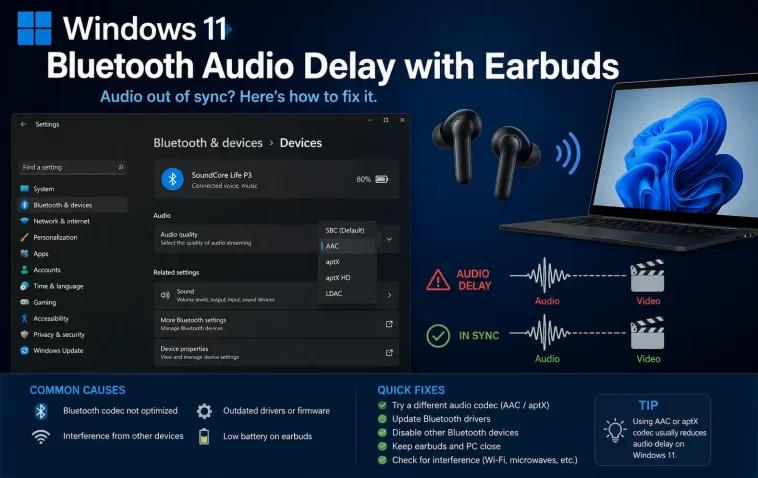
I noticed the lag the first time I tried watching a YouTube video with my earbuds during a work call gap — the guy’s mouth was moving a solid half second before I heard anything. Windows 11 Bluetooth audio delay with earbuds is usually a codec mismatch or a driver power-saving setting messing with the connection, and most of the time it’s fixable without buying new hardware. I’ve chased this exact problem across three different laptops now, and the cause isn’t always the same twice.
So let’s get into what’s actually going on and how to fix it.
Quick Answer
- Switch your earbuds’ audio format in Windows Sound settings (right-click the speaker icon > Sound settings > your earbuds > Advanced)
- Turn off “Allow the computer to turn off this device to save power” for your Bluetooth adapter
- Update your Bluetooth driver directly from the laptop manufacturer’s site, not just Windows Update
- Disable audio enhancements and spatial sound if they’re turned on
- If your earbuds support aptX Low Latency or Google’s Fast Pair codec, make sure Windows is actually using it
None of these fix everything on their own. But that list covers about 90% of what I’ve seen cause this.
Why Bluetooth Audio Lags on Windows 11
There isn’t one single cause here, which is honestly part of what makes this annoying to troubleshoot. From what I’ve seen, it usually comes down to one of these:
Codec mismatch. Bluetooth audio codecs aren’t all created equal. SBC (the default fallback codec basically every Bluetooth device supports) has noticeably higher latency than AAC or aptX. If your earbuds and your laptop can’t agree on a better codec, Windows falls back to SBC, and SBC is slow by design — it wasn’t built with real-time sync in mind, it was built for basic audio streaming.
Power management interference. Windows loves to power down Bluetooth radios to save battery, especially on laptops. The problem is it doesn’t always do this cleanly, and the radio can end up in a half-asleep state that adds processing delay when it wakes back up mid-stream.
Driver issues. Generic Windows Bluetooth drivers are often behind what the actual chipset (Intel, Realtek, Qualcomm — whatever’s in your machine) can support. And is worth mentioning, OEM drivers from Dell, Lenovo, HP, etc. tend to handle Bluetooth audio profiles better than the generic Microsoft ones, even though Windows Update usually installs the generic version by default.
Background audio processing. Windows 11’s audio enhancements, spatial sound, and some third-party audio software (looking at you, certain gaming audio suites) all add processing overhead. Each one on its own might only add a few milliseconds, but stack three or four of them and you’ll feel it.
Bluetooth version and interference. Older Bluetooth 4.x adapters have inherently worse latency handling than 5.0+. And if you’re in a crowded WiFi environment — apartment building, office, coffee shop — 2.4GHz interference can cause the connection to renegotiate constantly, which shows up as stuttering delay.
Where This Shows Up Most
The delay is usually most obvious in specific situations, not just general listening:
Video calls are the worst offender — you’re actively watching lips move, so even 100-200ms of lag is distracting. Gaming is close behind, especially anything competitive where audio cues matter (footsteps, gunfire). Watching YouTube or Netflix is noticeable but more tolerable since you’re not reacting in real time. Music alone, honestly, most people don’t notice a slight delay unless it’s really bad — there’s nothing to sync it against.
Laptops with older Bluetooth chipsets (a lot of budget and mid-range machines from 2019-2021) tend to have this worse than newer ones with Bluetooth 5.2 or 5.3. I’ve also seen it get worse on machines running a lot of background apps, which makes sense — Bluetooth audio processing is competing for CPU cycles like everything else.
Codec Comparison
| Codec | Typical Latency | Common Support | Notes |
|---|---|---|---|
| SBC | 150-300ms | Nearly universal | Default fallback, worst latency |
| AAC | 100-200ms | Common on iPhone-paired earbuds, some Android | Better than SBC but not built for gaming |
| aptX | 60-80ms | Qualcomm-based earbuds, some Android phones | Needs both ends to support it |
| aptX Low Latency | ~40ms | Gaming earbuds, some Bluetooth adapters | Best for video/gaming sync |
| Google Fast Pair / LC3 | Varies | Newer Bluetooth 5.2+ devices | LC3 is the LE Audio standard, still rolling out |
Not every laptop-earbud combo supports the better codecs, which is genuinely the most common reason people can’t fix this no matter what settings they change.
Step-by-Step Fixes
Step 1: Check and Change the Audio Format
Right-click the speaker icon in your taskbar, go to Sound settings, click on your earbuds under output devices, then go to the Properties or Advanced tab. You’ll see a format dropdown — usually something like 16-bit, 48000 Hz. Try switching this down to 16-bit, 44100 Hz. Sounds backwards, I know, but a lower sample rate sometimes reduces processing overhead enough to cut noticeable lag. It won’t fix a codec problem, but it’s worth trying first since it takes ten seconds.
Step 2: Disable Bluetooth Power Saving
Open Device Manager, expand Bluetooth, right-click your Bluetooth adapter (not your earbuds — the adapter), go to Properties > Power Management, and uncheck “Allow the computer to turn off this device to save power.” This one actually fixes a decent chunk of cases, in my experience, especially on laptops.
Step 3: Update Your Bluetooth Driver Properly
Don’t just use Windows Update for this one. Go to your laptop manufacturer’s support site (Dell, HP, Lenovo, ASUS, whatever you’ve got) and download the actual Bluetooth driver package for your specific model. Generic Windows drivers are functional but often miss codec support that the manufacturer driver includes.
Step 4: Turn Off Audio Enhancements
Back in Sound settings > your earbuds > Advanced (or sometimes under a separate “Enhancements” tab depending on your audio driver), turn off any spatial sound, virtual surround, or enhancement options. These add real processing time.
Step 5: Re-pair the Earbuds Completely
Sometimes the Bluetooth profile Windows negotiated the first time you paired just isn’t the best one available, and it won’t automatically upgrade. Remove the device entirely from Bluetooth settings, restart your laptop, then pair fresh. This forces Windows to renegotiate the connection and codec from scratch.
Step 6: Check for Interference
If you’re in a crowded wireless environment, try moving closer to your laptop or turning off WiFi temporarily to test if that’s contributing. It’s not always the cause, but And it’s an easy thing to rule out.
What Actually Worked For Me
Okay so here’s what actually happened on my end. I tried the power management fix first because that’s what most forums recommended, and it helped a little — went from very noticeable delay to just mildly annoying. Figured that was as good as it’d get.
But then a coworker mentioned almost offhand that her Bluetooth earbuds had a “gaming mode” toggle in their companion app that switched to a low-latency codec, and it clicked that I’d never actually checked whether my earbuds had something similar. Dug through the manual (who reads manuals, but here we are), found the equivalent toggle, switched it on, and the delay dropped to something I genuinely couldn’t perceive anymore during video calls.
So the real fix, in my case, wasn’t a Windows setting at all — it was a hardware-side toggle I didn’t know existed. Not every pair of earbuds has this, but check your earbuds’ app or manual before assuming it’s purely a Windows problem. That’s not entirely accurate to say it’s “purely” one or the other, honestly — it’s usually both sides needing to cooperate on the same codec.
Advanced Fixes and Edge Cases
Check Bluetooth codec via registry (advanced users). Windows doesn’t expose an easy toggle for forcing a specific codec, but some driver packages add registry keys under HKEY_LOCAL_MACHINE\SYSTEM\CurrentControlSet\Services\BTHPORT\Parameters related to audio profile priority. I wouldn’t recommend messing with this unless you’re comfortable backing out changes — it’s inconsistent across chipsets and Microsoft doesn’t officially document it.
Event Viewer diagnostics. If the delay is intermittent rather than constant, check Event Viewer under Applications and Services Logs > Microsoft > Windows > Bluetooth-MTPEnum or the Kernel-Bluetooth logs for disconnect/reconnect events. Repeated micro-disconnects that don’t fully drop the connection are a common hidden cause of stuttering delay that feels like straight latency but is actually a connection issue.
Bluetooth stack conflicts with third-party software. Some VPN clients, VoIP apps, and older audio management suites (certain Realtek and Conexant utilities) can hook into the audio pipeline in ways that add latency. Try testing with third-party audio software fully closed, not just muted or minimized.
BIOS-level Bluetooth firmware. On some laptops, especially business models, there’s a separate Bluetooth firmware update delivered through BIOS updates rather than driver updates. Check your manufacturer’s BIOS/firmware update tool if driver updates alone don’t help.
Prevention Tips
- Check for a low-latency mode in your earbuds’ companion app before assuming it’s a Windows-only issue
- Keep Bluetooth drivers updated through the manufacturer, not just Windows Update
- Avoid stacking multiple audio enhancement tools at once
- If buying new earbuds for gaming or video calls specifically, look for aptX Low Latency or LC3 support in the spec sheet
FAQ
Why does my Bluetooth audio lag only during video calls but not music? Because you’re syncing audio against visual movement in real time, so even small delays that are unnoticeable in music become obvious the second lips and sound don’t match.
Does a Bluetooth 5.0 adapter fix latency automatically? Not automatically — it just supports better codecs. If your earbuds don’t support them too, you’re still stuck with SBC either way.
Will a USB Bluetooth dongle help more than built-in Bluetooth? Sometimes, yeah, especially on older laptops with weak internal Bluetooth chipsets. A decent USB adapter with aptX LL support can be a real upgrade.
Is wired always better than Bluetooth for latency? Yes, basically always. Wired has close to zero processing delay. If latency really matters for your use case, that’s the honest answer, even though it’s not what people want to hear.
Why did re-pairing fix it when nothing else did? Windows sometimes locks in the codec negotiated during the very first pairing and doesn’t revisit it. Removing and re-pairing forces a fresh negotiation, which occasionally picks a better codec the second time around.
Editor’s Opinion
honestly this one bugged me more than it should have for something so small. tried like four different settings before realizing the actual fix was sitting in my earbuds’ own app the whole time. windows settings get blamed for a lot of stuff thats actually on the hardware side. if the power management fix and driver update dont get you all the way there, go check your earbuds app before you give up, thats my honest take
