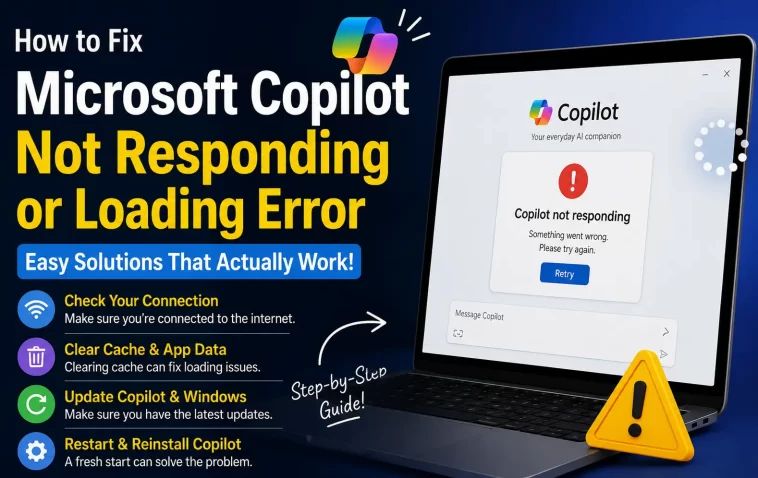
I was mid-sentence in a Word doc, waiting on Copilot to finish a rewrite, and it just… stopped. Spinner frozen, no error, nothing. That’s the Microsoft Copilot not responding error in a nutshell — it doesn’t crash loudly, it just quietly gives up on you. I’ve hit this on the Windows app, in Edge, and inside Word, and the fix depends a lot on where it’s happening.
This isn’t one bug with one fix. It’s usually one of about five things, and figuring out which one applies to you saves a lot of pointless troubleshooting.
Quick Answer
- Restart Copilot and check for a Microsoft 365 service outage first — this solves more cases than people expect
- Clear browser cache/cookies or try an InPrivate window if you’re using Copilot in Edge or another browser
- Repair or reset the Copilot app via Windows Settings > Apps
- Confirm your account actually has an active Copilot license, especially in work/school tenants
- Uninstall and reinstall from the Microsoft Store as a last resort before contacting support
Why It Fails
There are a few real causes here, not just “restart your computer.”
Service-side outages. Copilot runs on Microsoft’s servers, not locally, so when their backend has a hiccup, your app looks broken even though nothing on your PC changed. This shows up as a generic “other side closed” or “service communication is currently unavailable” message, and from what I’ve seen, it clusters — a bunch of people report it within the same few hours, then it clears up on its own.
Licensing or tenant policy issues. If you’re on a work or school account, Copilot needs an active license tied to that account, and org admins can restrict it entirely. So if it’s not responding only in your work M365 apps but works fine on your personal account, that’s your answer right there.
Corrupted local app data. The Windows Copilot app caches session data, and sometimes that cache gets stale or corrupted after an update. This is the most common cause I’ve personally run into — the app just stops talking to the backend even though everything else on the machine is fine.
Browser-specific session problems. Old cookies, a hung extension, or a stuck sign-in token can make Copilot in Edge or Chrome hang on load. This one’s sneaky because it looks identical to a server outage from the user’s side.
Network or firewall blocking. Less common for home users, but corporate firewalls and some VPN configs block the specific endpoints Copilot needs. If it never loads, not even the initial page, this is worth checking before anything else.
Common Scenarios
Where this actually shows up varies more than you’d think:
- Windows 11 Copilot app — freezes after typing a prompt, or the window opens but stays blank
- Copilot in Word/Excel/Outlook — the button is there but clicking it does nothing, or it loads then times out
- Copilot web chat (copilot.microsoft.com) — loads the page but chat never responds
- Enterprise M365 accounts — often it’s a licensing or admin policy problem, not a bug at all
Step-by-Step Fixes
Step 1: Check if it’s actually a Microsoft-side outage
Before you touch anything, search “Copilot down” or check Microsoft 365 admin status if you have access. If it’s an outage, no local fix will help — you’re just waiting it out. I’ve wasted a solid 20 minutes resetting an app once before realizing it was a known outage the whole time.
Step 2: Restart the app (or browser) properly
Not just closing the window — actually end the process. On Windows, right-click the taskbar, open Task Manager, find Copilot, and End Task. Then reopen it. Sounds too simple, but it clears a decent chunk of these cases.
Step 3: Repair or reset the Copilot app
Go to Settings > Apps > Installed apps, find Copilot, click the three dots, then Advanced options. Try Repair first — it’s non-destructive. If that doesn’t fix it, go back and hit Reset, which wipes local app data and forces a fresh sign-in.
Step 4: Clear browser cache and try InPrivate mode
If you’re using Copilot through Edge or another browser, open an InPrivate/incognito window and test there. If it works fine, your regular session’s cookies or cache are the problem — clear them and sign back in.
Step 5: Verify your license and account
In Word or Excel, go to File > Account and confirm the correct license-holding account is set as primary. On a work account, ask your admin whether Copilot is actively assigned and whether any conditional access policy is blocking it. This step gets skipped constantly and it’s often the actual cause in corporate environments.
Step 6: Uninstall and reinstall
If nothing above works, uninstall Copilot from Settings > Apps > Installed apps, then reinstall fresh from the Microsoft Store. This clears out anything Repair/Reset didn’t catch.
Step 7: Run the built-in troubleshooters
Open the Get Help app, search for “Copilot connectivity troubleshooter,” and let it check for firewall or network blockers. There’s also a separate Copilot License Troubleshooter worth running if you suspect a licensing issue.
What Actually Worked For Me
My first move was the obvious one — restart the app, restart the PC, same result. Tried clearing cache in Edge too, no change. So I assumed it had to be a server-side problem and just left it alone for an hour, came back, still broken. That’s when I figured it probably wasn’t an outage after all.
What actually fixed it was the Repair option under Advanced options, which I’d honestly forgotten existed until I stumbled on it in a forum thread. Took about 90 seconds, and Copilot started responding again immediately after. Not a dramatic story, but it wasn’t the fix I expected going in — I was fully prepared to reinstall the whole thing.
Advanced Fixes and Edge Cases
Check Event Viewer for app crash logs. If Copilot is silently closing rather than just freezing, Windows Event Viewer (under Application logs) sometimes shows a crash entry tied to the Copilot process. It won’t always tell you the root cause, but it confirms whether it’s actually crashing versus just hanging.
Network trace for corporate environments. If you’re on a managed network and Copilot never loads at all, ask IT to check whether the required Microsoft endpoints are allow-listed. Copilot needs outbound access to specific Microsoft cloud domains, and overly aggressive firewall rules block it silently — no error message, just nothing happening.
Conditional access and tenant policy conflicts. In larger organizations, Copilot access can be gated by conditional access policies that weren’t updated when Copilot licenses were assigned. This is an edge case, but it’s the one that tends to eat the most support tickets because it looks exactly like a bug from the end-user’s side.
Prevention Tips
- Keep Windows and Office apps updated — a lot of Copilot fixes ship as part of regular app updates
- Don’t ignore repeated “service unavailable” messages; check Microsoft’s service health page before assuming it’s your machine
- If you’re on a managed work account, loop in your admin early instead of troubleshooting locally for an hour first
- Avoid running multiple browser profiles signed into different Microsoft accounts at once — this causes weird session conflicts
FAQ
Why does Copilot say “other side closed”? That’s a server-side error message, usually tied to a temporary Microsoft outage or a dropped connection mid-response. Not much you can do locally except retry later.
Does clearing cache delete my Copilot chat history? Yes, clearing browser cache/cookies for Copilot will usually clear local chat history too, though anything saved server-side to your account should still be there after you sign back in.
Is Copilot not responding the same as Copilot not showing up at all? No — a missing button is almost always a licensing or enablement issue, while “not responding” usually means it loaded but the backend request is failing.
Can a VPN cause this? Yeah, it can. Some VPN configurations route traffic in a way that trips Copilot’s connectivity checks. Worth testing with the VPN off if you’re stuck.
Editor’s Opinion
honestly this is one of those bugs where half the fixes people recommend online (clearing cache, restarting, whatever) barely move the needle, and the actual fix is buried in an “advanced options” menu nobody checks first. repair before reset, always. and if it’s an outage just walk away for a bit, nothing you do locally will fix Microsoft’s servers. not glamorous advice but it’s what actually works most of the time.
