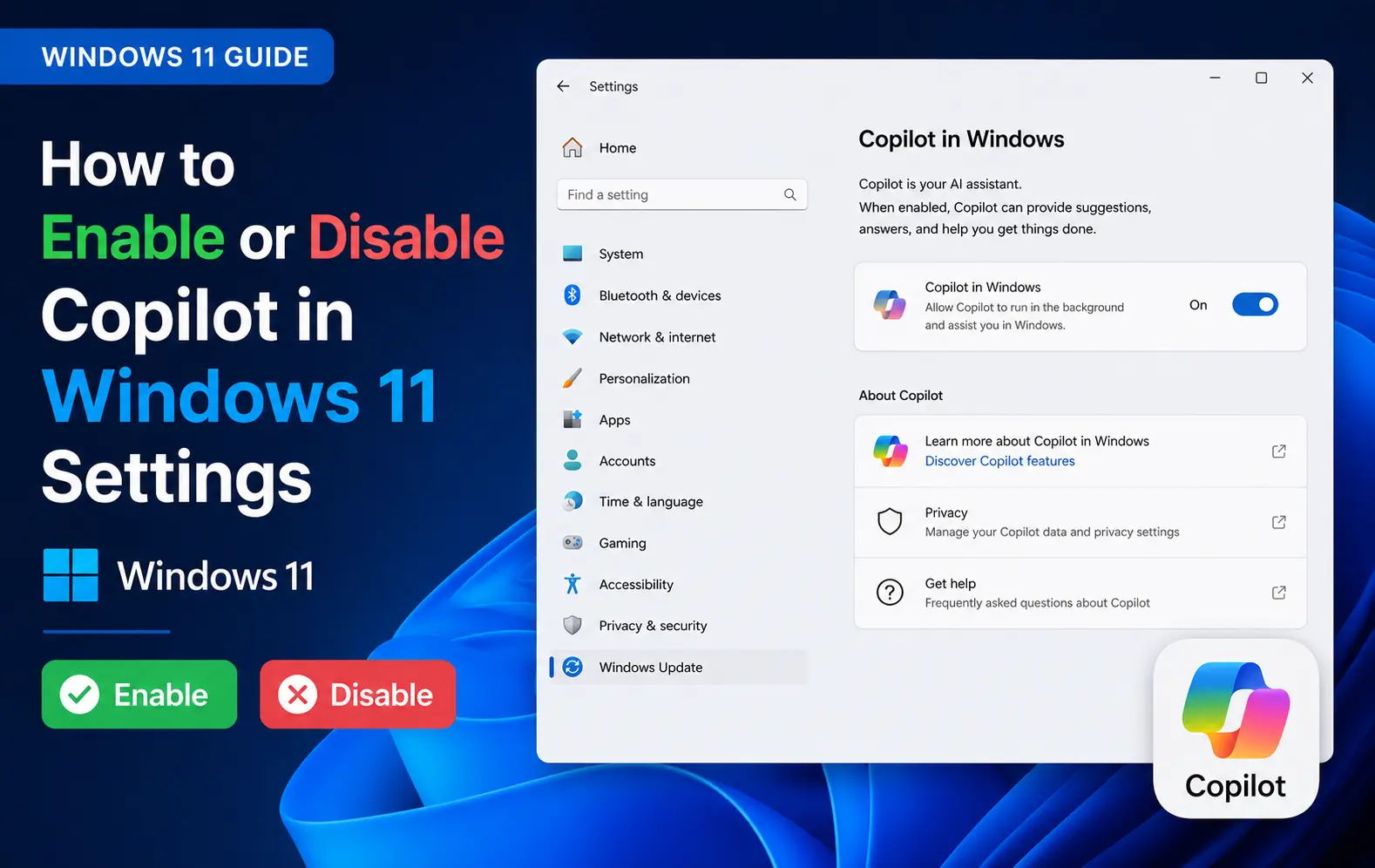
I turned Copilot off on my main machine about a month ago, mostly because I kept fat-fingering the taskbar icon and opening it by accident. Turns out enabling or disabling Copilot in Windows 11 isn’t one single switch anymore — it depends on which edition you’re running and how thoroughly you want it gone. Here’s what actually works right now.
Quick Answer
- Fastest method: Settings > Personalization > Taskbar > turn the Copilot toggle on or off
- For a more permanent block on Pro/Enterprise/Education, use Group Policy (gpedit.msc)
- Home edition users without Group Policy can use a Registry edit instead
- To remove Copilot completely, uninstall it from Settings > Apps > Installed apps
- Toggling the taskbar button off is cosmetic only — Win+C can still open it unless you remap the key
The Simple Way: Taskbar Toggle
This is what most people actually want, and it takes about ten seconds.
- Press Win + I to open Settings.
- Go to Personalization > Taskbar.
- Expand Taskbar items.
- Turn the Copilot toggle On or Off.
That’s it. Turning it off hides the icon immediately, no restart needed. And turning it back on later is exactly as fast — flip the same toggle.
One thing worth knowing: this only hides the button. The Copilot app itself is still installed, and the dedicated Copilot key (or Win+C) on newer keyboards will still launch it. If that bugs you, there’s a fix for that further down.
For Pro, Enterprise, and Education: Group Policy
If you want Copilot blocked more reliably — not just hidden — Group Policy is the better option, and it’s only available on Pro, Enterprise, and Education editions (not Home).
- Press Win, type gpedit.msc, and open the Group Policy Editor.
- Navigate to User Configuration > Administrative Templates > Windows Components > Windows Copilot. On some newer builds this has moved under Windows AI instead, so check both if you don’t see it right away.
- Right-click Turn off Windows Copilot and select Edit.
- Choose Enabled to disable Copilot, or Not Configured to allow it again.
- Click Apply, then OK.
You’ll usually need to sign out and back in for this to fully take effect. So if the taskbar still shows Copilot right after applying the policy, don’t panic — just log off and on once.
For Windows 11 Home: Registry Edit
Home edition doesn’t include the Group Policy Editor, so the Registry is the closest equivalent for a more durable block.
- Press Win + R, type regedit, and hit Enter.
- Navigate to
HKEY_CURRENT_USER\Software\Policies\Microsoft\Windows\WindowsCopilot. If the WindowsCopilot key doesn’t exist, right-click Windows, choose New > Key, and name it WindowsCopilot. - Inside that key, create a new DWORD (32-bit) Value named
TurnOffWindowsCopilot. - Set its value to 1 to disable Copilot, then restart your PC.
- To re-enable it later, set the value back to 0, or just delete the key entirely, then sign out and back in.
A quick warning here since it’s the Registry: back up the key before editing if you’re not confident, and don’t touch anything outside the WindowsCopilot folder you created.
Uninstalling Copilot Completely
If hiding it isn’t enough and you want it gone, gone, this removes the app itself.
- Open Settings > Apps > Installed apps.
- Search for Copilot in the list.
- Click the three dots next to it and select Uninstall.
- Confirm when prompted.
This removes the taskbar icon, the Start menu tile, and the right-click “Ask Copilot” option in File Explorer in one go. It won’t remove the Copilot logo from Windows Search results, though — that part seems to stick around regardless.
As of the April 2026 update (25H2), there’s also a dedicated Remove Microsoft Copilot app policy under Group Policy, in User Configuration > Administrative Templates > Windows Components > Windows AI, available on Pro, Enterprise, Education, and IoT Enterprise. One catch worth knowing: it only triggers uninstall after the app’s gone unused for 28 days, and it’s a one-time removal rather than a permanent block — so Copilot could technically come back with a future update.
Bonus: Remapping the Copilot Key
If your laptop has a dedicated Copilot key and you’ve disabled Copilot but the key still does something, you can put it to better use.
- Go to Settings > Personalization > Text input.
- Under Customize Copilot key on keyboard, choose Search, or pick a custom app instead.
Not every laptop supports this yet, and from what I’ve seen it depends a bit on the OEM and driver version, so your mileage may vary here.
FAQ
Does disabling Copilot in Settings remove it from Microsoft Edge too? No, Edge has its own separate Copilot toggle under Edge Settings — turning off the Windows taskbar Copilot doesn’t touch the browser sidebar.
Will Copilot come back after a Windows update? It can, especially with the taskbar toggle method since it’s just a UI setting. Group Policy and Registry blocks tend to hold up better across updates, but check again after major feature updates just in case.
Can I disable Copilot on Windows 11 Home without editing the Registry? Not really, no — the taskbar toggle hides it but doesn’t block it, and Home doesn’t have Group Policy. The Registry edit is the only way to get a firmer block on Home.
Does uninstalling Copilot free up much disk space or RAM? Not a huge amount, honestly. It’s more useful for people who want it out of their workflow than for reclaiming resources.
Editor’s Opinion
the taskbar toggle is fine if you just want it out of sight, but if you actually want it to stay off, do the Group Policy or Registry version instead. learned that one the hard way after an update quietly turned my taskbar toggle back on. and don’t bother uninstalling unless you really want it gone — the icon still shows up in search either way, so it’s not a totally clean removal.
