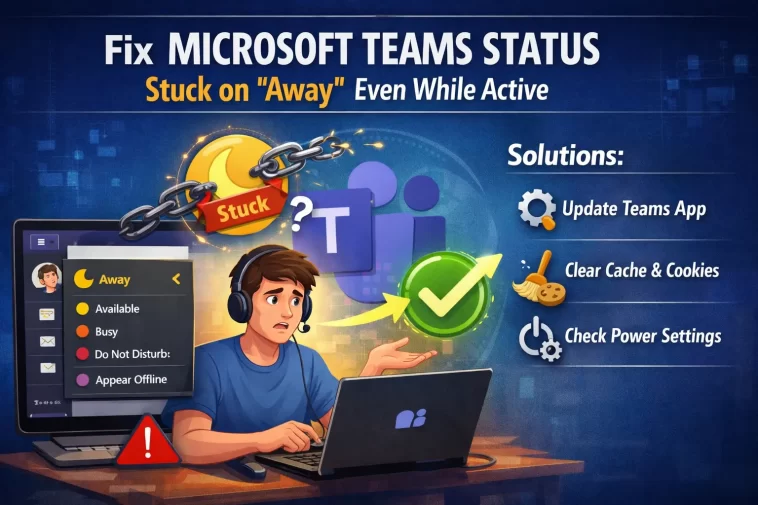
Spent half a Tuesday looking “away” on Teams while I was knee-deep in a spreadsheet, actively typing the whole time. Nobody said anything, but I only noticed because a coworker asked if I was okay since my status hadn’t moved in over an hour. If your Teams status is frozen on Away while you’re clearly working, you’re not imagining it — this is a known, fairly common problem, and there are a few different things that can cause it.
Quick Answer
- Click your profile picture and manually set status to Available — if it sticks, good, if it snaps back to Away within seconds, that’s diagnostic
- Sign out of Teams completely and sign back in to force a fresh presence sync with the server
- Check whether an Outlook calendar event (especially an Out of Office entry) is overriding your manual status
- Bring the Teams window into focus occasionally — new Teams has had reported issues where presence only updates when the app is actively focused, not just when you’re active elsewhere
- If it’s organization-wide, check with IT whether this is a known outage; Microsoft has had periods where presence updates lagged for everyone
If none of that sticks, there’s a deeper layer to this worth understanding, because “just sign out and back in” doesn’t fix it for everyone.
Why Teams Status Gets Stuck on Away
There isn’t one single cause here — Teams presence pulls signals from a few different sources, and when any of them gets confused, the status can freeze in place.
Idle detection losing sync with actual activity. Teams flips you to Away after about five minutes of no detected input. That part works fine most of the time. The problem is the reverse direction — when you come back and start working again, Teams is supposed to flip you back to Available, and that handoff doesn’t always happen. Your computer knows you’re active. Teams’ presence engine, for whatever reason, doesn’t always get the memo.
New Teams focus-detection quirks. This is one a lot of people have run into and it’s genuinely annoying: some versions of new Teams seem to only refresh your presence status when the Teams window itself is in focus, not just when you’re generally active on your computer. So if you’re working in Excel or a browser all day with Teams minimized in the background, it can sit on Away indefinitely even though you’ve been at your desk the whole time.
Calendar and Out of Office signals overriding manual status. Teams checks your Outlook calendar to help set presence automatically. If there’s an all-day event, a meeting marked as Out of Office, or an automatic reply still switched on somewhere, Teams can keep showing Away (or “Available, Out of Office”) regardless of what you manually set it to. And this one’s sneaky because turning off automatic replies in Outlook doesn’t always clear the signal Teams already cached.
Lock and sleep timing mismatches. If your screen lock or sleep timeout is set differently than what Teams expects, there can be a mismatch between when your device reports as locked and when Teams decides to change your status — leading to Away getting stuck even after you’ve unlocked and resumed working, sometimes for fifteen minutes or more before it catches up.
Cached presence data not refreshing. Teams caches a chunk of presence-related data locally. So if that cache gets stale or slightly corrupted, it’ll keep displaying the last known state instead of pulling a fresh read from the server, even though the server-side status might be accurate.
Connectivity blips you don’t notice. A brief network hiccup can disconnect Teams from the presence service without dropping your whole connection in any way you’d notice. Teams falls back to whatever status it last had cached, which is often Away, and doesn’t always reconnect to presence services as quickly as it reconnects to chat and calls.
Common Scenarios
- Remote/hybrid workers using multiple monitors — Teams minimized on a second screen while you work in another app is one of the most common setups where this shows up
- After waking from sleep or unlocking — the lock/unlock timing mismatch is most visible right after resuming work, not during steady use
- Organizations with Out of Office automation — anyone using scheduled automatic replies or shared calendar tools is more likely to see the Out-of-Office-stuck variant
- New Teams client specifically — several of the focus-detection reports are tied to the newer Teams architecture rather than classic Teams, though it’s not exclusive to it
Step-by-Step Fixes
Step 1: Try the manual override first
Click your profile picture (top right) > select Available from the status menu. If it holds for more than a couple minutes, you’re fine for now — note whether it slips back to Away later, since that tells you whether this is a one-time glitch or a recurring pattern.
Step 2: Bring Teams into focus periodically
If you suspect the focus-detection issue, try clicking into the Teams window itself every so often rather than leaving it minimized all day. Not a real fix, just a workaround, but it does seem to nudge presence to refresh for a lot of people.
Step 3: Sign out and back in
Click your profile picture > Sign out. Close Teams fully, reopen it, sign back in. This forces a clean presence handshake with the server instead of relying on whatever got cached locally.
Step 4: Check for calendar interference
Open Outlook and check:
- Any active automatic replies (File > Automatic Replies)
- Any calendar event currently marked as “Out of Office” or an all-day event that might read as one
- Whether the Teams calendar tab shows anything unexpected for today
Turn off automatic replies if they’re on, and double-check the change actually saved — sometimes it looks off in Outlook but Teams is still reading a cached version of it.
Step 5: Clear the Teams cache
Close Teams completely (check Task Manager to confirm it’s not still running in the background). Navigate to:
%appdata%\Microsoft\TeamsDelete the contents of the Cache, blob_storage, and GPUCache folders specifically — not the whole Teams folder, just those. Reopen Teams and let it rebuild.
Step 6: Run Microsoft’s presence connectivity test
Microsoft has a Remote Connectivity Analyzer test specifically for Teams presence tied to calendar events. It checks whether the underlying requirements for presence-to-calendar syncing are actually working, which is useful if you’ve ruled out the obvious stuff and it’s still stuck.
What Actually Worked For Me
For my own stuck-on-Away afternoon, I did the easy thing first — clicked Available manually. Held for about ninety seconds, then flipped back to Away on its own while I was still typing away in another window. So that confirmed it wasn’t a one-off glitch, something was actively overriding my manual status.
Tried signing out and back in next, fully expecting that to fix it since that’s usually the heavier reset. It didn’t — same behavior, Away within two minutes of being set to Available. At that point I figured it had to be the focus thing, since I’d had Teams minimized basically the entire day on a second monitor.
So I just left the Teams window actually in focus for a stretch instead of minimized, and it held at Available the whole time. Soon as I went back to working primarily in another app with Teams in the background, it drifted back to Away within the usual five-or-so minutes. That’s not a real fix, that’s just confirming the cause — and from what I’ve seen in other reports, this particular flavor of the bug doesn’t have a clean permanent fix yet on new Teams; bringing the window into occasional focus is the workaround people are using until Microsoft sorts it out properly.
Advanced Fixes and Edge Cases
Check Event Viewer for Teams-related errors. Windows Logs > Application, filtered for anything Teams-related around the time presence got stuck. Won’t always show something, but on connectivity-related stalls it sometimes does.
Verify sleep and screen timeout settings align with expectations. Settings > System > Power & Battery. If “Turn my screen off after” and “Make my device sleep after” are set very differently from each other, you can get a window where the device reports as locked to Windows but Teams hasn’t caught up yet, leading to a stuck status during that gap.
Check organization-wide policy settings (admin side). IT admins can configure presence behavior at the tenant level, including how presence interacts with calendar and Out of Office status. If this started right after an IT-side change, that’s worth raising with admins directly rather than troubleshooting locally — it might not be fixable from the user side at all.
Rule out a known Microsoft-side issue. This bug has been reported persistently enough, across long stretches, that it’s worth checking the Microsoft 365 admin center service health dashboard (if you have access) or asking IT whether others in the org are seeing it too. If it’s widespread, no amount of local troubleshooting fixes it — you’re just waiting on a server-side patch.
Test in Teams on the web as a comparison point. If presence behaves correctly in teams.microsoft.com but not the desktop app, that narrows the problem down to something local to your desktop client rather than your account or the calendar/presence service itself.
Prevention Tips
- Keep Teams desktop app visible or at least occasionally brought into focus if you suspect your version is affected by the focus-detection issue
- Double check automatic replies actually turned off in both Outlook and Teams settings, not just one
- Don’t set Do Not Disturb as a workaround and forget about it — colleagues read that as genuinely unavailable, not just “fixing a glitch”
- Keep Teams updated; Microsoft has pushed presence-related fixes in past updates, and an outdated client can carry bugs that were already patched for everyone else
- If this is a recurring org-wide pattern, loop in IT rather than each person individually troubleshooting their own machine
FAQ
Why does my status say “Available, Out of Office” and won’t change no matter what I do? That’s almost always a lingering calendar or automatic-reply signal Teams hasn’t refreshed from yet — check both Outlook and Teams settings, and give it a few minutes after disabling.
Does minimizing Teams actually cause this, or is that a myth? For some versions of new Teams, yes — there have been real reports of presence only refreshing properly while the Teams window has focus, not just while you’re generally active.
Will reinstalling Teams fix it permanently? Sometimes, but not reliably. It clears local cache and config issues, but if the cause is server-side or tied to a calendar signal, reinstalling won’t touch that part.
Is there a way to manually lock my status as Available no matter what? Not really, by design — Teams is built to reflect real activity rather than let people fake permanent availability, so there’s no official override beyond Do Not Disturb, which isn’t the same thing.
My whole team is seeing this at once — is that normal? If it’s affecting multiple people simultaneously, it’s more likely a service-side hiccup or an IT policy change than something wrong with individual machines. Worth flagging to IT as a group issue rather than troubleshooting one by one.
Editor’s Opinion
the focus-detection thing is the one that gets me, feels like a step backward from how presence used to just work in classic teams. signing out and back in fixes it for some people and does nothing for others, which tells you theres more than one bug wearing the same costume here. if your manual “available” click doesnt hold for at least a couple minutes, stop messing with local settings and check the calendar/out-of-office angle first, thats the one people skip and it wastes the most time.
