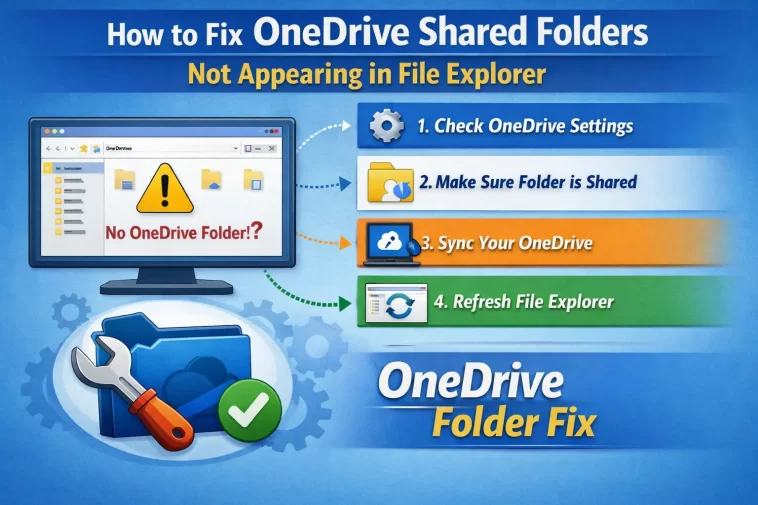
Had a OneDrive shared folder vanish on me last month — not deleted, still right there on onedrive.com, just gone from File Explorer like it never existed. If you’re staring at a “Choose folders” list that doesn’t include the thing someone shared with you, this is the same problem, and it’s fixable, just not always with the first thing you try.
Quick Answer
- Go to onedrive.com, find the folder under Shared, right-click it and choose Add shortcut to My files
- Open OneDrive Settings > Account > Choose folders, and confirm the shared folder is checked
- If it shows up but only opens a browser tab instead of the actual folder, that’s a known shortcut-behavior issue, not something broken on your end
- Unlink and re-link OneDrive on the PC if the folder still won’t appear after adding the shortcut
- Confirm you’re signed into the right Microsoft account — easy to overlook if you’ve got more than one
If that gets you unstuck, great. But so — this one has a few layers, and the “it shows up but does nothing” version is honestly more common than total invisibility.
Why OneDrive Shared Folders Don’t Show Up
There’s more than one failure mode here, and they don’t all look the same from the user’s side.
The folder was never added to “My files.” This is the most basic cause and also the most common. When someone shares a folder with you, it lands in the “Shared” section of OneDrive online — it does not automatically appear in File Explorer. You have to explicitly add a shortcut to it. People skip this step constantly because it’s not obvious that “shared with me” and “synced to my PC” are two completely different states.
Account mismatch. If you’ve got a personal Microsoft account and a work/school account both signed in, and the folder was shared with the wrong one, OneDrive won’t show it under the account you’re currently browsing in File Explorer. Easy to miss, especially on machines where IT pre-configured a business account alongside a personal one.
Sync selection settings. Even after a shortcut is added, OneDrive’s “Choose folders” setting can have it unchecked, which keeps it out of File Explorer while it still technically exists in your OneDrive account online.
The shortcut-instead-of-folder behavior. This one’s been reported a lot recently, and it’s worth calling out specifically because it confuses people who assume their setup is broken. Instead of syncing as a real local folder, a shared folder sometimes appears as an internet shortcut — clicking it just opens a browser tab pointed at onedrive.com instead of showing the actual files in Explorer. From what I’ve seen, this tends to happen more often with personal Microsoft accounts than with business/Microsoft 365 ones, though it’s not exclusive to either.
Corrupted local sync state. OneDrive maintains a local sync database, and if that gets out of sync with what’s actually shared with you, folders can disappear from the local view even though nothing changed on the sharing side.
Permission changes you didn’t know about. If the folder owner adjusted sharing settings, removed your access, or re-shared the folder under different permissions, it can vanish from your File Explorer without any error message explaining why.
Common Scenarios
- OneDrive Personal accounts — more prone to the shortcut/browser-redirect behavior, especially after a Windows reinstall or OneDrive reset
- OneDrive for Business / Microsoft 365 — shared folders generally sync more reliably as real folders, but permission and account-mismatch issues are more common in larger organizations
- Family sharing setups — two personal accounts sharing folders with each other run into the shortcut bug fairly often, based on what’s been reported
- After a clean Windows install or PC refresh — shared folders that worked fine before often need to be re-added manually; OneDrive doesn’t always carry that configuration over
Step-by-Step Fixes
Step 1: Confirm where the folder actually lives
Log into onedrive.com directly. Check whether the folder shows under My files or Shared. This matters — if it’s under Shared, it needs an explicit action before it’ll touch File Explorer at all.
Step 2: Add a shortcut to your files
- In OneDrive online, find the folder under Shared
- Right-click it
- Select Add shortcut to My files (this wording has changed slightly over different OneDrive versions, but the option is in the right-click menu)
- Give it a minute, then check File Explorer
Step 3: Verify sync settings on the desktop app
- Right-click the OneDrive icon in the system tray
- Settings > Account tab
- Click Choose folders
- Make sure the shared folder is checked in the list
If it’s not even listed here, that points back to Step 2 — the shortcut hasn’t been added properly yet.
Step 4: Check which account you’re signed into
File Explorer > look at the OneDrive section in the left sidebar. If you’ve got multiple OneDrive accounts (Personal plus a work one), confirm you’re checking the right one. Sounds dumb. Isn’t, in practice — I’ve seen people convinced their sharing was broken when they were just looking at the wrong account’s folder tree.
Step 5: Unlink and re-link OneDrive
Settings > Account > Unlink this PC. Sign back in afterward. This resets the local sync configuration without touching your actual cloud files — it just forces OneDrive to rebuild its picture of what should sync.
Step 6: Reset OneDrive entirely
Press Win + R, paste in:
%localappdata%\Microsoft\OneDrive\onedrive.exe /resetHit Enter. OneDrive’s icon will disappear from the tray for a bit while it restarts and resyncs. Give it several minutes — on a folder with a lot of subfolders, this can take a while, and the icon coming back doesn’t always mean the resync finished.
What Actually Worked For Me
For the folder I mentioned at the start, I went through the obvious stuff first — checked Choose folders, it wasn’t even on the list, so I added the shortcut from onedrive.com like you’re supposed to. Came back to File Explorer, and there it was. Except clicking into it just opened a browser tab. That’s not a fix, that’s a different flavor of the same problem.
I tried unlinking and relinking next, fully expecting that to sort it out since that’s usually the heavier-handed fix that catches what the lighter ones miss. It didn’t. Same shortcut-to-browser behavior, right after relinking.
What actually worked was — and I half-remembered this from a forum thread I’d skimmed a while back, not something I figured out fresh — having the person who originally shared the folder go into their own OneDrive, find the folder under their My files, and re-confirm it as Shared from their side rather than me trying to fix it from mine. Something about how the share was registered on her end wasn’t propagating correctly to my account’s “Shared with me” view, even though I could technically see it. Once she re-touched the sharing settings on her side, it went from shortcut to a real, properly synced folder within a couple minutes. I wouldn’t have guessed that fix on my own — it’s not intuitive that the problem could be living entirely on the sharer’s end.
Advanced Fixes and Edge Cases
Check OneDrive’s activity log. Right-click the OneDrive tray icon > View online, or check the activity center in the desktop app for sync errors specific to the shared folder. Sometimes there’s an error sitting there that explains exactly why a folder won’t sync, and it’s easy to miss because the icon itself just shows a generic “syncing” or “up to date” state.
Look at file/folder count discrepancies. If the folder shows up with the right structure but empty subfolders, that’s usually a partial sync — check Properties on the folder for size and file count, and compare against what’s shown online. A mismatch points to permissions on individual subfolders rather than the parent folder.
Personal Vault folders behave differently. If the shared content is tied to Personal Vault, it syncs and displays under different rules than standard OneDrive folders, and troubleshooting steps for regular shared folders don’t always apply cleanly.
Check for a known service-side issue before assuming it’s local. OneDrive has had stretches where shared-folder behavior changed for everyone at once due to a backend update, not anything on the user’s machine. Worth a quick check of Microsoft 365 service status before spending an hour resetting things locally.
Group Policy or admin restrictions (business accounts). In managed environments, IT policies can restrict which shared folders sync locally for security reasons. If you’re on a work account, this is worth ruling out with your admin before assuming it’s a client-side bug.
Prevention Tips
- After any new folder share, check immediately whether it landed in Shared or synced automatically — don’t assume
- Avoid juggling work and personal OneDrive accounts on the same machine without clearly labeling which is which in File Explorer
- Don’t reset OneDrive repeatedly in a short span — give each reset time to fully resync before trying something else, or you’ll lose track of what actually fixed it
- If you regularly share folders with the same people, agree on who re-confirms sharing settings if something breaks, since the fix sometimes needs to happen on the sharer’s side
FAQ
Why does my shared folder open a browser tab instead of showing files in File Explorer? That’s the shortcut-instead-of-real-folder issue — it’s been reported a lot, especially on personal accounts, and re-adding the share from the sharer’s side often resolves it.
Will unlinking OneDrive delete my files? No. Unlinking only resets the local sync connection — your files stay on OneDrive’s servers and in any folder that’s already downloaded locally, untouched.
Is this a Windows 11 problem or also Windows 10? Both. It’s tied to the OneDrive client and sharing behavior rather than the OS version specifically.
My folder shows up but it’s empty even though the owner says it has files. Usually a partial sync. Check Properties for file count versus what’s shown online, and look at the activity center for stalled sync errors on specific items.
Should I just use a normal share link instead of dealing with this? For one-off file sharing, sure — a browser-based share link sidesteps this whole issue. For ongoing collaboration where you want local file access, it’s worth fixing the sync rather than working around it permanently.
Editor’s Opinion
the shortcut-instead-of-folder thing is the one that trips people up most, not the missing-folder part — that ones at least logical, you forgot to add it. but getting a folder that shows up, looks synced, and then just punts you to a browser tab? thats confusing and microsoft hasnt been great about explaining when this is expected vs a bug. if resetting onedrive doesnt fix it, try asking whoever shared the folder to re-touch it from their end before you keep messing with your own settings, that fixed it for me when nothing local did.
