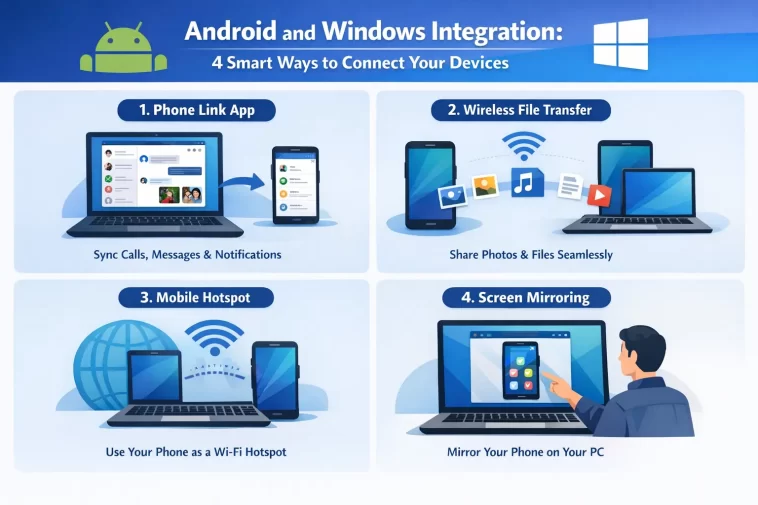
In today’s digital environment, switching between devices can slow you down. Fortunately, Android and Windows integration tools eliminate that friction. From built-in solutions to third-party apps, here are four powerful ways to connect your smartphone and PC.
1. Use Phone Link for Seamless Connectivity
Android and Windows integration with Phone Link
One of the easiest and most direct ways to connect your Android phone to a Windows PC is through Microsoft’s Phone Link app.
Previously known as “Your Phone,” this built-in Windows feature allows users to:
- View and reply to text messages
- Access mobile notifications
- Browse photos stored on the phone
- Make and receive calls
- Run Android apps directly on a PC (supported devices only)
Most Windows systems already have Phone Link installed. If not, it can be downloaded from the Microsoft Store. On the Android side, many Samsung devices come with “Link to Windows” preinstalled, while other Android users can install it via Google Play.
How to set it up
- Open Phone Link on your Windows PC
- Install or open “Link to Windows” on your Android device
- Pair the devices using a QR code or verification code
- Grant necessary permissions
Once connected, your phone essentially becomes an extension of your computer.
Key limitation
Not all features are universally supported. Advanced functions like app streaming and screen mirroring are mostly limited to select devices, particularly Samsung and HONOR models.
2. Mirror Your Android Screen on Windows
Android and Windows integration through screen casting
If your device doesn’t fully support Phone Link—or if you prefer more control—screen mirroring is a great alternative.
Several third-party tools allow you to display your Android screen on your PC:
- Scrcpy
- AirDroid
- ApowerMirror
Among these, Scrcpy stands out due to its simplicity and performance. It allows both screen mirroring and control with minimal lag, even over USB.
Why choose screen mirroring?
- Works with most Android devices
- No heavy installation required
- Real-time control from your PC
- Ideal for presentations, debugging, or gaming
How it works
You simply connect your phone via USB or Wi-Fi, launch the software, and your phone screen appears instantly on your desktop.
3. Run Android Apps Using an Emulator
Android and Windows integration via emulators
If your goal is to run Android apps directly on your computer without needing your phone, emulators are the way to go.
An emulator creates a virtual Android environment inside your Windows system, allowing you to install apps just like you would on a phone.
Popular Android emulators include:
- BlueStacks
- NoxPlayer
- KOPlayer
- Android Studio Emulator
What you can do with emulators
- Download apps from Google Play Store
- Play mobile games on a bigger screen
- Use social media apps with keyboard and mouse
- Test apps (for developers)
Downsides to consider
- High system resource usage
- Slower performance compared to real devices
- No direct access to your phone’s personal data (calls, SMS, etc.)
Still, for gaming or standalone app usage, emulators are incredibly useful.
4. Run Android Inside a Virtual Machine
Advanced Android and Windows integration method
For users who want deeper control, running Android inside a virtual machine (VM) is another option.
This method involves installing Android-based operating systems like Bliss OS inside virtualization software such as:
- VirtualBox
- VMware
Benefits of using a virtual machine
- Full Android operating system experience
- Better compatibility for some apps
- Ability to install APK files manually
- More flexibility for developers and advanced users
Drawbacks
- Requires technical setup
- High CPU and RAM usage
- Performance may lag compared to emulators
This method is best suited for developers or power users who need full Android functionality on Windows.
Which Method Should You Choose?
Android and Windows integration depends on your needs
Each method serves a different purpose, so the best option depends on how you plan to use it:
- For everyday users: Phone Link is the simplest and most convenient
- For screen sharing and control: Scrcpy or similar tools are ideal
- For gaming or app usage: Emulators like BlueStacks work best
- For advanced users: Virtual machines offer full control
Final Thoughts
Android and Windows integration is no longer a complicated process. With the right tools, you can create a seamless experience between your phone and computer.
Whether you’re managing messages, running apps, or mirroring your screen, these four methods provide flexible solutions for every type of user. As technology continues to evolve, the gap between mobile and desktop platforms is shrinking—making workflows faster, easier, and more connected.
