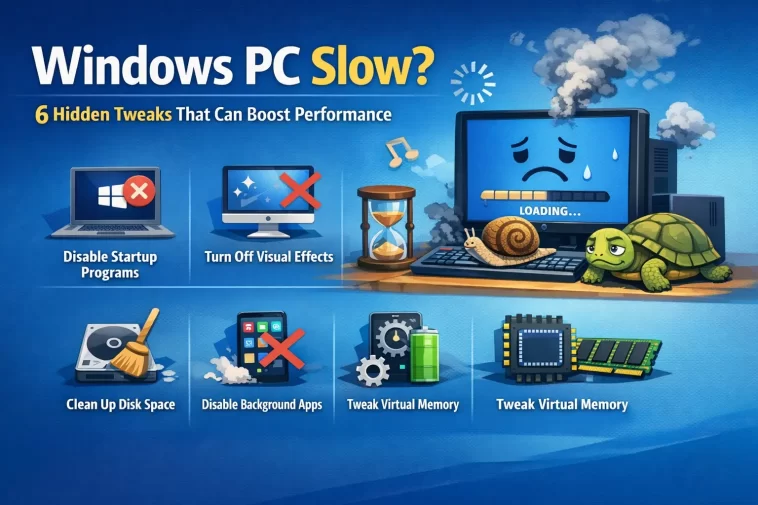
If your computer has started to feel sluggish, you’re not alone—and the good news is that you may not need to replace it. Many users assume that a slow system means outdated hardware, but in reality, performance issues are often caused by overlooked system settings. By adjusting a few built-in Windows options, you can significantly improve speed and responsiveness without spending a dime.
This guide explores Windows PC slow settings that are commonly ignored but can quietly drain your system’s performance. These simple tweaks can help restore your computer’s efficiency and make everyday tasks smoother.
Why Your Computer Feels Slower Over Time
Computers naturally accumulate digital clutter, background processes, and unnecessary startup programs. Over time, these elements begin to compete for system resources like memory, CPU power, and disk usage. Even relatively new machines can feel slow if these factors are left unmanaged.
Modern Windows systems are designed to balance performance, battery life, and stability. However, default settings don’t always prioritize speed. That’s why understanding and adjusting these hidden configurations can make a noticeable difference.
Windows PC Slow Settings: Restart Before You Troubleshoot
Before diving into deeper adjustments, start with a simple reboot. Restarting your computer clears temporary memory, stops lingering processes, and completes pending updates. It’s one of the quickest ways to restore basic performance.
If your system still feels slow after restarting, it’s time to explore the settings that could be holding it back.
1. Clean Up Startup Programs
One of the most common causes of slow performance is an overloaded startup list. Many applications automatically add themselves to startup without your knowledge.
Why it matters:
- Slows down boot time
- Consumes RAM immediately after startup
- Reduces overall responsiveness
What to do:
Go to Settings → Apps → Startup and review the list. Disable any apps you don’t need launching automatically, such as chat apps, media players, or update managers.
2. Limit Background Apps
Even when you’re not actively using certain applications, they may still run in the background. These apps consume memory, CPU resources, and internet bandwidth.
Impact:
- Reduced system performance
- Faster battery drain (on laptops)
- Increased data usage
Solution:
Navigate to Privacy & Security → Background apps and restrict unnecessary apps from running behind the scenes. Focus only on apps you truly need active.
3. Change Your Power Plan
Windows often uses a “Balanced” power mode by default, especially on laptops. While this helps conserve battery, it also limits your processor’s performance.
When to adjust:
- When plugged into a power outlet
- During heavy multitasking
- While using demanding applications
How:
Switch to High Performance mode in your power settings. This allows your CPU to operate at higher speeds, improving responsiveness.
4. Control Windows Updates
Windows updates are essential for security and stability, but they can also slow down your system when running in the background.
Common issues:
- Unexpected slowdowns
- Background downloads consuming bandwidth
- System lag during update preparation
Fix:
Go to Windows Update settings and configure:
- Active Hours to avoid interruptions
- Pause Updates if you’re working on important tasks
This ensures updates don’t interfere with your productivity.
5. Turn Off Visual Effects
Windows includes animations, shadows, and transparency effects to enhance the user interface. While visually appealing, these features require constant GPU and CPU usage.
Performance impact:
- Slower interface transitions
- Increased resource usage
- Reduced performance on older PCs
Optimization:
Disable unnecessary visual effects by adjusting settings under Performance Options → Visual Effects. Choosing “Adjust for best performance” can make your system feel noticeably faster.
6. Enable Storage Sense
Over time, temporary files, cache data, and leftover system files accumulate on your device. This digital clutter can slow down your system and reduce available storage.
Benefits of Storage Sense:
- Automatically deletes temporary files
- Frees up disk space
- Keeps your system optimized
How to activate:
Go to Settings → Storage → Storage Sense and turn it on. You can customize how often it runs and what files it removes.
How These Changes Improve Performance
Adjusting these Windows PC slow settings helps your system:
- Use memory more efficiently
- Reduce unnecessary background activity
- Improve startup and shutdown times
- Enhance multitasking performance
These changes don’t require technical expertise and can be completed in just a few minutes.
Do You Really Need a New Computer?
Many users rush to upgrade their hardware when performance drops. However, in many cases, the issue lies in software configuration rather than outdated components.
Before investing in a new device, it’s worth optimizing your current system. Even high-end computers can slow down if these settings are ignored.
Final Thoughts
A slow computer doesn’t always mean it’s time for a replacement. By addressing hidden system settings and managing background processes, you can restore much of your device’s original performance.
The key is regular maintenance. Keeping your startup list clean, limiting background activity, and managing updates ensures your computer stays fast over time.
