Windows taskbar utilities have quietly become one of the most impactful ways to improve everyday productivity on Windows 11, especially for users who feel the modern taskbar still falls short of its potential.
When Microsoft redesigned the Windows 11 taskbar, it introduced a cleaner look with centered icons and rounded corners. However, many long-time Windows users immediately noticed what was missing. Drag-and-drop functionality disappeared, customization options were drastically reduced, and several power-user features were removed or hidden. While third-party tools exist to overhaul Windows entirely, the taskbar itself remains the one element users interact with constantly—and improving it can make a surprising difference.
After testing dozens of tools, three small, free utilities stand out. They don’t radically change how the taskbar works, but they enhance it in smart, practical ways. Together, they make the Windows 11 taskbar more informative, more attractive, and far more useful than the default experience.
Why Windows Taskbar Utilities Matter
The taskbar is always visible. It shows system status, running apps, notifications, and quick controls. When it lacks flexibility or useful information, inefficiencies add up quickly—especially for people who work long hours at their computers.
Microsoft has slowly reintroduced some features through updates, but progress has been uneven. In the meantime, lightweight third-party tools have stepped in to fill the gaps without adding bloat or instability. The following Windows taskbar utilities focus on three key areas:
- Visual clarity and customization
- Real-time system awareness
- Practical battery and power control
Each tool does one thing well and stays out of the way.
Windows Taskbar Utilities for Better Visual Design
TranslucentTB Makes the Taskbar Look the Way It Should
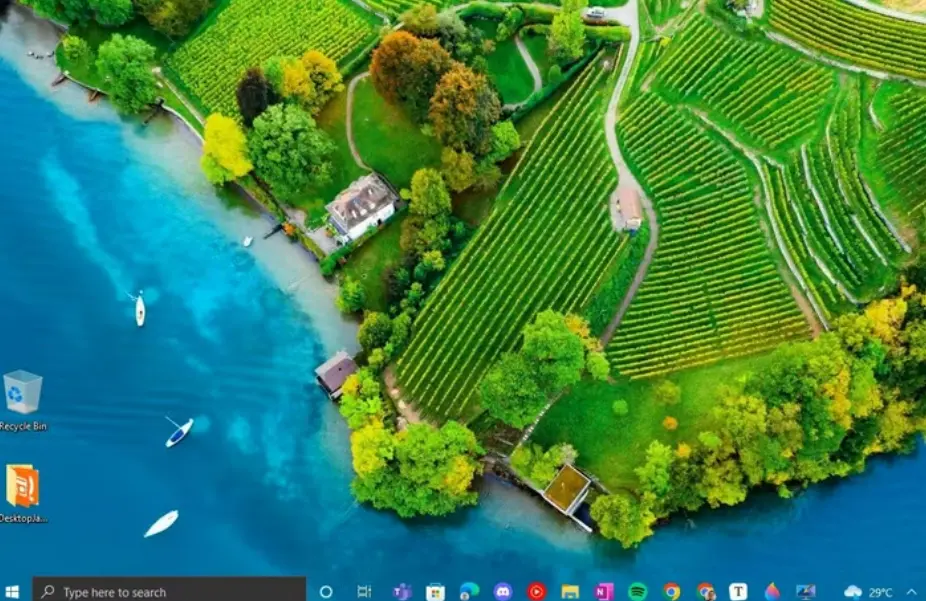
Out of the box, Windows 11 offers only a single transparency toggle for the taskbar. It’s buried in the settings menu and provides minimal control. You either accept Microsoft’s default look or turn transparency off entirely.
TranslucentTB changes that.
This open-source utility allows precise control over the taskbar’s appearance. Users can choose between fully transparent, translucent, blurred, or acrylic styles. More importantly, these styles can change dynamically depending on what’s happening on the screen.
For example:
- The taskbar can be completely transparent while viewing the desktop
- It can automatically switch to a solid color when an app is maximized
- Separate styles can apply when Start, Search, or Task View is open
This behavior makes the taskbar blend into the background when it isn’t needed and become visible when clarity matters.
Despite the visual impact, TranslucentTB uses almost no system resources. It runs quietly in the system tray and is configured through a simple right-click menu with live previews. Even users unfamiliar with customization tools can set it up in minutes.
There is one limitation worth noting: the traditional blur effect only works on older Windows builds. On newer versions, the acrylic style replaces it. Visually, however, the acrylic effect still fits modern Windows design language and looks polished.
For users who want their system to feel intentional rather than generic, TranslucentTB is one of the most effective Windows taskbar utilities available.
Windows Taskbar Utilities That Show What Your System Is Doing
TrafficMonitor Turns the Taskbar Into a Live Dashboard
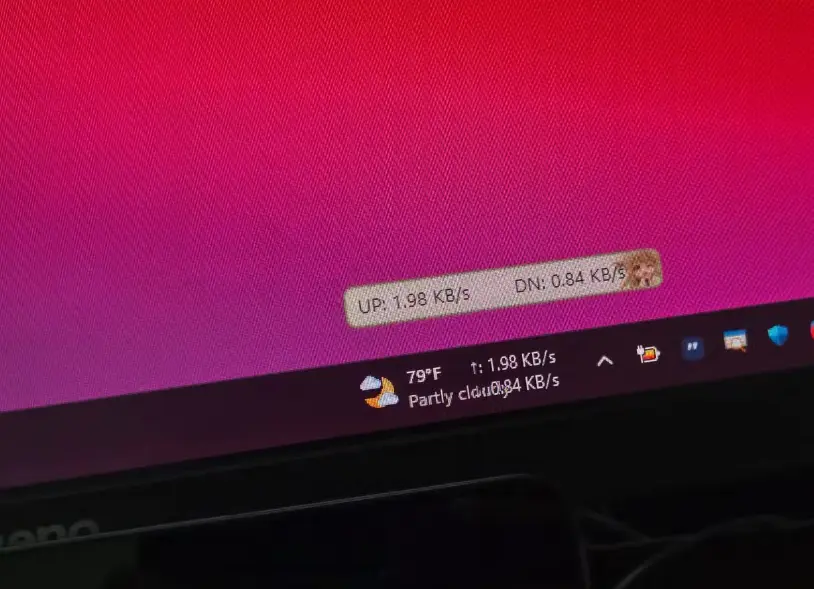
When internet speeds slow down or an app becomes unresponsive, most users instinctively open Task Manager. While functional, it breaks focus and takes time—especially if the issue is something simple like a stalled download or background update.
TrafficMonitor eliminates that friction by embedding live system information directly into the taskbar.
Once installed, it can display:
- Real-time download and upload speeds
- CPU usage
- Memory usage
The information updates constantly and sits neatly alongside taskbar icons. For users who prefer a cleaner layout, TrafficMonitor can also appear as a small floating window instead.
This real-time visibility is surprisingly powerful. It becomes immediately clear when:
- A browser tab is consuming excessive CPU
- A cloud sync process is saturating the network
- Windows Update is running in the background
- An application has frozen but is still using resources
Laptop users benefit even more, as sudden spikes in CPU or network usage often correlate with battery drain.
TrafficMonitor comes in two versions. The standard version includes advanced hardware monitoring such as GPU usage and temperature readings, but it requires administrator privileges and may cause instability on some systems. The Lite version avoids these issues, requires no admin access, and covers the essentials with minimal overhead.
Customization options allow users to adjust fonts, colors, and displayed metrics so the overlay blends naturally with the taskbar theme.
As far as Windows taskbar utilities go, TrafficMonitor transforms the taskbar from a passive element into a useful diagnostic tool.
Windows Taskbar Utilities That Fix Battery and Power Management
Battery Mode Offers the Battery Controls Windows Never Did
Windows’ default battery indicator is functional but limited. It shows a small icon and a percentage on hover, but changing power plans requires navigating through settings menus or the old Control Panel. Brightness controls are inconsistent, especially with external monitors.
Battery Mode addresses all of these shortcomings in one compact utility.
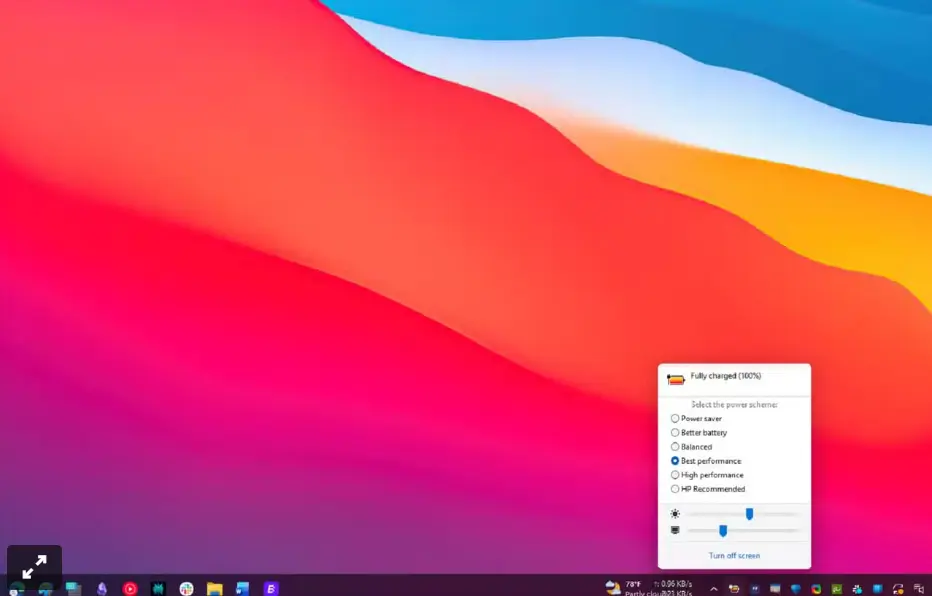
Installed in the system tray, Battery Mode replaces the default battery icon with a clearer percentage display and a detailed control panel. From a single click, users can:
- Switch between all available power plans
- Adjust screen brightness using the mouse wheel
- Control brightness on external monitors
- View detailed battery information
The brightness control alone dramatically improves daily usability. Instead of using function keys or digging through settings, brightness adjustments become instant and intuitive. External monitor support is especially valuable, as Windows still handles this poorly by default.
Battery Mode also includes advanced features for users who want automation. A built-in scheduler can automatically change power plans based on conditions, such as switching to high performance when plugged in and battery saver when unplugged. Hotkeys allow instant power plan changes without touching the mouse.
While development has slowed and the last major update was released in 2022, the utility continues to function reliably on current Windows builds.
For mobile users, Battery Mode is one of the most practical Windows taskbar utilities available today.
Why These Windows Taskbar Utilities Work So Well Together
Individually, each of these tools solves a specific problem. Together, they create a taskbar that feels complete.
- TranslucentTB improves visual clarity and aesthetics
- TrafficMonitor adds real-time awareness
- Battery Mode restores missing power controls
None of them replace core Windows components in risky ways. They don’t inject heavy services, modify system files, or overwhelm users with options. Each tool enhances the taskbar while respecting how Windows already works.
This balance is what makes them effective. They feel like features Microsoft could have added themselves.
The Bigger Picture for Windows Customization
Windows 11 continues to evolve, but customization remains a point of frustration for many users. Taskbar changes, in particular, have been slow and inconsistent. Until Microsoft fully addresses these gaps, third-party utilities remain essential.
The good news is that modern Windows taskbar utilities are better than ever. They are lightweight, open-source in many cases, and designed with stability in mind. Installing them doesn’t feel like a workaround—it feels like completing the operating system.
For users who spend hours each day in front of their screens, these small improvements compound quickly. A clearer taskbar, instant system feedback, and one-click power control may sound minor, but they significantly reduce friction over time.
