I got this one the first week I started using Git professionally, panicked a little, and force-pushed my way straight into overwriting a coworker’s commits. Don’t do what I did. If you’re seeing “Updates were rejected because the remote contains work that you do not have locally,” Git is actually protecting you here — it’s refusing to push because the remote branch has commits your local branch doesn’t know about, and blindly forcing past that is how you lose someone’s work.
Let’s go through what’s actually causing it in your specific case, because there are a few different root causes hiding under this one message, and the fix depends on which one you’ve got.
Quick Answer
- Run
git pull(orgit fetch+git merge/git rebase) to bring in the remote changes before pushing again - If you’re rebasing, use
git pull --rebaseto avoid an unnecessary merge commit - If this is a brand-new repo initialized with a README on GitHub, add
--allow-unrelated-historiesto your pull - Never default to
git push --forceto make the error go away — usegit push --force-with-leaseif you’re absolutely sure you need to override, and only on your own feature branch - If you’re on a protected branch and can’t push at all even after pulling, that’s a permissions issue, not a Git error
Why This Happens
The core cause is always the same at a mechanical level: your local branch and the remote branch have diverged, meaning the remote has at least one commit your local copy doesn’t have. But the reason they diverged varies, and that matters for picking the right fix.
Someone else pushed to the same branch before you. The most common cause on a team — a coworker pushed commits to main (or whatever shared branch you’re both on) between when you last pulled and when you tried to push.
You edited something directly on GitHub/GitLab’s web interface. Fixing a typo through the web editor, merging a PR through the UI, or updating a file directly on the remote all create a commit on the remote that your local clone doesn’t have yet.
The repo was initialized with a README, license, or .gitignore on GitHub, and you’re pushing a separately-initialized local repo. This one’s a bit different — it’s not really “diverged history” in the normal sense, it’s two unrelated commit histories that don’t share a common ancestor at all. Git handles this with a specific flag rather than a normal pull.
You force-pushed from another machine or branch and your current local copy is now behind that rewritten history. Less common, but it happens if you work across multiple machines and one of them had a rebase or amend that got force-pushed.
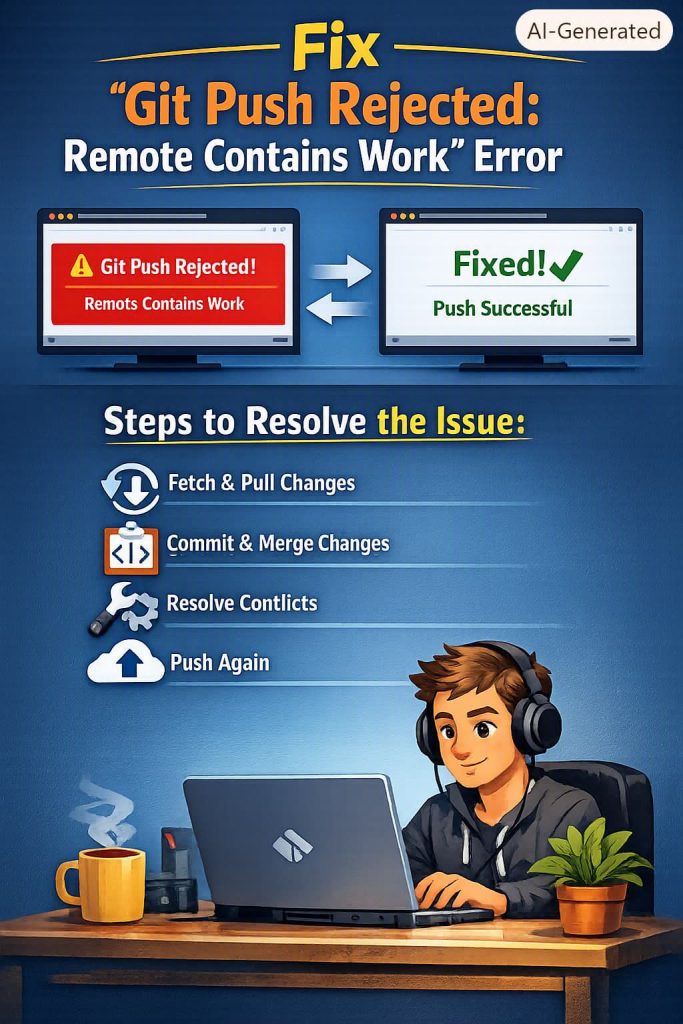
Step-by-Step: The Standard Fix
Step 1: Fetch first to see what’s actually different
bash
git fetch origin
git log HEAD..origin/main --oneline
This shows you the commits sitting on the remote that you don’t have locally, without changing anything yet. Worth doing before blindly pulling, especially on a shared branch — it tells you whether you’re about to merge in something trivial or something that’s going to need real conflict resolution.
Step 2: Pull to integrate the remote changes
bash
git pull origin mainIf your working directory is clean and there’s no overlap between your changes and the remote changes, Git merges automatically and you’re done — push again and it’ll go through.
Step 3: Resolve conflicts if Git can’t merge automatically
If the same lines got changed on both sides, Git will mark the conflicting sections in the affected files. Open them, look for the <<<<<<<, =======, >>>>>>> markers, decide what the final version should be, then:
bash
git add <resolved-file>
git commit
Step 4: Push again
bash
git push origin mainThis should go through now, since your local branch has caught up with the remote and includes your new commit on top.
Choosing Merge vs. Rebase for the Pull
This is where a bit of preference comes in, and honestly, teams disagree on it constantly.
git pull by default performs a merge, which creates a merge commit joining the two histories. This is safe and keeps a full record of what happened, but it does clutter the commit history a bit on branches with frequent divergence.
git pull --rebase replays your local commits on top of the remote’s latest commit instead, which keeps history linear and easier to read. But if you’ve already pushed your local commits somewhere else, or if others are also working off your branch, rebasing rewrites commit hashes — coordinate before doing this on a genuinely shared branch.
Neither is objectively correct. So pick based on what your team already does, and stay consistent within a given repo rather than switching approaches branch to branch.
What Actually Worked For Me
My force-push mistake happened because I misread the error as “something’s broken with my push,” rather than “the remote has commits I don’t have.” I didn’t even look at what those commits were — just ran git push -f because that’s what a Stack Overflow answer near the top of my search results said would “fix” it.
It did technically stop the error. It also wiped out two commits a teammate had pushed twenty minutes earlier. We recovered them from his local copy, so no permanent damage, but it was an unnecessary scramble that a ten-second git fetch would’ve avoided entirely. So now the first thing I do, always, is fetch and actually look at what’s different before deciding how to integrate it.
Force-pushing to “fix” this error is genuinely one of the most commonly recommended, least appropriate fixes floating around online — it works in the narrow sense that it stops the error message, but on a shared branch it’s just relocating the problem onto whoever’s work gets overwritten.
Advanced Fixes and Edge Cases
Unrelated histories (new repo + GitHub-initialized repo):
bash
git pull origin main --allow-unrelated-historiesThis tells Git it’s fine to merge two histories that don’t share a common ancestor commit. You’ll likely still need to resolve a conflict if both sides created a README or similarly-named file.
Using --force-with-lease instead of a plain force push, when you genuinely do need to override remote history (your own feature branch after a rebase, for example):
bash
git push --force-with-lease origin your-branchUnlike --force, this checks that the remote branch hasn’t been updated since you last fetched it — so if a coworker pushed something you don’t know about yet, it refuses instead of blindly overwriting, which is the whole point.
Protected branch rejections that look similar but aren’t the same error. If you’re on GitHub/GitLab and the branch has protection rules requiring pull requests, you’ll get a rejection even after a clean pull — the message is usually different (something about protected branch policy rather than “remote contains work”), so read the exact error text before assuming it’s the divergence issue covered here.
Diverged history across multiple local machines. If you suspect an old force-push from another device is the real cause, git log --oneline --graph --all on both machines can help you see where the histories actually split, before you decide which side should win.
Prevention Tips
- Pull before you start working, not just before you push — reduces the chance of divergence building up over a long session
- Push small, frequent commits rather than one big batch at the end of the day, so conflicts stay small and manageable
- Avoid editing files directly through the GitHub/GitLab web UI on branches you’re actively working on locally
- If your team disagrees on merge vs. rebase, just agree on one approach for shared branches and document it somewhere everyone actually reads
FAQ
Is it safe to just force push if I’m the only one working on this branch? Generally yes, on your own feature branch that nobody else has pulled. But --force-with-lease is still a good habit, since it costs nothing and protects you if that assumption turns out to be wrong.
Why does this happen even though I just cloned the repo an hour ago? Someone else pushed in that hour. It doesn’t take long on an active repo, especially with CI bots or automated commits running against the same branch.
Does pulling always create a merge commit? Only if the histories have actually diverged with commits on both sides. If your local branch is simply behind with no local commits of its own, pulling just fast-forwards with no merge commit at all.
What’s the actual difference between --force and --force-with-lease? --force overwrites the remote branch no matter what’s there. --force-with-lease checks first that nobody else has updated the remote since your last fetch, and refuses if they have.
I resolved the conflict but git push is still rejected. What now? Make sure you actually committed the merge after resolving — an unresolved or uncommitted merge state will still block the push. Run git status to check.
Editor’s Opinion
the force push instinct is so understandable bc the error is genuinely annoying to see mid workflow, but its like 90% of the time a 2 command fix (fetch, then pull) if you just slow down for a sec. also force-with-lease should honestly just be the default ppl teach beginners instead of plain force, i dont get why its still the less-known option tbh.
