I got that little chill a few months back — opened Instagram and saw a login notification for a city I hadn’t been to in years. If someone is using your Instagram account without permission, there are a handful of concrete signs that show up before things get really messy, and most of them are hiding in settings most people never open. So let’s get into it, because the longer an intruder sits in your account, the harder it gets to clean up after them.
I’m not a security researcher. I just went through this myself, poked around more than I probably needed to, and figured out what actually matters versus what’s just noise.
Quick Answer
- Check Accounts Center > Password and security > Where you’re logged in for unfamiliar devices or locations
- Look for DMs sent that you didn’t send, follows/unfollows you didn’t make, or story posts you don’t remember
- Watch for a “your email was changed” or “your password was changed” notification you didn’t trigger
- An unexpected login code request out of nowhere is a red flag even if you didn’t finish the login
- If two-factor authentication got turned off without you touching it, treat that as a serious sign
Why It Happens (And Why You Might Not Notice Right Away)
There’s this assumption that if someone’s in your account, you’ll just… know. From what I’ve seen, that’s not really how it goes. Attackers who get into an account through a leaked password (not a hack of Instagram itself, just your password showing up in some breach dump) often sit quietly for a while before doing anything obvious.
A few real causes, not the generic “someone guessed your password” explanation:
Credential stuffing from old breaches. If you reused a password from some other site that got breached years ago, bots are still running that exact password against Instagram logins right now. This is honestly the most common one and it has nothing to do with anything you did recently.
Third-party apps you connected once and forgot about. That follower-tracking app or “who unfollowed me” tool from 2022? If it still has API access to your account, and it gets compromised on its end, your Instagram account is exposed too — even though you never gave your password to anyone new.
Phishing pages that mimic the Instagram login screen. These get sent through DMs claiming your account will be deleted, or through fake copyright strike emails. And yeah, they still work on people who consider themselves careful, because the fake pages look nearly identical to the real thing now.
SIM swapping, if your account is tied to SMS-based two-factor authentication. This one’s less common but it’s nasty because it bypasses the phone-based 2FA that’s supposed to protect you in the first place.
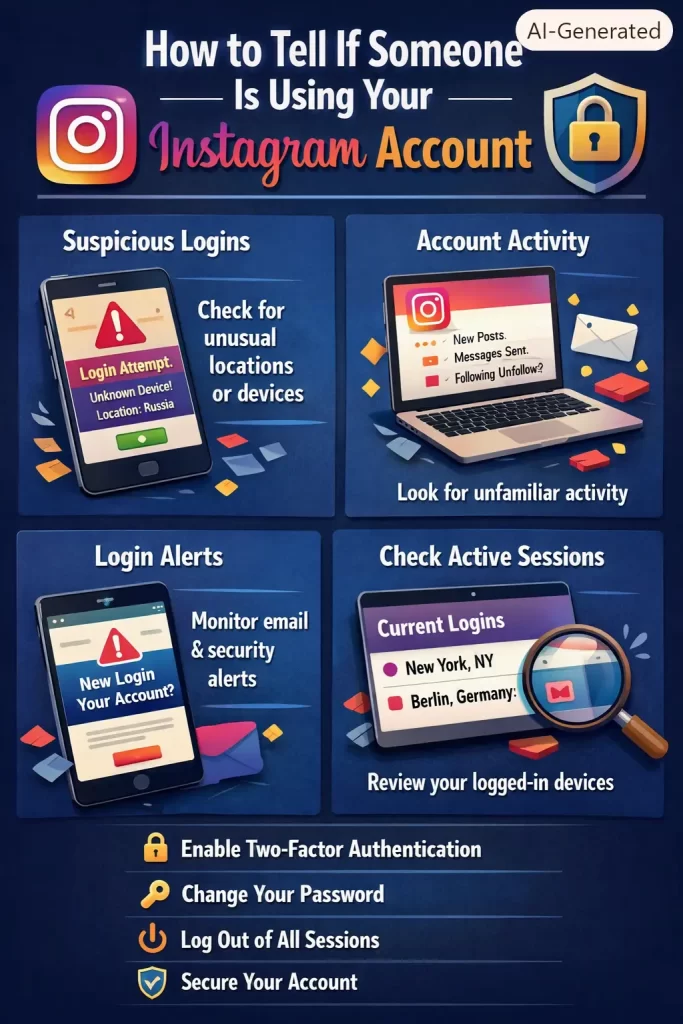
Signs Someone Else Is Using Your Account
Not every weird thing on your account means you’ve been compromised. But a cluster of these together is worth taking seriously.
- Messages sent to people you don’t talk to, especially ones asking for money or pushing a link
- Posts or Stories that appeared without you making them
- Follows, unfollows, or likes on posts you’ve never seen
- A bio, name, or profile picture change you didn’t make
- Comments left under your name that don’t sound like you
- An email from Instagram confirming a password or email address change you didn’t request
- A login code (that 6-digit thing) arriving when you weren’t trying to log in
- Getting logged out of your own session with no explanation
Step-by-Step: How to Check
Step 1: Check Where You’re Logged In
Open the Instagram app, tap your profile picture, then the menu icon (three lines) in the top right. Go to Settings and privacy > Accounts Center > Password and security > Where you’re logged in. This shows every active session — device type, rough location, and how long ago it was active. Anything you don’t recognize, tap it and log it out immediately.
Instagram consolidated a lot of security settings into the Accounts Center a while back, so if you’re following an older guide that mentions “Settings > Security > Login Activity” directly, that path’s been folded into the Accounts Center flow now. Same information, just moved.
Step 2: Review Recent Activity in Your Account
Under Your Activity, you can see recent likes, comments, and time spent — it’s more about your own usage patterns, but it’s occasionally useful for spotting an odd spike in activity that doesn’t match your habits. This part’s a bit limited honestly, it won’t show you everything, but it’s worth a quick glance.
Step 3: Check Your Connected Email for Instagram Security Alerts
Search your inbox for “Instagram” and look specifically for subject lines about password changes, email changes, or new logins. Don’t just check your main inbox — check spam and any filters you’ve set up, because some people accidentally route Instagram’s security emails into a folder they never open.
Step 4: Look at Connected Apps
Go to Accounts Center > Apps and websites and review everything with access to your account. If you see something you don’t recognize, or something you used once years ago and forgot about, remove its access. This step gets skipped constantly and it’s one of the more overlooked causes of repeat compromises — you fix the password, and the intruder just comes back in through an app you never revoked.
Step 5: Check If Two-Factor Authentication Is Still On
Head to Password and security > Two-factor authentication. If it’s off and you know you turned it on before, that’s a strong signal someone else disabled it — usually a step attackers take so they can get back in later without triggering a login code.
What Actually Worked For Me
So here’s my actual story, and it’s not the clean “I found the problem in five minutes” version. My first move was changing my password, which felt like the obvious fix. It wasn’t enough — I got logged out again about two days later.
Turns out I’d left a third-party analytics tool connected from years back, one I genuinely didn’t remember installing. That’s not entirely accurate, actually — I did remember it, I just assumed I’d revoked its access ages ago. I hadn’t. Once I went into Accounts Center and pulled its access, along with logging out every other session and turning 2FA back on, the problem stopped for good.
Changing the password alone is the fix most people try first, and it’s the one that gets recommended everywhere. But if the actual entry point is a connected app or a saved session token, a password change alone won’t close that door. It buys you maybe a day or two before whoever’s in there gets back in the same way.
Advanced Fixes and Edge Cases
If you can’t log in at all anymore: Use Instagram’s account recovery flow through “Get help logging in” on the login screen, using either your username, email, or phone number. If the email tied to the account has already been changed by the attacker, you’ll need to go through Instagram’s identity verification (sometimes a short video selfie step) since email recovery won’t reach you.
If 2FA is tied to a phone number you no longer control: This is the scenario that gets ugly. Switch to an authenticator app (Google Authenticator, Authy, or similar) instead of SMS-based codes as soon as you regain access — SMS 2FA is meaningfully weaker against SIM-swap style attacks.
If your account is being used for scam DMs targeting your followers: Post publicly (or through a Story if you still have access) warning your followers not to click any links from your account, while you work through recovery. It’s not a fix, but it limits the damage while you sort the rest out.
If nothing shows up as suspicious but you still feel off about it: Not every case leaves obvious evidence. If your gut says something’s wrong, changing your password and reviewing connected apps costs you five minutes and it’s not a bad habit regardless.
Prevention Tips
- Use a password manager and stop reusing passwords across sites — this alone kills most credential stuffing attempts before they start
- Turn on authenticator-app based 2FA instead of SMS
- Periodically clear out third-party app access you don’t actively use, maybe every few months
- Don’t click login links from DMs claiming account issues, even if they look official — go to the app directly instead
- Keep your recovery email and phone number current, since that’s your lifeline if things do go wrong
FAQ
Can someone use my Instagram without me knowing at all? For a short window, yes, especially if they’re careful and don’t post or message anything. But changes to login sessions, connected apps, or security emails almost always leave some trace eventually.
Does changing my password log out everyone else automatically? No. Changing the password alone doesn’t end existing sessions on Instagram — you have to manually log out other devices through “Where you’re logged in,” or use the option to log out of all sessions.
Will Instagram tell me if someone logs in from a new device? Usually, yes — through a push notification, in-app alert, or email, depending on your notification settings. But if those notifications got turned off (sometimes by the intruder themselves), you won’t see anything.
Is it possible for a hacked account to show no unusual activity? It happens, though it’s less common. Some attackers are just browsing or scraping data rather than posting or messaging, so there’s not always a visible action to catch.
Do I need to report this to Instagram if I catch it early? If you regained control on your own and nothing was posted or changed permanently, you don’t strictly need to. But if your email or phone number got changed, reporting through Instagram’s official hacked-account form speeds up recovery if it happens again.
Editor’s Opinion
honestly this stuff scares me more than it should for a photo app but whatever, ppl’s whole social lives live there now. the app access thing trips up almost everyone i know, myself included, bc you connect some random app for a filter or a giveaway and then forget it exists for 3 yrs. thats the actual weak point more than ppl guessing your password tbh. just go check ur connected apps rn, takes 2 mins, dont wait for the scary login email first.
