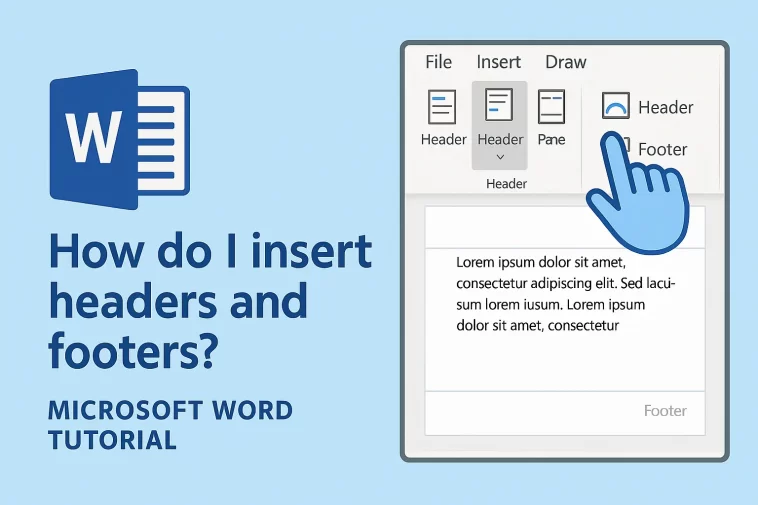
Adding consistent navigation and branding to your document is essential for a professional look. Whether you need to add page numbers, a company name, or the date, knowing how to manage the top and bottom of your pages is a fundamental skill.
How do I insert headers and footers? This is one of the most straightforward tasks in Microsoft Word once you realize that the header and footer areas are essentially “hidden” layers that sit above and below your main text. By mastering these sections, you ensure that important information stays visible on every page without you having to type it manually over and over again.
The Fastest Way to Open Headers and Footers
Before diving into menus, there is a “pro” shortcut that works in every version of Word.
- The Double-Click Method: Simply move your mouse cursor to the very top or very bottom of any page and double-click.
- What Happens: The main body of your text will turn gray (meaning it’s temporarily uneditable), and the Header or Footer area will become active. You will also see a new tab appear on your ribbon called Header & Footer.
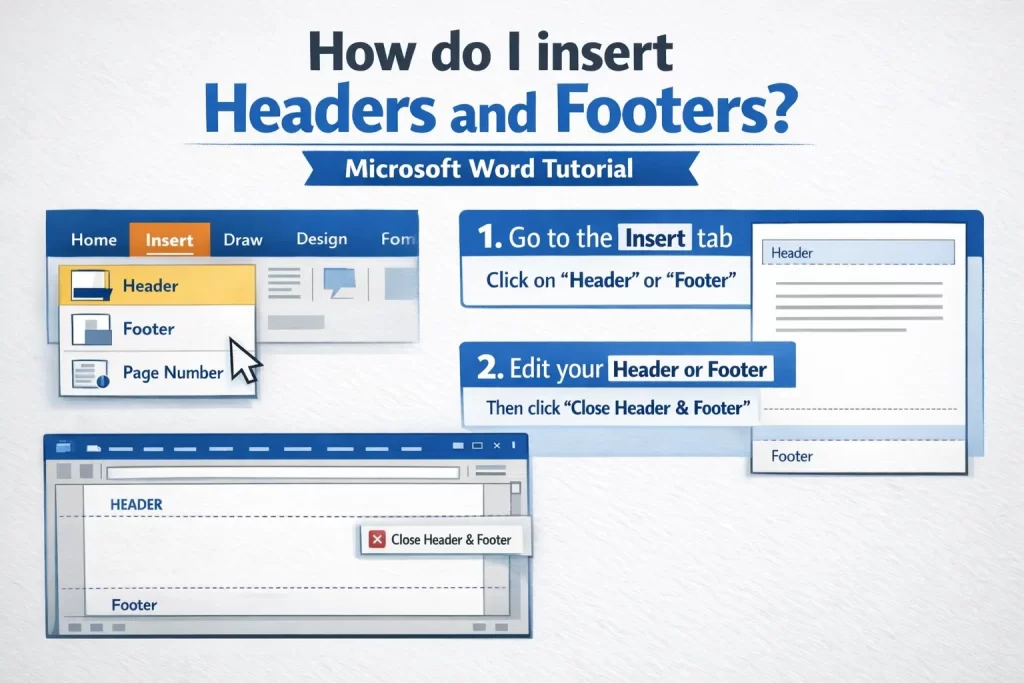
To get back to your main text, you can either double-click in the middle of the page or click the big red “Close Header and Footer” button on the right side of the ribbon.
Step-by-Step: Using the Insert Tab
If you prefer using the standard menu system, here is the official route:
- Open your document and click on the Insert tab at the top.
- Look toward the right side for the Header & Footer group.
- Click on either Header or Footer.
- A dropdown menu will appear with several “Built-in” styles. Some are plain text, while others include colorful shapes or placeholders for the document title and date.
- Select a style, and Word will automatically place your cursor in that area.
How to Add Page Numbers
One of the most common reasons people ask “How do I insert headers and footers?” is to keep track of page counts.
While you could type the number “1” in the header, Word won’t automatically change it to “2” on the next page if you do it that way. Instead, follow these steps:
- While inside the Header or Footer area, go to the Header & Footer tab.
- Click on Page Number.
- Choose the position (Top of Page, Bottom of Page, or Current Position).
- Pick a style. Word will now automatically update the number as you add more pages to your document.
Customizing Your Design
You aren’t limited to just text. You can make your headers and footers as complex as you need.
1. Adding Images and Logos
If you are creating official letterhead, you likely want your company logo in the header.
- Go to Insert > Pictures while the header is open.
- Once the image is in, click the small “Layout Options” icon next to the image and choose “Square” or “In Front of Text.” This allows you to drag the logo exactly where you want it (usually the top left or right corner).
2. Different First Page
Sometimes you want a header on every page except the title page.
- Open the Header area.
- In the Header & Footer tab, look for the Options group.
- Check the box for “Different First Page.”
- Now, you can leave the first page blank or give it a unique design without affecting the rest of the document.
3. Odd and Even Pages
If you are writing a book or a double-sided manual, you might want the page numbers to always be on the “outside” edge.
- Check the box for “Different Odd & Even Pages.” * You can then set the page number to the right side on Page 1 and the left side on Page 2. Word will remember this pattern for the entire file.
Advanced: Using Section Breaks for Unique Headers
What if you want Chapter 1 to say “Introduction” in the header, but Chapter 2 to say “History”?
By default, Word links all headers together. To break this link:
- Go to the end of Chapter 1.
- Go to Layout > Breaks > Next Page.
- Double-click the header in Chapter 2.
- In the ribbon, look for the button that says “Link to Previous” and unclick it.
- Now you can change the text in Chapter 2 without it changing Chapter 1.
Common Troubleshooting
- My header is overlapping my text: Go to the Header & Footer tab and adjust the “Header from Top” or “Footer from Bottom” measurements. Increasing this number pushes the text further into the page.
- The header looks faded: Don’t worry! Word fades the header while you are editing the body text just to show you which “layer” you are working on. When you print the document or save it as a PDF, the header will appear in full color and clarity.
- I can’t delete a line in the header: Some built-in styles include a “Border.” To remove it, go to the Home tab, click the Borders icon (the little square grid), and select “No Border.”
Summary Checklist
- Double-click the top or bottom of the page to enter the edit mode.
- Use Page Number > Current Position to avoid overwriting existing text.
- Use Different First Page for clean-looking covers.
- Always Close Header and Footer before you try to go back to typing your main story.
Mastering headers and footers is a simple way to take your document from “amateur” to “published” in just a few clicks.
