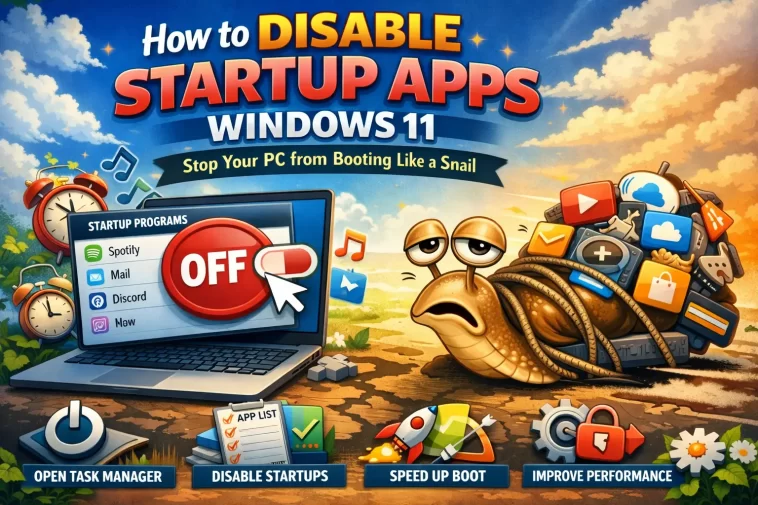
We’ve all been there: you press the power button on your computer, go to the kitchen to grab a cup of coffee, and when you come back, your PC is still loading. You see little icons for Spotify, Discord, Steam, and three different printer apps popping up one by one in the corner of your screen. It’s annoying, it’s unnecessary, and it’s the biggest reason why even powerful computers start to feel slow over time. Learning how to disable startup apps is arguably the single most effective “free” upgrade you can give your Windows PC.
The problem isn’t usually Windows itself; it’s the apps you install. Many developers think their app is the most important thing on your computer, so they set it to run automatically the second you log in. When ten different apps try to do this at once, they fight over your CPU and RAM, creating a bottleneck that makes your startup feel like an eternity. Let’s fix that.
The Modern Way: Using Windows Settings
If you’re on Windows 10 or 11, Microsoft has made it very easy to manage your startup environment through the main settings menu. This is the most “user-friendly” way to handle things.
To get started, go to Settings > Apps > Startup. Here, you’ll see a list of every app that is allowed to start automatically. The best part? Windows actually tells you the “Startup impact” of each one. If you see an app labeled as “High impact,” it means that app is significantly slowing down your boot time.
Simply toggle the switch to “Off” for anything you don’t need immediately. For example, do you really need Microsoft Teams to be ready the second you turn on your computer for a weekend movie? Probably not. Learning how to disable startup apps here is as simple as flipping a light switch.
The Power User Way: Task Manager
If you prefer a more detailed view, the Task Manager is your best friend. This has been the “gold standard” for managing Windows for decades, and it’s still the most reliable method.
Right-click on your Taskbar (or press Ctrl + Shift + Esc) and click on the “Startup apps” tab (it looks like a little speedometer icon in Windows 11). This view is great because it shows you the “Status” and the “Startup impact” side-by-side.
One pro tip: If you see an app name you don’t recognize, don’t panic. You can right-click on any item and select “Search online.” This will open your browser and tell you exactly what that program does. If it’s something like “Realtek Audio Manager,” you should probably leave it alone. If it’s “Update Checker for App X,” you can safely disable it.
The “Hidden” Startup Folder
Sometimes, an app won’t show up in Settings or Task Manager, but it still manages to start on its own. This is usually because it’s using the old-school “Startup Folder.”
To find this hidden gem, press the Windows Key + R to open the Run box, type shell:startup, and hit Enter. This will open a folder in File Explorer. Any shortcut placed in this folder will launch when you log in. If you see something here that you want to stop, simply delete the shortcut. Don’t worry, deleting the shortcut won’t uninstall the app; it just prevents it from starting automatically.
What is “Safe” to Disable?
This is the most common question people ask when learning how to disable startup apps. You don’t want to accidentally turn off something your computer needs to function, right?
Here is a quick cheat sheet of what you can almost always disable:
- Web Browsers: Chrome, Edge, and Firefox don’t need to start with Windows.
- Game Launchers: Steam, Epic Games, and EA Play are huge resource hogs. Disable them and just open them when you’re ready to play.
- Communication Apps: Discord, Skype, and Zoom.
- Update Checkers: Almost every app has a tiny “helper” app that checks for updates. You don’t need these; the app will check for updates when you actually open it.
What you should leave enabled:
- Security Software: Keep your Antivirus (Windows Defender, etc.) enabled.
- Audio/Video Drivers: Things like “Realtek HD Audio” or “NVIDIA Settings” ensure your hardware works correctly from the start.
- Cloud Storage (Maybe): If you use OneDrive or Dropbox to sync your work files constantly, keep them on. If you only use them occasionally, turn them off.
The Impact on Your System Performance
Once you’ve successfully learned how to disable startup apps, the benefits go beyond just a faster boot time. Because these apps are no longer running in the background, you’ll have more RAM available for the things you actually want to do.
If you have a computer with 8GB of RAM, having Discord, Spotify, and Steam running in the background can easily eat up 1.5GB of that memory before you even open a browser tab. By disabling them, you’re effectively “giving back” that power to your system. You’ll notice fewer stutters in games and smoother multitasking.
Summary: Reclaiming Your Time
Your computer should work for you, not the other way around. By taking five minutes to audit your startup list, you can save yourself hours of frustration over the course of a year. No more waiting for “update checkers” to finish, no more closing five windows every time you log in, and most importantly, no more “snail-paced” boots.
Now that you know how to disable startup apps, make it a habit to check this list every time you install a new piece of software. Most installers have a tiny, pre-checked box that says “Run on startup”—now you know to uncheck it!
