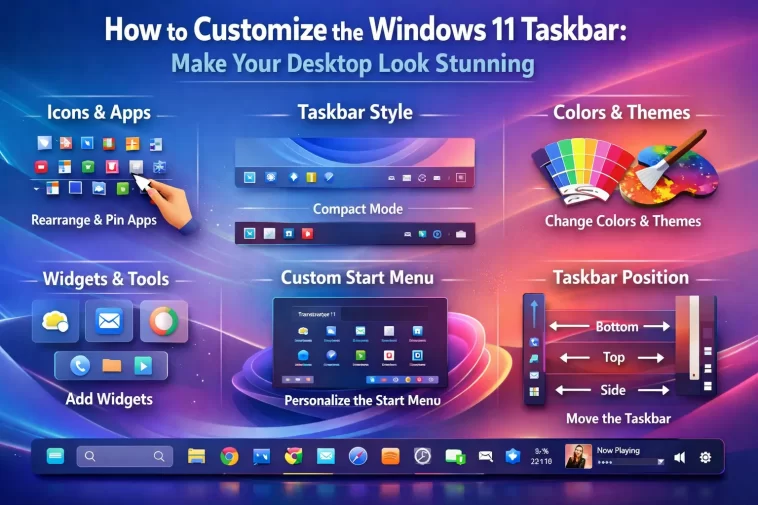
When Windows 11 first launched, the biggest “shock” for most long-time users was the Taskbar. For decades, the Start button lived in the bottom-left corner, and suddenly, it was sitting right in the middle of the screen. Some people loved the modern, Mac-like feel, while others felt like their muscle memory had been betrayed. Whether you like the default look or hate it, learning how to customize the Windows 11 Taskbar is the best way to make your computer feel like your computer.
The Taskbar is more than just a place to launch apps; it’s your command center. If it’s cluttered with icons you never use, or if it’s taking up too much screen real estate, it’s going to slow you down. Let’s walk through how to tweak, hide, and overhaul your Taskbar to fit your exact workflow.
Moving the Start Button Back to the Left
Let’s address the elephant in the room first. If you can’t get used to the centered icons, you can move them back to the left in about ten seconds.
To do this, right-click on an empty space on the Taskbar and select “Taskbar settings.” Scroll down to the section labeled “Taskbar behaviors.” In the dropdown menu for “Taskbar alignment,” simply switch it from “Center” to “Left.” Just like that, your Start button is back where it belongs. Knowing how to customize the Windows 11 Taskbar often starts with this simple step for many traditionalists.
Cleaning Up the Default Clutter
By default, Microsoft pins a few things to the Taskbar that most people rarely use: Search, Task View, Widgets, and Chat. If these are just taking up space, you can easily remove them.
In that same Taskbar settings menu, you’ll see a section called “Taskbar items.” Here, you can toggle off the search bar (or change it to a simple icon), hide the Widgets button, and remove the Chat icon (which is usually for Microsoft Teams). By clearing these out, you give your pinned apps more room to breathe, making the whole desktop look much cleaner.
Personalizing Your Pinned Apps
The most basic part of learning how to customize the Windows 11 Taskbar is choosing which apps live there. But here’s a pro tip: don’t just pin every app you own. Only pin the apps you use multiple times a day.
To pin an app, find it in your Start menu, right-click it, and select “Pin to taskbar.” To remove one, right-click the icon on the Taskbar and hit “Unpin from taskbar.” You can also click and drag these icons to rearrange them. Many “pro” users like to group their icons—for example, putting all their web browsers on the left and their communication apps (like Slack or Discord) on the right.
Master the System Tray (Corner Icons)
The bottom-right corner of your screen—where the clock and Wi-Fi icons are—is called the System Tray. Over time, this area can get incredibly crowded as apps like Steam, Spotify, and printer drivers all try to show their icons there.
You can decide which icons stay visible and which ones get tucked away into the little “overflow” arrow. In the Taskbar settings, look for “Other system tray icons.” Here, you can toggle specific apps on or off. My advice? Keep your security and battery icons visible, but hide everything else. It makes the corner of your screen look much less chaotic.
Taskbar Behaviors: Auto-Hide and Badges
If you’re working on a small laptop screen, every pixel counts. One of the best ways to maximize your space is to turn on “Automatically hide the taskbar.”
You can find this under “Taskbar behaviors.” When enabled, the Taskbar disappears when you aren’t using it and pops back up when you move your mouse to the bottom of the screen. This is a game-changer for writers or coders who want zero distractions.
Also, in this menu, you can toggle “Show badges on taskbar apps.” These are the little red dots that show you how many unread emails or messages you have. If those red dots stress you out, just turn them off!
Taking Aesthetics to the Next Level: Colors and Transparency
If you want your Taskbar to truly pop, you need to play with the colors. Windows 11 allows you to make the Taskbar transparent or have it match your wallpaper’s accent color.
Head over to Settings > Personalization > Colors. Turn on “Transparency effects” to give the Taskbar that beautiful “frosted glass” look. If you want the Taskbar to be a specific color, scroll down, pick a color, and check the box that says “Show accent color on Start and taskbar.” (Note: This usually only works if you have Windows set to “Dark” mode).
Pro Tip: Third-Party Customization
For those who want to go even further than the built-in settings allowed by Microsoft, there are a few safe, lightweight apps that can help.
- TranslucentTB: This is a free app available on the Microsoft Store that can make your Taskbar completely invisible, making your icons look like they are floating on your wallpaper.
- RoundedTB: This allows you to add rounded corners to your Taskbar or even turn it into a “dock” that doesn’t stretch across the whole screen.
These apps are great if you want that “premium” custom PC look without having to be a developer.
Summary: Your Taskbar, Your Rules
The Taskbar is the part of Windows you interact with more than anything else. Why settle for the default settings? Whether you want a minimalist setup with hidden icons and a transparent bar, or a classic left-aligned setup with all your work tools ready to go, knowing how to customize the Windows 11 Taskbar gives you total control over your experience.
Take a few minutes today to unpin the junk, hide the unnecessary corner icons, and maybe even try out the auto-hide feature. You’ll be surprised at how much more productive (and less distracted) you feel with a Taskbar that is tailored exactly to your needs.
