Every cat owner who works from home knows the drill: you are in the middle of writing a critical email, compiling code, or presenting on a video call, when suddenly, a furry face appears. Before you can react, your cat has stepped onto your keyboard, sat down, and sent a string of gibberish—or worse, accidentally deleted a document, closed a tab, or triggered a system reboot.
Cats are naturally drawn to laptops. They love the warmth generated by the processor, the satisfying tactile response of the keycaps, and, most of all, the fact that the screen has your undivided attention.
To solve this age-old battle between feline affection and professional productivity, indie developer Todd Alexander created Cats Lock—a clever macOS utility designed specifically to keep your keyboard safe from wandering paws.
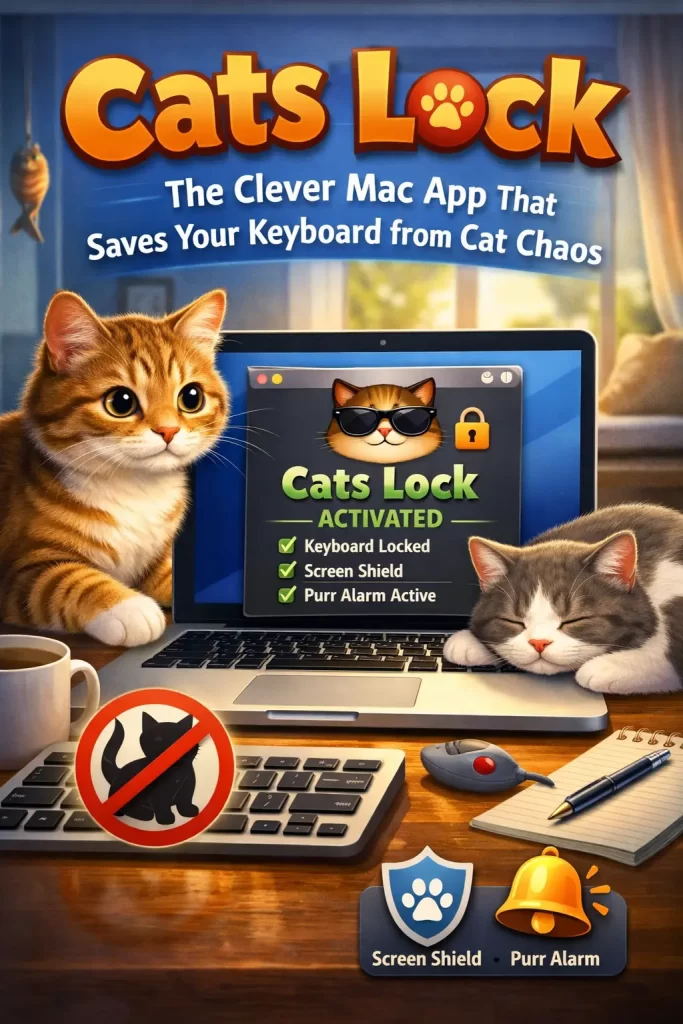
What is Cats Lock?
Cats Lock is a premium utility application available on the Mac App Store for $2.99 (approximately 150 TL). Its primary mission is simple: to allow you to instantly disable all keyboard inputs with a single click or keyboard shortcut, turning your keyboard into a harmless surface for your cat to walk or sleep on.
Unlike generic keyboard locking tools designed for cleaning your laptop, Cats Lock is built from the ground up for cat owners, combining a privacy-first architecture with creative feline-deterrent features.
+-------------------------------------------------------------+| HOW CATS LOCK WORKS |+-------------------------------------------------------------+| 1. Cat approaches your MacBook. || 2. You press ⌘L (or click the Menu Bar icon). || 3. Keyboard is instantly locked (Stealth or Sound Mode). || 4. Cat walks on keys -> System ignores inputs. || 5. Optional: Deterrent sound plays to shoo the cat. |+-------------------------------------------------------------+
Key Features That Make Cats Lock Unique
While there are free keyboard lockers on the market, Cats Lock justifies its $2.99 price tag through highly tailored, thoughtful features that cater directly to the realities of living with a pet.
1. Active Feline Deterrents (Built-in Sounds)
Simply blocking keystrokes solves the immediate problem of accidental typing, but it doesn’t teach your cat to stay off the desk. Cats Lock features an innovative sound-deterrent system. When the keyboard is locked and a key is pressed, the app can play specific sounds designed to gently startle or annoy your cat, encouraging them to jump down.
- Pre-loaded Sounds: The app includes classic deterrents like a hissing cat, a barking dog, and the hum of a vacuum cleaner.
- Custom Audio Imports: Users can upload their own audio files. You can record yourself saying “No!” or rustling a bag of treats to lure them away, making the training process highly customizable.
2. Stealth Mode (Silent Block)
Sometimes, you want to lock your keyboard without making a scene. If you are watching a movie, attending an online meeting, or presenting a slide deck, you don’t want loud vacuum noises or cat-hissing sounds playing from your speakers.
Stealth Mode solves this by blocking all inputs silently and invisibly. It displays no screen overlays, plays no sounds, and quietly absorbs every keypress while you remain focused on your task.
3. Smart Safety Nets
One major risk with keyboard-blocking software is accidentally locking yourself out of your own computer. Cats Lock addresses this with smart automation:
- Auto-Unlock on Sleep: If your Mac enters sleep mode or the screen saver starts, the app automatically disables the keyboard lock. When you wake your computer up, you can type your password normally without any issues.
4. Privacy-First Architecture
Many utility apps require invasive system accessibility permissions to monitor and block inputs. Cats Lock is designed with privacy in mind:
- No Accessibility Permissions Required: It uses standard macOS input APIs that don’t compromise your system’s security.
- 100% Offline: The app runs entirely on your local machine. No data, keystrokes, or personal information ever leave your device, ensuring maximum security.
Technical Specifications & Requirements
Cats Lock is built for modern Mac hardware. Here is what you need to run it:
- Operating System: macOS 14.0 (Sonoma) or later.
- Processor Compatibility: Fully supports Apple Silicon (M1, M2, M3, M4 series) and Intel-based Macs.
- Distribution: Available exclusively through the official Mac App Store.
Cats Lock vs. Modern Alternatives
How does Cats Lock hold up against other ways of managing your cat’s computer interruptions?
| Metric / Feature | Cats Lock | KeyboardCleanTool (Free) | macOS Lock Screen |
|---|---|---|---|
| Price | $2.99 (150 TL) | Free | Built-in (Free) |
| Deterrent Sounds | Yes (Customizable) | No | No |
| Stealth Mode | Yes | No | No |
| Ease of Access | Menu bar / Global Hotkey | Manual app opening | Cmd + Ctrl + Q |
| Auto-Unlock on Sleep | Yes | No | Requires password entry |
| Focus Area | Feline Protection | Cleaning dust/debris | Device Security |
While locking your screen (Cmd + Ctrl + Q) prevents your cat from typing, it disrupts your workflow by turning off the display. Cats Lock allows you to keep reading, watching, or video-calling while your keyboard is safely disabled.
The Verdict: Is It Worth It?
For casual Mac users, a $2.99 utility might seem like an unnecessary expense when free tools exist. However, for Work From Home (WFH) professionals, remote students, and creative artists who share their workspace with a demanding feline, Cats Lock is a lifesaver.
It transforms a stressful daily struggle into a seamless click of a button. By combining active training tools (sounds) with passive security (Stealth Mode) and an elegant, lightweight design, Cats Lock is arguably the best digital investment a Mac-using cat owner can make.
If you are ready to put an end to random Slack messages, deleted spreadsheets, and unwanted code executions, head over to the Mac App Store and give your computer a proper “Cats Lock.”
