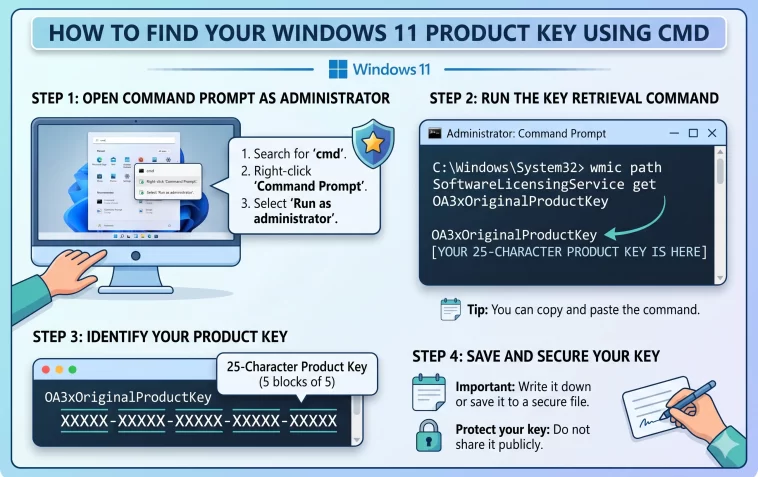
Let’s be honest — most people have no idea where their Windows 11 product key is. It might have come on a sticker on the bottom of a laptop that’s long since peeled off, or buried in a confirmation email from three years ago that nobody can find anymore. Maybe you’re reinstalling Windows and suddenly realizing you never wrote it down. Whatever the situation, the stress is real.
Here’s the thing though: your Windows 11 product key is almost certainly still sitting right there on your computer, embedded in the system firmware or stored in the registry. And you can retrieve it in under a minute using nothing but Command Prompt — no paid software, no sketchy downloads, no technical background needed.
This guide walks you through every method, explains what to do if the commands return nothing, and helps you understand what kind of license you actually have. By the end, you’ll know exactly where your key is and what to do with it.
Why Would You Need Your Windows 11 Product Key?
Before diving into the how-to, it’s worth understanding when and why you’d actually need this.
Reinstalling Windows is the most common reason. If you’re doing a clean install on the same machine, Windows will usually activate automatically through a digital license. But if you’re moving to a new device or doing an offline installation, you’ll need the actual key.
Selling or transferring your PC is another big one. If you’re handing your laptop or desktop off to someone else, they’ll need to know whether the Windows license transfers with it — and having the product key on hand makes that conversation a lot easier.
Technical support situations sometimes require your product key for verification. It’s one of those things you don’t think about until you urgently need it.
Keeping records is just good digital hygiene. You paid for this software — knowing where your license information is stored is simply sensible.
Method 1: The WMIC Command (Quickest Way)
This is the fastest and most widely used method. It works on most Windows 11 systems, especially on machines where the product key is embedded in the BIOS or UEFI firmware — which is the case for the majority of branded laptops and desktops (Dell, HP, Lenovo, ASUS, Acer, and so on).
Here’s how to do it:
Step 1: Click the Start menu and type cmd in the search bar.
Step 2: Right-click on Command Prompt in the results and select Run as administrator. This is important — without admin rights, the command won’t work.
Step 3: In the Command Prompt window, type or paste the following command exactly as written:
wmic path softwarelicensingservice get OA3xOriginalProductKeyStep 4: Hit Enter and wait a second.
If your product key is stored in the firmware, it will appear immediately below the command — a 25-character string in the format XXXXX-XXXXX-XXXXX-XXXXX-XXXXX.
Write it down or copy it somewhere safe before closing the window.
Method 2: PowerShell Command (Great Alternative)
If the WMIC command returns a blank result, don’t worry — PowerShell often picks up what CMD misses. PowerShell has slightly deeper access to certain system properties, so it’s worth trying as a second option.
Step 1: Press Windows + X on your keyboard to open the Power User Menu.
Step 2: Click on Windows PowerShell (Admin) or Terminal (Admin) depending on your Windows version.
Step 3: Paste in this command:
(Get-WmiObject -query 'select * from SoftwareLicensingService').OA3xOriginalProductKeyStep 4: Press Enter.
Again, if a key is embedded and accessible, it will display right there in the terminal window.
Method 3: Registry Method via CMD
This approach digs into the Windows Registry to pull the product key. It’s a bit more involved, but useful if both previous methods returned nothing.
Step 1: Open Command Prompt as administrator (same as before).
Step 2: Type the following and press Enter:
reg query "HKLM\SOFTWARE\Microsoft\Windows NT\CurrentVersion" /v DigitalProductIdThis won’t give you a clean readable key — it returns a raw binary value stored in the registry. To decode it into a readable product key, you’d need a small script or a third-party tool like ProduKey or ShowKeyPlus (both free and widely trusted). However, for most people, Methods 1 or 2 will be enough.
Method 4: One-Line PowerShell Script (Decoded Key)
If you’re comfortable with PowerShell and want a direct, human-readable result without any extra tools, this one-liner decodes the registry value automatically:
powershell
$key = (Get-ItemProperty "HKLM:\SOFTWARE\Microsoft\Windows NT\CurrentVersion").DigitalProductId
$ProductKey = ""
$KeyOffset = 52
$isWin8 = ([System.Math]::Truncate($key[66] / 6)) -band 1
$key[66] = ($key[66] -band 0xF7) -bor (($isWin8 -band 2) * 4)
$i = 24
do {
    $Cur = 0
    $X = 14
    do {
        $Cur = $Cur * 256
        $Cur = $key[$X + $KeyOffset] + $Cur
        $key[$X + $KeyOffset] = [System.Math]::Truncate($Cur / 24)
        $Cur = $Cur % 24
        $X--
    } while ($X -ge 0)
    $i--
    $ProductKey = "BCDFGHJKMPQRTVWXY2346789"[$Cur] + $ProductKey
    if (($i % 5) -eq 0 -and $i -ne 0) {
        $ProductKey = "-" + $ProductKey
    }
} while ($i -ge 0)
$ProductKey
Paste the whole thing into PowerShell (Admin) and hit Enter. It will output your product key in the standard formatted layout.
What If the Commands Return a Blank Result?
This is the question most people end up Googling after they try the commands and see nothing. Here’s what’s actually going on.
You have a Digital License. This is the most common reason. Newer versions of Windows — especially those that came pre-installed on laptops and PCs purchased in recent years — use a digital license tied to your Microsoft account and your hardware ID. There is no product key string stored anywhere because the system doesn’t need one. When you reinstall Windows on the same machine and sign in with the same Microsoft account, it activates automatically.
Your key is embedded differently. Some OEM (Original Equipment Manufacturer) installations store license information in a way that standard commands can’t easily access. In these cases, a dedicated tool like ShowKeyPlus (free, available on the Microsoft Store) can usually pull the key out.
The license wasn’t registered to this specific installation. If Windows was installed using a generic or volume license key at some point, the original retail key may not be accessible through these methods.
How to Check If You Have a Digital License
If you want to know which type of license you have before anything else, here’s a quick way to check:
- Go to Settings
- Click System
- Scroll down to Activation
If you see something like “Windows is activated with a digital license linked to your Microsoft account” — you’re good. No product key is needed. Your license is cloud-linked and will carry over to any reinstall on the same device as long as you use the same Microsoft account.
What to Do With Your Product Key Once You Find It
Finding the key is only half the job — storing it properly is just as important.
- Save it in a password manager like Bitwarden, 1Password, or even the built-in browser password vault. Add it as a secure note labeled “Windows 11 License Key.”
- Email it to yourself with a clear subject line. Simple, fast, and surprisingly effective.
- Write it down physically and keep it with your device paperwork or in a safe place at home.
- Take a screenshot and store it in cloud storage like Google Drive or OneDrive, in a folder labeled for your device.
Whatever method you choose, the key is to store it somewhere you’ll actually be able to find it two years from now — not just somewhere convenient today.
Using Free Tools as a Backup Option
If none of the CMD or PowerShell methods work for your setup, there are two well-established free tools that are worth knowing about:
ShowKeyPlus — Available on the Microsoft Store. It displays your current Windows product key, the original OEM key stored in firmware, and your Windows edition information all in one screen. Clean, simple, no installation hassle.
ProduKey by NirSoft — A lightweight portable tool (no installation needed). It scans your system and displays product keys for Windows and Microsoft Office. It’s been around for years and has a solid reputation in the IT community.
Both tools are safe, well-reviewed, and widely used by IT professionals. If CMD isn’t giving you what you need, either of these will almost certainly get the job done.
A Few Things to Keep in Mind
Before you wrap up, a couple of important points:
Don’t share your product key publicly. It’s tied to your license, and if someone else uses it to activate Windows, your activation can be flagged or revoked.
Product keys are non-transferable in most cases. OEM keys (the ones that come embedded in a laptop or desktop) are licensed to that specific machine. Retail keys can typically be transferred, but OEM keys generally cannot.
One key, one device. A standard Windows license is for one device at a time. Activating it on a second device will deactivate it on the first.
Final Thoughts
Finding your Windows 11 product key using CMD is genuinely one of the most useful things to know how to do — and it takes less than two minutes once you know the right command. The WMIC method works for most people, PowerShell catches what it misses, and if you have a digital license, you probably don’t need a key at all.
The most important thing is to take action now, while you’re thinking about it. Find the key, copy it, store it properly, and forget about it. Future you will be very glad that present you took five minutes to sort this out.
Because trust me — the worst time to go looking for your Windows product key is at 11 PM during a reinstall with no internet and a dead Microsoft account.
Found this useful? Check out our other Windows guides on resetting your PC without losing files, speeding up Windows 11 startup, and managing disk space on a full hard drive.
