When I first launched a WordPress site, I didn’t touch the permalink settings. The URLs looked something like mysite.com/?p=123, and I thought nothing of it. It wasn’t until I started digging into SEO that I realized those ugly, meaningless URLs were actively hurting my rankings. Changing to a clean permalink structure was one of the first real improvements I made — and the results were noticeable. If you’re running a WordPress site and haven’t set up your permalinks properly, this guide is for you.
WordPress permalink settings control how every URL on your site is structured. Getting this right from the start is one of the most important foundational steps in building an SEO-friendly website.
What Are WordPress Permalinks?
A permalink — short for “permanent link” — is the full URL of a post, page, or other piece of content on your WordPress site. It’s what shows up in the browser address bar, what search engines index, and what people share on social media.
By default, WordPress assigns URLs like yoursite.com/?p=123. These are called “Plain” permalinks, and they’re essentially useless for SEO. They give search engines and users no information about what the page contains. The good news is that WordPress makes it easy to change this.
A well-structured permalink looks like yoursite.com/wordpress-permalink-settings. It’s short, descriptive, and includes the topic keyword right in the URL — exactly what Google wants to see.
Why Permalink Settings Matter for SEO
Search engines use URLs as one of many signals to understand what a page is about. When your URL contains your target keyword, it reinforces the content’s relevance and can contribute to better rankings.
Here’s why getting this right matters:
- Keyword relevance — Including your focus keyword in the URL helps search engines match your content to relevant queries.
- Click-through rates — Clean, readable URLs get more clicks in search results because users can tell what the page is about before they visit.
- Shareability — A short, clear URL is easier to copy, paste, and share on social media or in emails.
- Crawlability — Search engine bots can index clean URLs more efficiently than complex ones with query strings.
Studies have found that a large majority of top-ranking pages include their target keyword directly in the URL. It’s a small detail that adds up over time.
How to Access Permalink Settings in WordPress
To change your permalink structure, you need to be logged into your WordPress dashboard. Here’s how to get there:
- Log in to your WordPress admin panel.
- In the left sidebar, hover over Settings.
- Click Permalinks.
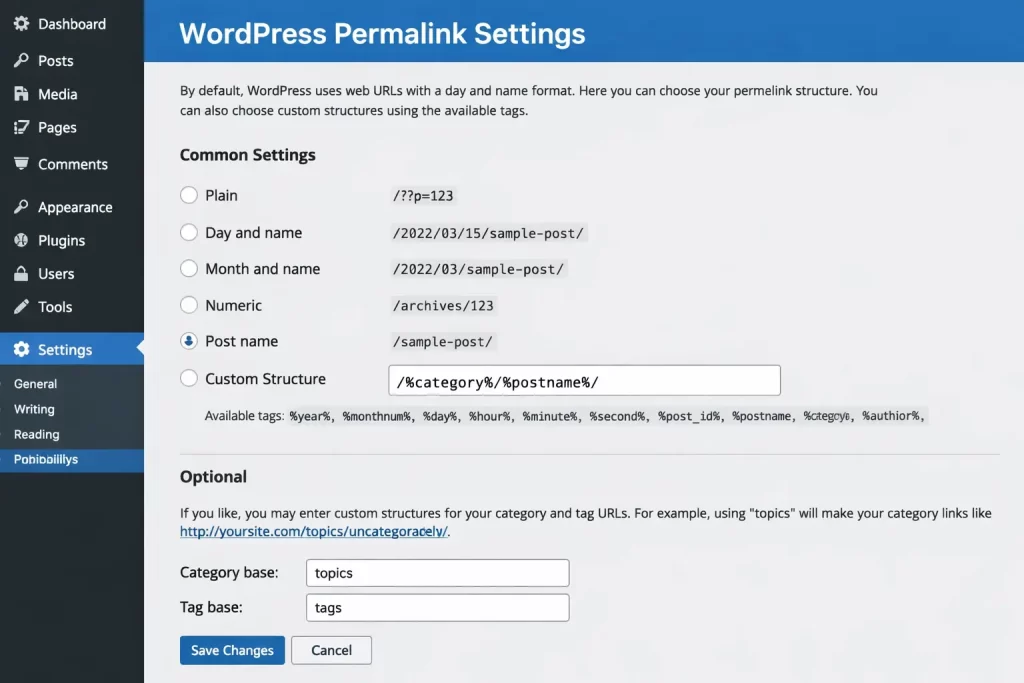
You’ll see a screen with several permalink structure options. This is where you’ll make your choice.
WordPress Permalink Structure Options Explained
WordPress gives you six built-in permalink structure options. Here’s what each one looks like and when you might use it.
1. Plain
Example: yoursite.com/?p=123
This is the default WordPress setting and the worst option for SEO. The URL contains no meaningful information — just a numeric ID. Avoid this unless you have a specific technical reason to use it, which is rare.
2. Day and Name
Example: yoursite.com/2025/06/14/post-name/
This adds the full publication date to the URL. It might seem organized, but it causes problems for evergreen content. A post published in 2021 will look outdated in 2025 even if the content is still accurate and useful. Users in search results often skip older-looking articles.
3. Month and Name
Example: yoursite.com/2025/06/post-name/
Similar to Day and Name, but with just the year and month. The same problem applies — dates in URLs make content look stale over time.
4. Numeric
Example: yoursite.com/archives/123
Slightly better than Plain since it uses a consistent structure, but it still contains no descriptive information. Not recommended for SEO.
5. Post Name ✅ (Recommended)
Example: yoursite.com/wordpress-permalink-settings/
This is the best option for most websites. It generates a clean URL based on your post title, which you can also manually customize. It’s keyword-friendly, easy to read, and doesn’t become outdated. For the vast majority of blogs, business sites, and content websites, Post Name is the right choice.
6. Custom Structure
Example: yoursite.com/%category%/%postname%/
This lets you build your own URL format using available tags. It’s useful for more complex sites — for example, news sites that want category context in the URL, or e-commerce stores with specific needs. For most content blogs, the default Post Name structure works better without added complexity.
How to Set Your Permalink Structure (Step by Step)
Follow these steps to configure your WordPress permalink settings correctly.
- Go to Settings > Permalinks in your WordPress dashboard.
- Select the Post Name radio button.
- Scroll down and click Save Changes.
That’s it. WordPress will automatically update your .htaccess file (on Apache servers) to support the new URL structure. Your existing posts will now use clean, keyword-based URLs.
How to Customize Individual Post Slugs
Even after you’ve set Post Name as your permalink structure, you can customize the slug (the last part of the URL) for each post individually. This is important for SEO because WordPress sometimes generates long or awkward slugs from your post title.
Here’s how to edit a slug in the WordPress editor:
- Open your post in the Block Editor (Gutenberg).
- In the right-hand Post panel, look for the Permalink section.
- Click on the URL slug to edit it.
- Type your preferred slug — short, keyword-focused, no unnecessary words.
- Update or publish the post.
Example: If your post title is “The 10 Best Ways to Speed Up Your WordPress Website in 2025,” the auto-generated slug might be the-10-best-ways-to-speed-up-your-wordpress-website-in-2025. That’s too long. A better slug would be speed-up-wordpress-website.
Best Practices for Writing SEO-Friendly Slugs
Setting your permalink structure to Post Name is just the first step. The slugs you write for each post also matter. Here are the key rules to follow:
- Keep slugs short — Aim for 3 to 5 words, ideally under 60 characters. Shorter URLs tend to perform better in search results.
- Include your focus keyword — The slug should contain your main target keyword, ideally near the beginning.
- Use hyphens, not underscores — Google treats hyphens as word separators. Underscores are not treated the same way, so
wordpress-permalink-settingsis better thanwordpress_permalink_settings. - Remove stop words — Words like “the,” “a,” “and,” “or,” and “but” add length without adding value. Drop them from your slug.
- Use lowercase only — URLs are case-sensitive on some servers. Keeping everything lowercase avoids potential duplicate content issues.
- Avoid dates in slugs — Even if you use the Post Name structure, don’t manually add years or dates to your slug. Evergreen content ages better without them.
What Happens If You Change Permalinks on an Existing Site?
This is a critical point that many site owners overlook. If your site already has content indexed in Google and you change your permalink structure, all those existing URLs will break. Any page that was previously ranking will lose its position because Google will treat the new URL as a completely different page.
If you need to change permalinks on an established site, you must set up 301 redirects from the old URLs to the new ones. A 301 redirect tells search engines that a page has permanently moved, passing the ranking authority to the new URL.
Plugins like Redirection or Rank Math’s redirection module can help you manage this. But ideally — and this is the most important advice — set your permalink structure correctly before you publish any content. Changing it afterward always carries risk, even with redirects in place.
Permalink Settings and Category/Tag Base URLs
WordPress also lets you customize the base URL for category and tag archive pages. By default, these look like:
yoursite.com/category/technology/yoursite.com/tag/seo/
Some SEO practitioners prefer to remove the /category/ prefix to keep URLs shorter. You can do this using a plugin like Rank Math or by entering a custom base in the Optional section at the bottom of the Permalinks settings page.
However, changing category bases on a live site has the same risks as changing the main permalink structure — old URLs break and 301 redirects are required. Unless you have a specific reason to change it, the default category base is fine to leave as is.
Rank Math SEO and Permalink Settings
If you’re using Rank Math SEO (which is one of the best choices for WordPress), it integrates well with your permalink structure. When you write or edit a post, Rank Math shows your focus keyphrase analysis and checks whether your focus keyword appears in your URL slug.
To pass this check:
- Your slug should contain the focus keyword or a close variation of it.
- Avoid stuffing extra words into the slug just to match the keyword exactly — natural, readable slugs are fine.
Rank Math also has a built-in Redirections module under Rank Math > Redirections, which you can use to manage 301 redirects if you ever need to update old slugs.
Common Permalink Mistakes to Avoid
Even with the right structure selected, there are mistakes that can hurt your SEO over time. Here are the most common ones:
- Leaving the default Plain structure active — This is the biggest mistake. Fix it before you publish anything.
- Using dates in permalinks for evergreen content — Dates make content look old. Stick with Post Name for timeless articles.
- Creating very long slugs — A slug with 10+ words is harder for search engines to parse and looks messy in search results.
- Changing slugs on published posts without redirects — This kills your existing rankings. Only change a slug if you’re setting up a proper 301 redirect.
- Using numbers instead of words — Numeric slugs like
/post-1234/provide no keyword context.
FAQ: WordPress Permalink Settings
What is the best permalink structure for WordPress SEO?
The Post Name structure (/%postname%/) is the best choice for most WordPress sites. It creates clean, keyword-rich URLs that are easy for both users and search engines to understand.
Can I change my permalink structure after publishing content?
Technically yes, but it’s risky. Every existing URL will change, which breaks your current search rankings. You must set up 301 redirects from all old URLs to the new ones. It’s much better to set the right structure before publishing anything.
Should I include categories in my WordPress permalinks?
For most sites, no. Adding /%category%/%postname%/ makes URLs longer and causes problems if you ever re-categorize a post. The simple Post Name structure is cleaner and easier to manage.
How long should a WordPress slug be?
Keep it between 3 and 5 words, or under 60 characters. Short, focused slugs tend to perform better in search results and are easier for users to read and share.
Does changing a slug affect SEO?
Yes. If you change a slug on an already-published and indexed post, the old URL breaks. Google will drop that URL from its index until it discovers the new one — unless you set up a 301 redirect pointing the old slug to the new one.
Should I remove stop words from my WordPress slugs?
Yes. Words like “the,” “a,” “and,” and “of” add length without improving SEO value. For example, how-to-configure-wordpress-permalink-settings is better trimmed to wordpress-permalink-settings.
What is a slug in WordPress?
A slug is the part of a URL that identifies a specific page on your website. For example, in yoursite.com/wordpress-permalink-settings, the slug is wordpress-permalink-settings. WordPress generates it automatically from your post title, but you can always edit it manually.
Getting your WordPress permalink settings right is one of those foundational tasks that pays off for years. Set the Post Name structure before you publish your first post, write short and keyword-focused slugs for every piece of content, and avoid the temptation to change URLs once your site starts gaining traction. Do it once, do it right, and your URLs will work quietly in your favor every time someone searches for what you’ve written.
