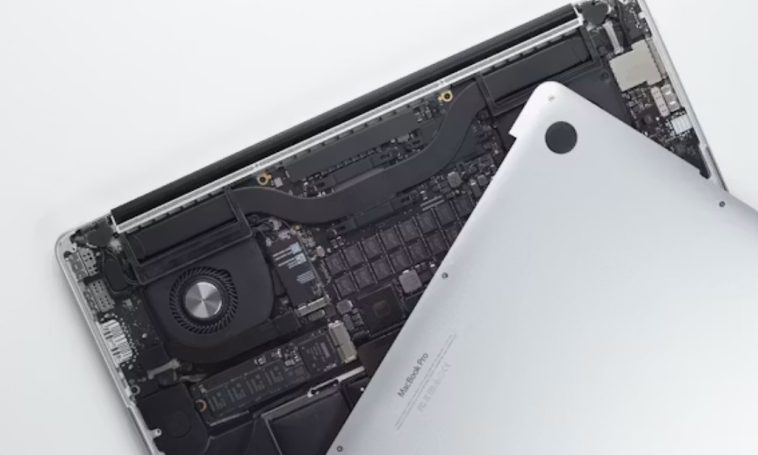
You can replace a MacBook SSD on some models, but on most MacBooks made after 2016 the storage is soldered to the logic board and there’s no clean, supported way to swap it. I’ve had this conversation with at least a dozen people who assumed “MacBook” means one consistent piece of hardware, and it really doesn’t. So before you buy a screwdriver kit or an SSD off Amazon, you need to know exactly which generation you’re dealing with.
Quick Answer
- 2010–2015 MacBook Air and MacBook Pro Retina/Unibody models: yes, replaceable, using Apple’s proprietary connector (not standard M.2).
- Late 2016 / Mid 2017 non-Touch Bar MacBook Pro: yes, one of the last holdouts with a removable SSD.
- 2016+ Touch Bar MacBook Pro, 2018+ MacBook Air, all Apple Silicon Macs (M1–M4): no, soldered directly to the board.
- Apple Silicon Macs can sometimes have their storage chips swapped by specialist repair shops, but it’s microsoldering, not a DIY job.
- 2024 M4 Mac mini is a rare exception with a physically removable storage module — but that’s a Mac mini, not a MacBook.
Why Some MacBooks Can’t Have Their SSD Replaced
There isn’t one single reason here, and that’s part of why this question gets so much conflicting advice online.
Design philosophy shift. Starting around 2015–2016, Apple began soldering SSD chips directly onto the logic board to save space and shave off a couple of millimeters of thickness. Once that decision was made, the whole product line followed it — there’s no removable-storage model in the lineup after that point, no matter how much storage you ask for at checkout.
Apple Silicon changed the architecture entirely. On M1, M2, M3, and M4 Macs, the storage controller actually lives inside the SoC itself. The NAND flash chips next to it are basically dumb storage — the real “drive” logic is part of the chip you can’t touch. That’s not the same situation as a regular soldered SSD on an Intel Mac; it’s a deeper level of integration, and it’s why a generic NVMe stick won’t work even if you could physically attach one.
Firmware pairing and encryption. This is the one most people don’t expect. On T2-equipped Macs (2018–2020) and on Apple Silicon Macs, the storage is cryptographically tied to the security chip. Swap the NAND without reprogramming it correctly and you don’t get a working drive — you get a brick. From what I’ve seen poking around repair forums, this is the actual reason most “DIY upgrade” attempts fail, not because people can’t solder.
Cost control, too — let’s be honest about that part. Soldered, fixed-tier storage means you pay Apple’s markup at checkout instead of buying a cheap third-party SSD later. I’m not going to pretend that’s not part of the calculus, even though Apple frames it purely as an engineering decision.
MacBook SSD Replaceability by Generation
| Generation | Connector / Storage Type | Replaceable? | Notes |
|---|---|---|---|
| 2010–2012 MacBook Air | Apple proprietary blade SSD | Yes | Different pin layouts between 2010/2011 and 2012 — not interchangeable |
| 2012–2015 MacBook Pro Retina | Apple Gen 2/3/4 proprietary SSD | Yes | OWC and Transcend make direct-fit replacements |
| 2012 MacBook Pro Unibody (non-Retina) | Standard 2.5″ SATA | Yes | The easiest one — basically a normal laptop drive swap |
| Late 2016 / Mid 2017 MacBook Pro (no Touch Bar) | Apple Gen 5A proprietary SSD | Yes | Last MacBook Pro generation with removable storage |
| 2016+ Touch Bar MacBook Pro, 2018+ MacBook Air | Soldered NVMe | No | Logic board replacement is the only “upgrade” path |
| Apple Silicon (M1–M4) MacBook Air/Pro | Soldered NAND, controller in SoC | Not officially | Specialist microsoldering services exist, with real risk |
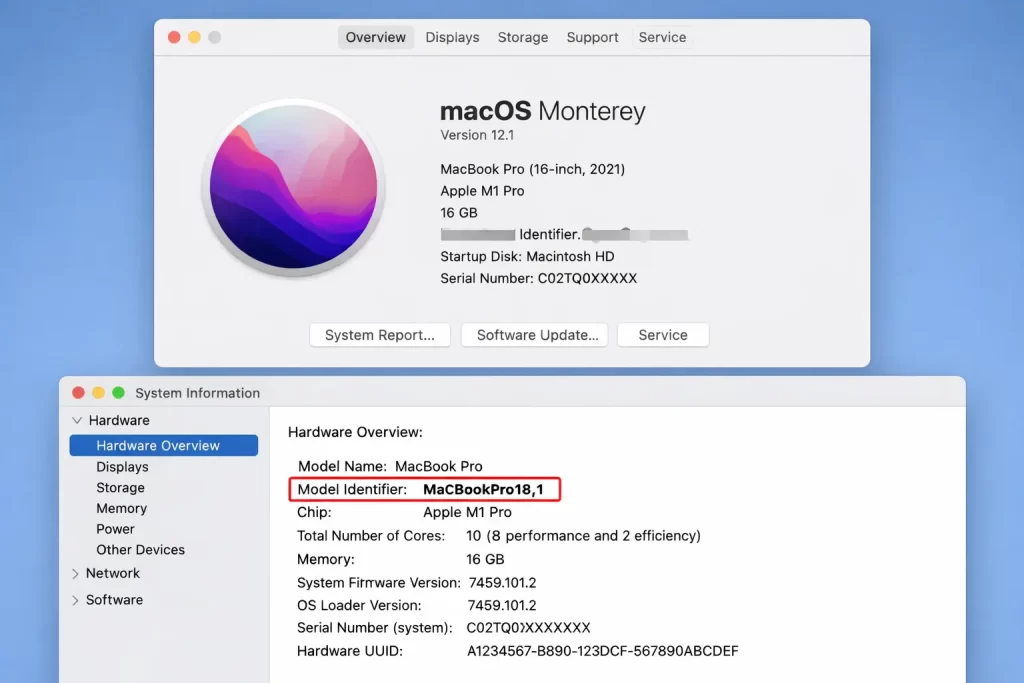
I’ll admit this table doesn’t have a row for every single model year — there are some odd exceptions and mid-cycle changes Apple never documented clearly. If your exact model isn’t obviously one of these, check its Model Identifier under About This Mac → System Report before assuming either way.
Step-by-Step: Figuring Out If Your MacBook Qualifies
Step 1: Identify your exact model
Click the Apple logo, choose About This Mac, then System Report (or More Info on older macOS versions). Note the Model Identifier — something like MacBookPro11,1 — not just the marketing name, since “MacBook Pro” alone covers a decade of wildly different hardware.
Step 2: Cross-check against the connector type
If you’re in the 2010–2017 window, search the exact model identifier plus “SSD upgrade” to confirm the connector generation. A Gen 4 module will physically fit a Gen 3 slot on some models but behave inconsistently — it boots, then randomly hangs, then you spend a weekend assuming it’s a software problem. Not great.
Step 3: For replaceable models, get the right tools
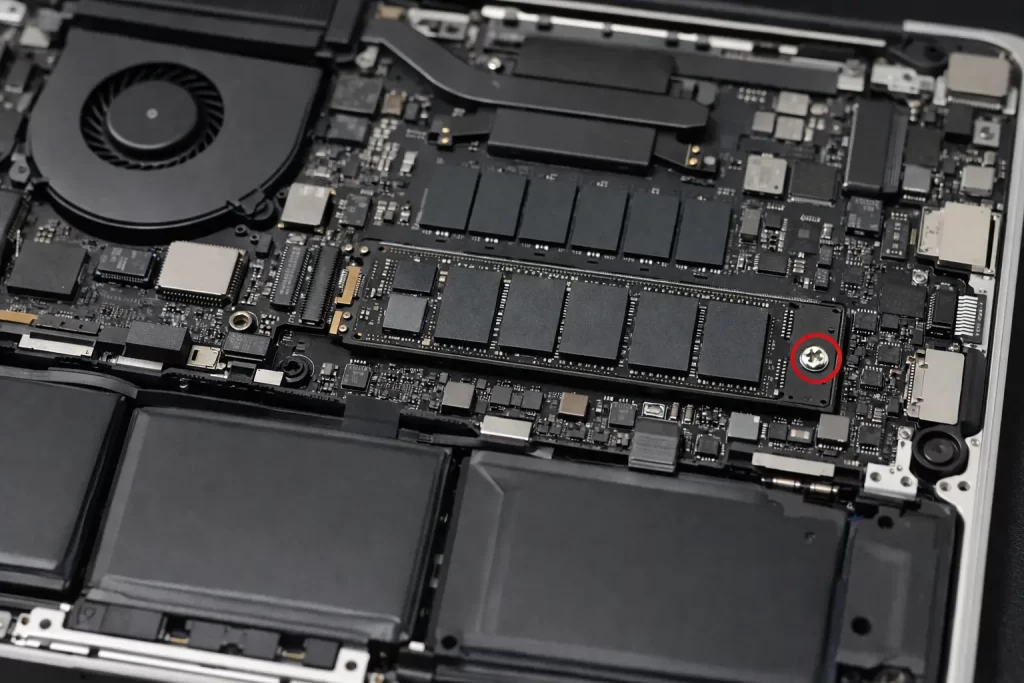
You’ll need a Pentalobe P5 screwdriver for the bottom case screws on most models from this era, and a standard Phillips for the drive bracket itself. Static-safe practices matter more than people think — ground yourself before touching the board.
Step 4: Back up before you touch anything
Time Machine, a clone, whatever — just do it. So many “upgrade went wrong” threads start with someone who skipped this step because the swap “seemed simple.”
Step 5: Swap, reseat, and reinstall macOS if needed
On some 2013+ models, the firmware needs a prior macOS install before it’ll recognize a third-party SSD. If your replacement isn’t showing up in Disk Utility right after the swap, that’s usually why — not a dead drive.
What Actually Worked For Me
I had a 2012 MacBook Pro Unibody that I wanted to bring back from the dead for a relative who just needed something for email and browsing. My first instinct was to throw in whatever 2.5″ SATA SSD I had sitting in a drawer — figured a SATA drive is a SATA drive. It mostly worked, but the system would randomly fail to wake from sleep, which sent me down a rabbit hole of power management settings that, in hindsight, had nothing to do with anything.
Turned out it was a firmware compatibility quirk with that specific SSD controller and that exact MacBook generation — something I only found mentioned in passing on an old forum post, not in any official documentation. Swapped to an OWC drive built specifically for that model, and the sleep issue disappeared immediately. So the “any SATA SSD works” assumption isn’t entirely accurate — it usually works, but not always, and when it doesn’t, the symptoms look unrelated to storage at all.
Advanced Fixes and Edge Cases
T2 chip Macs and the “looks dead but isn’t” scenario. If a T2-equipped MacBook won’t boot after a logic board repair or a failed DFU restore, the storage can appear completely gone even though the physical NAND is fine — it’s a pairing issue between the chip and the security enclave. Apple Configurator on a second Mac is sometimes the only way back, and even then it’s not guaranteed.
Apple Silicon NAND swaps are real, but treat them as a last resort. Some repair shops (mostly using parts and techniques that trace back to the iPhone repair industry in China) can physically replace the NAND packages on M1/M2/M3 logic boards and reprogram the storage configuration through Apple Configurator’s restore function. It’s legitimate, documented work — but it’s board-level microsoldering, not a kit you install yourself, and pricing reflects that.
Diagnostics before you assume the SSD itself is the problem. Run diskutil list in Terminal and check Disk Utility’s S.M.A.R.T. status before concluding a drive needs replacing at all. A lot of “my SSD is dying” tickets turn out to be a corrupted APFS container or a failing logic board component unrelated to storage.
Prevention Tips
- If you’re buying a new MacBook with soldered storage, configure the capacity you’ll actually need now — there’s no upgrading later, full stop.
- For Apple Silicon Macs, lean on a fast external SSD (Thunderbolt or USB-C) for large files instead of hoping for an internal fix down the line.
- Keep a current backup regardless of which generation you own — soldered storage failure means a dead computer, not a swappable part.
- Don’t buy a “universal” Apple SSD replacement without confirming the exact generation match. Compatible-looking isn’t the same as compatible.
FAQ
Can I put a regular M.2 SSD in a MacBook? No — Apple has never used a standard M.2 connector, even on models with removable storage. The pinouts are proprietary.
Does upgrading the SSD void my warranty? On models where it’s officially user-replaceable, no. On soldered models, opening the case to attempt a swap absolutely can.
Why did my “successful” SSD swap leave the Mac unable to find a startup disk? Usually a firmware version issue — the Mac needs a macOS version installed previously that recognizes third-party storage before a fresh install will boot from it.
Is it worth paying for a NAND chip swap on an M1 MacBook? Depends on the machine’s value versus the repair cost. For a high-spec M1 Pro/Max it can make sense; for a base M1 Air, you’re often better off selling it and buying new.
My MacBook Pro is from 2016 — does it have Touch Bar or not, and does that even matter for storage? It matters a lot. Touch Bar models from that year have soldered storage. Non-Touch Bar 13″ models from late 2016/2017 still have a removable module.
Editor’s Opinion
Honestly this whole situation is kind of a mess and I don’t love it. Apple’s reasoning about thinness and integration makes engineering sense, but it also means a $50 part failure can kill an otherwise fine laptop. If your Mac still has removable storage, that’s worth knowing before you assume an upgrade is impossible — and if it doesn’t, plan your storage purchase like there’s no do-over, because there really isn’t one.
