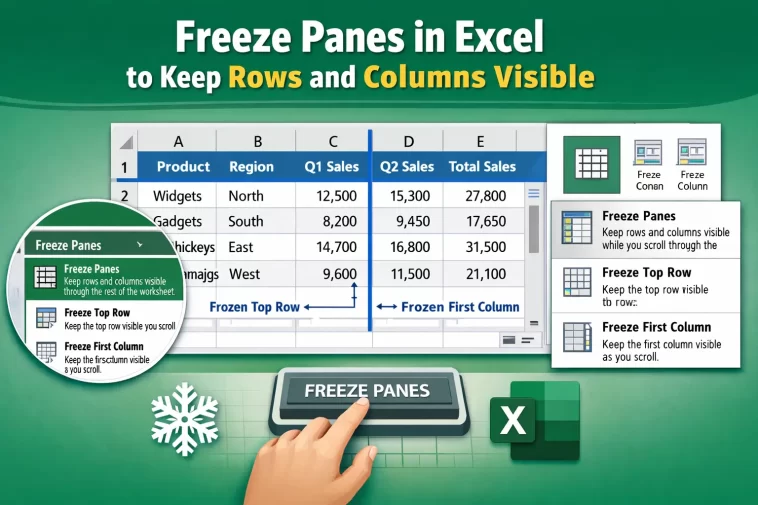
My spreadsheet had over 4,000 rows and somewhere around column AG, and I kept losing track of which column was which every time I scrolled right. That’s the exact moment freeze panes in Excel earns its place as one of the most useful features nobody bothers to learn properly. Most people know it exists. Fewer people know why it sometimes refuses to behave, which is really the part worth talking about.
Why Freeze Panes Sometimes Doesn’t Work the Way You Expect
Before getting into the steps, it helps to know why this feature trips people up more than it should.
Freeze Panes locks based on cell position, not row/column content. Excel doesn’t ask “which row has my headers.” It locks everything above and to the left of whichever cell you had selected when you clicked the button. So if your active cell was in the wrong spot, you’ll freeze the wrong rows or columns, and it’ll look like the feature is “broken” when it isn’t.
Tables and Freeze Panes interact oddly. If your data is formatted as an Excel Table (the kind with the blue banded rows and a Table Design tab), the header row already stays visible during scroll because of Table behavior — but combining that with manual freeze panes can produce visual glitches where the frozen row duplicates or overlaps the table header. Annoying, and not well documented anywhere official.
Merged cells throw off the freeze line. If your header row has merged cells, Excel sometimes won’t let you freeze exactly where you expect, because the freeze boundary has to align with the merge boundary. You’ll click Freeze Panes and the split line lands somewhere that looks wrong.
Group/Outline settings combined with frozen panes can cause scroll lag. Not a huge deal on small sheets, but on heavier ones with multiple frozen columns and grouped rows, scrolling gets noticeably sluggish. I’ve seen this on a few client files and never found a clean explanation for it, so I’m not 100% sure why, but it tends to show up more with larger row counts.
Freeze Top Row vs Freeze First Column vs Freeze Panes vs Split
These four options get confused with each other constantly, so here’s how they actually differ.
| Option | What It Locks | Best For |
|---|---|---|
| Freeze Top Row | Only row 1 | Simple sheets with a single header row |
| Freeze First Column | Only column A | Sheets where column A holds labels (names, IDs) |
| Freeze Panes (custom) | Everything above/left of selected cell | Sheets needing both row and column headers locked |
| Split | Divides the window into independently scrollable sections | Comparing distant parts of the same sheet, not for keeping headers static |
Split gets lumped in with freeze panes a lot, but it’s a different feature entirely — it doesn’t lock anything, it just lets two parts of the sheet scroll separately. People mix these up more than you’d think.
Step-by-Step: Freezing Panes in Excel
Step 1: Decide what needs to stay visible
Figure out if you need just the top row, just the first column, or both. This decision changes which cell you select before clicking anything.
Step 2: Select the right cell
- For just the top row: you don’t need to select anything specific — use the dedicated option (Step 3).
- For just the first column: same thing, dedicated option covers this.
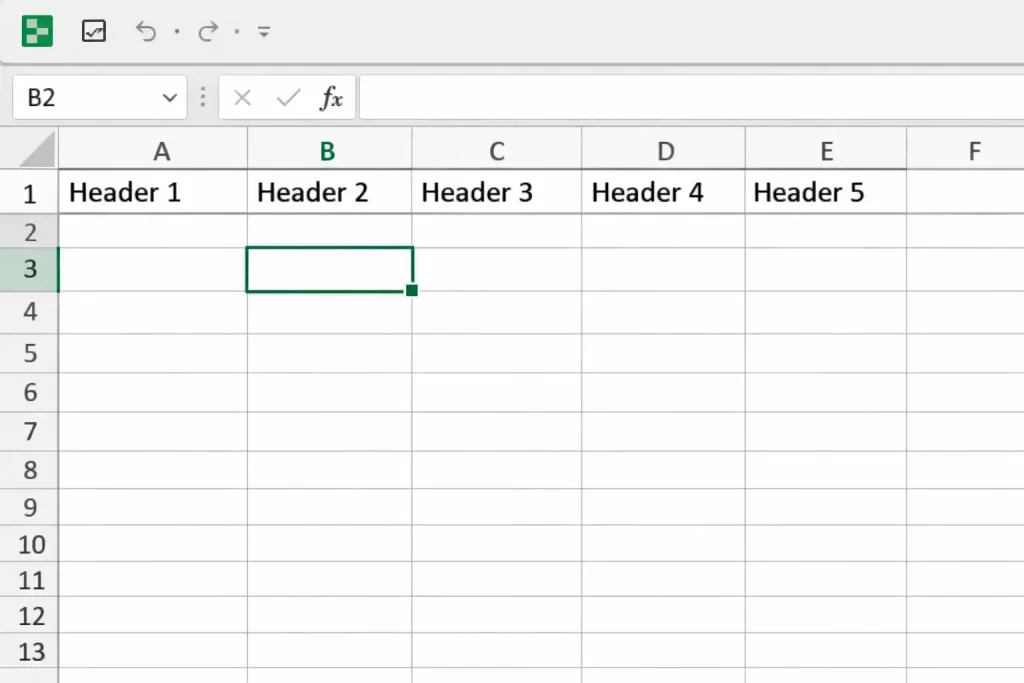
- For both a header row and a header column: click the cell that’s one row below your last header row, and one column to the right of your last header column. So if row 1 and column A are your headers, click B2.
Step 3: Go to View > Freeze Panes
Click the View tab, then Freeze Panes in the Window group. You’ll see three options in the dropdown: Freeze Panes, Freeze Top Row, Freeze First Column.
Step 4: Pick the right option for your selection
If you selected a cell like B2, choose “Freeze Panes” (the top option). This locks everything above row 2 and everything left of column B. If you only need the top row or first column, use those dedicated shortcuts instead — they ignore your active cell selection entirely.
Step 5: Scroll to confirm it actually worked
Scroll down and right. The frozen rows/columns should stay put while the rest of the data moves. If it didn’t freeze where you expected, your active cell was probably in the wrong spot in Step 2 — go back and reselect.
Step 6: Unfreezing if you need to start over
View > Freeze Panes > Unfreeze Panes. It resets completely; you’ll need to redo the selection if you want a different freeze point.
What Actually Worked For Me
On one particular file, I selected what I thought was the correct cell, hit Freeze Panes, and the freeze line landed two rows too low. I redid it three times assuming I was clicking the wrong cell each time. Turns out the issue was a hidden row above my visible header — Excel was counting the hidden row in its freeze calculation even though I couldn’t see it on screen.
I only figured that out because a coworker mentioned offhand that she’d hit the same thing months earlier on a different report. Unhiding the row, fixing the freeze point, and rehiding the row afterward sorted it out completely. Not something I would’ve guessed on my own, and there’s no warning in Excel that hidden rows affect the freeze line — it just quietly does it.
So the lesson, if there is one: check for hidden rows or columns near your intended freeze point before assuming you’re clicking wrong.
Advanced Fixes and Edge Cases
Freeze Panes grayed out entirely. This usually means you’re in Page Layout view or editing a cell. Switch back to Normal view (bottom right of the Excel window, or View tab > Normal) and make sure you’re not mid-edit in any cell.
Freeze line appears but disappears after saving and reopening. This can happen with files saved in older .xls format or opened from certain cloud sync folders where Excel re-renders the view settings on load. Re-saving as .xlsx sometimes resolves it, though not always — your mileage may vary depending on how the file was originally created.
Frozen panes plus filters causing visual jumps. When AutoFilter is applied to a frozen header row, sorting or filtering can briefly make the frozen row “jump” before settling. It’s cosmetic and doesn’t affect the data, but it looks alarming the first time you see it.
Multiple sheets needing the same freeze setup. Freeze Panes is a per-sheet setting — it doesn’t carry across tabs automatically. If you need it on twenty sheets, you’re either doing it twenty times or recording a quick macro to apply it across all sheets in one pass.
Things People Try That Usually Don’t Help
A lot of troubleshooting advice online suggests repairing the Excel installation or resetting the ribbon when freeze panes “isn’t working.” In my experience that almost never fixes it — the actual cause is nearly always cell selection, hidden rows, or view mode, not a corrupted install. Worth ruling out the simple stuff first.
Prevention Tips
- Avoid merged cells in header rows if you plan to use freeze panes regularly
- Check for hidden rows/columns before setting your freeze point
- Stick to .xlsx format rather than older .xls if freeze settings keep resetting
- If sharing the file with others, leave a note about where the freeze line sits, since it’s easy for someone else to unfreeze it by accident while exploring the sheet
FAQ
Why is Freeze Panes greyed out in my Excel? You’re probably in Page Layout view, or you’re still in cell-edit mode. Switch to Normal view and press Escape first.
Can I freeze panes in Excel Online or just desktop? Both. Excel Online has the same Freeze Panes options under the View tab, though the dropdown layout looks slightly different.
Does freezing panes affect printing? No, freeze panes is a screen display setting only. For printing repeated headers, you need Page Setup > Print Titles instead, which is a separate feature entirely.
Why does my freeze line look like it’s in the wrong place? Check for hidden rows or columns near your selected cell — they count toward the freeze calculation even when invisible.
Will freeze panes work on a table formatted with Excel Tables? It can, but expect occasional visual overlap with the table’s own header behavior. Test it before relying on it for a shared file.
Editor’s Opinion
This feature is simple until it isn’t, and the hidden-row thing genuinely caught me off guard the first time. Once you know the cell-selection logic behind it, freeze panes stops feeling random. Still wish Excel gave a visual warning when a hidden row messes with your freeze point — would’ve saved me ten minutes of confused clicking.
