If your Charge 6 buzzes like it’s responding to a tap or notification but the screen stays completely black, you’re dealing with one of the more annoying Fitbit bugs to show up in the last year or so — the band’s clearly alive, it just won’t show anything. The Charge 6 blank screen with vibration bug is usually a display driver glitch rather than a dead screen, and in most cases it’s fixable without a warranty claim. I had this happen on mine after a firmware update, and for about ten minutes I was fairly convinced I’d bricked a $160 band.
So let’s go through what’s actually causing it and the order of fixes worth trying.
Quick Answer
- Most common cause: a firmware update that didn’t fully apply, leaving the display driver in a stuck state.
- Second most common: battery level dropped low enough that the display won’t initialize even though there’s enough charge for basic vibration alerts.
- Fastest fix that works most often: a forced restart held for the full 10+ seconds, not a quick tap.
- If that fails, charging fully on the original cable (not a third-party one) before trying again resolves most remaining cases.
- Persistent cases after both of those usually need a factory reset through the Fitbit app, not on-device.
Why It Fails
The Charge 6’s display is an AMOLED panel, and AMOLED screens in general are more sensitive to power state issues than older LCD-based Fitbit models — when the power management chip and display driver fall out of sync, you can get exactly this symptom: the vibration motor and haptic feedback keep working fine because they’re on a simpler, more fault-tolerant circuit, while the display simply doesn’t get the wake signal it needs.
From what I’ve seen, there are three causes that account for most of the reports:
Incomplete firmware update. Fitbit pushes updates over Bluetooth from the phone, and if the connection drops mid-update — walking out of range, phone Bluetooth glitching, the app getting backgrounded at the wrong moment — the band can end up with a partially applied firmware image. The device still boots and runs basic functions (vibration, step counting in the background) but the display driver, which apparently gets touched later in the update sequence on this firmware version, never receives a complete update.
Battery drops below the display’s minimum wake threshold, but not below the vibration threshold. These are apparently two separate power thresholds internally, which isn’t obvious from the outside. So a band that shows “20% battery” in the app right before this happened can genuinely have enough charge for haptic alerts but not enough for the display to initialize reliably, especially in cold weather where battery voltage sags temporarily.
A stuck app/watchface process. Less common, but if a specific clock face or app on the band crashed mid-render, you can get a display driver lockup that presents as a blank screen even though the underlying hardware and battery are both fine.
An overlooked cause worth checking: cold temperature during the initial glitch. Several reports point to this happening more often right after being outside in cold weather, then persisting even once back indoors — the theory being the initial power dip from cold-affected battery voltage triggers the driver glitch, but the glitch itself doesn’t self-correct once you’re warm again. Not confirmed officially by Fitbit as far as I know, but it lines up with a lot of anecdotal reports, mine included.
Common Scenarios
- Right after a firmware update notification, especially if you remember the phone losing Bluetooth connection briefly during the update process.
- After a cold outdoor run or walk, screen goes blank mid-activity or shortly after, vibration alerts still work.
- Low battery situations, typically reported around 15–25% remaining rather than near-empty.
- After switching watchfaces, particularly third-party or newly downloaded ones from the Fitbit app gallery.
Step-by-Step Fixes
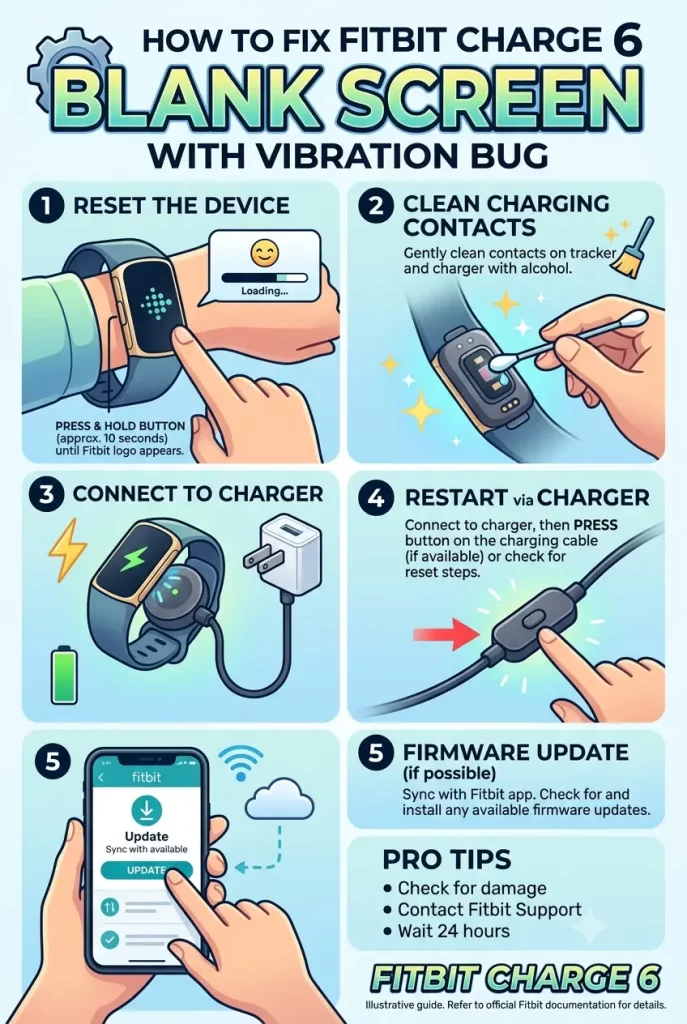
Step 1: Force a restart — hold, don’t tap
Press and hold the button on the side for a full 10-15 seconds until you feel a vibration pattern that signals a restart (not just a single buzz). This is different from a quick press, and a lot of people give up too early, at three or four seconds, before the restart actually triggers. Wait for the Fitbit logo or a screen flash before releasing.
Step 2: Charge fully on the original cable for at least 30 minutes
Even if the app shows a reasonable battery percentage, connect the band to its charging cable and leave it for a full 30 minutes minimum before trying to wake the screen. Use the cable that came with the band if you still have it — third-party charging cables for Fitbit devices have a real history of inconsistent contact with the pogo pins, which can cause charging to appear to work (vibration on connect) without actually delivering a full, stable charge.
Step 3: Try a button-and-charger combined reset
With the band still on the charger, hold the button for 10+ seconds. Some users report this combined state — power actively flowing in while forcing a restart — clears the display driver lockup more reliably than either step alone. Not guaranteed, and I couldn’t find a clean technical explanation for why it works better combined, but it’s a low-risk step worth trying before moving to a factory reset.
Step 4: Check for a completed firmware update through the app
Open the Fitbit app, go to your device’s settings page, and check if an update is listed as pending or in progress. If one’s stuck, staying close to your phone with Bluetooth on for 15-20 minutes sometimes lets it finish silently in the background even without a visible screen on the band itself.
Step 5: Factory reset through the Fitbit app, not on-device
Since the on-device menu isn’t accessible with a blank screen, you’ll need to do this remotely:
- Open the Fitbit app
- Go to your Charge 6’s device page
- Scroll to Restart device first (softer option, try this before the full reset)
- If that doesn’t resolve it, look for Erase device or Factory reset under advanced device settings
This clears local settings and cached data but doesn’t touch your account data or history synced to Fitbit’s servers, so you’re not losing your activity data — just the on-device state that’s currently glitched.
Technical Comparison Table
| Symptom pattern | Likely cause | Fix reliability |
|---|---|---|
| Started right after firmware update | Incomplete update | Medium-high, resolve via app reconnect |
| Started after cold weather activity | Battery voltage/temp driver glitch | High with charge + restart |
| Consistent regardless of battery level | Stuck watchface/app process | Medium, needs factory reset |
| Only after switching watchfaces | Watchface render crash | High, remove that watchface via app |
What Actually Worked For Me
Mine happened after a run in genuinely cold weather, screen just went dark maybe twenty minutes in, still buzzed for the mile-alert notification right on schedule, which was almost more unsettling than if it had just died completely — clearly still “on,” just not showing anything.
First thing I tried was the quick button press, out of habit, which obviously didn’t work since that’s not actually a restart. Then I did the proper 10+ second hold once I got home — nothing, still blank, still occasionally buzzing for phone notifications coming through.
Charged it for about twenty minutes, tried the hold-while-charging combo, and that’s what did it — screen flashed back on mid-charge. Not entirely sure if it was really the combo that mattered or if it just needed the extra charging time regardless of the button hold, and I didn’t feel like troubleshooting further to isolate which one actually mattered once it was working again. So take that with a grain of salt — your mileage may vary on whether it’s really the combined step or just time on the charger doing the work.
Advanced Fixes and Edge Cases
Check Bluetooth connection stability during firmware updates going forward. If this keeps recurring after updates specifically, the underlying issue is likely a flaky Bluetooth connection during the update process rather than the band itself — try staying within a few feet of your phone with Bluetooth actively connected (not just in range, actually connected) for the full duration of any future update.
Remove recently added watchfaces if the issue correlates with one. Go into the Fitbit app’s watchface gallery, check what was installed or changed right before the blank screen started, and remove it. Third-party watchfaces in particular vary a lot in how well-tested they are against this firmware version.
Contact Fitbit support for a remote diagnostic if a factory reset doesn’t resolve it. Support can sometimes see device logs on their end that indicate whether this is a known firmware batch issue versus something specific to your unit — worth doing before assuming hardware failure, especially if the band’s still within warranty.
Watch for recurring patterns tied to specific firmware versions. If this is a widespread issue on a particular firmware build, Fitbit’s community forums usually have a thread going within days, and a follow-up patch tends to land within a few weeks based on how they’ve handled similar bugs in the past.
Prevention Tips
- Keep your phone nearby and Bluetooth actively connected during any firmware update rather than letting it run in the background while you walk away.
- Charge before battery drops below 20% when possible, since display initialization seems to be the first thing to suffer at low charge, not the last.
- Avoid extended cold-weather use right after a low charge cycle if you’ve had this issue before — charge fully first if you know you’re heading out in genuinely cold conditions.
- Stick with official or well-reviewed watchfaces from the gallery rather than obscure third-party ones with few reviews.
- If you notice the screen flickering or dimming oddly before a full blank-out, don’t ignore it — that’s sometimes an early warning sign worth restarting the band over proactively.
FAQ
Is this a sign my Charge 6’s screen is permanently broken? Usually not. The vibration working alongside a blank screen is actually a good sign — it means the core hardware and battery are functioning, and it’s a driver-level software issue in almost every reported case.
Will a factory reset delete my step and heart rate history? No, your history stays synced to your Fitbit account on Google’s servers. The reset only clears local device state.
Does this happen on other Fitbit models too, or just the Charge 6? It’s been reported on a few AMOLED-screen Fitbit models, but the Charge 6 has had a notably higher volume of these specific reports, likely tied to its particular firmware update cadence.
Should I return the band if this keeps happening? If it recurs regularly after trying all the fixes above, and especially if it’s still within the return or warranty window, that’s a reasonable call — a band with a recurring driver-level bug that resets don’t permanently fix might have an underlying hardware sensitivity worth just replacing.
Can I fix this without the Fitbit app if I don’t have my phone? Not reliably — the app-based restart/reset is the most consistent path since the on-device menu isn’t accessible with a blank screen. The button-hold restart is your only non-app option.
Editor’s Opinion
Vibration-but-blank-screen looks scarier than it usually is — in most cases it’s a driver glitch, not a dead unit. Try the hold-while-charging combo before anything drastic, it worked for me and for a lot of people posting about this online. If it keeps happening after updates specifically, that’s the pattern worth paying attention to going forward, more than any single one-off fix.
