If npm install just blew up with a wall of npm ERR! gyp ERR! stack Error output and you’re on Node.js 20 or newer, you’re dealing with a native module trying to compile and failing somewhere in the toolchain. The node-gyp rebuild error usually isn’t really about node-gyp itself — it’s almost always missing build tools, a Python version mismatch, or an ABI incompatibility that got worse specifically because of changes in Node 20+.
I’ve hit this three separate times across three different machines in the last year, and annoyingly, the fix was different each time. So let’s go through the real causes instead of just telling you to reinstall node_modules and pray.
Quick Answer
- Most common cause on Windows: missing or wrong version of Visual Studio Build Tools, or
msvs_versionpointing at nothing. - Most common cause on macOS: Xcode Command Line Tools missing or out of date after an OS update.
- Most common cause on Linux: missing
build-essential/python3-dev, or python pointing at the wrong interpreter. - Node 20+ specific: newer node-gyp versions expect Python 3.11+, and Python 3.12’s removal of
distutilsbreaks older node-gyp releases outright. - Fastest fix that works most often: update node-gyp globally and make sure Python 3.11 (not 3.12, not 3.13) is what
pythonresolves to during the build.
Why It Fails
node-gyp is the thing that takes native C/C++ addon code (used by packages like bcrypt, sharp, sqlite3, canvas, node-sass — though that one’s mostly dead now — and plenty of others) and compiles it against your installed Node.js headers. When it fails, the actual root cause is buried a few lines up from the “gyp ERR! stack Error” line, and most people don’t scroll up far enough to see it.
From what I’ve seen, there are four causes that cover almost every case:
Python version mismatch. This is the one that changed the most with Node 20+. Newer node-gyp releases (which get pulled in more aggressively on npm 10+, which ships with Node 20) dropped support for Python 2 entirely and now expect Python 3.11 or 3.12. But — and this trips people up constantly — Python 3.12 removed the distutils module, which older node-gyp versions still import. So if you’ve got a fresh Python 3.12 install and an npm cache holding an older node-gyp, you get a build failure that looks like it’s about compilers but is actually about a missing Python module.
Missing platform build tools. On Windows, that’s Visual Studio Build Tools with the “Desktop development with C++” workload. On macOS, it’s Xcode Command Line Tools, which have an annoying habit of getting silently broken after a macOS point update. On Linux, it’s usually build-essential, python3-dev, and sometimes make or g++ missing outright on minimal Docker base images.
ABI mismatch between Node.js version and prebuilt binaries. Node 20 bumped the NODE_MODULE_VERSION (the ABI number), so any package that ships prebuilt native binaries needs a build compiled specifically for that ABI. If a package’s maintainers haven’t published a prebuilt binary for Node 20’s ABI yet, npm falls back to compiling from source — and that’s when all the missing-toolchain problems above suddenly matter, even on projects that “never needed a compiler before.”
Corrupted or stale node-gyp cache. node-gyp downloads Node header files into ~/.cache/node-gyp (or %AppData%\node-gyp on Windows) and caches them per Node version. If that cache got interrupted mid-download — bad wifi, killed process, whatever — you can end up with a partial header set that fails silently until the actual compile step.
One cause people almost always overlook: corporate proxy or VPN interference during the header download step. node-gyp needs to fetch Node’s development headers over HTTPS the first time it builds for a given Node version. If you’re behind a corporate proxy that intercepts TLS, that download can fail in a way that produces a gyp compile error days later, not an obvious network error at the time.
Common Scenarios
- Fresh Node 20 install via nvm, then
npm installon an older project. The project’s lockfile pins an old node-gyp indirectly, which chokes on the newer Python installed on the machine. - Docker builds using
node:20-alpine. Alpine doesn’t ship a C++ toolchain or Python by default, so any native module install fails immediately unless you addbuild-base python3to the image. - macOS after a system update. Xcode CLI tools get invalidated and
xcode-select -preturns a path that no longer has valid tools in it. - CI pipelines that recently bumped from Node 18 to Node 20. Works locally, fails in CI, because the CI image has an older node-gyp cached and nobody explicitly pinned Python.
Technical Comparison Table
| Environment | Typical root cause | Fix reliability |
|---|---|---|
| Windows 10/11 | Missing VS Build Tools or wrong msvs_version | High once tools installed |
| macOS (Intel/ARM) | Broken/missing Xcode CLI tools | High, one command usually fixes it |
| Linux (Debian/Ubuntu) | Missing build-essential/python3-dev | High |
| Docker (Alpine) | No compiler or Python in base image | High, but easy to forget |
| Any OS, Python 3.12 | distutils removed, old node-gyp | Medium — needs node-gyp update, not just a Python downgrade |
Step-by-Step Fixes
Step 1: Read the actual error above the “gyp ERR! stack Error” line
Before doing anything else — scroll up in your terminal output. The real error is almost never on the “stack Error” line itself; it’s usually a few dozen lines above, something like ModuleNotFoundError: No module named 'distutils' or error MSB8020 or xcrun: error: invalid active developer path. That single line tells you which of the four causes above you’re actually dealing with, and skips a lot of guesswork.
Step 2: Update node-gyp globally
bash
npm install -g node-gyp@latestThen tell npm to use that version instead of whatever’s bundled:
bash
npm config set node_gyp $(which node-gyp)On Windows, that second command needs adjusting for PowerShell — npm config set node_gyp (Get-Command node-gyp).Source works there.
Step 3: Fix Python — install 3.11, not 3.12, if you’re hitting distutils errors
bash
# macOS with Homebrew
brew install [email protected]

# then point npm/node-gyp at it
npm config set python /opt/homebrew/bin/python3.11
On Windows, install Python 3.11 from python.org, check “Add to PATH” during install, then run:
powershell
npm config set python "C:\Python311\python.exe"This one’s counterintuitive for people — “just install the newest Python” is usually good advice, and here it’s actively the wrong move if your node-gyp version hasn’t caught up to Python 3.12/3.13’s removal of distutils.
Step 4: Install the platform build tools
Windows:
powershell
npm install -g windows-build-toolsThat package is deprecated now, honestly, so the more reliable route is installing Visual Studio Build Tools directly from Microsoft’s site and selecting “Desktop development with C++” during setup. Then set:
powershell
npm config set msvs_version 2022macOS:
bash
xcode-select --installIf it says tools are already installed but builds still fail, reset it:
bash
sudo xcode-select --resetLinux (Debian/Ubuntu):
bash
sudo apt-get update
sudo apt-get install -y build-essential python3-dev
Docker (Alpine base):
dockerfile
RUN apk add --no-cache build-base python3 make g++Step 5: Clear the node-gyp cache and retry
bash
rm -rf ~/.cache/node-gyp
npm install
On Windows that cache lives at %AppData%\node-gyp, delete the folder the same way.
Step 6: Force a clean rebuild instead of relying on npm’s automatic one
Sometimes npm install skips the rebuild step for a package that’s already partially installed. Force it directly:
bash
npm rebuild <package-name> --verboseThe --verbose flag matters here — it shows the actual compiler invocation, which is usually where the real clue is hiding.
What Actually Worked For Me
The first time this hit me, I assumed it was a Node version problem, since I’d just switched to Node 20 with nvm the same afternoon. Spent a good chunk of time swapping between Node 18 and 20 assuming a downgrade would fix it. It didn’t — same error on both.
Turned out the actual problem was Python. I’d installed Python 3.12 a week earlier for a completely unrelated project and hadn’t thought about it since. npm install was silently picking that up as its default Python interpreter, and the bundled node-gyp in my npm version was still trying to import distutils, which just doesn’t exist anymore in 3.12. Not an obvious connection at all — nothing in the error output mentioned “distutils” until I actually scrolled up far enough, which I almost didn’t bother doing.
So I installed Python 3.11 alongside 3.12 (didn’t want to break the other project), pointed npm at it with npm config set python, and it built cleanly on the first try. A little lucky that the fix was that clean, honestly — usually it’s not.
The second time, on a different machine, it was Xcode CLI tools after a macOS update. xcode-select --install alone didn’t do it — needed the --reset first, which I only found from an old Stack Overflow comment I half-remembered seeing months earlier while fixing something unrelated.
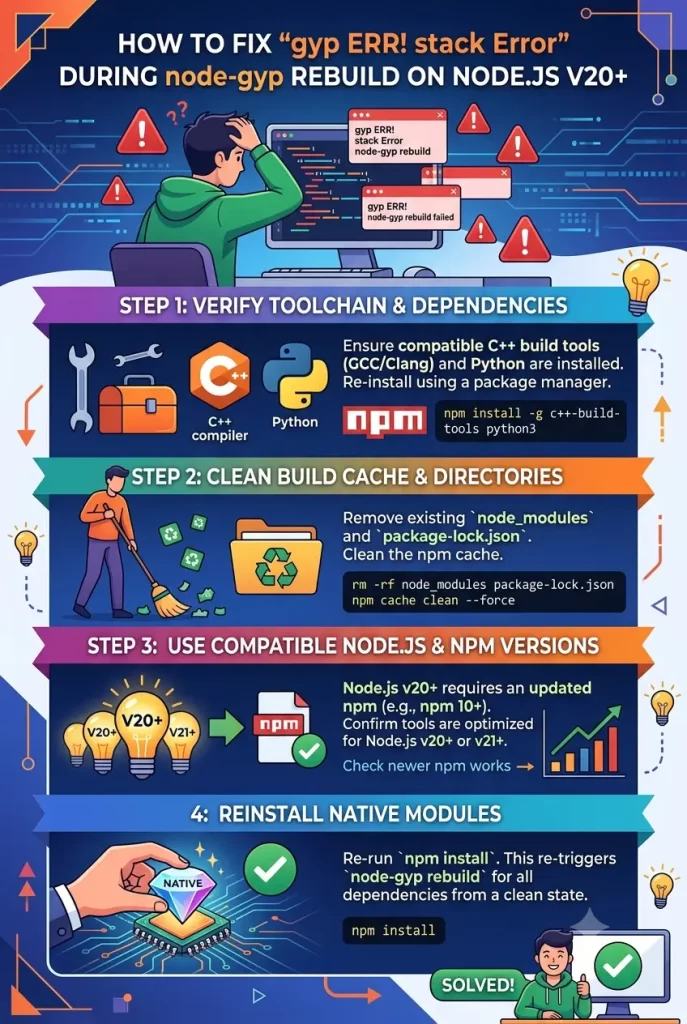
Advanced Fixes and Edge Cases
Check the ABI version mismatch directly. Run node -p process.versions.modules to see your current ABI number, then compare it against what the failing package’s prebuilt binaries actually support (usually visible in their GitHub releases or prebuilds/ folder). If there’s no prebuilt for your ABI, you’re stuck compiling from source regardless of how clean your toolchain is — in which case, check if there’s a newer version of that dependency with updated prebuilds before spending hours debugging your compiler setup.
Pin node-gyp explicitly in package.json for CI environments. CI runners can silently pick up whatever node-gyp version ships bundled with the npm version on that image, which may lag behind what you’re using locally. Adding an .npmrc with node-gyp=<explicit path or version> avoids the “works on my machine” gap.
On Windows, check for multiple Python installs colliding. Running where python will often reveal two or three different Python executables on PATH — Windows Store Python, a manual install, and maybe a Conda environment. node-gyp grabs whichever one resolves first, which isn’t always the one you intend.
Enable verbose gyp output for genuinely stuck builds. npm install --foreground-scripts --loglevel verbose shows the full gyp configure and build command lines, which is tedious to read but usually contains the actual compiler error rather than npm’s summarized (and less useful) version of it.
Prevention Tips
- Don’t install the newest Python version just because it’s newest — check what your current node-gyp version actually supports first.
- Pin Node.js versions per-project with an
.nvmrcfile so switching projects doesn’t silently change your build environment. - On new machines, install build tools before your first
npm installon a project with native dependencies, not after the error shows up. - In Docker images, add build tools explicitly rather than assuming the base image includes them — Alpine especially strips almost everything by default.
- Keep an eye on which of your dependencies actually need native compilation (
sharp,bcrypt,canvas,sqlite3are common ones) versus pure-JS alternatives that avoid this whole category of problem.
FAQ
Do I need to reinstall Node.js entirely to fix this? No, that almost never fixes it. The problem sits in the build toolchain or Python, not in Node itself.
Will switching to a JS-only alternative package fix it faster than debugging the build? Sometimes, yes — if the native module isn’t strictly required, swapping to a pure-JS package (like bcryptjs instead of bcrypt) sidesteps this entire category of error.
Is this a bug in Node.js 20? Not exactly. Node 20 didn’t break anything on its own — it just shipped with a newer npm that pulls in newer node-gyp, which exposed the Python 3.12 distutils issue that was already waiting to happen.
Does downgrading npm help? Rarely helps and creates its own version drift problems. Fixing Python and build tools is more reliable long-term.
Why does it work on one teammate’s machine and not mine? Almost always a Python or build-tools version difference between machines, even if you’re both “on Node 20.”
Editor’s Opinion
Not gonna lie, this one wastes more time than it should because the error message points at gyp when the real issue is usually Python or missing compilers. Scroll up in the terminal before doing anything — that’s the step people skip. If you’re on Python 3.12 and this just started happening, that’s probably it. Otherwise check your build tools first, node version second.
