I still remember the first time I asked an AI to refactor an entire feature for me inside VS Code. It edited five files, ran the terminal commands, caught a lint error on its own, and fixed it — without me touching anything. That was the moment I realized AI code agents in Visual Studio Code had crossed from “cool experiment” to genuinely useful daily tool.
This guide is a practical, no-fluff walkthrough of how AI code agents work in VS Code in 2026: what they are, how to set them up, the different modes you’ll use, and how to get the most out of them without burning through your credits or breaking your codebase.
What Are AI Code Agents in VS Code?
Before diving in, it’s worth being clear about what an “agent” actually means in this context — because it’s very different from the AI autocomplete you might already be used to.
A traditional AI coding assistant suggests code. You accept or reject the suggestion. The loop ends there.
An AI code agent is something different. You describe a high-level goal in plain English. The agent then:
- Reads your codebase to understand the context
- Formulates a plan
- Edits multiple files
- Runs terminal commands
- Checks the output (build results, test failures, lint errors)
- Iterates and self-corrects until the task is done
Think of it less like autocomplete and more like a junior developer who never takes a coffee break. You give it a goal; it works until the goal is reached or it needs your input.
VS Code in 2026 has agent mode built directly into GitHub Copilot — no extra plugins needed. It also supports third-party agents like Claude and OpenAI Codex right inside the same interface.
Prerequisites: What You Need to Get Started
Before you can use AI code agents in VS Code, make sure you have:
- VS Code — latest stable version (1.109 or newer recommended)
- GitHub Copilot extension installed (comes bundled with VS Code for new installs in 2026)
- A GitHub account with a Copilot subscription — the free tier works for agent mode; you don’t need a paid plan to start
- Git — your project should be under version control; agents work best with a clean git state
If you already use VS Code with Copilot, you’re likely already set up. Open VS Code and check the bottom status bar for a Copilot icon. If it shows your GitHub username, you’re good to go.
Understanding the Three Chat Modes
VS Code Copilot Chat has three distinct modes. Knowing when to use each one saves time and credits.
Ask Mode
Ask mode is a chatbot. It answers your coding questions and shows code snippets but never touches your files. Use it for “how does this work?” and “what’s the best way to approach X?” questions. It’s fast and uses minimal credits.
Edit Mode
Edit mode targets a single file based on your instruction. It’s precise and cheap. Use it when you know exactly which file needs changing and want a focused, controlled edit.
Agent Mode
Agent mode is the heavy hitter. It reads your entire codebase, formulates a plan, edits multiple files, runs commands in the terminal, checks the output, and loops until the task passes or needs your input. Use it for complex, multi-step tasks.
A smart workflow: use Ask mode to scope the problem, then switch to Agent mode for execution. This keeps your credit usage efficient.
How to Enable Agent Mode in VS Code
Agent mode is available out of the box in 2026 if you have the GitHub Copilot extension installed. Here’s how to activate it:
Step 1 — Open the Chat Panel
Press Ctrl+Alt+I on Windows/Linux or Cmd+Alt+I on macOS. The Copilot Chat panel opens on the side.
Step 2 — Switch to Agent Mode
At the top of the chat input, you’ll see a mode dropdown showing “Ask” by default. Click it and select Agent.
Step 3 — Verify the Setting (if needed)
If you don’t see the Agent option, it may be disabled. Open your VS Code settings (Ctrl+,), search for chat.agent.enabled, and make sure it’s set to true.
You can also paste this into your settings.json for a full agent setup:
json
{
  "chat.agent.enabled": true,
  "github.copilot.chat.agent.runTasks": true,
  "github.copilot.chat.agent.autoFix": true
}
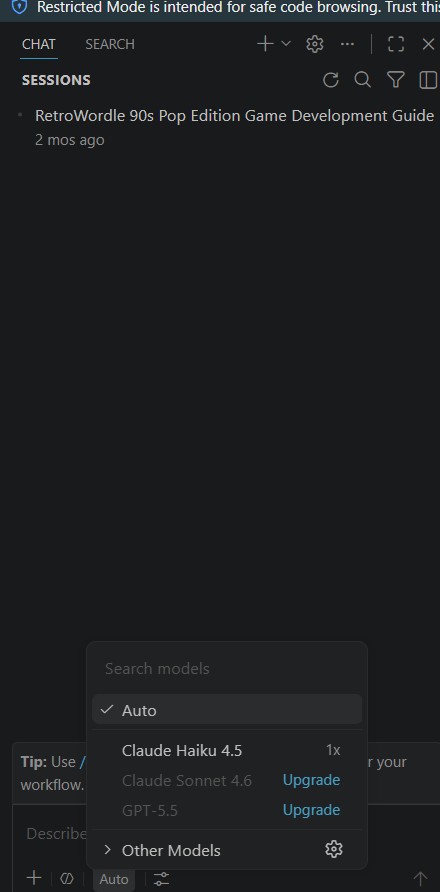
Step 4 — Choose Your Model
In 2026, VS Code Copilot lets you pick the AI model powering your agent. Available options include GPT-4o, Claude Sonnet, Gemini 2.0 Flash, and o3. Each has trade-offs:
- GPT-4o — Fast, well-rounded, great for everyday feature work
- Claude Sonnet — Strong for long-context tasks and natural language understanding; the VS Code team’s own preferred model for agentic tasks
- o3 — Best for complex reasoning, algorithmic problems, and multi-step logic
- Gemini 2.0 Flash — Fastest option, good for lightweight tasks where speed matters
For most day-to-day development, GPT-4o or Claude Sonnet is the right default. Switch models based on task complexity, not habit.
How to Write Effective Agent Prompts
Agent mode is only as good as the task you give it. Vague prompts produce vague results — or expensive loops that go in circles.
A good agent prompt has four components:
- The goal — what you want the end result to be
- The scope — which files, modules, or features are involved
- Constraints — what the agent should not do (don’t change the API surface, don’t modify test files, etc.)
- Definition of done — how you’ll know the task is complete
Weak prompt:
“Fix the login feature”
Strong prompt:
“The login form in
src/components/LoginForm.tsxis not validating empty email fields before submission. Add client-side validation that prevents the form from submitting if email or password is empty, shows an inline error message below each field, and does not change any existing API calls or backend logic. Tests are insrc/tests/LoginForm.test.tsx— make sure they still pass.”
The second prompt gives the agent everything it needs to work autonomously without asking clarifying questions halfway through.
Reviewing and Controlling Agent Changes
One of the most important habits with agent mode is reviewing changes before accepting them. The agent works fast, but fast doesn’t mean infallible.
The overlay controls — When the agent edits your files, VS Code shows an overlay on each modified file with Accept, Reject, and Undo options. You can accept individual chunks of code, not just the whole file.
The Total Changes list — In the chat panel, the agent lists every file it touched. Click each one to review the diff before deciding to keep or discard.
Checkpoints — If you want to revert an entire run, VS Code creates checkpoints at each step. Select “Restore” next to any checkpoint to roll back to that state.
Cancel mid-run — If the agent heads in the wrong direction, press Cancel in the chat panel. It stops all running tools and terminal commands immediately.
Never let an agent run unreviewed on production code or a shared branch. Do your agentic work on a feature branch with a clean git state so you can always git reset if needed.
The Plan Agent: Think Before You Code
One of the most underused features in VS Code is the Plan agent — a separate mode designed to produce a step-by-step implementation plan before any file changes happen.
To use it, select Plan from the agents dropdown instead of Agent. Give it the same goal you’d normally send to the agent, and it will:
- Explore the codebase and ask clarifying questions
- Produce a reviewable implementation plan
- List which files it intends to modify and why
Once you’re satisfied with the plan, you can hand it off to the full Agent mode for execution.
This workflow is especially valuable for large or risky tasks. Plan first, then execute. It takes a few extra minutes but saves hours of reverting bad decisions.
Using MCP Servers to Extend Agent Capabilities
MCP (Model Context Protocol) is an open standard that lets AI agents connect to external tools and services. In VS Code 2026, Copilot agent mode supports MCP natively, and there are now over 9,000 published MCP servers available.
What MCP Unlocks
With MCP, your agent can:
- Query a database (read-only for safety)
- Pull data from GitHub issues and PRs
- Access file systems outside your current workspace
- Connect to project management tools like Linear or Jira
- Call custom internal APIs
How to Add an MCP Server
Open your VS Code settings and add a mcpServers block. For example, to add a filesystem MCP server:
json
{
  "mcp": {
    "servers": {
      "filesystem": {
        "command": "npx",
        "args": ["-y", "@modelcontextprotocol/server-filesystem", "/path/to/allowed/directory"]
      }
    }
  }
}
Once configured, the MCP server’s tools appear automatically in agent mode.
Security note: MCP servers run as local processes with the permissions you grant them. Never give a database MCP server write access to production data. Always use read-only credentials for MCP servers that touch live systems.
Third-Party Agents: Claude and OpenAI Codex Inside VS Code
VS Code now supports third-party cloud agents natively — no separate extension install required. Currently supported:
Claude Agent (Anthropic)
Claude’s agent operates autonomously on your workspace, using Anthropic’s Claude Agent SDK. It plans its approach before starting work, then executes step by step with full tool access. To enable it, turn on the github.copilot.chat.claudeAgent.enabled setting in VS Code.
OpenAI Codex Agent
The Codex agent runs interactively inside VS Code or fully unattended in the background. It’s well-suited for tasks you want to delegate and come back to. Install the OpenAI Codex extension to get access.
Both agents are billed through your GitHub Copilot subscription, so you don’t need a separate account for each provider.
Cloud Agents: Assign a Task and Walk Away
Beyond local agents running inside your editor, VS Code 2026 supports cloud agents — agents that work in the background, implement changes, and open a pull request for your team to review.
This is ideal for:
- Long-running or complex tasks you don’t want to babysit
- Async workflows where multiple team members review the output
- Batch refactoring across a large codebase
To start a cloud agent session, select New Chat in the chat panel and choose a cloud agent from the dropdown. Describe the task, send it, and the agent runs in the background. When done, it opens a pull request with all changes for your review.
Your previous local sessions are preserved in the sessions sidebar, so you can track everything in one place.
Common Use Cases for VS Code AI Agents
Here are the tasks where agent mode genuinely shines:
Scaffolding a new project from scratch — Give it your tech stack and requirements; it creates the folder structure, config files, and boilerplate in one pass.
Refactoring across multiple files — Rename a function, update its signature, and have the agent find and update every call site across the codebase.
Writing and running tests — Describe the behavior you want to test; the agent writes the test file, runs it, and fixes failures before handing back control.
Migrating legacy code — “Migrate this Express 4 router to Fastify” is the kind of multi-file task that agent mode handles well.
Adding a feature end-to-end — From API endpoint to frontend component to test coverage, a well-prompted agent can complete an entire feature ticket.
Fixing build or lint errors — Paste the error output into the agent prompt; it finds the cause and applies the fix across however many files are involved.
Tips to Get the Most Out of Agent Mode
- Commit before you start. Always have a clean git state before running the agent. This gives you a safe rollback point no matter what happens.
- Be specific about scope. The more precisely you define the task, the fewer clarifying loops the agent runs — and the fewer credits you burn.
- Use Plan mode for anything risky. If the task touches shared services, auth, or database schema, plan first.
- Review every diff. Don’t bulk-accept all changes. Read what the agent actually did, especially in configuration files.
- Iterate, don’t retry. If the agent’s output is 80% correct, continue from there with a follow-up prompt rather than starting over.
- Match the model to the task. Fast models for simple edits; reasoning models for complex logic.
FAQ: AI Code Agents in Visual Studio Code
Do I need a paid Copilot subscription to use agent mode?
No. GitHub’s free Copilot tier includes access to agent mode, though with a monthly credit limit. Paid plans (Pro, Pro+) give you more premium requests and access to advanced models like o3.
Is agent mode the same in VS Code and Visual Studio (Windows)?
They’re similar but not identical. VS Code agent mode is the more mature implementation with full MCP support, cloud agents, and third-party agent integration. Visual Studio (Windows) has agent mode from version 17.14 onward with comparable core features but a different interface.
Can the agent break my code?
Yes, it can make mistakes — especially on large or complex tasks without clear constraints. That’s why you should always work on a feature branch, commit before starting, and review every diff before accepting. The checkpoint and restore feature is specifically designed for this.
What’s the difference between agent mode and Claude Code?
Claude Code is a standalone terminal-based agentic tool from Anthropic. VS Code’s agent mode (including the Claude agent integration) lives inside the editor and is managed through the Copilot interface. Claude Code is better for terminal-first workflows and longer autonomous runs; VS Code agent mode is better when you want to stay in the loop and guide the process interactively.
How do I stop an agent mid-run?
Press the Cancel button in the chat panel. This immediately stops all running tools and terminal commands. The checkpoint system lets you restore to any earlier state.
Can I use multiple AI models in the same project?
Yes. You can switch models between chat sessions, and some workflows deliberately use different models — for example, using o3 for architectural planning and GPT-4o for the actual code edits.
Final Thoughts
AI code agents in VS Code have moved well past the novelty phase. In 2026, they’re a practical part of how productive developers work — not a gimmick. The developers getting the most out of them aren’t just throwing vague prompts at the agent and hoping for the best. They write focused, scoped prompts, review every change, and treat the agent like a capable but fallible collaborator.
Start with agent mode on something low-risk: a small feature, a refactor on a branch, a set of unit tests. Get a feel for how it works and where it struggles. Then scale up from there.
The goal isn’t to hand your codebase to an AI. The goal is to spend your time on the work that requires your judgment, and let the agent handle everything else.
