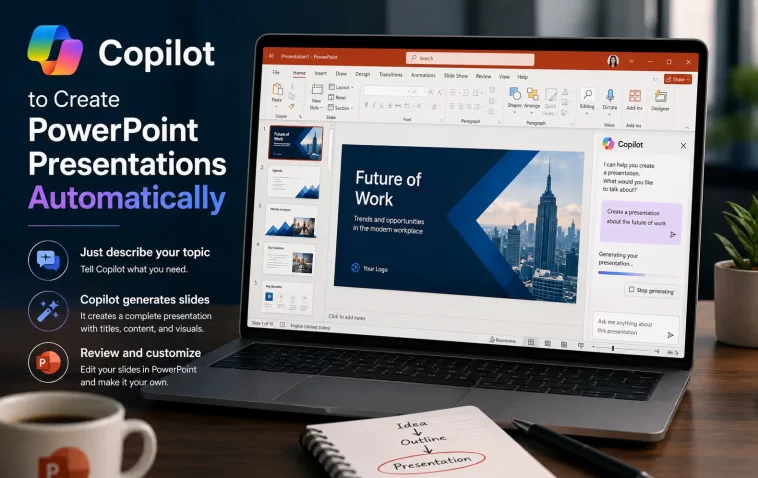
I used to block out a full afternoon every time a client wanted a “quick deck.” Now I use Copilot to create PowerPoint presentations automatically and get a workable draft in under a minute — though, and I’ll be upfront about this, the first draft is rarely the deck you actually send. Here’s the actual workflow, including the parts that don’t work as smoothly as the marketing pages suggest.
Quick Answer
- Open PowerPoint, click the Copilot icon (Home ribbon or bottom-right corner depending on your version), and choose “Create a new presentation”
- Type a specific prompt describing topic, audience, tone, and slide count
- Review the outline Copilot proposes before generating slides — this step matters more than people think
- Refine slide-by-slide with follow-up prompts instead of regenerating the whole deck
- Requires a Microsoft 365 Copilot license, Copilot Pro, or a Personal/Family plan with Copilot enabled — free Microsoft 365 accounts don’t get this
Why Generic Prompts Give You Generic Slides
So the most common complaint I see — and honestly ran into myself early on — is typing something like “create a presentation about our Q3 results” and getting back 12 slides of stock icons and bullet points that could belong to any company on earth. That’s not really a Copilot problem, it’s a prompt problem, but it’s worth explaining why it happens.
Vague prompts force Copilot to guess at everything. Audience, tone, slide count, level of detail — if you don’t specify these, Copilot fills the gaps with the safest, most generic version possible. And it defaults to broad because it has no signal to narrow with.
Copilot can’t pull data it doesn’t have access to. If your prompt implies specific numbers, competitor names, or internal metrics that live in a spreadsheet Copilot hasn’t been given, it won’t invent accurate figures — it’ll either leave placeholders or generate plausible-sounding filler. This trips people up constantly because the output looks confident even when it’s guessing.
Licensing tier changes what you can even do. Copilot in PowerPoint is available with a Microsoft 365 Copilot work license, Copilot Pro, or certain Personal/Family plans. Free Microsoft 365 accounts and some Business plans without the add-on simply won’t show the Copilot icon at all, which looks like a bug but isn’t one.
Step-by-Step: Creating a Presentation From a Prompt
Step 1: Confirm you’re signed in with a Copilot-enabled account
Check the bottom-left corner of PowerPoint for your name and picture — that confirms you’re signed in with the right account. If the Copilot icon is missing entirely from the ribbon or the bottom-right corner, this is almost always the cause, not a bug in your install.
Step 2: Start a new presentation and open Copilot
Click the Copilot icon. Depending on your PowerPoint version this sits in the Home ribbon or the bottom-right corner of the slide. In newer builds you may need to click “Add Content” in the chat input box, then select Agent Mode from the dropdown before typing your prompt.
Step 3: Write a specific prompt, not a vague one
Instead of “create a presentation about renewable energy,” try something closer to:
“Act as an energy consultant presenting to a city council. Create a 10-slide presentation on renewable energy adoption, covering cost, feasibility, and local case studies. Use a formal, data-driven tone.”
Giving Copilot a role, an audience, and a tone up front does more for output quality than almost anything else you can do at this stage.
Step 4: Review the outline before generating slides
Copilot may ask clarifying questions about audience or visual style, or it may go straight to an outline. Either way — read the outline. This is the point where it’s cheapest to fix structural problems, before Copilot spends time generating full slide content and images around a weak skeleton.
Step 5: Generate the slides and go through them one at a time
Once you approve the outline, tell Copilot to generate the slides. Don’t try to fix everything with one giant follow-up prompt. Target individual slides:
- “Reduce the word count on slide 3 by a third”
- “Rewrite the intro slide in a more informal tone”
- “Add a bar chart to slide 6 using the data from slide 5”
Step 6: Create a presentation from an existing document instead of a blank prompt
If you already have a Word document, PDF, or detailed notes, skip the blank-prompt approach entirely. Type “Create presentation from file,” select the document, and Copilot builds a draft complete with speaker notes and suggested images pulled from the source material. This tends to produce noticeably better first drafts than starting from a topic alone, because Copilot has real content to work from instead of inventing structure.
Common Scenarios
- Sales teams turning a discovery-call transcript or proposal doc into a client-facing deck in minutes instead of building from a template
- Educators generating lesson outlines and then refining tone slide-by-slide for different grade levels
- Consultants summarizing a 30-page report into a 10-slide executive briefing — this is genuinely one of the strongest use cases, since Copilot is extracting and organizing rather than inventing
- Marketers brainstorming a first-draft structure before a brand designer takes over the visual polish
What Actually Worked For Me
My first attempt was almost embarrassingly generic — I typed one sentence, got a deck full of stock photography and bullets that said nothing specific, and figured Copilot just wasn’t that good yet. That wasn’t quite right, though. The fix wasn’t a setting or a workaround, it was just writing a better prompt: role, audience, tone, and slide count, all in the same request. Second attempt, same topic, dramatically more usable output. So the tool wasn’t the problem — my one-liner was.
Where it actually saved real time was feeding it an existing Word doc instead of typing from scratch. That produced a draft in under a minute that would’ve taken me most of an hour to build manually, speaker notes included.
Advanced Tips and Edge Cases
Refining tone after the fact. If the generated content reads too stiff or too casual for your audience, you don’t need to regenerate — ask Copilot directly to “rephrase the text in the introduction using a more formal tone” and it’ll adjust in place.
Single output language per generation. Worth knowing before you start: when creating a presentation from a prompt, Copilot only supports one output language at a time. If you need a bilingual deck, plan on generating one language and translating separately, not asking for both in one prompt.
Referencing a file and adding extra context don’t mix (yet). When you create a presentation from a file, you can’t add additional instructions in that same prompt. If you want both — source document and specific extra guidance — generate from the file first, then refine with follow-up prompts.
AI-generated images are labeled. Slides with AI-generated visuals include an “AI-generated” note in the speaker notes for that slide. Worth checking before you present to a client who might ask.
Prevention Tips
- Always write role + audience + tone + slide count into your first prompt rather than iterating your way there
- Treat the outline stage as mandatory review, not something to skip past
- Don’t ask Copilot to invent specific figures — feed it the source document or spreadsheet instead
- Refine slide-by-slide rather than regenerating the whole deck after small complaints
- Review every AI-generated slide before presenting — Microsoft says this outright, and it’s not just boilerplate advice
FAQ
Why isn’t the Copilot icon showing up in my PowerPoint? Almost always a licensing issue. Check whether your Microsoft 365 plan actually includes Copilot — free accounts and many Business plans without the add-on won’t show it.
Can Copilot create a presentation from a PDF? Yes, using the “create presentation from file” flow, the same as with Word documents.
Is ChatGPT better than Copilot for this? Different strengths. ChatGPT tends to be stronger for raw content generation and outlines, while Copilot in PowerPoint handles slide layout, charts, and visual structure directly inside the app. A lot of people use both.
Do I have to review what Copilot generates? Yes — Microsoft is explicit that the output is a draft and should be human-reviewed, not sent as-is. Facts, figures, and phrasing all need a check.
How many slides should I ask for? Specify it directly in your prompt. Copilot won’t guess a reasonable number on its own with much accuracy — vague prompts tend to produce either too few or way too many slides for the content given.
Editor’s Opinion
for what its worth, copilot in powerpoint is genuinely useful for the boring first-draft stage — turning a document into a rough deck, structuring an outline, that kind of thing. its not going to write your board pitch for you though, no matter how good the prompt is. the biggest mistake people make is treating the first output as done instead of as a draft. spend the extra two minutes writing a real prompt up front, it saves way more than two minutes later.
