How to Change Slide Size and Aspect Ratio in PowerPoint
How to Change Slide Size and Aspect Ratio in PowerPoint
I used to ignore slide size settings entirely. I would build a full presentation, add images, align everything perfectly — and then realize it looked completely wrong on the projector because the aspect ratio didn’t match the screen.
That one painful experience taught me something I now consider essential: knowing how to change slide size in Microsoft PowerPoint before you start designing can save you a lot of frustration later. Whether you’re switching from 4:3 to 16:9, preparing slides for print, or creating a custom size for social media — it’s a two-minute task once you know where to look.
This guide walks you through every method, clearly and step by step.
Why Slide Size and Aspect Ratio Matter
The aspect ratio is the relationship between the width and height of your slide. It controls how your presentation looks on different screens, projectors, and printed pages.
Get it wrong, and you end up with black bars on the sides of your slides, stretched images, or content that gets cut off at the edges. Get it right, and everything fills the screen cleanly.
Here are the most commonly used aspect ratios:
16:9 (Widescreen) — the default in modern PowerPoint. Best for most laptops, TVs, monitors, and projectors.
4:3 (Standard) — the older classic format. Still used for older projectors and printed handouts.
Custom — for square slides, portrait orientation, A4 printing, or social media content.
How to Change Slide Size in PowerPoint: Step-by-Step
Method 1 — Switch to 16:9 or 4:3 Quickly
This is the fastest option when you just need to flip between the two most common sizes.
Open your PowerPoint presentation.
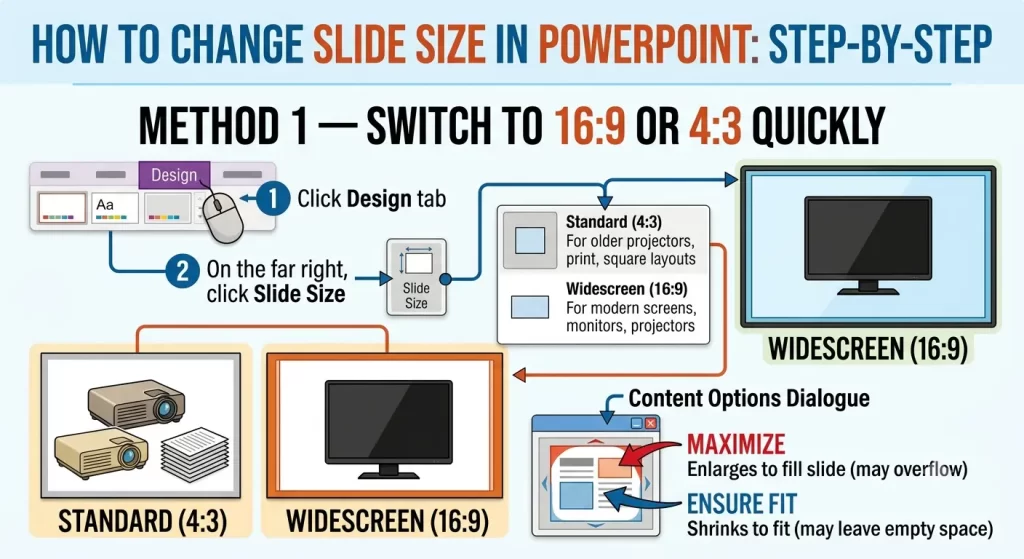
Click the Design tab in the top ribbon.
On the far right side of the ribbon, click Slide Size.
Choose either:
Standard (4:3) — for older projectors, printed documents, or square-ish layouts
Widescreen (16:9) — for modern screens, monitors, and most projectors today
A dialog box appears asking what to do with your existing content:
Maximize — enlarges your content to fill the new slide size (content may overflow the edges)
Ensure Fit — shrinks content to fit within the new size (may leave empty space around edges)
Click your preferred option and you’re done.
Pro tip: Always change the slide size before you start adding content. If you change it after, you’ll likely need to reposition and resize every element manually.
Method 2 — Set a Custom Slide Size
Use this method when you need a specific size — for printing on A4, creating square slides, designing Instagram stories, or matching an unusual screen resolution.
Click the Design tab.
Click Slide Size on the far right.
Select Custom Slide Size… from the dropdown menu.
The Slide Size dialog box opens. You have two options here:
Option A: Choose a built-in preset
Click the “Slides sized for” dropdown and pick from the list:
Preset
Best For
Widescreen (16:9)
Modern screens and projectors
Standard (4:3)
Older projectors, printed handouts
A4 Paper
European print format
Letter Paper (8.5×11″)
US print format
B4 / B5
Japanese standard paper sizes
Banner
Horizontal web banners
Custom
Anything you specify manually
Option B: Enter exact measurements manually
Type your own values into the Width and Height fields. PowerPoint accepts inches, centimeters, or pixels. To enter pixels, type the number followed by px (e.g., 1920px).
Click OK.
Choose Maximize or Ensure Fit for your existing content.
Method 3 — Change Slide Size on PowerPoint for Mac
The process on Mac is nearly identical, with one small difference in where the option lives in older versions.
In PowerPoint 365 for Mac (current):
Click the Design tab.
Click Slide Size (far right of the ribbon).
Choose Standard (4:3), Widescreen (16:9), or Custom Slide Size…
Follow the same steps as Method 1 or Method 2 above.
In older Mac versions of PowerPoint:
Go to the File menu in the top menu bar.
Click Page Setup.
Adjust the width, height, and orientation as needed.
Click OK.
Method 4 — Change Slide Size on PowerPoint for Web
If you’re using PowerPoint in a browser through Microsoft 365, the options are slightly more limited but still work for most needs.
Open your presentation at office.com or powerpoint.com.
Click the Design tab.
Click Slide Size.
Choose Widescreen (16:9) or Standard (4:3).
Note: Custom slide sizes are not available in PowerPoint for the web. For full control over custom dimensions, use the desktop app.
This is the part most people don’t think about until it’s too late.
When you change slide size after already adding content, PowerPoint gives you two choices:
Maximize scales everything up proportionally to fill the larger canvas. This sounds good, but text boxes and images may end up overlapping or going off-screen. You’ll need to manually check each slide.
Ensure Fit scales everything down to fit inside the smaller canvas. Content stays within bounds, but it may look smaller than intended and need resizing.
Neither option is perfect for complex presentations. The cleanest workflow is always:
Set your slide size first.
Then design your slides.
If you have no choice but to resize an existing deck, use Ensure Fit, then go through each slide and manually adjust the layout.
How to Set a Default Slide Size for All New Presentations
If you always work in a specific slide size, you can save it as a theme so you don’t have to set it manually every time.
Open a blank presentation and set your preferred slide size (Method 1 or 2 above).
Click the Design tab.
In the Themes group, click the small dropdown arrow.
Click Save Current Theme…
Give it a name and save it.
From now on, you can apply that theme to any new presentation and your slide size will be pre-set.
FAQ
What is the default slide size in PowerPoint?
The default slide size in modern PowerPoint is Widescreen 16:9, which measures 33.87 cm × 19.05 cm (or 13.33 × 7.5 inches). This has been the default since PowerPoint 2013. Older versions defaulted to the Standard 4:3 size.
Should I use 16:9 or 4:3 for my presentation?
For most presentations shown on modern screens, monitors, or projectors, 16:9 is the right choice. It fills the screen without black bars. Use 4:3 if you’re presenting on older equipment, printing slides as handouts, or need a more square layout for a specific design reason.
Can I change slide size after adding content?
Yes, but it’s not ideal. PowerPoint will ask you to choose between Maximize and Ensure Fit when you resize. Either option may shift your layout, and you’ll likely need to manually adjust text boxes, images, and other elements on each slide. It’s always better to set the slide size before you start designing.
How do I make a square slide in PowerPoint?
Go to Design → Slide Size → Custom Slide Size, then set both Width and Height to the same value — for example, 19.05 cm × 19.05 cm. Click OK, then choose Ensure Fit. This creates a 1:1 square format, which works well for Instagram posts and certain social media graphics.
How do I make a vertical (portrait) slide in PowerPoint?
Go to Design → Slide Size → Custom Slide Size. Set the Width smaller than the Height — for example, 19.05 cm wide and 33.87 cm tall for a 9:16 portrait ratio. This is useful for Instagram Stories, TikTok-style graphics, or printed flyers.
Can I change slide size in PowerPoint for free (web version)?
The web version of PowerPoint at office.com supports switching between 16:9 and 4:3, but does not support fully custom dimensions. For custom sizes, you need the desktop app.
Why does changing slide size mess up my formatting?
When you change from one aspect ratio to another, the canvas shape changes. Elements that were positioned perfectly for 16:9 may overlap, shrink, or fall off the edges in 4:3, and vice versa. The layout needs to be manually adjusted after resizing. This is why setting slide size before designing is strongly recommended.
Final Thoughts
Changing the slide size in PowerPoint takes less than a minute once you know where to find it — the Design tab → Slide Size. The key habit to build is checking your slide size before you start building a deck, not after.
Pick 16:9 for most modern screens, 4:3 for print or older equipment, and custom dimensions for anything else — social media, posters, or specific display requirements. Set it first, design second, and you’ll never have to scramble before a presentation again.
By applying the methods I provided above, you can easily solve the problem, and with the help of the video and images I included in the topic, this problem can be solved quickly.
Ugur is an editor and writer at (NSF Tech), specializing in technology and Windows. He produces in-depth, well-researched, and reliable stories with a strong focus on Windows, emerging technologies, digital culture, cybersecurity, AI developments, and innovative solutions shaping the future. His work aims to inform, inspire, and engage readers worldwide with accurate reporting and a clear editorial voice.