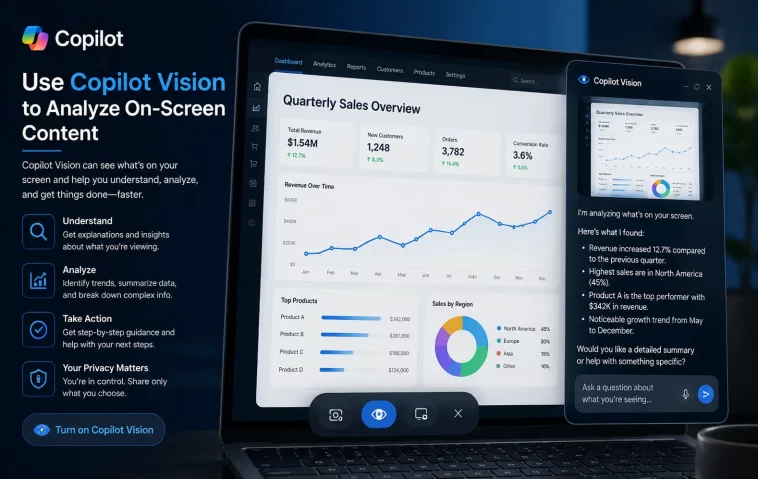
The first time I actually got Copilot Vision to work was while stuck on a “File System Error” in an old backup tool — I shared the window instead of typing out the error message, and Copilot read it off my screen and walked me through the fix in about thirty seconds. So, that’s the pitch: Copilot Vision lets Copilot see what’s on your screen and answer questions about it in real time, instead of you describing the problem in text and hoping you didn’t leave out something important.
Quick Answer
- Open the Copilot app (Windows, Edge, or mobile) and click the glasses icon in the composer
- Select the app window, screen, or browser tab you want to share
- Start a voice or text conversation — ask questions about what’s visible
- Click Stop in the floating toolbar to end the session; nothing is retained afterward
- Not available on commercial accounts signed in with Entra ID, and blocked on DRM-protected or adult content
What Copilot Vision Actually Does (and Doesn’t Do)
It’s worth being clear about this upfront because I’ve seen people expect more than it delivers. Copilot Vision watches what you choose to share and answers questions about it — text, charts, app interfaces, error messages, whatever’s on the shared window. And it can highlight where to click next if you ask “how do I do this.”
But it won’t click anything for you. It won’t scroll, type, or fill in a form on your behalf. From what I’ve seen, that trips people up initially — they assume “AI is watching my screen” means “AI can operate my screen,” and that’s just not how it works right now. It’s an over-the-shoulder assistant, not a remote-control tool.
Where People Run Into Trouble
The glasses icon is missing or grayed out. This usually isn’t a bug — it’s an account or region restriction. Copilot Vision isn’t available for commercial users signed in with an Entra ID (work/school) account on the consumer Copilot app. If you’re on a work account and don’t see the icon, that’s expected, not broken.
Vision refuses to discuss a site you’re viewing. Copilot Vision works with most sites and pages, but not ones containing harmful or adult content, and it won’t analyze DRM-protected material like streaming video. If you land on an unsupported page, the composer icon turns gray with a crossed-out glasses symbol and Copilot just won’t engage with that page’s content. Not much you can do here except switch to a supported page.
Copilot answers based on the wrong window. So this one’s genuinely annoying and I’ve hit it myself — if you switch between app windows too fast while asking a question, Copilot can end up answering about whatever was on screen a second ago rather than what you’re currently looking at. Slow down between switching context and asking your question, and it’s mostly avoidable.
Regional or licensing gaps. Copilot Vision on the free consumer tier is currently limited by region — as of the last rollout, it excludes a couple of US states specifically, and availability elsewhere is still expanding. Copilot Pro subscribers get higher usage limits, not necessarily different functionality.
Step-by-Step: Using Copilot Vision on Windows
Step 1: Open the Copilot app
Launch it from the taskbar icon, the dedicated Copilot key if your keyboard has one, or the Win + C shortcut. If Copilot isn’t on your taskbar, grab it from the Microsoft Store first.
Step 2: Click the glasses icon in the composer
This starts the Vision session setup. You’ll be asked to select which app window or your full desktop you want to share.
Step 3: Pick what to share
You can select up to two apps at a time for a session. Once sharing starts, you’ll see a glowing orange outline around the shared window — that’s your visual confirmation Vision is actually active, not just standing by.
Step 4: Choose text or voice
Vision launches with “Start with text” enabled by default. If you’d rather talk, toggle to “Start with voice” and Copilot will play a short audio greeting before you begin talking.
Step 5: Ask your question
Ask about anything visible in the shared window — “what does this error mean,” “summarize this spreadsheet,” “how do I mask this layer in this editor.” If you ask a how-to question, Copilot may show a highlighting cursor pointing at the specific button or menu you need.
Step 6: End the session when you’re done
Click Stop in the floating toolbar. Copilot stops observing immediately, and per Microsoft’s documentation, the images and context from that session aren’t stored once it ends — only the text transcript of your conversation sticks around in your chat history, and you can delete that whenever you want.
Using Copilot Vision on Edge and Mobile
The flow is nearly identical across platforms, with small variations:
Edge: Sign in with your personal Microsoft account, open the Copilot side pane, and click the Voice (waves) icon. Vision activates automatically alongside voice mode, and you’ll see both a glasses icon and a microphone icon in the pane once it’s live.
iOS/Android: Vision lives inside Voice mode in the Copilot app. Start a voice conversation, and the glasses icon appears — tap it to begin sharing your camera feed instead of a screen, which is the main practical difference from desktop use. This is genuinely handy for physical objects — pointing your camera at a printer error code or a piece of equipment and asking Copilot what it’s looking at.
Common Scenarios
- Troubleshooting a confusing error dialog without retyping the exact wording, which is easy to get wrong and changes the answer you get back
- Learning an unfamiliar app like a video editor or 3D tool, where “how do I do X” gets you a highlighted button instead of a text description you have to translate into clicks yourself
- Reviewing a dense spreadsheet or chart and asking Copilot to summarize trends without exporting or copy-pasting data anywhere
- Field and mobile use — pointing a phone camera at physical equipment for on-the-spot identification or troubleshooting steps
- Accessibility support — describing charts, images, or layout details out loud for anyone using a screen reader that struggles with visual content
Technical Comparison Table
| Context | Where It Runs | Data Retention |
|---|---|---|
| Copilot Vision (consumer) — Windows app | Desktop screen share | Deleted at end of session; transcript kept in chat history |
| Copilot Vision (consumer) — Edge | Browser tab/window share | Same as above |
| Copilot Vision (consumer) — Mobile | Camera feed | Same as above |
| Vision in Microsoft 365 Copilot (work) | Desktop screen or mobile camera, grounded in work data | Audio/video temporarily stored up to 48 hours for feedback purposes, then deleted |
Worth noting these are technically two related but separate rollouts — consumer Copilot Vision and the newer Vision in Microsoft 365 Copilot for commercial accounts, which layers in your actual work documents and emails for context. If you’re on a work account, you’ll get the second one, not the first, and the retention details differ slightly.
What Actually Worked For Me
Not gonna pretend this was a dramatic troubleshooting saga — the printer-style error case worked on the first try, which honestly surprised me a little given how often AI tools fumble reading text off a screen. Where it didn’t go smoothly was that window-switching issue. I had two apps shared at once, flipped between them mid-question, and got an answer about the wrong one entirely. Once I slowed down and asked questions only after settling on one window, it stopped happening.
Advanced Notes and Edge Cases
No long-term memory across sessions. Vision doesn’t reuse anything from a previous session — every share starts fresh, so you can’t ask it to “remember what I showed you yesterday.”
Privacy notice on first use. The first time you activate Vision on Windows, macOS, Edge, or mobile, you’ll get a privacy acknowledgment prompt. This is a one-time thing per platform, not per session.
Copilot Vision vs. Windows Recall. These get confused constantly, and they’re genuinely different. Recall (Copilot+ PCs only) passively takes and stores encrypted local snapshots of your screen over time. Vision is explicitly opt-in, session-bound, and doesn’t store screenshots at all — turning off Vision has no effect on Recall and vice versa.
Kill switches if you want it off entirely. If you see the orange outline and want out immediately, Win + Esc kills the session instantly on recent Windows builds. To remove the “Share with Copilot” taskbar button permanently, right-click the taskbar, go to Taskbar settings, and toggle off Copilot preview features.
Prevention Tips
- Settle on one window before asking a question instead of switching mid-thought
- Check your account type first if the glasses icon is missing — work accounts on Entra ID won’t have consumer Vision
- Don’t expect Vision to click or type for you; it explains and highlights, it doesn’t act
- End sessions with Stop rather than just closing the app, so you know the share actually terminated
- If a page shows the crossed-out glasses icon, it’s a content restriction, not a connection issue — don’t waste time troubleshooting your network
FAQ
Does Copilot Vision work with every app? On Windows, Vision works with any app, but content that’s DRM-protected or flagged as harmful can’t be analyzed even if the window shares successfully.
Is Copilot Vision the same as Windows Recall? No. Recall passively stores local screen snapshots on Copilot+ PCs. Vision is opt-in, active only during a live session, and doesn’t retain screenshots afterward.
Can Copilot Vision fill out a form for me? No. It can point out what to click, but it doesn’t type, click, or scroll on your behalf.
Why does the glasses icon look crossed out on some websites? That page contains content Copilot Vision isn’t permitted to analyze — usually adult content or DRM-protected media. It’s not a bug.
Is Copilot Vision available everywhere? Not yet fully. Consumer availability has historically excluded a couple of US states and is still expanding to more markets, and it’s not available for commercial Entra ID accounts on the consumer app at all.
Editor’s Opinion
honestly the highlight-the-button feature is the sleeper hit here, way more than the “ai can see your screen” headline suggests. asking a dumb question about some buried menu option and having it just point at the thing instead of describing it in three paragraphs of text — thats the actual time saver. the window-switching bug is real though, so dont multitask mid-question if you want an accurate answer.
