I got a panicked message from my sister last month describing exactly this — LG OLED, screen completely black, Netflix still playing audio like nothing was wrong. First instinct for almost everyone in this situation is “the panel’s dead,” and sometimes that’s true. But not always, and it’s worth ruling out the cheaper causes before you accept that conclusion.
Quick Answer
- Press the Home or Volume button on your remote — if a volume bar or menu appears (even faintly), the panel is receiving signal and it’s likely a settings or HDMI issue, not hardware
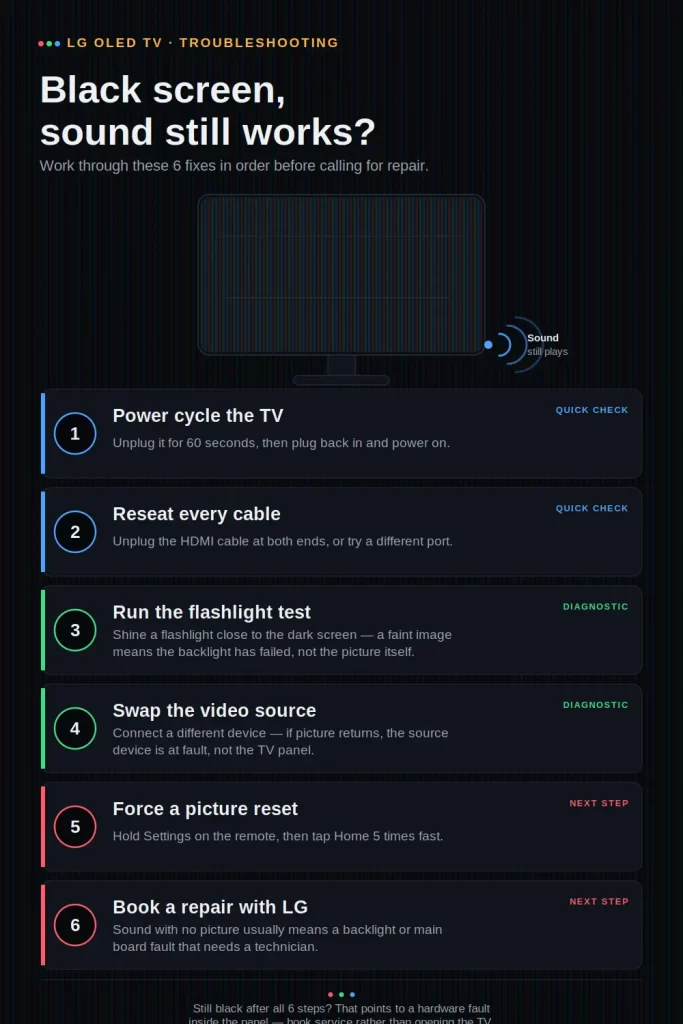
- Do a flashlight test in a dark room: shine a phone light at an angle across the screen and look for a faint image
- Power cycle properly: unplug from the wall, hold the TV’s physical power button for 10–20 seconds, wait a few minutes, then plug back in
- Try a different HDMI cable and a different HDMI port before touching any settings
- If the flashlight test shows nothing and a hard reset doesn’t help, this is very likely a panel or main board hardware failure requiring professional repair
Why This Happens: Two Very Different Root Causes
Here’s the thing that trips people up immediately — “black screen with sound” sounds like one problem, but it’s actually two completely different failure categories that happen to look identical from the couch.
Category one: the TV is fine, something upstream of the panel is confused. This covers wrong input selection, a loose or failing HDMI cable, a corrupted picture setting after a software update, or an HDMI handshake failure between the TV and whatever’s connected to it (a receiver, soundbar, or streaming box sitting in between). None of this touches the actual OLED panel. Audio keeps working because the audio pipeline and video pipeline are handled somewhat independently, so a hiccup upstream in video processing doesn’t necessarily kill sound.
Category two: the panel or its supporting hardware has actually failed. This is T-Con board failure, main board failure, or in rare cases panel degradation itself. OLEDs don’t use a separate backlight the way LCDs do, so when people say “backlight issue” about an OLED, what they usually mean is the panel isn’t receiving or displaying the video signal properly, even though the electronics powering audio output are on a mostly separate circuit.
The frustrating part is you genuinely can’t tell which category you’re in just by staring at a black screen. That’s what the diagnostic steps below are actually for — narrowing down which bucket you’re dealing with before deciding whether to keep troubleshooting or book a repair.
Common Scenarios
- Right after a firmware update — points toward a corrupted picture setting, not hardware
- Only on one specific HDMI input, other inputs work fine — HDMI cable, port, or handshake issue
- Across all inputs including built-in apps like Netflix — points away from HDMI and toward either a settings/processing issue or genuine panel failure
- TV recently had a power surge or rough unplug/replug — main board or power supply stress
- Gradual: screen dims to black over 10 minutes then requires a restart — different pattern from instant black screen, often points more specifically toward a failing panel or T-Con component
Step-by-Step Diagnostic Fixes
Step 1: Check if the remote is even reaching the TV
Press the Home button, then a volume button. If a volume bar or any menu overlay appears on screen, even faintly, that’s actually great news — it confirms the panel itself is receiving and displaying signal, which immediately rules out full panel failure. If nothing appears at all, move to the flashlight test below before assuming the worst.
Step 2: Run the flashlight test
In a dark room, play something with audio (even just the Netflix menu), then hold a phone flashlight close to the screen at an angle, not straight on. Look closely for faint shapes, moving content, or menu outlines.
- Faint image visible: the panel is working, but something in the display path (usually power-related on LCDs, or a T-Con/panel driver issue on OLEDs) is preventing it from showing at normal brightness
- Absolutely nothing visible: this leans harder toward a deeper video processing or panel failure, though it’s still worth finishing the remaining steps before concluding that
Step 3: Check and swap HDMI connections
Disconnect the HDMI cable from your source device for a few seconds, then reconnect it firmly. Try a completely different HDMI cable if you have one, and try a different HDMI port on the TV itself. If you’re going through a receiver or soundbar, try connecting the source device directly to the TV instead, bypassing the receiver entirely — this is one of the single most common accidental causes, since a receiver in the middle can silently break the handshake even while passing audio through fine.
Step 4: Confirm you’re actually on the correct input
Sounds almost too basic to mention, but it’s a genuinely common cause: press the input/source button and cycle through every option, including the TV’s own Live TV mode versus specific HDMI inputs. If the volume bar test in Step 1 worked, this is worth double-checking before anything else.
Step 5: Power cycle properly, not just an on/off toggle
Unplug the TV from the wall outlet entirely — not just standby, actually disconnect power. Press and hold the physical power button on the TV itself (not the remote) for 10 to 20 seconds; this drains any residual charge in the capacitors. Wait a couple of minutes, then plug back in and power on normally.
Step 6: Run an AV reset if you can get any menu on screen
If Step 1 gave you a working menu overlay, navigate into picture settings and run an AV reset (sometimes labeled Picture Reset or found via a specific button sequence depending on your webOS version). This restores default picture settings and can fix black or oddly dim screens caused by a corrupted setting, particularly after a recent firmware update.
Step 7: Check for and install a firmware update
If you can access the settings menu at all, check for a pending software update. Software glitches introduced by a partial or failed prior update are a known cause of picture-specific problems that leave audio untouched.
Technical Comparison Table
| Test Result | What It Suggests | Next Step |
|---|---|---|
| Volume bar appears on screen | Panel and processing are functional | Focus on input/HDMI/settings, not hardware |
| Flashlight reveals faint image | Panel works, display path or power issue | Check power supply board, inspect for voltage irregularities |
| Flashlight shows nothing at all | Deeper panel or processing failure likely | Complete remaining software steps, then plan for repair |
| Only one HDMI input affected | Cable, port, or handshake issue | Swap cable, try different port, bypass receiver |
| Every input and app affected | Points to panel, main board, or T-Con failure | Professional diagnosis probably necessary |
What Actually Worked For Me (Well, For My Sister)
Her first assumption was the classic one — panel’s dead, TV’s four years old, time to shop for a new one. And I get why; a totally black screen while everything else works does feel like the “of course it’s the expensive part” scenario. But the volume bar test showed up clearly on screen, which was the first real clue this wasn’t hardware.
Turned out the actual cause was almost embarrassingly simple: a firmware update had run overnight and quietly reset the picture mode to something that had somehow bugged out entirely black, rather than just looking different. The AV reset fixed it in about ninety seconds. Not every case ends this cleanly — I want to be honest about that — but it’s exactly why the diagnostic order matters more than jumping straight to “it’s the panel.”
Advanced Fixes and Edge Cases
Power supply board voltage irregularities. If the flashlight test shows a faint image and a hard reset doesn’t resolve it, the issue often sits at the power supply board level rather than the panel itself. This isn’t something you diagnose without opening the TV and using a multimeter, so at this point it’s a call-a-technician situation rather than a DIY step, but it’s useful to know because power supply boards are often cheaper to replace than a full panel.
T-Con board and ribbon cable damage. For screens that go black gradually — a dark wave creeping in from one edge over several minutes before the picture cuts out entirely — this points specifically at the T-Con (timing control) board or its ribbon connections rather than a simple settings issue. This pattern is meaningfully different from an instant black screen and is worth mentioning specifically if you end up contacting LG support or a repair technician, since it narrows their diagnosis considerably.
HDMI-CEC conflicts with connected devices. If the black screen coincides specifically with turning on or switching to a connected soundbar or receiver, HDMI-CEC handshake conflicts between devices can occasionally cause this. Temporarily disabling CEC-related settings (often labeled SimpLink on LG TVs) and testing again can help isolate whether this is the trigger.
Checking for recall or known model issues. Certain LG OLED model years have had documented early panel or backlight-adjacent component issues reported by owners. If your TV is still within warranty and shows this symptom with no clear settings or cable cause, it’s worth checking directly with LG support whether your specific model and serial number qualify for warranty repair before paying out of pocket.
Prevention Tips
- Don’t unplug the TV mid-firmware-update; let updates complete fully even if they seem to be taking a while
- Use a surge protector, especially in areas with unstable power — main board and power supply failures are frequently surge-related
- Periodically check for firmware updates manually instead of waiting on automatic prompts, since a stalled or partial auto-update is a recurring cause of picture-specific glitches
- Route audio/video through the fewest devices necessary — every receiver or soundbar in the HDMI chain is one more point where a handshake can fail
FAQ
If I have sound but no picture, does that rule out a hardware problem? No, not entirely — but it does rule out total main board failure, since audio processing still works. It doesn’t rule out panel-specific or T-Con failures, which is why the flashlight test matters as a separate check.
Is the flashlight test actually reliable? It’s a solid first diagnostic that LG technicians and repair services use themselves. It won’t give you a definitive hardware diagnosis, but it reliably tells you whether to keep troubleshooting settings or start planning for a repair conversation.
Can a software update really cause a completely black screen? Yes. It’s less common than a simple picture glitch, but a corrupted picture setting following an update has been documented to cause a screen that’s entirely black rather than just visually off, especially when the update process didn’t fully complete.
Should I try a factory reset before contacting LG? Only if you can get a menu on screen at all. If the screen is completely unresponsive to remote input with no volume bar or menu appearing, a factory reset attempt is unlikely to help and you’re better off going straight to the flashlight test and then support.
Is this covered under warranty? Panel and main board failures typically are, if the TV is still within its warranty period. Contact LG support directly with your model and serial number rather than assuming based on age alone — some LG OLED models have had documented early component issues that get repaired even close to the edge of the warranty window.
Editor’s Opinion
before you write off the panel as dead, do the volume bar check — it takes ten seconds and tells you which of two totally different problems youre actually dealing with. i’ve seen people go straight to “time for a new tv” when it was a firmware hiccup that a menu reset fixed in under two minutes. that said, if the flashlight test shows genuinely nothing, dont keep messing with settings for hours — thats a repair call, not a settings problem.
