If your Forerunner 965 is stuck on “Waiting for GPS” and won’t lock a signal even after standing outside for ten minutes, you’re dealing with one of a handful of known causes — and most of them aren’t actually about your location or the sky. The Forerunner 965 GPS not connecting issue shows up often enough after firmware updates that it’s become a recurring topic in Garmin’s own forums. I ran into it myself right after updating to a new firmware version last winter, standing in an open field wondering why a watch with dual-frequency GPS couldn’t find a single satellite.
So let’s go through what’s actually going on and the fixes that consistently work, instead of just “go outside and wait longer.”
Quick Answer
- Most common cause: a corrupted GPS almanac/ephemeris cache after a firmware update.
- Second most common: multi-band/dual-frequency GPS setting conflicting with a weak signal environment.
- Fastest fix that works most often: a full GPS data reset via the reset menu, not just a restart.
- If that fails, a full factory reset (with Garmin Connect backup first) resolves it in most remaining cases.
- Rare but real cause: a specific firmware version with a known GPS regression — check Garmin’s release notes before assuming it’s your watch.
Why It Fails
The Forerunner 965 uses Garmin’s multi-band GPS chipset, which pulls signal from GPS, GLONASS, Galileo, and QZSS depending on your settings. That’s normally a strength — better accuracy under tree cover, around buildings — but it also means there’s more that can go wrong in the handshake between the chipset and the satellite data cache the watch keeps locally.
From what I’ve seen, three causes account for most reports:
Corrupted A-GPS (assisted GPS) cache. The watch downloads current satellite position data through Garmin Connect so it doesn’t have to search blind. If that cache gets corrupted — which seems to happen more after firmware updates than at any other time — the watch effectively doesn’t know where to look and can sit there indefinitely.
Firmware regression in a specific release. Garmin’s pushed at least a couple of updates for the 965 that introduced GPS lock issues for a subset of users, then patched them a few weeks later. Not universal, but if the freeze started right after an update notification, that’s worth checking against Garmin’s own release notes before doing anything else.
Multi-band GPS mode struggling in marginal conditions. Dense urban canyons, heavy cloud cover, or being near large metal structures (parking garages, gyms with the watch worn indoors near start) can cause multi-band mode specifically to hang longer than standard GPS+GLONASS would. It’s not a bug exactly, it’s more that multi-band is pickier about signal quality and would rather wait for a clean fix than lock onto a noisy one — but the UI doesn’t tell you that’s what’s happening, so it just looks frozen.
An unexpected cause that gets overlooked a lot: Bluetooth or Wi-Fi sync running at the same time as a GPS lock attempt. The watch’s radio has to share bandwidth, and if it’s mid-sync with Garmin Connect when you start an activity, GPS acquisition can stall noticeably longer than usual. Not always the cause, but worth ruling out.
Common Scenarios
- Right after a firmware update, first outdoor run afterward, watch that previously locked in 5–10 seconds now sits at “Waiting for GPS” for minutes.
- Indoor-to-outdoor transitions, starting the GPS search inside a gym or car before stepping outside, which can leave the chipset stuck trying to reconcile bad initial data.
- Urban environments with tall buildings, particularly with multi-band mode enabled — some users report standard GPS mode locks fine in the same spot where multi-band hangs.
- After a battery drain to zero, the internal clock and GPS cache can both get reset in a way that makes the first lock attempt after recharging noticeably slower or prone to hanging.
Step-by-Step Fixes
Step 1: Restart the watch (not just the activity)
Hold the light/power button until you get the power-off menu, restart fully. This clears temporary state without touching your GPS cache — quick to try, low odds of fixing a persistent freeze, but worth ruling out first since it takes fifteen seconds.
Step 2: Reset GPS data specifically
This is different from a full factory reset and doesn’t touch your activity history or settings.
- Go to Settings > System > Reset
- Select Delete Data and Reset Settings — actually wait, that’s the full reset. For GPS-only, look for Reset GPS Almanac or, on some firmware versions, it’s buried under Settings > Sensors & Accessories > GPS Data.
- Confirm the reset.
- Force an A-GPS refresh by connecting to Garmin Connect over Wi-Fi (not Bluetooth — Wi-Fi downloads current satellite data faster and more reliably).
Not every firmware version exposes the GPS-only reset the same way, which is honestly a little frustrating — Garmin’s menu structure has moved this option around across updates, so if you don’t see it exactly where I described, check under System > Reset generally and look for anything mentioning GPS or satellite data specifically.
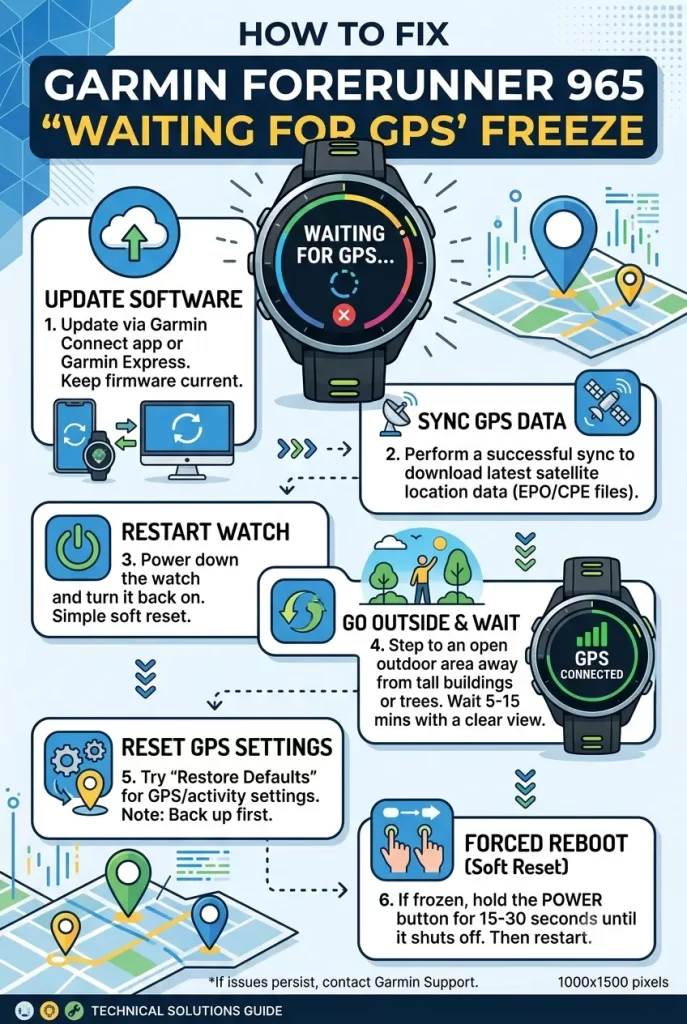
Step 3: Switch off multi-band GPS temporarily
Go to Settings > Activities & Apps > Run > GPS Mode (or the equivalent for whatever activity you’re testing) and switch from All Satellite Systems + Multi-Band down to standard GPS + GLONASS. Try locking in the same spot. If it locks fast in standard mode but hangs in multi-band, you’ve confirmed it’s a multi-band-specific issue rather than a general GPS failure — which points you back toward Step 2 or a firmware check rather than a hardware problem.
Step 4: Update Wi-Fi and connect over it directly
Go to Settings > Wi-Fi and connect the watch to a home network directly instead of relying on Bluetooth sync through the phone app. This forces a fresh A-GPS data pull that Bluetooth sync sometimes skips or does incompletely.
Step 5: Check for a pending firmware update — or roll forward if a fix already shipped
Open Garmin Connect, check for firmware updates under device settings. If your freeze started right after a specific update, search Garmin’s forums for that build number — GPS regressions on this watch have historically gotten a follow-up patch within a few weeks, so sometimes the fix is just “update again,” not “reset anything.”
Step 6: Full factory reset as a last resort
Back up first through Garmin Connect (activity history, structured workouts, settings sync). Then:
Settings > System > Reset > Delete Data and Reset Settings
This clears everything, including the GPS cache and any corrupted firmware state that a targeted reset didn’t catch. It’s the fix most often recommended online, but from what I’ve seen it’s overkill for the majority of cases — most people never need to go this far if Step 2 or Step 3 actually addressed the real cause.
What Actually Worked For Me
My case started right after a firmware update — watch used to lock in under ten seconds, then suddenly sat at “Waiting for GPS” for four, five minutes at a time, sometimes never locking at all before I gave up and started the run with no GPS.
First thing I tried was the obvious restart. Didn’t help. Then I assumed it was a location problem, drove to a completely open field with zero tree cover or buildings nearby — still hung. That ruled out signal environment pretty clearly, which was useful even though it didn’t fix anything by itself.
The actual fix was the GPS-only reset from Step 2, and honestly I almost didn’t find that option — it wasn’t where I expected it to be in the menu, and I ended up finding the right path from a Garmin forum thread where someone had screenshotted their exact menu layout. After the reset and a fresh Wi-Fi sync, it locked in about eight seconds on the next attempt. So — a little annoying that it took digging through a forum thread to find a menu item that should honestly just be more discoverable, but the fix itself was quick once I found it.
Advanced Fixes and Edge Cases
Check GPS status directly through the watch’s satellite view. Some firmware versions expose a raw satellite signal screen (usually under a GPS widget or via Settings > Sensors & Accessories > GPS) that shows actual signal bars per satellite rather than just the generic “Waiting” spinner. If you see satellites detected but no lock, that points toward almanac corruption rather than a total hardware failure — useful for deciding between Step 2 and Step 6.
Log a support ticket with a diagnostic file if the issue persists across resets. Garmin support can pull crash/diagnostic logs off the watch via Garmin Express on desktop, which sometimes reveals a specific firmware fault not visible from the watch UI itself. Worth doing before assuming it’s a hardware defect.
Check for a stuck background sync process. If Bluetooth sync appears to hang indefinitely (spinning indicator that never completes) alongside the GPS issue, that can indicate a broader firmware state problem rather than something GPS-specific — a full reset tends to be the only reliable fix in that combined scenario.
Test with airplane mode toggled during GPS lock. Some users report that disabling Bluetooth/Wi-Fi entirely via airplane mode right before starting an activity, then re-enabling after lock, avoids the radio contention issue mentioned earlier. Not a permanent fix, more of a workaround if you need a lock right now and don’t have time to troubleshoot properly.
Prevention Tips
- Sync over Wi-Fi periodically, not just Bluetooth — A-GPS data refreshes more completely that way.
- Avoid starting a GPS search indoors right before heading out; wait until you’re actually outside to begin the activity.
- After any firmware update, do a GPS-only reset proactively rather than waiting for a freeze to happen.
- Keep the watch’s software current, but check community forums briefly before major updates if you’ve had GPS trouble before — regressions do occasionally get reported ahead of wider rollout.
- If multi-band GPS isn’t critical for your use case (you’re not running technical trails under heavy cover), standard GPS + GLONASS is a more stable default in marginal signal areas.
FAQ
Is this a hardware defect in the Forerunner 965? Almost never. The vast majority of reports resolve with a GPS cache reset or firmware fix, not a warranty replacement.
Does turning off multi-band GPS permanently fix accuracy problems too? No, it’s a workaround for lock issues, not an accuracy fix — multi-band mode generally still gives better accuracy once it does lock.
Should I downgrade firmware if a specific update caused this? Garmin doesn’t officially support firmware downgrades on this model, and it’s a rough and unreliable process if you try. Better to wait for a follow-up patch or use the workarounds above in the meantime.
How long is “too long” for a normal GPS lock? Under normal conditions, 5–15 seconds is typical for the 965. Anything consistently over a minute, especially outdoors in open sky, points to one of the causes above rather than normal signal search time.
Will a full reset delete my activity history? Yes, if you do the full factory reset — back up through Garmin Connect first. The GPS-only reset in Step 2 does not touch activity history.
Editor’s Opinion
Annoying issue mainly because Garmin buries the actual fix (GPS-only reset) somewhere non-obvious in the menu depending on firmware version. Try that before jumping to a full factory reset — save yourself the backup hassle if you don’t need it. If it just started after an update, check the forums for that specific build before assuming your watch is broken.
