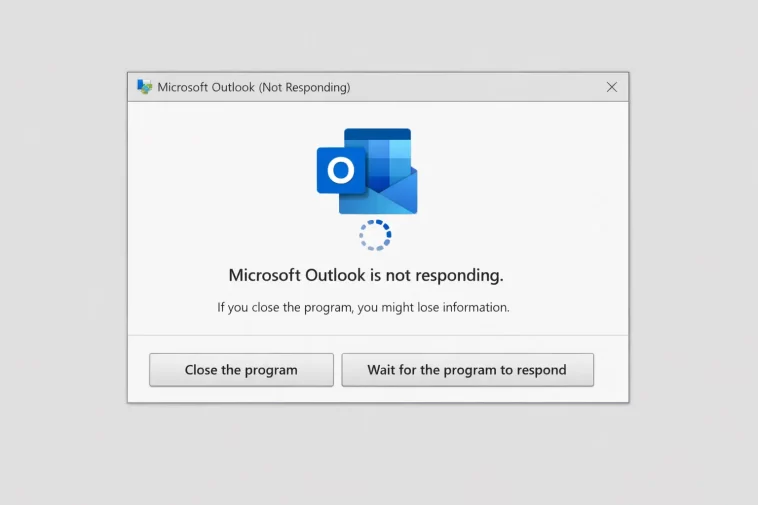
Outlook stuck on “Processing” the second you open it is one of those problems that looks simple and almost never is. I’ve had this happen on three completely different machines for three completely different reasons, which honestly says a lot about how many things can go wrong before Outlook even finishes loading its window.
Quick Answer
- Start in Safe Mode (
outlook.exe /safe) to rule out add-ins immediately - Disable third-party antivirus scanning on Outlook’s data files
- Check for an oversized or corrupted OST file and let it rebuild
- Run Office’s built-in repair tool before touching the registry
- If none of that works, create a new Outlook profile — it solves more cases than people expect
Why Outlook Freezes on Processing or Not Responding
This isn’t one bug. It’s a handful of unrelated problems that all produce the same symptom, which is part of why generic advice online doesn’t always help.
A corrupted or oversized OST file is the most common cause. Outlook caches your mailbox locally in an OST file, and once that file gets large or develops internal corruption, Outlook can hang trying to validate it during startup — sometimes for minutes, sometimes indefinitely.
Add-ins are a close second. A misbehaving add-in (Adobe PDF tools, certain CRM plugins, and older antivirus toolbars are frequent offenders) can block the startup thread while it tries to initialize.
Antivirus real-time scanning on Outlook’s data folder. Some antivirus products scan the OST/PST file every time Outlook touches it, and on a large mailbox that scan can take long enough that Outlook appears frozen rather than just slow.
A corrupted Outlook profile. Profiles store account settings, cached credentials, and navigation pane data. If any of that gets corrupted — often after a crash, an abrupt shutdown, or a botched update — Outlook can hang trying to read it.
Network or Exchange connectivity delays. If Outlook can’t reach the server quickly (VPN issues, DNS problems, a slow Exchange connection), it sometimes shows “Processing” while quietly retrying in the background instead of failing gracefully.
And one cause people rarely think to check — a recently installed Windows update that touched .NET or Visual C++ runtime components Outlook depends on. Not common, but I’ve seen it happen right after a patch Tuesday rollout.
Common Scenarios
This shows up differently depending on setup. On Exchange/Microsoft 365 accounts with a large mailbox, it’s usually the OST rebuilding itself after a sync issue. On PST-based setups (older home or small-business configs), it’s more often file corruption from an unclean shutdown. Laptop users who frequently switch networks tend to hit the connectivity-related freeze more often than desktop users on a stable connection.
Causes vs. Fixes at a Glance
| Cause | Typical Symptom | Fix |
|---|---|---|
| Large/corrupted OST | Hangs right after splash screen | Delete OST, let Outlook rebuild it |
| Problem add-in | Hangs longer with more add-ins installed | Start in Safe Mode, disable add-ins one by one |
| Antivirus scanning data files | Inconsistent freeze duration | Add OST/PST folder to AV exclusions |
| Corrupted profile | Freeze plus other random glitches | Create new Outlook profile |
| Network/Exchange delay | Worse on VPN or weak connection | Check connectivity, try Outlook offline mode first |
Not every row applies to every setup — some of these only matter if you’re on Exchange, others only matter on PST-based accounts. Worth skimming the symptom column first.
Step-by-Step Fixes
Step 1: Start Outlook in Safe Mode
Press Windows + R, type outlook.exe /safe, hit Enter. This loads Outlook without add-ins. If it opens fine here, an add-in is your problem — skip to Step 2.
[Image: Run dialog box showing outlook.exe /safe typed into the field]
Step 2: Disable add-ins one at a time
Go to File > Options > Add-ins, select COM Add-ins in the Manage dropdown, click Go, and uncheck them one by one, restarting Outlook normally between each. Tedious, but it isolates the actual culprit instead of guessing.
[Image: Outlook Options Add-ins panel showing the list of installed COM add-ins with checkboxes]
Step 3: Check OST file size and rebuild it
Close Outlook completely. Navigate to %localappdata%\Microsoft\Outlook, find the .ost file matching your account, rename it (don’t delete it yet, just in case), and restart Outlook. It’ll rebuild a fresh OST automatically, syncing from the server. This can take a while on a large mailbox — that’s expected, not a new freeze.
Step 4: Exclude Outlook data files from antivirus scanning
In your antivirus settings, add an exclusion for the Outlook folder path from Step 3, plus the Outlook.exe process itself if your antivirus supports process-level exclusions. This won’t disable protection broadly, just stops it from scanning files Outlook is actively using.
Step 5: Run Office repair
Go to Control Panel > Programs > Programs and Features, find your Microsoft Office installation, click Change, and choose Quick Repair first. If that doesn’t help, run Online Repair — it takes longer but replaces more components.
Step 6: Create a new Outlook profile
Control Panel > Mail (32-bit), click Show Profiles, Add a new profile, set it as default, then open Outlook. This sidesteps profile corruption entirely. Your data isn’t lost — it lives on the server or in your PST/OST, not in the profile itself.
What Actually Worked For Me
The first time I hit this, I assumed it was an add-in, since that’s what most forum threads point to first. Disabled every add-in one by one, restarted between each, and Outlook still hung at “Processing” every single time. Wasted close to an hour on that path.
Turned out the actual cause was a 40GB+ OST file that had been silently corrupting for weeks — probably from a laptop that got closed mid-sync one too many times. Renaming the OST and letting it rebuild fixed it completely, though the rebuild itself took almost two hours given the mailbox size. Not a fast fix, but a reliable one.
So if I’m honest, the add-in troubleshooting wasn’t wasted exactly — it ruled things out — but it wasn’t the actual fix either. That’s usually how this goes: you eliminate possibilities until you land on the real one.
Advanced Fixes and Edge Cases
Check Event Viewer for Outlook-specific errors. Open Event Viewer, go to Windows Logs > Application, and filter for source “Outlook.” Crash or hang events here sometimes point directly at a specific DLL or add-in that the Safe Mode test missed.
Run ScanPST.exe on PST-based accounts. Located under the Office install path (typically C:\Program Files\Microsoft Office\root\Office16\SCANPST.EXE), this tool checks and repairs PST file structure issues that a basic OST rebuild won’t touch since PST files work differently.
Reset the navigation pane. Run outlook.exe /resetnavpane from the Run dialog. Navigation pane corruption is a less common cause but produces nearly identical symptoms to profile corruption, and this is a much faster fix to try before rebuilding a whole profile.
Check for a stuck search index. Outlook’s search indexing can hang the whole application if Windows Search itself is corrupted. Go to Control Panel > Indexing Options, rebuild the index, and give it time — a large mailbox can take hours to fully reindex, during which search results may be incomplete but Outlook itself shouldn’t hang.
Trace network calls if you suspect connectivity. For Exchange/Microsoft 365 accounts, holding Ctrl while right-clicking the Outlook icon in the system tray gives access to “Connection Status,” which shows live server connection attempts — useful for confirming whether the freeze is actually a network wait disguised as an application hang.
What Usually Doesn’t Help (But Gets Suggested Constantly)
Reinstalling all of Office from scratch gets recommended a lot, and in my experience it rarely fixes this specific symptom, since the underlying OST, profile, or add-in usually survives a reinstall untouched unless you also clean the AppData folders manually. It’s a big time investment for something that’s frequently a data-file issue, not an installation issue.
Prevention Tips
- Keep OST file size in check by archiving older mail instead of letting one mailbox grow indefinitely
- Avoid forcing laptop shutdowns while Outlook is actively syncing
- Review installed add-ins periodically and remove ones you don’t actually use
- Keep antivirus exclusions configured proactively rather than after a problem starts
FAQ
Why does Outlook say “Processing” forever and never finish? Usually a large OST file rebuilding, or a hung add-in blocking the startup thread. Safe Mode test tells you which.
Is it safe to delete the OST file? Yes — it’s a local cache, not your actual mailbox. Outlook rebuilds it from the server.
Will a new profile delete my emails? No, not if you’re on Exchange/Microsoft 365 — your mail lives on the server. PST-based setups need the PST file reattached to the new profile manually.
Does this happen more on Windows 11 than Windows 10? Not particularly, from what I’ve seen — the causes are the same across both, though update-related freezes seem to surface a bit more right after major Windows updates.
Can a VPN cause this specific freeze? Yes, if the VPN is interfering with Exchange connectivity or DNS resolution. Worth testing with the VPN briefly disconnected if you’re on a corporate network.
Editor’s Opinion
This one’s annoying because the fix really depends on which of five unrelated causes you’ve got, and there’s no shortcut to figuring out which. Safe Mode first, OST rebuild second — that combo catches most cases I’ve personally run into. Everything past that is more of a deep-dive, and honestly, if you’re at the Event Viewer stage, it’s worth just backing up your PST/OST first before doing anything else.
