Had a DJ mix folder full of local files that synced fine to my iPhone for months, then one day everything just went grey — songs still listed, completely unplayable. Spotify local files not syncing on iPhone is one of those problems where the “official” fix (same Wi-Fi network sync) has actually gotten less reliable over time, and most guides online don’t mention that part.
So let’s start with what actually works right now, not what used to work a couple years ago.
Quick Answer
- The old Wi-Fi-based auto-sync between desktop and iPhone is being phased down by Spotify and isn’t reliable anymore — don’t rely on it as your primary method
- The current, more dependable way is manually dragging files into the Spotify folder via Finder (Mac) or the Files app, directly through a cable connection
- Greyed-out tracks are almost always a file format issue, a missing artist/album tag, or a broken sync that needs a manual redo
- Local Files needs to be toggled on in both the desktop and mobile app settings
- DRM-protected or unsupported formats (some M4A files, for instance) will show up but never actually play
Why Local Files Fail to Sync or Show Up Greyed Out
There isn’t one single reason here, and it’s worth separating “not syncing at all” from “syncing but greyed out,” because those point to different causes.
Spotify has been deprecating the Wi-Fi sync feature. This is the one most articles online don’t mention, or gloss over. Spotify staff have confirmed on their own community forums that the automatic sync-over-Wi-Fi method between desktop and mobile isn’t guaranteed to keep working, and the expected approach going forward is transferring files directly onto the device. If you’ve been relying on “just connect to the same network and it’ll sync,” that’s increasingly the part that breaks first.
Missing artist or album metadata. This is a specific, well-documented bug — files placed directly in the synced files folder without a specified artist or album tag tend to become permanently greyed out after the app restarts, while properly tagged files nested in artist/album subfolders play fine. It’s oddly specific, but it’s consistent across a lot of user reports.
Unsupported or DRM-protected formats. Spotify supports MP3, M4A (non-protected), and a few others, but not everything labeled M4A is actually playable — some are DRM-wrapped from older iTunes purchases and will show up in the list without ever actually playing.
iCloud Music Library conflicts. If Sync Library is on in your iPhone’s Music settings and your local files overlap in any way with what’s stored there, Spotify can end up confused about which version it’s supposed to be showing.
Local Files: Wi-Fi Sync vs Manual Transfer
| Wi-Fi Auto-Sync | Manual File Transfer | |
|---|---|---|
| Current reliability | Increasingly unreliable, being phased down | More consistent |
| Setup effort | Low, but fragile | Slightly more manual, cable required |
| Works without desktop app open | No | N/A — files live on device once transferred |
| Best for | Nothing anymore, honestly | Ongoing use going forward |
| Requires | Same network, both apps open | Cable connection, Finder or Files app |
Step-by-Step Fixes
Step 1: Confirm Local Files Is Enabled
On desktop: Spotify > Settings > Your Library > Local Files, make sure the toggle is on and your source folder is added. On iPhone: Settings within the app, confirm Local Files is enabled there too. Both sides need this on.
Step 2: Use Manual File Transfer Instead of Wi-Fi Sync
This is the method to actually rely on now. Connect your iPhone to your Mac or PC with a cable.
On Mac: Open Finder, select your iPhone from the sidebar, click Files (or the equivalent file browser view depending on your macOS version), find the Spotify app’s file section, and drag your music files directly into it.
On Windows: Open iTunes (or Apple Devices app on newer Windows versions), select your device, go to the Files tab, and drag your local files into the Spotify folder the same way.
Once transferred, open Spotify on your iPhone, go to Your Library > Local Files, and toggle Show Local Files off and back on to force a refresh.
Step 3: Fix Missing Metadata Before Transferring
If your files don’t have artist and album tags, add them before moving files over — a basic tag editor works fine for this. Organize the files into artist/album subfolders rather than dumping them loose into one folder, since flat, untagged files are the ones most likely to end up greyed out after the fact.
Step 4: Convert Unsupported Formats
If a file won’t play despite showing up, check its actual format and DRM status. Converting to a standard MP3 resolves this in most cases — there are plenty of straightforward audio converter tools for this, desktop or mobile.
Step 5: Check iCloud Music Library / Sync Library Settings
iPhone Settings app > Music > toggle off Sync Library if it’s causing conflicts with your local files. On Mac, this is under Music app > Preferences > General > uncheck Sync Library (or iTunes > Preferences on older setups).
Step 6: Force a Clean Refresh
If files are still greyed out after transferring correctly, remove the playlist from downloads, delete the local files from the iPhone’s Spotify folder via the Files app, and redo the manual transfer from scratch. A half-broken sync sometimes needs a clean slate rather than a patch.
What Actually Worked For Me
My first move was the obvious one — toggled Local Files off and on, restarted the app, tried the old same-Wi-Fi sync trick since that’s what had always worked before. Nothing. Files stayed grey no matter how many times I tried, which felt like it should’ve been a simple fix and just wasn’t.
What actually got things working was switching entirely to the manual cable transfer method, which I’ll admit I was skeptical about since it felt like a step backward compared to just syncing over Wi-Fi. But it worked immediately, and once I looked into it more, I found Spotify’s own support forum basically confirming the Wi-Fi method isn’t something they’re actively maintaining anymore. So it’s not that I was doing something wrong — the method itself had just quietly become unreliable.
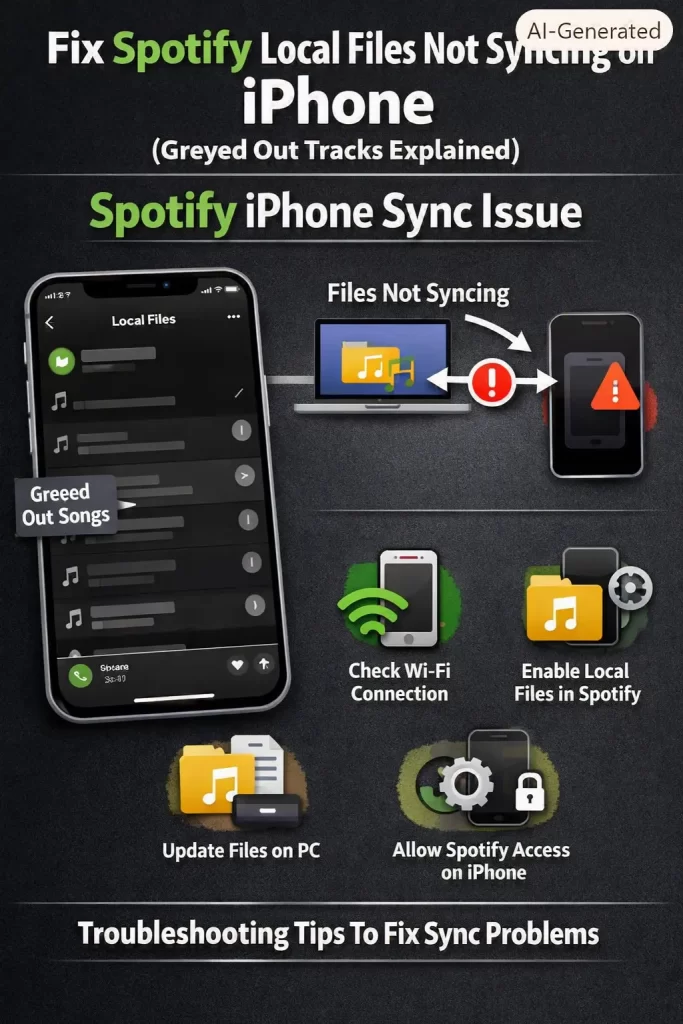
Advanced Fixes and Edge Cases
Check the actual file location via the Files app. Browse > On My iPhone > Spotify. If files show here but not in the app’s Local Files section, that’s specifically an app-indexing issue rather than a transfer failure — try the Show Local Files toggle refresh again, or a full app reinstall if that doesn’t help.
Clean reinstall vs regular reinstall. A regular reinstall sometimes leaves cached data behind that keeps causing the same indexing issue. A clean reinstall — deleting the app, restarting the device, then reinstalling — clears more thoroughly and has resolved this for some users when a simple reinstall didn’t.
Album art not syncing even when audio plays fine is a separate, more cosmetic issue that’s been reported consistently and doesn’t have a reliable fix as of now — it’s more of a known limitation than something you can troubleshoot away.
Confirm you’re logged into the same account on both devices. Rare, but a mismatched login is an easy thing to overlook if you’ve recently switched accounts or have multiple profiles.
Prevention Tips
- Tag your local files with artist and album info before adding them, every time
- Use manual cable transfer going forward instead of relying on Wi-Fi auto-sync
- Keep local files in artist/album subfolder structures rather than one flat folder
- Stick to MP3 where possible to avoid DRM or format surprises
- Periodically check that Sync Library / iCloud Music Library settings haven’t changed after an iOS update
FAQ
Is Spotify getting rid of local files support entirely? Not entirely, but the Wi-Fi sync method specifically is being deprecated. Manual file transfer is the more future-proof approach right now.
Why do only some of my local files play and not others? Usually format or metadata related — check which specific files are affected for a pattern (missing tags, DRM-protected M4A, etc.) rather than assuming it’s random.
Does deleting and re-adding the playlist help? Sometimes, especially if the sync partially broke. Worth trying before a full app reinstall.
Can I sync local files without a Premium subscription? No, local file syncing to mobile requires Spotify Premium.
Will this issue eventually get fully fixed by Spotify? Hard to say — from what I’ve seen, the feature isn’t a current development priority, so treating manual transfer as the standard rather than a workaround is the safer bet going forward.
Editor’s Opinion
not gonna lie the wifi sync thing tricked me for way longer than it should have, kept assuming i was doing something wrong when really the feature itself just doesnt get the attention it used to. manual transfer feels like a step backwards but it actually works consistently, which is more than i can say for the “convenient” method at this point
