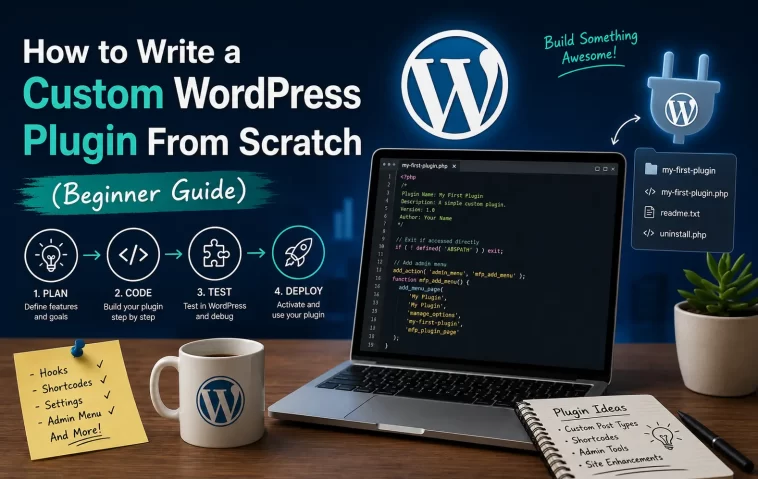
My first custom plugin was maybe 15 lines of code, and I remember being weirdly proud of it — it just added a shortcode that displayed a random quote. If you’re trying to write a custom WordPress plugin and every tutorial you find jumps straight into classes and namespaces, this is the version that starts from actual zero. You don’t need to know advanced PHP to get something working today.
Quick Answer
- A plugin can be a single PHP file with a comment header — that’s the entire minimum requirement
- Put it in
wp-content/plugins/your-plugin-name/your-plugin-name.php - WordPress reads the header comment to know it’s a plugin; the code below the header does the actual work
- Hooks (
add_action,add_filter) are how your code connects to WordPress — you almost never edit core files directly - Activate it from the Plugins page in wp-admin like any other plugin
What You Actually Need Before Starting
You don’t need a fancy setup. A local WordPress install (via Local, XAMPP, or similar), a code editor, and access to the wp-content/plugins folder covers it. And that’s genuinely it — no build tools, no npm, none of that, unless you’re doing something with a React-based block editor interface later.
One thing worth knowing upfront: plugins and themes solve different problems. A theme controls how your site looks. A plugin adds functionality that should keep working even if you switch themes. If what you’re building is “add a feature,” it belongs in a plugin — not in your theme’s functions.php, even though that file will technically also work. Putting functionality there means losing it the moment you change themes, which is a lesson a lot of people learn the hard way.
Step-by-Step: Building Your First Plugin
Step 1: Create the plugin folder and file
Navigate to wp-content/plugins/ and create a new folder — let’s call it my-first-plugin. Inside it, create a PHP file with the same name: my-first-plugin.php.
Step 2: Add the plugin header
This is the part that actually tells WordPress “this is a plugin, here’s what it’s called.” Without this comment block, WordPress won’t recognize the folder as a plugin at all, no matter what code is inside.
php
<?php
/**
 * Plugin Name: My First Plugin
 * Plugin URI: https://yoursite.com
 * Description: A simple starter plugin to learn the basics.
 * Version: 1.0.0
 * Author: Your Name
 * License: GPL v2 or later
 * Text Domain: my-first-plugin
 * Requires at least: 6.0
 * Requires PHP: 8.0
 */

// Prevent direct access to this file
if ( ! defined( 'ABSPATH' ) ) {
    exit;
}
That if ( ! defined( 'ABSPATH' ) ) check matters more than it looks — it stops someone from loading the PHP file directly through a browser URL and potentially triggering errors or exposing code. Small thing, but skipping it is a common beginner mistake that shows up in security scans later.
Step 3: Activate it
Go to wp-admin → Plugins. You should see “My First Plugin” in the list. Click Activate. Right now it doesn’t do anything yet, but if it shows up and activates without errors, your header syntax is correct.
Step 4: Add your first hook
WordPress plugins work almost entirely through hooks — actions and filters. An action lets you run code at a specific point; a filter lets you modify data before WordPress uses it. Here’s a simple action that adds a message to the footer:
php
function mfp_add_footer_message() {
    echo '<p style="text-align:center;">Powered by my custom plugin.</p>';
}
add_action( 'wp_footer', 'mfp_add_footer_message' );
Save, reload your site’s front end, and you should see that message at the bottom. That mfp_ prefix on the function name isn’t decorative — it’s there to avoid colliding with function names from other plugins or themes. Two plugins declaring a function called add_footer_message() without a prefix will crash your site with a fatal error, and that’s an easy trap to fall into once you’re running more than one custom plugin.
Step 5: Add a shortcode
Shortcodes let users drop functionality into posts and pages using bracket syntax, like [my_quote].
php
function mfp_random_quote_shortcode() {
    $quotes = array(
        'Simplicity is the ultimate sophistication.',
        'Done is better than perfect.',
        'Code never lies, comments sometimes do.'
    );
    return $quotes[ array_rand( $quotes ) ];
}
add_shortcode( 'my_quote', 'mfp_random_quote_shortcode' );
Drop [my_quote] into any post, and it’ll output a random line from that array. This is basically what my very first plugin did, just with better quotes.
Plugin vs Theme vs Child Theme: Where Should Code Live?
| Approach | Best for | Survives theme switch? |
|---|---|---|
| Custom plugin | Any functionality — shortcodes, custom post types, admin tools | Yes |
| Theme’s functions.php | Quick, throwaway testing only | No |
| Child theme | Visual/layout changes tied to a specific parent theme | No (theme-specific) |
| Site-specific plugin (broader custom plugin covering multiple features) | Sites with lots of custom logic that isn’t tied to design | Yes |
If you’re not sure which one applies, functionality goes in a plugin, and appearance goes in a theme. That’s not a perfect rule, but it covers most real decisions.
What Actually Worked For Me
I spent way too long, early on, trying to figure out why a function I wrote wasn’t running. No error, it just silently did nothing. Turned out I’d hooked it to init but was trying to output HTML directly — init fires way too early in the page lifecycle for that, before WordPress has even started building the page output. I tried switching hooks almost randomly for a bit, wp_loaded, then template_redirect, neither felt right and I wasn’t fully sure why.
What actually fixed it was going back to the Plugin Handbook’s hook reference and just reading through the execution order instead of guessing. wp_footer or wp_head are what you want for direct output, since by the time those fire, WordPress is already mid-render. Not a glamorous fix, no clever discovery — I just hadn’t understood the page lifecycle well enough yet, and reading the actual order fixed it faster than any amount of trial and error would have.
Advanced Fixes and Edge Cases
Namespacing with classes instead of function prefixes. Once your plugin grows past a handful of functions, prefixing everything with mfp_ gets messy. Wrapping your logic in a class, or using a PHP namespace, solves the naming collision problem more cleanly and is generally what’s recommended for anything beyond a quick utility plugin.
Activation and deactivation hooks. If your plugin needs to set something up on install — a database table, a default option — use register_activation_hook() and its deactivation counterpart. Don’t run setup code on every page load; it’s wasteful and occasionally causes race conditions on high-traffic sites.
Security: nonces and capability checks. Any form or action inside your plugin that changes data needs a nonce (wp_nonce_field(), verified with wp_verify_nonce()) to prevent cross-site request forgery, and a capability check (current_user_can()) so random logged-in users can’t trigger admin-only actions. This is the part beginners skip most often, and it’s exactly the part that gets flagged in a security review.
Custom database tables with dbDelta(). If you outgrow post meta and need a dedicated table — for logs, transactions, anything with real volume — WordPress’s dbDelta() function compares your desired schema against what exists and only applies the difference, which is safer than manually running ALTER TABLE statements yourself.
Prevention Tips
- Prefix every function, class, and constant name uniquely to your plugin — collisions are one of the most common causes of white-screen crashes when running multiple custom plugins together
- Never trust user input directly; sanitize on the way in (
sanitize_text_field(), etc.) and escape on the way out (esc_html(),esc_attr()) - Keep the plugin header’s “Requires at least” and “Requires PHP” fields honest — it saves you support headaches later
- Don’t put plugin logic inside your theme just because it’s faster to test — you will regret it during the next theme update
FAQ
Do I need to know object-oriented PHP to write a plugin? No. Function-based plugins work fine for smaller projects. OOP becomes genuinely useful once your plugin has more than a handful of interconnected features.
Can I have my plugin do something on activation, like creating a settings page? Yes — register_activation_hook() is the right place for one-time setup logic, separate from the code that runs on every page load.
Why does my shortcode show up as text instead of running? Usually means the shortcode isn’t registered before the content renders, or there’s a typo between the bracket tag and the string passed to add_shortcode(). Double-check both match exactly.
Should I submit my plugin to the WordPress.org repository? Only if it’s genuinely useful to other people and you’re prepared to maintain it. For internal, site-specific functionality, there’s no need — keep it private.
What’s the difference between an action and a filter? An action runs code at a point in time (like “do this when the footer loads”). A filter modifies a piece of data and returns it (like “change this title before it displays”). If you’re not returning a modified value, you want an action, not a filter.
Editor’s Opinion
writing your first plugin feels way more intimidating than it actually is once you strip away all the class-based, namespace-everything tutorials aimed at people who already know php well. start with a single file and one hook. get that working, then add the next thing. i still think the hook execution order is the one concept that trips up beginners the most, more than syntax ever does — get comfortable with that early and most of the confusing stuff stops being confusing.
