The most critical thing you can do to keep your system fast, secure, and error-free is to regularly manage your Windows 11 Hardware Drivers. These drivers are the fundamental software components that allow your operating system to communicate with every piece of hardware, from your graphics card to your Wi-Fi adapter. Delaying these updates doesn’t just mean missing out on performance boosts; it can invite serious security vulnerabilities and unexpected system crashes. In this critical guide, we will detail the three simple, official methods for updating your hardware drivers on Windows 11, and we’ll also cover what to do when things go wrong.
The Three Essential Methods for Driver Maintenance
To ensure your system runs with maximum efficiency, your Windows 11 Hardware Drivers should always be current.
1. Using Windows Update (The Safest and Easiest Method)
Microsoft collaborates with hardware manufacturers to deliver tested and certified drivers via Windows Update. This is the recommended first step for most users.
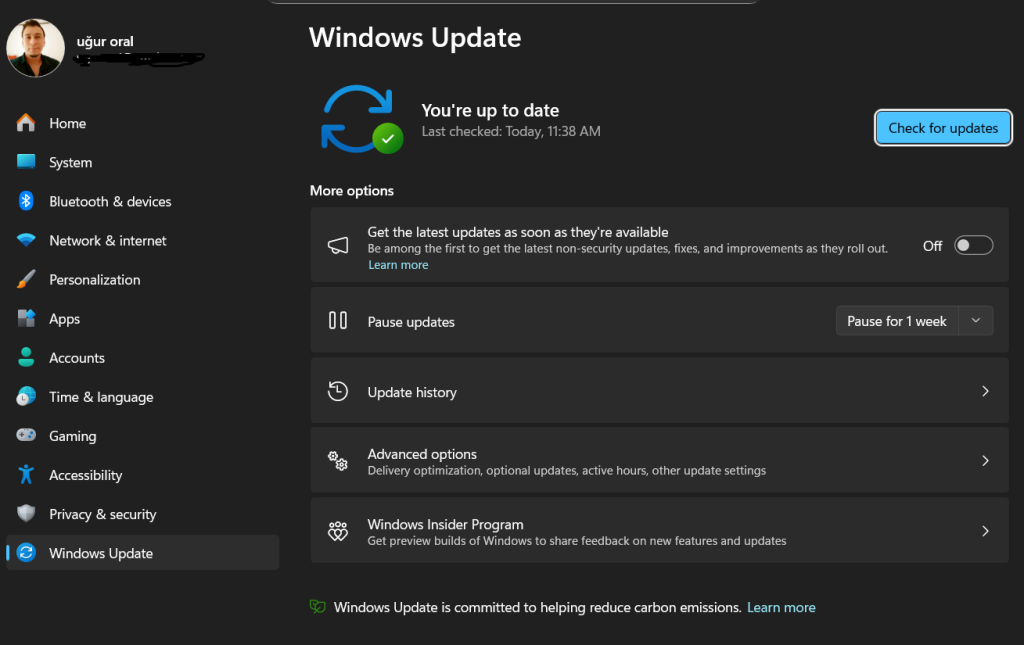
- Step 1: Open the Settings app by pressing the Windows Key + I.
- Step 2: Click on Windows Update in the left navigation menu.
- Step 3: Click the Check for updates button. Any necessary drivers provided by Microsoft will begin downloading automatically.
- Step 4: To see more options, navigate to Advanced options.
- Step 5: Click on Optional updates under the Additional options section. You will often find driver updates listed here. Select the ones you need and click Download and install to complete the process.
2. Using the Device Manager (The Manual Control Method)
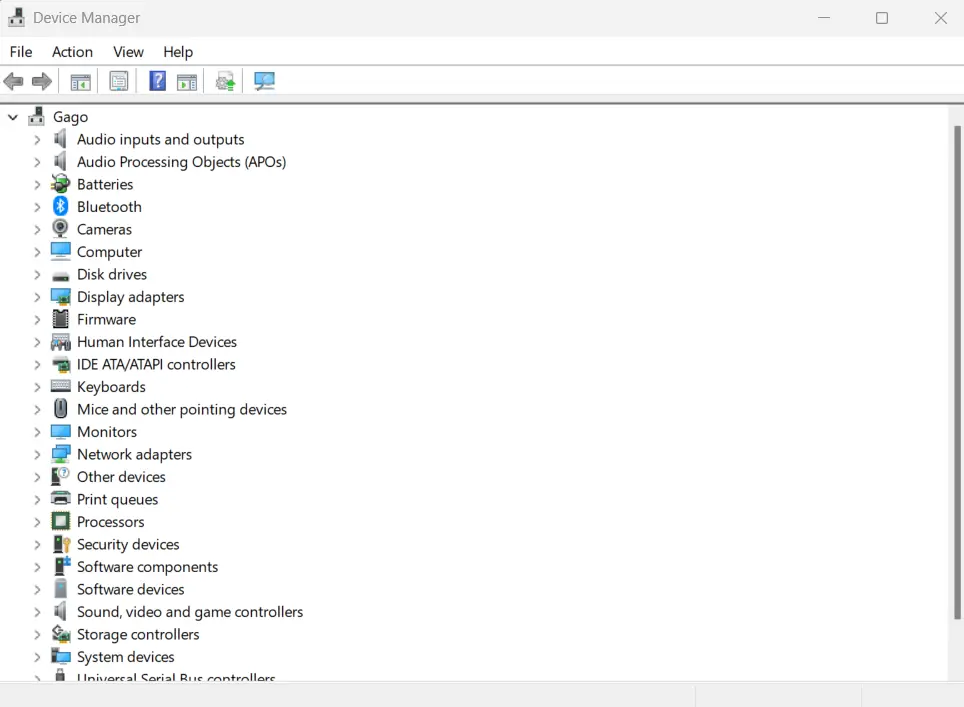
If you are experiencing issues with a specific piece of hardware or if Windows Update fails to find a newer version, the Device Manager is your direct tool.
- Step 1: Right-click the Start button (Windows Key + X) and select Device Manager from the menu.
- Step 2: Find and double-click the category of the hardware you want to update (e.g., Display adapters).
- Step 3: Right-click the specific device and choose the Update driver option.
- Step 4: Select Search automatically for updated driver software. Windows will now attempt to find a newer version on your computer or online.
3. Using the Manufacturer’s Website (The Bleeding-Edge Method)
For gamers or professional designers, the drivers offering the absolute newest features and performance gains are often found directly on the hardware manufacturer’s website (NVIDIA, AMD, Intel, etc.).
- Step 1: Identify the exact model number and manufacturer of your hardware.
- Step 2: Visit the official Support or Downloads page of the manufacturer.
- Step 3: Download the latest driver compatible with Windows 11.
- Step 4: Run the downloaded installer file and follow the on-screen prompts to complete the installation.
Pro Section: Troubleshooting Driver Update Issues
Occasionally, a driver update may fail or the new driver might cause unexpected stability issues with your system. In these cases, there’s no need to panic—Windows has built-in tools to help:
- Rolling Back a Driver: If a new driver breaks your system, open Device Manager, right-click the troubled hardware, and go to Properties. Under the Driver tab, the Roll Back Driver option will allow you to revert to the previous, working version. This is a lifesaver for stability!
- Running the Windows Update Troubleshooter: If you encounter downloading or installation problems through Windows Update, navigate to Settings > System > Troubleshoot > Other troubleshooters and run the Windows Update troubleshooter. This tool can automatically fix many common update errors.
- Avoid Third-Party Tools: Most automatic driver updater software available online can make matters worse by installing incompatible or outdated drivers. Always stick to official sources like Microsoft, the Device Manager, or the hardware manufacturer.
Regularly updating your Windows 11 Hardware Drivers will extend the lifespan of your computer and shield you from frustrating errors.
