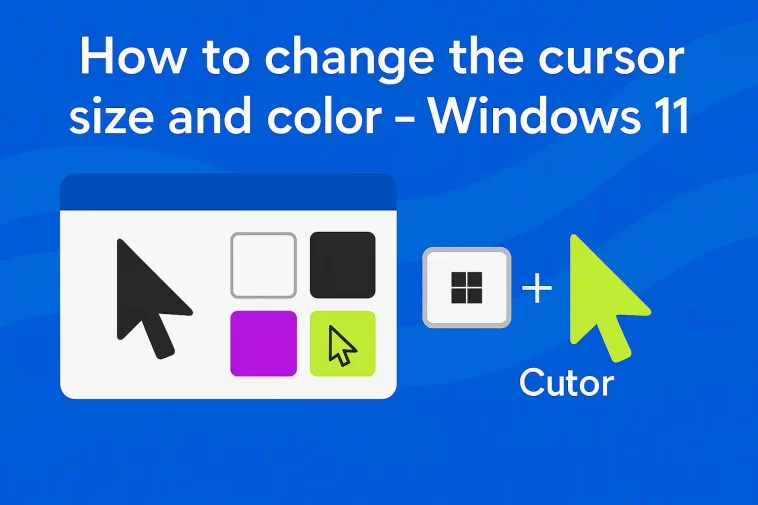
Finding yourself squinting at your screen trying to locate that tiny white arrow? You aren’t alone. Whether you’ve upgraded to a high-resolution 4K monitor or you’re dealing with eye strain after a long day of work, knowing how to change the cursor size and color in Windows 11 can make a world of difference in your daily productivity.
Microsoft has made Windows 11 its most customizable operating system yet. Gone are the days of digging through ancient Control Panel menus from the 90s. Now, everything you need to make your mouse pointer pop is tucked away in a sleek, user-friendly Settings app.
In this guide, we’ll walk through the simple steps to make your cursor exactly how you want it—larger, brighter, and much easier to find.
Why Adjust Your Cursor Settings?
Before we dive into the “how,” let’s talk about the “why.” Most of us stick with the default settings because we’re used to them. However, customizing your cursor offers several benefits:
- Accessibility: For those with visual impairments, a larger, high-contrast cursor is a necessity.
- High-Resolution Screens: On a 27-inch 4K monitor, the default cursor can look like a microscopic speck.
- Personal Style: Why stay with boring white when you can have a neon purple or lime green pointer?
- Presentations: If you share your screen often on Zoom or Teams, a larger cursor helps your audience follow your movement.
How to Change the Cursor Size and Color in Windows 11
Windows 11 centralizes these options under the “Accessibility” tab. Here is the quickest way to get there.
Step 1: Open the Accessibility Settings
The fastest way to open your settings is by pressing the Windows Key + I on your keyboard. Once the Settings window opens, look at the left-hand sidebar and click on Accessibility.
Step 2: Navigate to Mouse Pointer and Touch
Under the “Vision” section of the Accessibility menu, you will see an option labeled Mouse pointer and touch. Click on this to open the customization dashboard.
Step 3: Changing the Cursor Style (Color)
At the top of this screen, you’ll see the Mouse pointer style section. You have four main choices:
- White: The classic default.
- Black: A solid black pointer with a white border.
- Inverted: This is a “smart” cursor. It changes color based on what it’s hovering over (e.g., it turns white on a black background and black on a white background).
- Custom: This is the fun part. Clicking the “Custom” (the lime green icon) allows you to pick any color you want.
When you select Custom, Windows will suggest several vibrant “Recommended colors” like yellow, pink, and turquoise. If none of those suit your vibe, click the plus (+) button next to “Choose another color” to pick a specific shade from a full color spectrum.
Step 4: Adjusting the Cursor Size
Right below the style options, you’ll find the Size slider.
By default, the slider is set to 1. You can move it all the way up to 15. As you move the slider, you’ll see the cursor grow in real-time.
- Pro Tip: Most people find that a size between 3 and 5 is the “sweet spot” for large monitors without the cursor feeling intrusive.
Extra Customization: The Text Cursor
While you’re in the neighborhood, you might want to change the Text Cursor as well. This is the vertical blinking line (the “I-beam”) that appears when you are typing in Word or a browser.
- Go back to Settings > Accessibility.
- Select Text cursor.
- Turn on the Text cursor indicator.
This adds two colored markers to the top and bottom of your typing line, making it nearly impossible to lose your place in a sea of text. You can change the color and thickness of this indicator here as well.
Frequently Asked Questions
Will these changes slow down my computer?
Not at all. Changing the cursor size and color is a native Windows feature that uses a negligible amount of system resources. It won’t affect your gaming performance or your battery life.
Can I use my own custom cursor images?
Yes, but that process is a bit different. If you have a .cur or .ani file you downloaded from the internet, you’ll need to go to Settings > Bluetooth & devices > Mouse > Additional mouse settings. This opens the old-school “Mouse Properties” window where you can manually browse for custom pointer files.
Why does my cursor change back to default in some apps?
Some high-security apps or older legacy programs use their own cursor rendering. In most cases, Windows 11 overrides these, but you might see the default white arrow occasionally in very old software or certain full-screen games.
Summary of Steps
| Action | Path |
| Open Settings | Win + I |
| Go to Pointer Menu | Accessibility > Mouse pointer and touch |
| Change Size | Move the “Size” slider (1-15) |
| Change Color | Select “Custom” style and pick a color |
Making Your Digital Space Comfortable
Customizing your workspace is about more than just aesthetics; it’s about ergonomics. We spend hours every day staring at our screens, and small tweaks like increasing your cursor size can significantly reduce “eye hunting” and mental fatigue.
