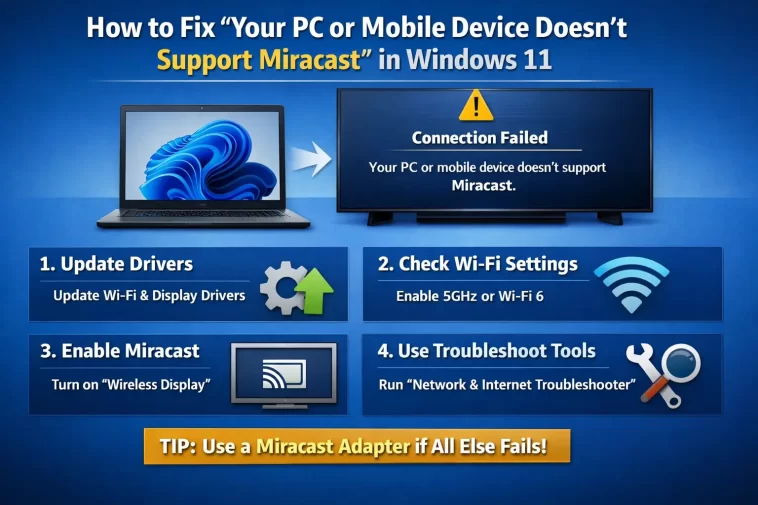
If you’ve ever tried to wirelessly mirror your screen and got hit with the message “Your PC or mobile device doesn’t support Miracast” in Windows 11, you’re not alone. It’s one of those errors that looks scary but is actually fixable in most cases — sometimes in just a few minutes. In this guide, I’ll walk you through every possible fix, from the simplest checks to the more advanced ones.
What Is Miracast, Anyway?
Before diving into fixes, let me quickly explain what Miracast is. Miracast is a wireless display standard — think of it like Wi-Fi for your screen. It lets you cast your laptop or PC display to a TV, monitor, or projector without any cables. It’s built into Windows 11 natively, which makes it super convenient when it actually works.
The problem is, it doesn’t always work. And when it doesn’t, Windows 11 throws up that annoying error message without much explanation.
Why Does This Error Appear?
The “doesn’t support Miracast” error in Windows 11 usually comes down to one of these reasons:
- Your Wi-Fi adapter doesn’t support Miracast
- Your graphics driver is outdated or corrupted
- Wi-Fi is turned off or the adapter isn’t functioning properly
- The receiving device (your TV or monitor) doesn’t support Miracast
- A VPN or firewall is blocking the connection
- Network adapter settings are misconfigured
Let’s go through the fixes one by one.
Fix 1: Check If Your Device Actually Supports Miracast
This is the first thing you need to do — confirm whether your hardware even supports Miracast. Some older PCs genuinely don’t.
Here’s how to check:
- Press Windows + R, type
dxdiag, and press Enter - Wait for the DirectX Diagnostic Tool to load
- Click Save All Information and save the file to your desktop
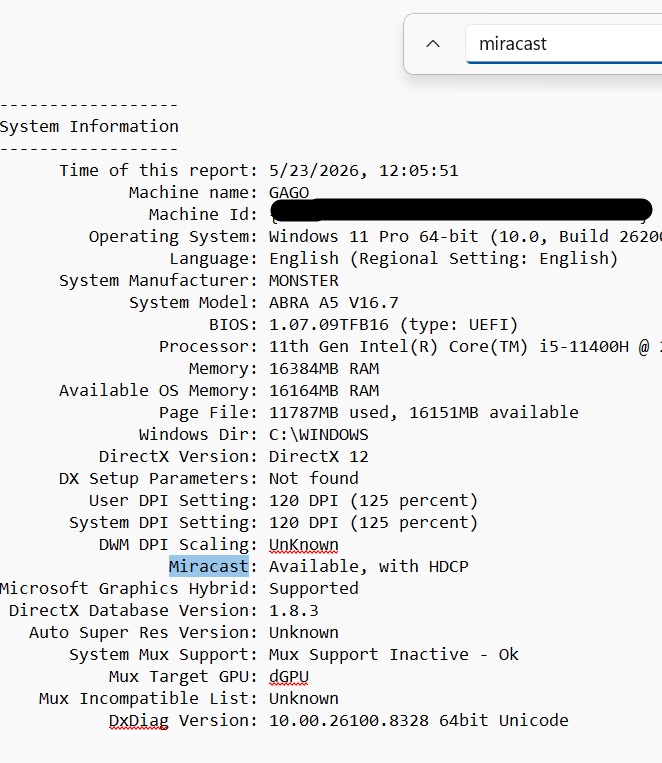
- Open that file and search for “Miracast”
If it says “Miracast: Available”, your hardware supports it and the problem is software-related. If it says “Miracast: Not Available”, your Wi-Fi adapter or GPU doesn’t support it — though you can still try updating drivers before giving up.
Fix 2: Make Sure Wi-Fi Is Enabled
I know this sounds obvious, but you’d be surprised how often this is the culprit. Miracast requires Wi-Fi to be active — even if you’re not connected to a network.
- Click the network icon in the taskbar (bottom right)
- Make sure Wi-Fi is toggled on
- If you’re using a wired Ethernet connection only, that won’t work for Miracast — you need the Wi-Fi adapter active
Also, make sure you’re not in Airplane Mode.
Fix 3: Update Your Wi-Fi and Graphics Drivers
Outdated drivers are probably the most common reason for the Miracast error in Windows 11. Here’s how to update them:
For the Wi-Fi adapter driver:
- Right-click the Start button and choose Device Manager
- Expand Network Adapters
- Right-click your Wi-Fi adapter and select Update driver
- Choose Search automatically for drivers
For the graphics driver:
- In Device Manager, expand Display Adapters
- Right-click your GPU (NVIDIA, AMD, or Intel) and select Update driver
- You can also go directly to the manufacturer’s website (nvidia.com, amd.com, or intel.com) and download the latest driver from there — this is often more reliable than Windows Update
After updating, restart your PC and try Miracast again.
Fix 4: Reinstall the Network Adapter Driver
If updating the driver didn’t help, try uninstalling it completely and letting Windows reinstall it fresh.
- Open Device Manager
- Expand Network Adapters
- Right-click your Wi-Fi adapter and select Uninstall device
- Check the box that says Delete the driver software for this device if it appears
- Restart your PC
Windows will automatically reinstall the driver on startup. Sometimes this clears up whatever corruption was causing the problem.
Fix 5: Run the Wireless Display Troubleshooter
Windows 11 has a built-in troubleshooter that can detect and fix common Miracast issues automatically.
- Press Windows + I to open Settings
- Go to System > Troubleshoot > Other troubleshooters
- Find Internet Connections or look for a wireless display option and run it
Alternatively, you can try the Network Adapter troubleshooter, which is also located in the same section. It sometimes catches things the general troubleshooter misses.
Fix 6: Disable VPN and Firewall Temporarily
If you’re running a VPN, it might be interfering with the Miracast connection. Miracast uses a direct peer-to-peer Wi-Fi connection, and VPNs can disrupt that.
Try disabling your VPN temporarily and attempting the connection again. The same applies to third-party firewalls — try disabling them briefly to test.
If Miracast works after disabling the VPN, you’ll need to either configure the VPN to allow local network traffic or disconnect it before screen mirroring.
Fix 7: Reset Network Settings
If something in your network configuration got messed up, resetting it can help. Here’s how to do a network reset:
- Press Windows + I and go to Network & Internet
- Scroll down and click Advanced network settings
- Click Network reset
- Click Reset now and confirm
This will remove all saved Wi-Fi passwords and reset network adapters, so be prepared to reconnect to your networks afterward.
You can also run these commands in an elevated Command Prompt (run as Administrator):
netsh winsock reset
netsh int ip reset
ipconfig /release
ipconfig /flushdns
ipconfig /renew
Restart after running these.
Fix 8: Enable Wireless Display Optional Feature
Windows 11 requires the Wireless Display optional feature to be installed for Miracast to work fully. Sometimes it’s not installed by default.
- Press Windows + I and go to Apps
- Click Optional features
- Click View features next to “Add an optional feature”
- Search for Wireless Display
- Check the box and click Next, then Install
After it installs, restart your PC and test Miracast again.
Fix 9: Check Your Router and Network
Miracast actually doesn’t always need a router — it can work peer-to-peer — but in some configurations, both devices need to be on the same Wi-Fi network. Here’s what to check:
- Make sure both your PC and the receiving device are on the same Wi-Fi network
- If your router has AP Isolation (also called client isolation) enabled, turn it off — this setting prevents devices on the same network from communicating with each other, which breaks Miracast
- Try connecting to a 2.4GHz network instead of 5GHz (or vice versa) to see if that makes a difference
Fix 10: Update Windows 11
If you’ve been putting off Windows updates, now might be the time to install them. Microsoft frequently releases patches that fix wireless connectivity issues, including Miracast-related bugs.
- Press Windows + I and go to Windows Update
- Click Check for updates
- Install any available updates and restart your PC
Fix 11: Check the Receiving Device
Sometimes the issue isn’t your PC — it’s the device you’re trying to cast to. Not all TVs and monitors support Miracast, especially older ones. Here’s what to look for:
- Check if your TV or monitor has a Miracast, Screen Mirroring, Wi-Fi Direct, or WiDi option in its settings menu
- If your TV runs Android TV or Google TV, it may use Chromecast instead of Miracast — these are different standards
- Amazon Fire TV sticks support Miracast through the “Display Mirroring” option
- For monitors that don’t have built-in Miracast, you can buy a cheap Miracast dongle (like the Microsoft Wireless Display Adapter) and plug it into the HDMI port
Fix 12: Use the Connect App
Windows 11 has a built-in Connect app that allows your PC to receive wireless display connections, not just send them. If you’re trying to cast from one Windows PC to another, this is the app you need on the receiving end.
To open it, just search for “Connect” in the Start menu and launch it. It will put your PC in discoverable mode for Miracast connections.
Still Not Working? Consider These Alternatives
If you’ve tried everything and Miracast still refuses to cooperate, here are some solid alternatives:
- Google Chromecast — Works great if both devices are on the same network. You cast through the Chrome browser or the Google Cast feature in Windows.
- Microsoft Wireless Display Adapter — A dedicated Miracast dongle from Microsoft. Plugs into any HDMI port and is much more reliable than software-based solutions.
- Steam Link — If you’re trying to stream content to a TV, Steam Link is a fantastic option.
- HDMI cable — Sometimes the old-fashioned wired method is just easier. If wireless display isn’t critical, a good HDMI cable never lets you down.
Quick Summary
Here’s a quick rundown of all the fixes covered in this guide:
- Verify Miracast support via DxDiag
- Make sure Wi-Fi is enabled
- Update Wi-Fi and graphics drivers
- Reinstall the network adapter driver
- Run the wireless display or network adapter troubleshooter
- Disable VPN and third-party firewalls
- Reset network settings
- Install the Wireless Display optional feature
- Check router settings (disable AP Isolation)
- Install pending Windows 11 updates
- Verify the receiving device supports Miracast
- Use the Windows Connect app for PC-to-PC mirroring
Final Thoughts
The “Your PC or mobile device doesn’t support Miracast” error in Windows 11 is frustrating, but it’s rarely a dead end. In most cases, a driver update or a quick settings tweak is all it takes to get things working. Start with the simpler fixes — checking Wi-Fi, updating drivers — and work your way down the list. Chances are you’ll find the solution before you reach the bottom.
If your hardware genuinely doesn’t support Miracast, a Microsoft Wireless Display Adapter or a Miracast dongle is an affordable way to add the feature to any PC or monitor.
Good luck — and hopefully your screen is mirroring smoothly by the time you finish this guide!
