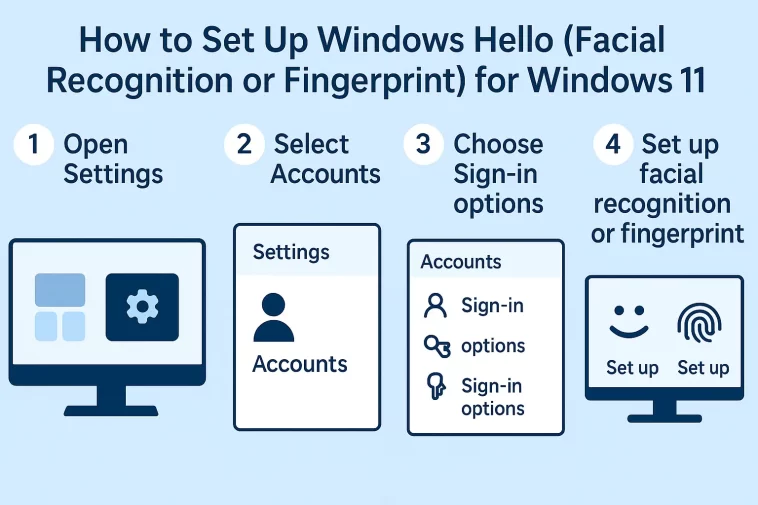
How to set up Windows Hello (facial recognition or fingerprint)? for Windows 11 is one of the best ways to make your computer sign-in process both super fast and much more secure. Seriously, ditching that old, boring password for a simple look at your camera or a quick touch of your finger feels like a massive upgrade. It’s the little things that make using your computer better, right?
We all know the drill: sit down, power up, and then… type, type, type. Passwords are a pain. They have to be long, complicated, include special characters, and you still have to remember them. But what if the key to your computer was just… you?
That’s exactly what Windows Hello is all about. It’s Microsoft’s biometric authentication system built into Windows 11, and it’s a total game-changer. It uses a unique part of you—your face or your fingerprint—to prove you are who you say you are. Not only is it faster than typing a password, but it’s also much more secure because, well, your face and fingerprint are pretty hard to fake.
In this ridiculously long but incredibly detailed guide, we’re going to walk through every single step to get this feature working on your Windows 11 PC. We’ll cover everything, from checking if your hardware is up to the task to the actual setup for both facial recognition and fingerprint scanning. Let’s make your computer sign-in process as effortless as possible!
🔍 Before We Start: Do You Have the Right Stuff?
Before you dive into the settings, the most important thing to know is that Windows Hello isn’t just a software trick. It needs specific hardware to work its magic.
1. The PIN is Non-Negotiable
First and foremost, whether you plan to use your face or your finger, you must set up a Windows Hello PIN first. Think of the PIN as the secure, device-specific backup. It’s not your old Microsoft account password, it’s a simple series of numbers (or numbers, letters, and symbols if you choose) that only works on that single device. This is the first layer of security you need, and the system will make you set it up before you can enable the biometrics.
2. Checking for Facial Recognition Hardware (IR Camera)
Facial recognition with Windows Hello isn’t like a standard camera selfie. It uses a specialized camera, often called an Infrared (IR) camera or sometimes an Intel RealSense camera. This camera can “see” in 3D, recognizing the unique depth and shape of your face, even in low light. This is why it’s so secure—it can tell the difference between a real face and a flat photo of your face.
- How to Check: If you bought a laptop or PC that specifically advertised “Windows Hello Face” or “IR Camera,” you’re probably good to go. If you’re not sure, check your laptop’s official specifications page or device manager. Look under the “Cameras” section for a device that includes “IR” or “Windows Hello” in its name.
- Desktop Users: If you have a desktop PC, you’ll need to purchase an external webcam that explicitly states it’s compatible with “Windows Hello Facial Recognition.” A standard webcam won’t work!
3. Checking for Fingerprint Hardware (Fingerprint Reader)
Setting up fingerprint authentication is a little simpler hardware-wise, but still requires a dedicated sensor.
- How to Check: Many modern laptops include a fingerprint reader. It might be a tiny square or strip near your keyboard, or often, it’s integrated right into the power button. Just like the face scan, check your device’s specs.
- Desktop Users: If you have a desktop or a laptop without a built-in sensor, you can easily buy a small, external USB fingerprint reader. They are affordable and plug-and-play.
If you don’t have the required hardware, the setup options for Face or Fingerprint will be greyed out in the settings, and you won’t be able to click “Set up.” So, make sure you have the right gear before proceeding!
🔑 Step 1: Setting Up Your Windows Hello PIN (The Prerequisite)
As mentioned, a PIN is required for both facial and fingerprint sign-in. Even if you already have one, it’s a good idea to know where to find this setting.
1. Open Sign-in Options
The quickest way to get where we need to go is through the Windows Search bar.
- Click the Start button (the Windows logo) or press the Windows key.
- Type “Sign-in options” and click the result that appears.
2. Locate the PIN Setting
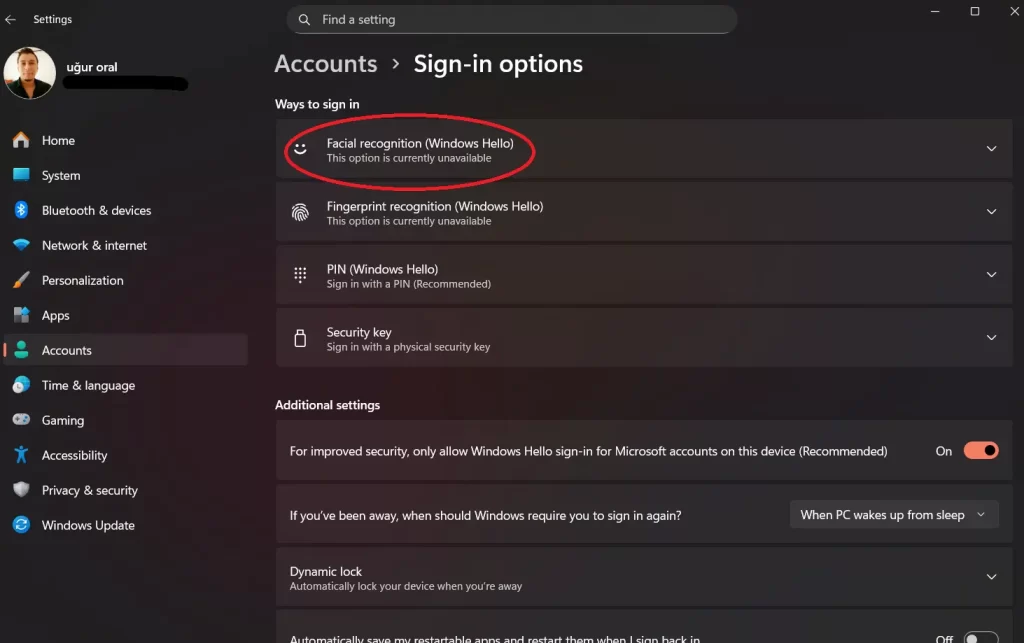
You’ll now be in the Settings > Accounts > Sign-in options window.
- Look under the section titled “Ways to sign in.”
- Click on PIN (Windows Hello).
- If you don’t have a PIN, click the Set up button.
3. Create Your PIN
- Windows will ask you to confirm your identity, usually by entering your main Microsoft account password. Enter your password and click OK.
- In the next window, you’ll be prompted to set up your PIN. Type in a new PIN—a simple set of numbers is the default.
- Pro Tip for Security: You can check the box that says “Include letters and symbols” to make your PIN much more secure, turning it into a short password that only works on your PC.
- Type your chosen PIN in both boxes and click OK.
That’s it! Your PIN is set up. Now you’re ready to move on to the more advanced biometrics.
😊 Step 2: How to set up Windows Hello (facial recognition)
If you have a laptop or webcam with a compatible infrared (IR) camera, this is arguably the fastest and coolest way to log in. You just look at your screen, and you’re in!
1. Go to the Sign-in Options
If you haven’t closed it yet, you should still be in:
- Settings > Accounts > Sign-in options.
2. Start the Facial Recognition Setup
- Under the “Ways to sign in” section, click on Facial recognition (Windows Hello).
- Click the Set up button. If this button is greyed out or you see a message that says “This option is currently unavailable,” you do not have the necessary IR camera hardware.
3. Follow the Setup Wizard
- A new window will pop up. Click Get started.
- You’ll be asked to enter your Windows Hello PIN for verification. Enter the PIN you just created in Step 1.
- The camera will activate, and you’ll see a frame on the screen. Position your face so it’s centered in the frame and hold still. The camera is going to scan your facial features.
- Pro Tip: Make sure the room is adequately lit, and your camera is clean!
- A progress bar will fill up. Once it’s complete, the screen will tell you “You’re all set!” Click Close.
4. Improve Recognition (Optional, but Recommended!)
This is an important step that many people miss, especially if they sometimes wear glasses or have different hairstyles.
- Back on the main Sign-in options page, under “Facial recognition (Windows Hello),” click Improve recognition.
- Click Get started and go through the scanning process again. If you normally wear glasses, do one scan with them on and one with them off. This trains the system to recognize you in different scenarios.
Test it out! Press the Windows Key + L to lock your computer. When you look at the screen, it should recognize you almost instantly and sign you in without touching the keyboard. It’s like magic!
👆 Step 3: How to set up Windows Hello (fingerprint)
If your device has a fingerprint reader, this is another incredibly convenient way to sign in. It’s perfect for when you’re in a crowded space or just don’t want to use your face.
1. Go to the Sign-in Options
Again, navigate to:
- Settings > Accounts > Sign-in options.
2. Start the Fingerprint Setup
- Under the “Ways to sign in” section, click on Fingerprint recognition (Windows Hello).
- Click the Set up button. If this button is unavailable, your device does not have a compatible fingerprint reader.
3. Scan Your Fingerprint
- In the new setup window, click Get started.
- You’ll be asked to enter your Windows Hello PIN for verification.
- Now, the instructions will guide you to place your finger on the sensor. The process is similar to setting up your finger on a smartphone:
- Place your finger (it’s best to start with your dominant index finger) on the sensor.
- The system will ask you to repeatedly lift and rest your finger on the sensor, scanning different parts of your finger pad each time. You might have to do this 10 to 15 times.
- Follow the on-screen prompts precisely—they will ask you to move your finger slightly to capture the edges.
- Once the scan is complete, you’ll get a confirmation.
4. Add More Fingers (Recommended!)
We strongly recommend adding more than one finger! If you injure your main finger, or if you simply use your computer with different hands (maybe one hand on a mouse, the other on the keyboard), having a backup is smart.
- Back on the main Sign-in options page, under “Fingerprint recognition (Windows Hello),” click Add a finger.
- Repeat the scanning process (Step 3) with a new finger (e.g., your other index finger or a thumb).
Test it out! Press Windows Key + L to lock your screen. Place your registered finger on the sensor, and you should be logged in within a second.
💡 Troubleshooting and Extra Tips
Even with the right hardware, things don’t always go smoothly. Here are a few tips for common issues:
“This option is currently unavailable”
This is almost always a hardware issue.
- Facial Recognition: You likely don’t have the necessary IR camera. You’ll need to buy an external, Windows Hello-compatible webcam.
- Fingerprint Recognition: Your device is missing a sensor, or the sensor’s driver is outdated.
- Solution: Check your laptop manufacturer’s website for the latest drivers, or search Windows Update for optional updates.
“Couldn’t recognize you. Please sign in with your PIN.”
This happens when the biometric scan fails.
- Facial: Is the room too dark? Is the camera shutter closed? Did you recently change your appearance (new glasses, shave a beard, etc.)? Go back to the settings and use the Improve recognition option.
- Fingerprint: Is your finger clean and dry? Are you pressing firmly enough, or is your finger centered on the scanner? You might need to Remove your current scan and set it up again for better results.
What if I Forget My PIN?
If you forget your Windows Hello PIN, you can reset it right from the sign-in screen. Look for a link below the PIN entry box that says I forgot my PIN. You’ll need your full Microsoft account password to verify your identity before you can set a new one.
The Importance of Enhanced Security
Under the Facial recognition (Windows Hello) setting, you might see an optional checkbox for Enhanced anti-spoofing. This is highly recommended to enable an extra layer of protection, making it even harder for someone to trick the system with a picture or a 3D model of your face.
📝 Conclusion: Security Made Easy
The traditional password is on its way out, and Windows Hello is leading the charge for a more convenient and secure future. By taking a few minutes to set up Windows Hello (facial recognition or fingerprint) for Windows 11, you’ve made a massive upgrade to your daily computer experience. No more fumbling with complicated passwords—just a glance or a touch, and you’re in.
