How to use Voice Typing in Windows 11? That’s the big question, and the good news is that Microsoft has made it incredibly simple. If you’ve ever felt like your thoughts move faster than your fingers, or if you simply need a break from the keyboard, the built-in Voice Typing feature in Windows 11 is about to become your new best friend. It’s free, it’s fast, and it works in almost every application where you can type.
In this guide, we’re going to walk through everything you need to know, from the simple keyboard shortcut to advanced tips for better accuracy and productivity. Trust me, once you experience how easy it is to dictate an email or an entire document, you’ll wonder why you didn’t start sooner.
🚀 Why Should You Bother with Voice Typing?
Before we dive into the “how-to,” let’s quickly talk about why this feature is worth your time. This isn’t just a tool for people with accessibility needs (though it’s fantastic for that, too!). It’s a major productivity hack for anyone who uses a PC.
- Speed: Most people can speak significantly faster than they can type. Voice Typing lets you get a rough draft out in a fraction of the time.
- Idea Transfer: Sometimes, when you’re writing, you lose your train of thought while looking for the right key. Speaking your thoughts allows for a more natural, uninterrupted flow from your brain to the screen. It’s great for brainstorming!
- Comfort: Give your hands and wrists a rest. Reducing the amount of time you spend hunched over a keyboard can help prevent fatigue and strain.
- It’s Built-in: There’s no extra software to buy or install. It’s a core feature of Windows 11, ready to use right now.
If you’re ready to speed up your workflow and make typing less of a chore, let’s get started.
📝 The Simple Steps: How to Use Voice Typing in Windows 11
The whole process has been streamlined in Windows 11. Forget digging through menus; all you need is a quick key combination.
Step 1: Click into a Text Field
First things first, click your mouse cursor into any area where you would normally type. This could be:
- A blank Microsoft Word document.
- The “Compose” window in your email program.
- A chat box in a messaging app.
- The search bar in your web browser.
As long as the application allows you to type text, the feature should work.
Step 2: The Magic Shortcut
The key to activating Voice Typing is a simple keyboard shortcut:
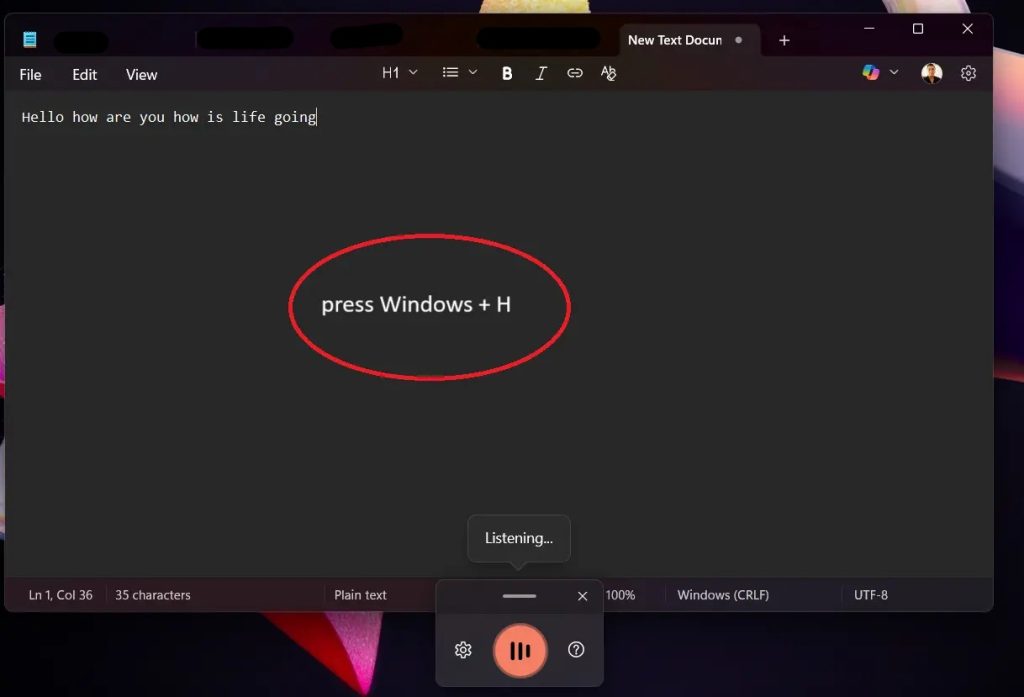
$$\text{Windows Key} + \text{H}$$
Press and hold the Windows logo key (usually between Ctrl and Alt) and press the H key.
Step 3: Start Talking
Almost instantly, a small voice typing panel will appear, usually near the top of your screen. It will look like a small microphone icon.
- When the microphone icon is displayed, it means the feature is ready.
- Start speaking clearly and at a normal conversational pace.
- You will see your words turn into text on your screen almost as fast as you say them!
The microphone icon will show a small blue light or pulsing wave when it is actively listening.
Step 4: Stop Dictating
When you are done speaking, you have two simple ways to stop the transcription:
- Click the microphone icon on the panel.
- Press the Windows Key + H shortcut again.
The panel will then return to an inactive state, ready for your next dictation session.
⚙️ Pro Tips: Making Voice Typing Even Better
While the basic function is easy, a few simple settings and commands can turn you into a dictation master.
Automatic Punctuation
In older versions of Windows, you had to say “comma,” “period,” or “question mark” out loud. In Windows 11, you can often turn on automatic punctuation, which is a massive time-saver.
- Open the Voice Typing panel (Win + H).
- Click the Settings gear icon ($\text{⚙️}$) on the panel.
- Look for and toggle on the option for Automatic punctuation.
Once this is enabled, Windows will intelligently add periods, commas, and question marks as you speak, based on the tone and structure of your sentences. You’ll still need to manually correct it sometimes, but it vastly improves the experience.
Voice Commands for Formatting
To help you format your text while you’re speaking, you can use simple voice commands. Just say these words out loud, and Windows will perform the action instead of typing the words:
| Command to Say | Action Performed |
| “Period” (or “Full stop”) | Inserts a period/full stop (.) |
| “Comma” | Inserts a comma (,) |
| “Question mark” | Inserts a question mark (?) |
| “Exclamation point” | Inserts an exclamation point (!) |
| “New line” | Moves the cursor to the next line (like pressing Enter once) |
| “New paragraph” | Starts a new paragraph (like pressing Enter twice) |
| “All caps” | Capitalizes the next word you say |
Check Your Microphone Setup
Accuracy largely depends on the quality of your microphone and the environment you’re in.
- Use a Good Mic: While your laptop’s built-in microphone works, a dedicated headset or USB microphone will always offer better clarity and dramatically improve transcription accuracy.
- Reduce Noise: Dictate in a quiet environment. Background noise like music, TV, or even a fan can confuse the system and lead to mistakes.
- Check Settings: You can always check your microphone settings by going to Settings ($\text{Win} + \text{I}$) > System > Sound, and checking the Input section to make sure your preferred microphone is selected and set up correctly.
💡 What If It’s Not Working? Troubleshooting Voice Typing
If you’ve tried the Windows + H shortcut and nothing happens, here are the three most common things to check:
- Internet Connection: Voice Typing relies on Microsoft’s online speech recognition services for high accuracy. You must be connected to the internet for it to work.
- Privacy Settings: Windows needs permission to access your microphone. Go to Settings ($\text{Win} + \text{I}$) > Privacy & security > Microphone and make sure that “Microphone access” is set to On and that the apps you want to use it in have permission.
- Language Match: The language you are speaking should match the language selected in your Windows settings. If you’re speaking English, ensure English is your primary input language under Settings > Time & language > Language & region.
How to use Voice Typing in Windows 11 is not a complex process, but it can be a little sensitive to a poor microphone or a noisy room. Take a few minutes to check these simple things, and you’ll be dictating like a pro.
