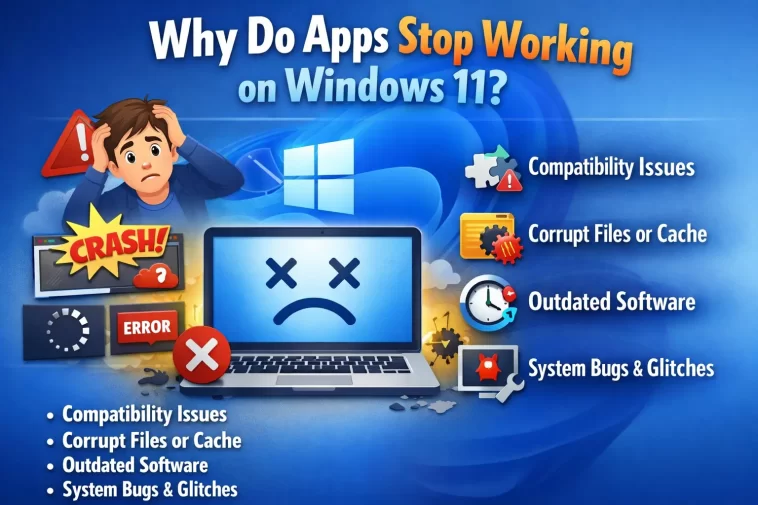
Before we dive into the “how,” let’s talk about the “why.” Software is built to talk to a specific version of Windows. Over time, Windows changes its language. It removes old libraries, updates how it handles graphics, and tightens security.
When you try to run a program from 2010 on a 2024 operating system, the program tries to find files or permissions that simply don’t exist anymore. Compatibility Mode acts as a translator. It tells the app, “Hey, I know this is Windows 11, but for you, I’m going to pretend I’m Windows 7.”
Method 1: The Quick Manual Fix (The Best Way)
If you have a specific app that is crashing or refusing to launch, the manual method is usually the most reliable. Here is the step-by-step:
- Locate the App: Find the shortcut on your desktop or the
.exefile in your Program Files folder. - Open Properties: Right-click the icon and select Properties at the bottom of the menu.
- The Compatibility Tab: Click the tab at the top labeled Compatibility.
- Check the Box: Under the “Compatibility mode” section, check the box that says “Run this program in compatibility mode for:”
- Choose Your Era: Use the dropdown menu to select the version of Windows the app was originally designed for. Usually, Windows 7 or Windows 8 are the safest bets for most apps.
- Apply and Test: Click Apply, then OK, and try launching the app again.
Method 2: Using the Program Compatibility Troubleshooter
If you aren’t sure which version of Windows to choose, let Windows 11 do the detective work for you.
- Right-click the app icon and select Show more options, then click Troubleshoot compatibility.
- Select Try recommended settings. This will apply the most likely fixes based on the app’s code.
- Click Test the program… to see if it works.
- If it works, click Next and save the settings. If it doesn’t, you can select “No, try again using different settings” to give the wizard more details about the problem (e.g., “The program opens but doesn’t display correctly”).
Pro Tips: Extra Settings That Actually Help
Sometimes, just changing the Windows version isn’t enough. In that same Compatibility tab, there are a few “hidden” settings that can solve specific glitches:
1. Run as Administrator
Old apps often expect to have full control over the folders they are installed in. Modern Windows restricts this for security. Checking “Run this program as an administrator” can often fix “Access Denied” errors or save-game issues.
2. Disable Fullscreen Optimizations
Windows 11 tries to make games look better with a feature called Fullscreen Optimizations. Ironically, this often makes older games flicker or crash. If your old game is acting glitchy, try checking this box.
3. Change High DPI Settings
Does the app look microscopic on your 4K monitor?
- Click Change high DPI settings.
- Check “Override high DPI scaling behavior.”
- Select System (Enhanced) from the dropdown. This forces Windows to stretch the app so you can actually read the buttons.
What if Compatibility Mode Doesn’t Work?
Occasionally, an app is just too old. If Compatibility Mode fails, you still have two “nuclear” options:
- Virtual Machines: You can use software like VirtualBox to run a “window” of Windows XP inside your Windows 11. It’s a bit more advanced, but it’s the most compatible way to run 20-year-old software.
- DOSBox: If you are trying to run ancient 16-bit games from the 90s, Compatibility Mode won’t help. You’ll need DOSBox, which is an emulator specifically for that era.
Final Thoughts
Learning how to run apps in Compatibility Mode is like having a key to a digital museum. You don’t have to give up on that old photo editor or that classic strategy game just because you upgraded your hardware. Windows 11 is remarkably flexible if you know where the right buttons are hidden.
Give the manual method a shot first, and don’t be afraid to experiment with different Windows versions in the dropdown menu. More often than not, a quick switch to “Windows 7 mode” is all it takes to bring your favorite software back to life.
