Adjusting the layout of your document is often the difference between a mess of text and a professional-looking report. If you have ever struggled with text getting cut off during printing or couldn’t figure out why your paragraphs looked “squished,” you are likely dealing with a layout issue.
How can I adjust margins and page layout? This is one of the most common questions for anyone using Microsoft Word, whether you are a student formatting a thesis or an office worker prepping a memo. The good news is that Word makes these changes relatively simple once you know where the buttons are hidden.
Getting Started with the Layout Tab
Most of the magic happens in a single place: the Layout tab at the top of your Word ribbon. When you click this, the toolbar changes to show you options for margins, orientation, size, and columns.
1. Setting Your Margins
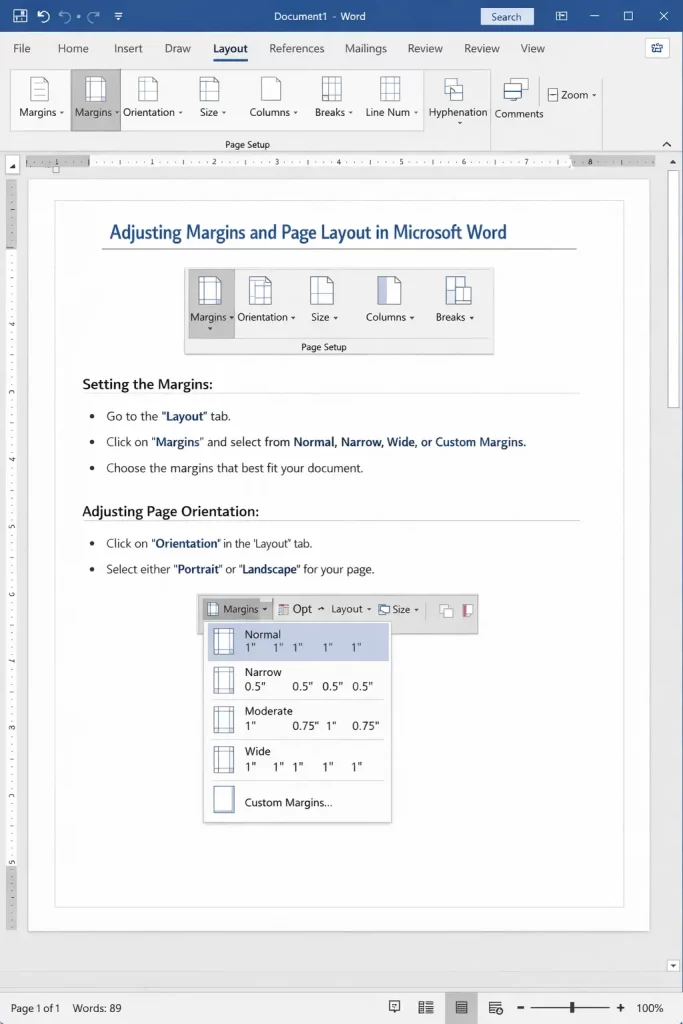
Margins are the white space surrounding the text on your page. By default, Word usually sets these to 1 inch (2.54 cm) all the way around.
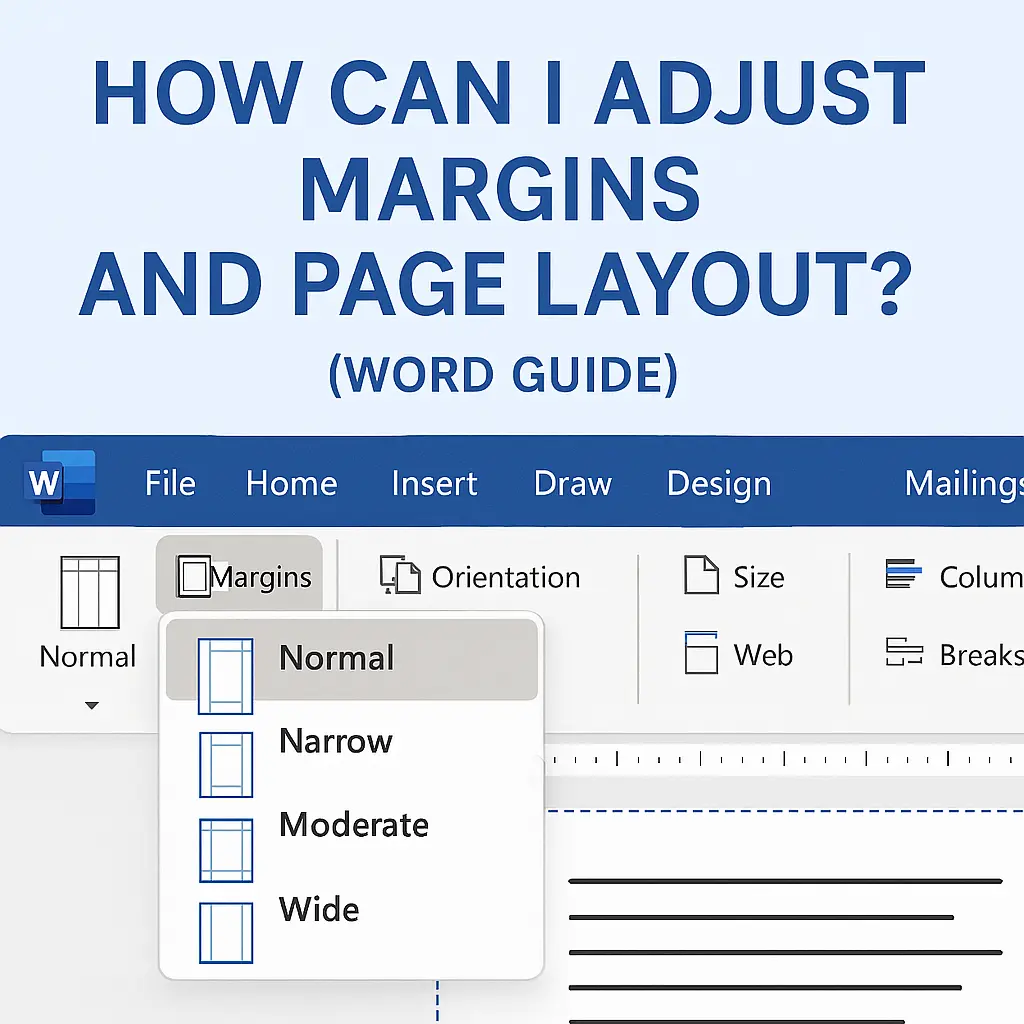
- Quick Presets: Click on the Margins icon. You’ll see a list of common settings like “Narrow” (0.5 inches), which is great if you’re trying to fit a lot of information on one page, or “Wide,” which is often used for manuscripts.
- Custom Margins: If your professor or boss requires specific measurements (like a 1.5-inch left margin for binding), scroll to the bottom of that list and click Custom Margins. This opens a dialog box where you can type in exact numbers for the top, bottom, left, and right.
2. Changing Page Orientation
Sometimes, a standard vertical page just doesn’t cut it—especially if you are making a certificate or a wide table.
- Portrait: The default vertical orientation.
- Landscape: Flips the page horizontally.
You can find this right next to the Margins button. Just click Orientation and pick your favorite.
Advanced Layout Techniques
Once you have the basics down, you might find yourself needing a bit more control. Here is how to handle the “tricky” stuff.
Working with Columns
If you are writing a newsletter or a brochure, you probably don’t want your text stretching across the entire page.
- Highlight the text you want to split.
- Go to Layout > Columns.
- Choose Two, Three, or “Left/Right” (where one column is thinner than the other).
The Power of Section Breaks
This is the “pro tip” of Microsoft Word. Have you ever tried to make just one page in the middle of your document landscape while the rest stay portrait? If you try to change the orientation normally, the whole document flips.
To fix this, you need Section Breaks:
- Place your cursor at the very end of the page before the one you want to change.
- Go to Layout > Breaks > Next Page.
- Now, any change you make to the margins or orientation will only apply to that specific section.
Perfecting the Visual Flow
Beyond just the edges of the paper, “layout” also refers to how the text sits on the page.
Using the Ruler for Instant Adjustments
If you don’t see a ruler at the top and left of your document, go to the View tab and check the box for Ruler.
- Indents: The little triangles on the ruler allow you to drag the first line of a paragraph inward or move the entire block of text.
- Tab Stops: Clicking on the ruler creates a “stop” so that when you hit the Tab key, your cursor jumps to that exact spot.
Page Size Matters
Depending on where you live or what you are printing, you might not be using “Letter” (8.5″ x 11″).
- A4: The international standard.
- Legal: Longer than Letter, often used for contracts.
- Envelopes: Yes, you can set your page size to match an envelope to print addresses directly.
To change this, simply click Size in the Layout tab.
Common Formatting Mistakes to Avoid
When you are learning how to adjust margins and page layout, it is easy to over-engineer things. Here are a few things to keep in mind:
- Don’t use the Spacebar to center text: Use the “Center” alignment button on the Home tab. Using spaces makes your layout break the moment you change a margin.
- Watch your “Gutter”: If you plan on clicking your pages into a 3-ring binder, use the Gutter setting in the Custom Margins menu. This adds extra space only to the side where the holes will be punched, so your text doesn’t get “eaten” by the binder.
- Consistency is Key: If you have a 10-page document, make sure your margins are the same on every page unless you have a very specific reason to change them.
Summary Checklist for a Perfect Layout
Before you hit print or send that PDF, run through this quick list:
- Check the Margins: Are they equal? Does the white space look balanced?
- Verify Orientation: Is everything facing the right way?
- Inspect Page Breaks: Are there any weird blank pages at the end? (Delete them by clicking at the end of the text and hitting “Delete”).
- Proof the Size: Is it set to the actual paper size in your printer?
Adjusting your layout doesn’t have to be a headache. Once you get comfortable with the Layout Tab and the Ruler, you’ll be able to whip any document into shape in seconds.
