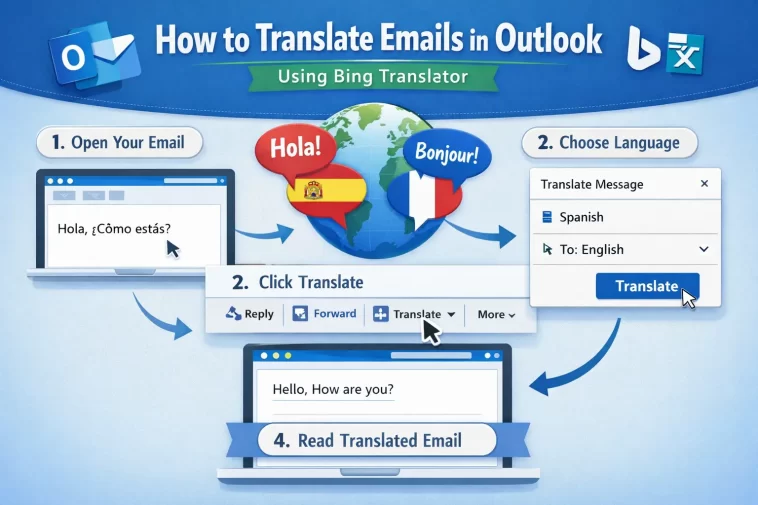
If you’ve ever opened an email and stared at a language you don’t understand, you already know how frustrating that can be. The good news? Translate emails in Outlook using Bing Translator is something you can do right inside the app — no copy-pasting into a browser, no third-party tools required.
Whether you’re dealing with international clients, suppliers, or just a friend who decided to write to you in French for some reason, Outlook’s built-in translation feature powered by Bing makes the whole thing surprisingly simple. Let me walk you through exactly how it works.
What Is Bing Translator in Outlook?
Before we get into the steps, a quick note on what this actually is. Microsoft integrated Bing Translator directly into Outlook — both the desktop version and the web version — as part of its Microsoft 365 suite. It can automatically detect the language of an incoming email and offer to translate it for you with a single click.
It supports a huge number of languages, including Spanish, French, German, Arabic, Chinese, Japanese, Portuguese, Russian, and many more. The translation quality is solid for everyday business communication — not perfect, but absolutely good enough to understand what someone is saying and respond appropriately.
The feature is available for:
- Outlook on the Web (also called Outlook Web Access or OWA)
- Outlook Desktop App (Microsoft 365 version)
- Outlook Mobile (iOS and Android)
Now let’s get into the actual how-to.
How to Translate Emails in Outlook on the Web
This is the most straightforward version of the feature, and it works great.
Step 1: Open your email
Log in to outlook.live.com or your work Outlook account via browser. Open the email that’s written in a foreign language.
Step 2: Look for the translation banner
When Outlook detects that the email is in a different language than your display settings, it will automatically show a yellow banner at the top of the email that says something like:
“This message is in [Language]. Click here to translate it.”
Step 3: Click “Translate message”
Click the link in the banner. Outlook will instantly translate the entire email body into your preferred language using Bing Translator. The original text is replaced with the translated version.
Step 4: Switch back if needed
If you want to see the original text again, there’s a “See original” link right next to the translation. You can toggle back and forth as many times as you like.
That’s it. Seriously, it takes about five seconds.
How to Translate Emails in Outlook Desktop (Microsoft 365)
If you’re using the Outlook desktop app that comes with Microsoft 365, the process is just as easy.
Step 1: Open the email
Open Outlook and click on the email written in another language.
Step 2: Find the translation prompt
Similar to the web version, Outlook desktop will show a small message at the top of the email body saying the email has been detected in a foreign language and asking if you’d like to translate it.
Step 3: Click “Translate Message”
Click that link and the email will be translated in place. Bing Translator does the work in the background — you just see the result.
Step 4: Translate a specific section
Here’s a tip that a lot of people don’t know about: you can also highlight a specific portion of the email text, right-click it, and choose “Translate” from the context menu. This is great when only part of the email is in a foreign language, or when you want to double-check a specific phrase without translating the whole thing.
How to Set Your Translation Preferences
Outlook lets you customize how translation works so it fits your workflow. Here’s how to adjust the settings.
In Outlook on the Web:
- Click the Settings gear icon in the top right corner
- Go to View all Outlook settings
- Navigate to Mail → Compose and reply
- Scroll down to find Message handling or look for translation settings
- Here you can choose your preferred translation language and decide whether Outlook should ask before translating or do it automatically
In Outlook Desktop:
- Go to File → Options
- Click on Language
- Under the translation preferences section, you can set your target language for translations
Setting this once means you never have to think about it again. Every foreign-language email will either auto-translate or prompt you, depending on your preference.
How to Translate Emails in Outlook Mobile
The mobile app for both iPhone and Android also supports Bing translation, and it’s just as easy to use.
Step 1: Open the email in the Outlook app
Tap on the email you want to read. If it’s in a foreign language, you’ll usually see a small notification or banner inside the email.
Step 2: Tap “Translate”
Look for the “Translate” button or link inside the email view. Tap it, and the email content will be translated into your phone’s default language (or your Outlook language preference).
Step 3: Tap “See Original” to go back
Just like on the web, you can toggle back to the original message whenever you want.
The mobile version is especially handy when you’re traveling and receiving messages in local languages, or when you’re checking work emails on the go and don’t have time to open a browser.
Can You Translate Emails You’re Writing?
Yes — and this is a feature not everyone knows about. If you need to write a reply in another language (say, your client speaks German but your German isn’t fluent), Outlook can help with that too.
In Outlook on the Web:
- Start composing your reply
- Write it in English (or whatever your language is)
- In the compose toolbar, look for the three-dot menu (…) or Translate option
- Select the language you want to translate your message into
- Outlook will convert your written text into the target language
This is an underused feature that can genuinely improve professional communication. It’s not a substitute for a professional translator on formal documents, but for quick email replies, it works really well.
Translate a Specific Word or Phrase
Sometimes you don’t need the whole email translated — you just don’t recognize one word or phrase. Here’s how to handle that.
In the desktop app, highlight just the word or sentence you’re unsure about. Right-click and choose Translate. A small popup will show you the translation without changing anything else in the email.
This works for composed emails too. If you’re writing and you’re not sure how to say something in another language, you can type it in English, highlight it, right-click, and choose Translate to convert just that part.
What Languages Does Bing Translator Support in Outlook?
Bing Translator supports over 70 languages inside Outlook. Here are some of the most commonly used ones:
- Spanish
- French
- German
- Italian
- Portuguese
- Dutch
- Russian
- Chinese (Simplified and Traditional)
- Japanese
- Korean
- Arabic
- Turkish
- Polish
- Swedish
- Norwegian
- Hindi
If you receive emails in any of these languages on a regular basis, Outlook’s built-in translation is going to save you a lot of time.
Is the Translation Accurate?
This is a fair question. The honest answer is: it’s very good for general understanding, but not perfect for nuanced or technical text.
For standard business emails — questions, updates, meeting requests, introductions — the translation is accurate enough that you’ll understand exactly what’s being said and be able to respond appropriately.
For legal documents, medical content, or highly technical writing, you’ll want a professional translator to double-check anything important. Bing’s AI translation is powerful, but it can still miss idioms, regional phrasing, or very specific industry terminology.
For 95% of everyday email communication though, it does the job very well.
Privacy: Is My Email Data Safe When Translating?
This is something worth mentioning. When you translate an email using Bing Translator inside Outlook, the email content is sent to Microsoft’s servers to be processed.
If you’re working with sensitive or confidential information — contracts, personal data, proprietary business details — you should be aware of this and check your organization’s data handling policies before using the feature for those specific emails.
For regular business and personal communication, it’s perfectly fine. Microsoft handles the data according to its standard privacy policy and doesn’t store your email content for advertising or other purposes.
If your company has strict data handling requirements, your IT department may have already configured Outlook to disable the translation feature, or they may have approved it specifically — it’s worth checking.
Quick Recap: How to Translate Emails in Outlook
Here’s the short version for easy reference:
- Open the foreign language email in Outlook (web, desktop, or mobile)
- Click the translation banner that appears automatically
- Or right-click selected text and choose Translate for a specific section
- Use the compose translation feature if you need to write in another language
- Adjust your settings to auto-translate or prompt you based on your preference
That’s all there is to it. It’s one of those features that’s hiding in plain sight — once you know it’s there, you’ll use it constantly.
Final Thoughts
The ability to translate emails in Outlook using Bing Translator is one of those quietly useful features that makes a real difference in day-to-day work. It saves time, removes language barriers, and helps you communicate confidently with people across the world — all without leaving your inbox.
If you haven’t used it before, give it a try the next time a foreign language email lands in your inbox. You’ll be surprised at how well it works.
And if you found this guide helpful, share it with a colleague who’s been copying emails into Google Translate the old-fashioned way. They’ll thank you for it.
